Axis ranges
Axis ranges can be used to put lines or bands across plot area, or apply different settings to segments of series.
Creating a range
Section titled “Creating a range”Regardless of what we are going to do use the range for (put a grid, band, label, or apply settings to series), we start off by creating it via following process:
- Create an axis data item via axis’
createDataItem()method. It will be used to specify range start (and optionally end) value/date/category as well as appearance settings for related elements like grid, fill, or label. - Create an axis range object via axis or series
createAxisRange()method using axis data item.
// Create range axis data itemlet rangeDataItem = yAxis.makeDataItem({  value: 100});
// Create a rangelet range = yAxis.createAxisRange(rangeDataItem);
// Create range axis data itemvar rangeDataItem = yAxis.makeDataItem({ value: 100});
// Create a rangevar range = yAxis.createAxisRange(rangeDataItem);Range start and end
Section titled “Range start and end”In the above example we’ve set a single setting on our range data item: value.
On a value axis it would mean that the range will start ant end at the same value, displaying single grid line.
If we would like the range to span a range of values, we would also need to set endValue:
let rangeDataItem = yAxis.makeDataItem({ value: 100, endValue: 200});var rangeDataItem = yAxis.makeDataItem({ value: 100, endValue: 200});Depending on the axis type, we may need to use different settings keys:
| Axis type | Start/end key usage |
|---|---|
ValueAxis |
{ value: 100, endValue: 200} |
DateAxis |
{ value: new Date(2021, 0, 1).getTime(), endValue: new Date(2021, 0, 15).getTime()} |
CategoryAxis |
{ category: "Q2", endCategory: "Q3"} |
CategoryDateAxis |
{ category: new Date(2021, 0, 1).getTime(), endCategory: new Date(2021, 0, 15).getTime()} |
Here’s how it might look on a date axis:
var rangeDataItem = xAxis.makeDataItem({ value: new Date(2021, 0, 1).getTime(), endValue: new Date(2021, 0, 15).getTime()});var rangeDataItem = xAxis.makeDataItem({ value: new Date(2021, 0, 1).getTime(), endValue: new Date(2021, 0, 15).getTime()});Range elements
Section titled “Range elements”The axis data item has a setting grid which holds an instance of Grid element, that we can use to configure how the grid line (which is placed at precisely at value or category) looks like:
rangeDataItem.get("grid").setAll({ stroke: color, strokeOpacity: 1});rangeDataItem.get("grid").setAll({ stroke: color, strokeOpacity: 1});Grid line is placed on a start value/category by default.
We can change that using grid’s location setting which is a numeric value from 0 (zero) to 1 (one) indicating relative position between start and end values.
rangeDataItem.get("grid").setAll({ stroke: color, strokeOpacity: 1, location: 0.5});rangeDataItem.get("grid").setAll({ stroke: color, strokeOpacity: 1, location: 0.5});The above will place grid line exactly in the middle of the range.
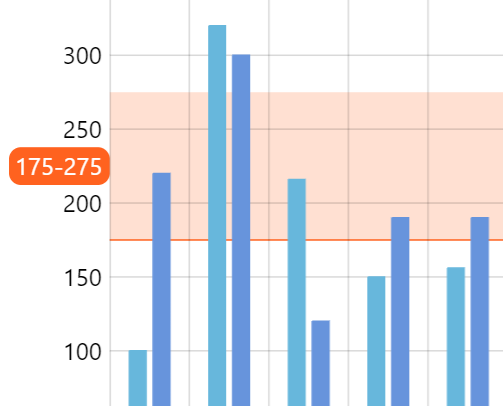
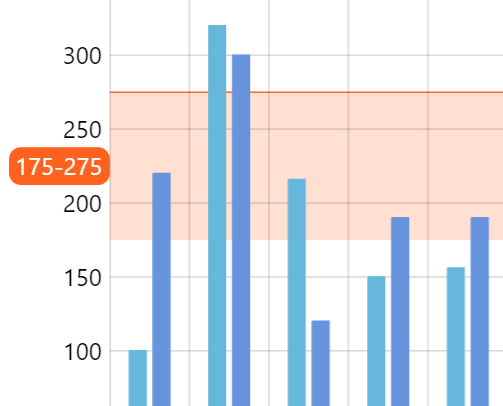
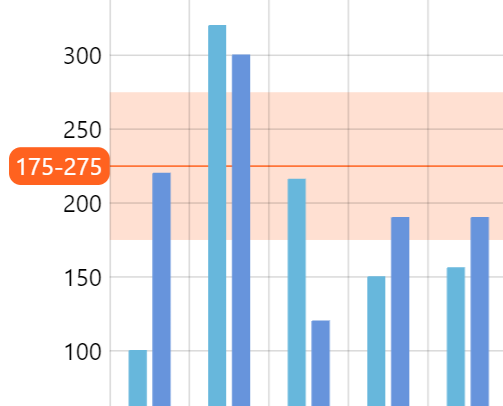
If we don’t need axis range to show any grid line, we can simply disable it via visible setting:
rangeDataItem.get("grid").set("visible", false);rangeDataItem.get("grid").set("visible", false);Unlike grid, fills are not visible by default, so we need to configure them using axisFill setting, which is a generic object of type Graphics.
rangeDataItem.get("axisFill").setAll({ fill: color, fillOpacity: 0.2, visible: true});rangeDataItem.get("axisFill").setAll({ fill: color, fillOpacity: 0.2, visible: true});Like grid and fill, a label is already pre-created with every axis data item. It’s accessible via label setting and is usually an object of type AxisLabel.
For it to become visible, at the very least we need to set its text setting, but can also use any AxisLabel setting:
rangeDataItem.get("label").setAll({ fill: am5.color(0xffffff), text: "Buy", background: am5.RoundedRectangle.new(root, { fill: color })});rangeDataItem.get("label").setAll({ fill: am5.color(0xffffff), text: "Buy", background: am5.RoundedRectangle.new(root, { fill: color })});Similarly to grid, it also supports location setting, which can be used to position it within value range of the axis range:
rangeDataItem.get("label").setAll({ fill: am5.color(0xffffff), text: "Buy", location: 1, background: am5.RoundedRectangle.new(root, { fill: color })});rangeDataItem.get("label").setAll({ fill: am5.color(0xffffff), text: "Buy", location: 1, background: am5.RoundedRectangle.new(root, { fill: color })});0 (zero) means label will be placed on the start value, 1 (one) - end value, while intermediate value will place the label relative to the actual range.
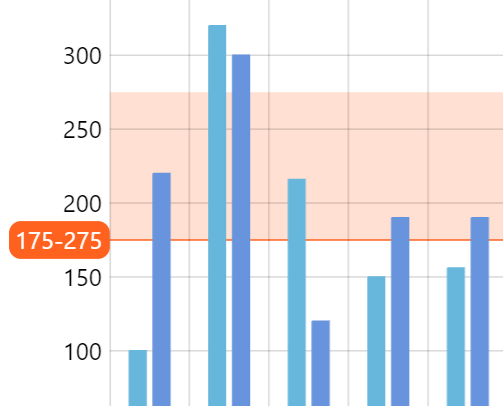
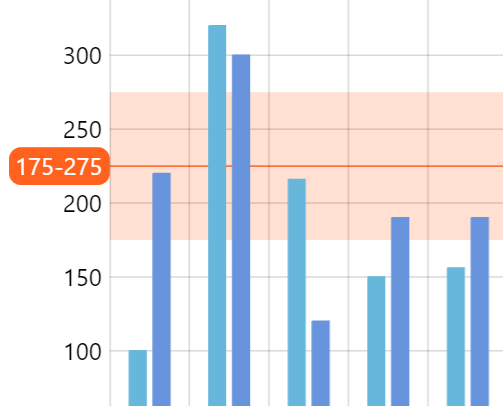
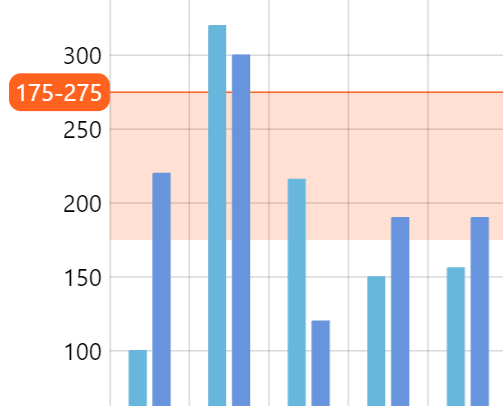
Bullet
Section titled “Bullet”It’s also possible to show a bullet with any element in it by setting range data item’s bullet property:
rangeDataItem.set("bullet", am5xy.AxisBullet.new(root, { sprite: am5.Picture.new(root, { width: 50, height: 50, centerX: am5.percent(0), centerY: am5.percent(100), src: "path/to/icon.svg" })}));rangeDataItem.set("bullet", am5xy.AxisBullet.new(root, { sprite: am5.Picture.new(root, { width: 50, height: 50, centerX: am5.percent(0), centerY: am5.percent(100), src: "path/to/icon.svg" })}));Axis bullets will be placed directly on the axis. If we would like to move those somewhere else, like for instance on top of plot container, we will need to adjust their y setting using an adapter:
let bullet = am5.Picture.new(root, {  width: 24,  height: 24,  centerX: am5.percent(0),  centerY: am5.percent(100),  src: bullet});
bullet.adapters.add("y", function(y, target) {  return -1 * chart.plotContainer.getPrivate("height");});
rangeDataItem.set("bullet", am5xy.AxisBullet.new(root, {  sprite: bullet}));
var bullet = am5.Picture.new(root, { width: 24, height: 24, centerX: am5.percent(0), centerY: am5.percent(100), src: bullet});
bullet.adapters.add("y", function(y, target) { return -1 * chart.plotContainer.getPrivate("height");});
rangeDataItem.set("bullet", am5xy.AxisBullet.new(root, { sprite: bullet}));For more information about bullets, refer to “Bullets” tutorial.
Grid/fill above series
Section titled “Grid/fill above series”Normally, axis range’s grid and fill will be drawn behind series.
If we’d like to move it in front of series, we can do so by setting above to true in a related data item:
// Create range axis data itemlet rangeDataItem = yAxis.makeDataItem({  value: 100,  above: true});
// Create a rangelet range = yAxis.createAxisRange(rangeDataItem);
// Create range axis data itemvar rangeDataItem = yAxis.makeDataItem({ value: 100, above: true});
// Create a rangevar range = yAxis.createAxisRange(rangeDataItem);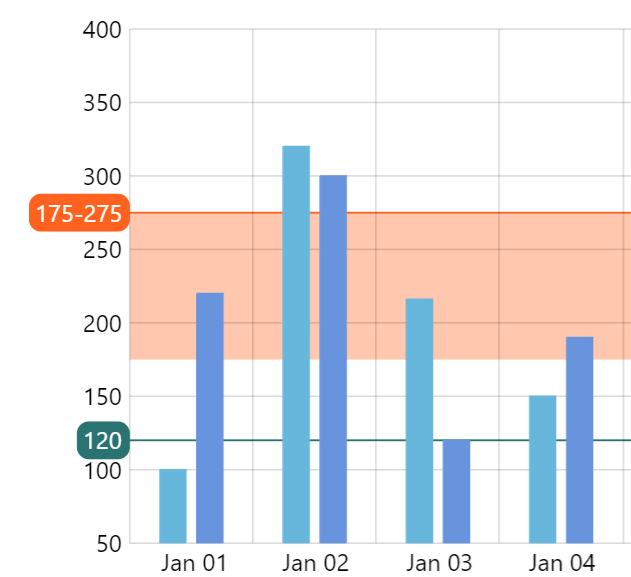
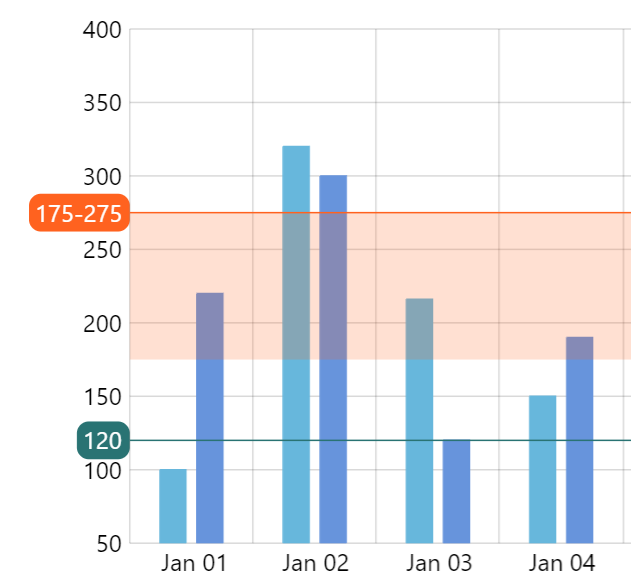
Including in min/max
Section titled “Including in min/max”Normally, axis ranges are not included in the calculation of the scope of values of the value axis.
If we’d like particular axis range to influence that scale, we can set affectsMinMax: true in its data item:
// Create range axis data itemlet rangeDataItem = yAxis.makeDataItem({  value: 100,  affectsMinMax: true});
// Create a rangelet range = yAxis.createAxisRange(rangeDataItem);
// Create range axis data itemvar rangeDataItem = yAxis.makeDataItem({ value: 100, affectsMinMax: true});
// Create a rangevar range = yAxis.createAxisRange(rangeDataItem);Series axis ranges
Section titled “Series axis ranges”Axis ranges can also be used to modify appearance of segments of series that fall within specific specific value/date/category range.
Creating a series axis range is similar to one of create a regular range with two exceptions:
createAxisRange()method should be called on a series, instead of the axis itself.- Series-specific settings need to be set on a range.
Creating series axis range
Section titled “Creating series axis range”// Create range axis data itemlet rangeDataItem = yAxis.makeDataItem({ value: 100, endvalue: 200});
// Create a range on serieslet range = series.createAxisRange(rangeDataItem);// Create range axis data itemvar rangeDataItem = yAxis.makeDataItem({ value: 100, endvalue: 200});
// Create a range on seriesvar range = series.createAxisRange(rangeDataItem);Setting series appearance
Section titled “Setting series appearance”Configuring appearance of a series segment within a range is done very similarly to configuring the series itself: via templates of specific elements.
For example we would configure column series columns, via its columns.template. Or line series via its strokes.template and fills.template.
Configuring series look within a range is identical to that, except we use element templates on an axis range object returned by series createAxisRange() method.
Here’s an example for ColumnSeries:
range.columns.template.setAll({ fill: am5.color(0xff621f), stroke: am5.color(0xff621f)});range.columns.template.setAll({ fill: am5.color(0xff621f), stroke: am5.color(0xff621f)});And here’s for LineSeries:
range.fills.template.setAll({ fill: am5.color(0xff621f), stroke: am5.color(0xff621f)});range.fills.template.setAll({ fill: am5.color(0xff621f), stroke: am5.color(0xff621f)});And here’s another demo that uses date axis for is range:
Elements on a series range
Section titled “Elements on a series range”Note that axis range elements (grid, fill, label, tick) is disabled by default on a series range. If you need to enable them, set visible: true on them:
rangeDataItem.get("grid").setAll({  visible: true});
rangeDataItem.get("axisFill").setAll({ fill: color, fillOpacity: 0.2, visible: true});rangeDataItem.get("grid").setAll({ visible: true});
rangeDataItem.get("axisFill").setAll({ fill: color, fillOpacity: 0.2, visible: true});Removing
Section titled “Removing”To remove an existing axis range, all we need to do is simply remove it from axisRanges list.
For simple axis ranges, we would do that on axis’ axisRanges:
axis.axisRanges.removeValue(range);axis.axisRanges.removeValue(range);For a range attached to series, we’d rather use series’ axisRanges:
series.axisRanges.removeValue(range);series.axisRanges.removeValue(range);