Panning and zooming the map
This tutorial looks at all the ways we can configure map panning and zooming.
Panning
Section titled “Panning”The map chart has two options related to panning it: panX and panY.
panX controls what happens when map is dragged horizontally, and panY is responsible for vertical drag behavior.
There are three options for both:
| Value | Comment |
|---|---|
"none" |
Do nothing. Map will remain static when dragged in the specific direction. |
"rotateX" or "rotateY" |
Will “rotate” the map, wrapping around contents like a globe would be rotated. |
"translateX" or "translateY" (default) |
Move contents of the map without changing appearance. |
Zooming
Section titled “Zooming”Zooming in and out the chart can be done in a variety of ways, e.g. with mouse wheel or pinch gestures, via API and some interactions on the map, or via zoom control.
Zoom steps
Section titled “Zoom steps”Whenever zoom operation kicks in (via API, zoom control, or mouse wheel spin) the map changes its zoom level by 2.
We can change map chart’s zoomStep setting to a lower value (making zoom in slower) or to a bigger value to make map zoom in deeper with each step.
Limiting zoom
Section titled “Limiting zoom”As a default behavior, map chart would not let zoom out beyond level 1 and zoom in beyond level 32.
We can change that using minZoomLevel and maxZoomLevel chart settings respectively.
let chart = root.container.children.push( am5map.MapChart.new(root, { panX: "rotateX", wheelY: "zoom", minZoomLevel: 0.5, maxZoomLevel: 16 }));var chart = root.container.children.push( am5map.MapChart.new(root, { panX: "rotateX", wheelY: "zoom", minZoomLevel: 0.5, maxZoomLevel: 16
}));Zooming via API
Section titled “Zooming via API”Map chart provides several methods for us to use to perform zoom operations:
| Method | Comment |
|---|---|
zoomToPoint() |
Centers and zooms the map to specific X/Y coordinates in pixels. |
zoomToGeoPoint() |
Centers and zooms the map to specific latitude/longitude coordinates and zoom level. |
zoomIn() |
Zooms the map in by zoomStep setting value. |
zoomOut() |
Zooms the map out by zoomStep setting value. |
zoomToDataItem() |
Zooms the map to a specific polygon (data item). |
zoomToDataItems() |
Zooms the map to so all the map polygon data items passed in an array parameter are visible. |
The following call will zoom the map to focus on Europe:
chart.zoomToGeoPoint({ longitude: 10, latitude: 52 }, 3.5);chart.zoomToGeoPoint({ longitude: 10, latitude: 52 }, 3.5);Zooming to clicked object
Section titled “Zooming to clicked object”To zoom the map to a polygon when it is clicked, set polygon series’ clickZoom setting to true:
let polygonSeries = chart.series.push( am5map.MapPolygonSeries.new(root, { geoJSON: am5geodata_worldLow, clickZoom: true }));var polygonSeries = chart.series.push( am5map.MapPolygonSeries.new(root, { geoJSON: am5geodata_worldLow, clickZoom: true }));Clicking the same polygon again, or the map’s background, zooms back to the home position. On a rotating map, such as a globe, the map also turns to bring the polygon to the center.
The polygon zoomed to is set as active, so we can highlight it with an “active” state:
polygonSeries.mapPolygons.template.states.create("active", { fill: am5.color(0x297373)});polygonSeries.mapPolygons.template.states.create("active", { fill: am5.color(0x297373)});For custom behavior, we can instead add a click event to map polygons, and zoom in on them by using map polygon series’ method zoomToDataItem():
polygonSeries.mapPolygons.template.events.on("click", function(ev) { polygonSeries.zoomToDataItem(ev.target.dataItem);});polygonSeries.mapPolygons.template.events.on("click", function(ev) { polygonSeries.zoomToDataItem(ev.target.dataItem);});Pre-zooming to polygon(s)
Section titled “Pre-zooming to polygon(s)”We can combine methods getDataItemById() and zoomToDataItems() to pre-zoom to a group of polygons.
The following code will pre-zoom on Scandinavia:
polygonSeries.events.on("datavalidated", function() { const zoomTargets = ["SE", "FI", "NO", "DK"]; const zoomDataItems = []; zoomTargets.forEach(function(id) { zoomDataItems.push(polygonSeries.getDataItemById(id)); }); polygonSeries.zoomToDataItems(zoomDataItems);});polygonSeries.events.on("datavalidated", function() { var zoomTargets = ["SE", "FI", "NO", "DK"]; var zoomDataItems = []; zoomTargets.forEach(function(id) { zoomDataItems.push(polygonSeries.getDataItemById(id)); }); polygonSeries.zoomToDataItems(zoomDataItems);});Mouse-wheel behavior
Section titled “Mouse-wheel behavior”Setting behavior
Section titled “Setting behavior”There are two separate settings for mouse wheel behavior: wheelX (controls what happens when wheel is spinned horizontally) and wheelY (what happens when wheel is spinned vertically).
With the following possible values:
| Value | Comment |
|---|---|
"none" |
Do nothing. Map will remain static when dragged in the specific direction. |
"rotateX" |
Will “rotate” the map horizontally, wrapping around contents like a globe would be rotated. |
"rotateY" |
Will “rotate” the map vertically, wrapping around contents like a globe would be rotated. |
"translateX" |
Move contents of the map horizontally without changing appearance. |
"translateY" |
Move contents of the map vertically without changing appearance. |
"zoom" |
Zoom the map while centering on the actual position of the mouse cursor. |
wheelY is set to "zoom" by default.
let chart = root.container.children.push( am5map.MapChart.new(root, { panX: "rotateX", wheelY: "zoom" }));var chart = root.container.children.push( am5map.MapChart.new(root, { panX: "rotateX", wheelY: "zoom" }));Sensitivity
Section titled “Sensitivity”Mouse wheel sensitivity can be adjusted with map chart’s wheelSensitivity setting.
With default at 1, the value can be increased or decreased to make chart zoom in faster or slower, respectively.
let chart = root.container.children.push( am5map.MapChart.new(root, { panX: "rotateX", wheelY: "zoom", wheelSensitivity: 0.7 }));var chart = root.container.children.push( am5map.MapChart.new(root, { panX: "rotateX", wheelY: "zoom", wheelSensitivity: 0.7 }));Control+scroll
Section titled “Control+scroll”Enabling mouse-wheel behavior will make the map zoom but may disrupt scrolling of the whole page when mouse cursor is over the chart.
The common practice is to enable zoomonly when CTRL key is pressed. To implement that we can disable all wheel behavior by default, and only enable it when CTRL key is down:
var chart = root.container.children.push(  am5map.MapChart.new(root, {    panX: "rotateX",    projection: am5map.geoNaturalEarth1(),    wheelY: "none"  }));
chart.events.on("wheel", function(ev) {  if (ev.originalEvent.ctrlKey) {    ev.originalEvent.preventDefault();    chart.set("wheelY", "zoom");  }  else {    chart.set("wheelY", "none");  }});
var chart = root.container.children.push( am5map.MapChart.new(root, { panX: "rotateX", projection: am5map.geoNaturalEarth1(), wheelY: "none" }));
chart.events.on("wheel", function(ev) { if (ev.originalEvent.ctrlKey) { ev.originalEvent.preventDefault(); chart.set("wheelY", "zoom"); } else { chart.set("wheelY", "none"); overlay.show(); overlay.setTimeout(function() { overlay.hide() }, 800); }});We can enhance this behavior with Google-like message over the chart when scroll is used without CTRL key pressed.
// Create curtain + message to show when wheel is used over chart without CTRLlet overlay = root.container.children.push(am5.Container.new(root, {  width: am5.p100,  height: am5.p100,  layer: 100,  visible: false}));
let curtain = overlay.children.push(am5.Rectangle.new(root, {  width: am5.p100,  height: am5.p100,  fill: am5.color(0x000000),  fillOpacity: 0.3}));
let message = overlay.children.push(am5.Label.new(root, {  text: "Use CTRL + Scroll to zoom",  fontSize: 30,  x: am5.p50,  y: am5.p50,  centerX: am5.p50,  centerY: am5.p50}));
chart.events.on("wheel", function(ev) {  // Show overlay when wheel is used over chart  if (ev.originalEvent.ctrlKey) {    ev.originalEvent.preventDefault();    chart.set("wheelY", "zoom");  }  else {    chart.set("wheelY", "none");    overlay.show();    overlay.setTimeout(function() {      overlay.hide()    }, 800);  }});
// Create curtain + message to show when wheel is used over chart without CTRLvar overlay = root.container.children.push(am5.Container.new(root, { width: am5.p100, height: am5.p100, layer: 100, visible: false}));
var curtain = overlay.children.push(am5.Rectangle.new(root, { width: am5.p100, height: am5.p100, fill: am5.color(0x000000), fillOpacity: 0.3}));
var message = overlay.children.push(am5.Label.new(root, { text: "Use CTRL + Scroll to zoom", fontSize: 30, x: am5.p50, y: am5.p50, centerX: am5.p50, centerY: am5.p50}));
chart.events.on("wheel", function(ev) { // Show overlay when wheel is used over chart if (ev.originalEvent.ctrlKey) { ev.originalEvent.preventDefault(); chart.set("wheelY", "zoom"); } else { chart.set("wheelY", "none"); overlay.show(); overlay.setTimeout(function() { overlay.hide() }, 800); }});Pinch zoom
Section titled “Pinch zoom”The map can be pinch-zoomed/panned on multi-touch devices, like phones, tables and touch-screen-enabled computers.
Should we want to disable it, we can use pinchZoom setting:
let chart = root.container.children.push( am5map.MapChart.new(root, { panX: "rotateX", pinchZoom: false }));var chart = root.container.children.push( am5map.MapChart.new(root, { panX: "rotateX", pinchZoom: false }));Double-click zoom
Section titled “Double-click zoom”Double-clicking will zoom in the map centered on the pointer’s position.
Double-clicking while holding SHIFT key down, will zoom out.
To disable this behavior, set Map chart’s setting doubleClickZoom: false.
let chart = root.container.children.push( am5map.MapChart.new(root, { panX: "rotateX", doubleClickZoom: false }));var chart = root.container.children.push( am5map.MapChart.new(root, { panX: "rotateX", doubleClickZoom: false }));Box-selection zoom
Section titled “Box-selection zoom”To enable zooming by selecting a box on the map, use boxZoom setting (default: "none").
The following boxZoom values are available:
| Value | Comment |
|---|---|
"none" |
Box-zoom is disabled (default). |
"drag" |
Select by pushing down on the map area and dragging. To use this option, panX and panY should be set to "none". |
"shift" |
Box-select will be active when SHIFT key is down. |
"ctrl" |
Box-select will be active when CTRL key is down. |
"alt" |
Box-select will be active when ALT key is down. |
let chart = root.container.children.push( am5map.MapChart.new(root, { panX: "rotateX", boxZoom: "shift" }));var chart = root.container.children.push( am5map.MapChart.new(root, { panX: "rotateX", boxZoom: "shift" }));To configure the box rectangle, use Map chart’s boxZoomSelection property which is an instance of Rectangle:
chart.boxZoomSelection.setAll({ fill: am5.color(0xff0000), fillOpacity: 0.2});chart.boxZoomSelection.setAll({ fill: am5.color(0xff0000), fillOpacity: 0.2});Panning outside viewport
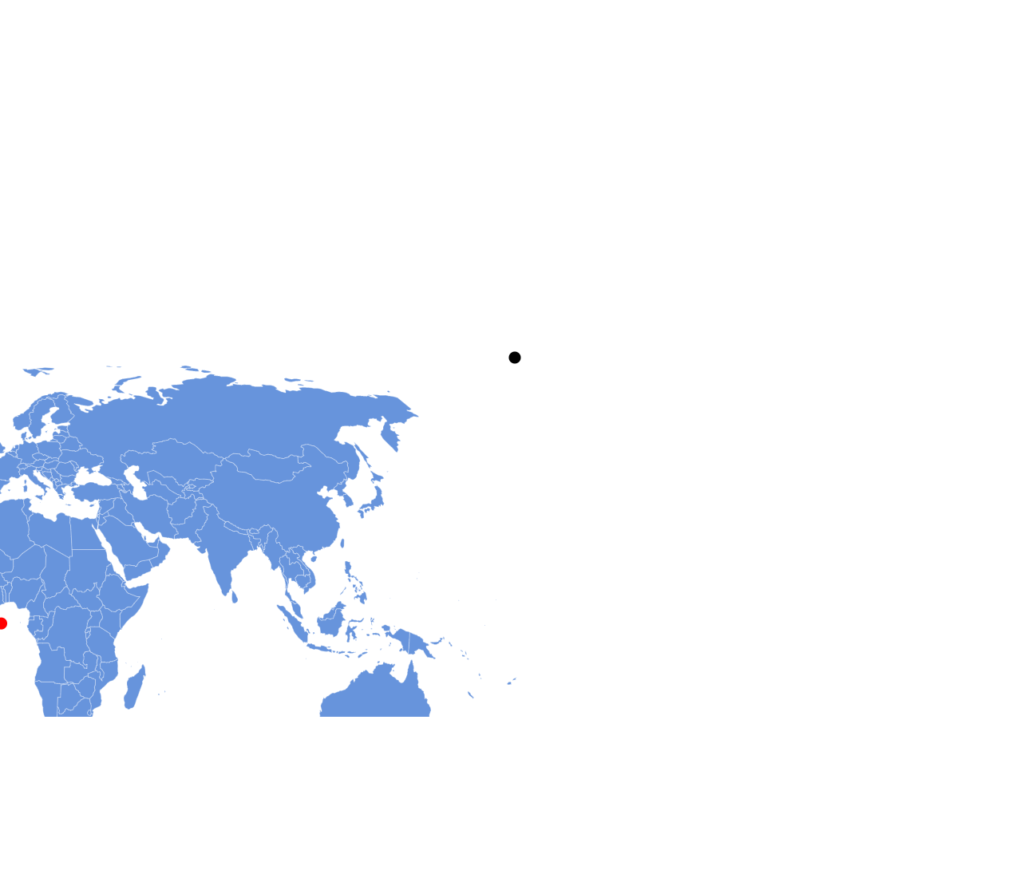
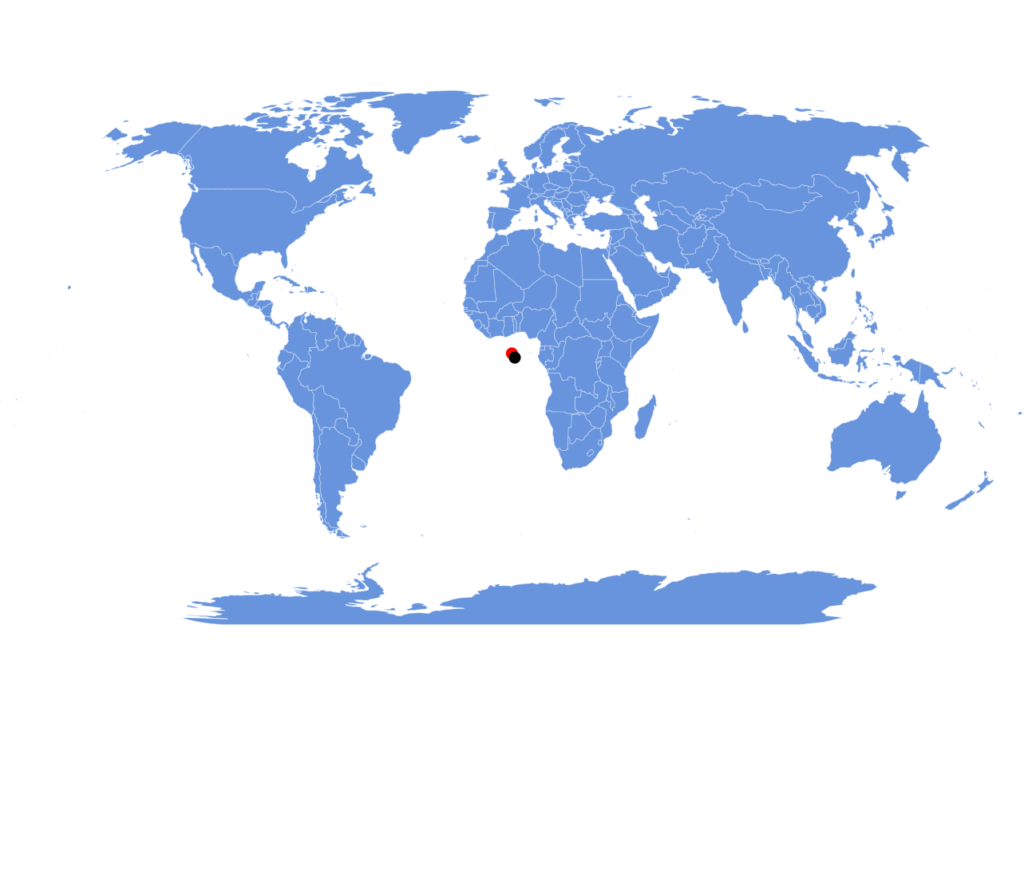
Section titled “Panning outside viewport”Chart will restrict how far outside its viewport map can be dragged out.
Basically, map chart would not allow map to be dragged in such way, that it would not cover or at least touch center of the chart container.
We can restrict it even further using chart’s setting: maxPanOut.
It accepts numeric values (default: 0.4) that mean relative size to map itself.
E.g. setting maxPanOut to 0.5 will mean that 50% of the map can be outside center of the chart container.
let chart = root.container.children.push( am5map.MapChart.new(root, { panX: "translateX", maxPanOut: 0.5 }));var chart = root.container.children.push( am5map.MapChart.new(root, { panX: "translateX", maxPanOut: 0.5 }));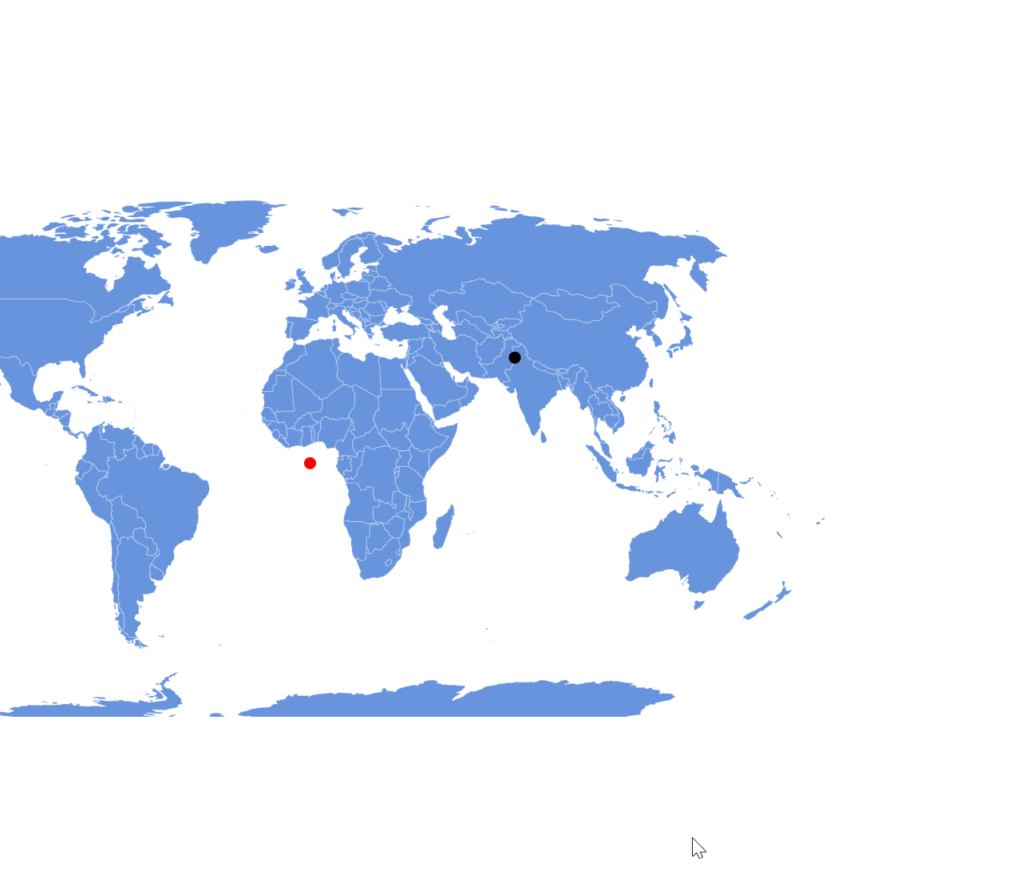
Initial position and zoom
Section titled “Initial position and zoom”Setting
Section titled “Setting”Map chart has two options for setting its initial/default position and zoom level: homeGeoPoint and homeZoomLevel respectively.
We can use those to set those to center around some latitude/longitude coordinates and zoom in automatically on start.
To have the map go to this home position once it loads, set autoHome: true. The following will position and zoom in the map to focus on Europe:
let chart = root.container.children.push( am5map.MapChart.new(root, { homeZoomLevel: 3.5, homeGeoPoint: { longitude: 10, latitude: 52 }, autoHome: true }));var chart = root.container.children.push( am5map.MapChart.new(root, { homeZoomLevel: 3.5, homeGeoPoint: { longitude: 10, latitude: 52 }, autoHome: true }));The move is animated if the chart has an animation duration set, e.g. by the Animated theme, and instant otherwise. Since it needs no code, it also works in JSON configs.
Initial rotation
Section titled “Initial rotation”If you have a rotating map, i.e. panX: "rotateX" and/or panY: "rotateY", you might also want to set initial (home) rotation point using homeRotationX and homeRotationY.
Both accept number values meaning longitude and latitude respectively.
let chart = root.container.children.push( am5map.MapChart.new(root, { homeRotationX: -74 }));var chart = root.container.children.push( am5map.MapChart.new(root, { homeRotationX: -74 }));The above code will start the map rotated to NYC in the middle.
Resetting position/level
Section titled “Resetting position/level”Via API
Section titled “Via API”Map can be reset to its initial position and zoom level by invoking map chart’s goHome() method:
chart.goHome();chart.goHome();Via background click
Section titled “Via background click”If polygon series has clickZoom enabled, clicking the background already zooms the map out.
Otherwise, we can add click event to the chart’s background and invoke goHome() method in it to zoom out the chart when user clicks on background (water):
chart.chartContainer.get("background").events.on("click", function() { chart.goHome();});chart.chartContainer.get("background").events.on("click", function() { chart.goHome();});Disabling zoom and pan
Section titled “Disabling zoom and pan”To completely disable all zoom and pan of the map, we need to set panX, panY, wheelX, and wheelY to "none", as well as pinchZoom to false:
var chart = root.container.children.push( am5map.MapChart.new(root, { panX: "none", panY: "none", wheelX: "none", wheelY: "none", pinchZoom: false }));var chart = root.container.children.push( am5map.MapChart.new(root, { panX: "none", panY: "none", wheelX: "none", wheelY: "none", pinchZoom: false }));Zoom control
Section titled “Zoom control”Adding zoom control
Section titled “Adding zoom control”Map chart supports built-in control that adds zooming chart via handy buttons.
To add it, simply instantiate a ZoomControl and set it to map chart’s zoomControl setting.
chart.set("zoomControl", am5map.ZoomControl.new(root, {}));chart.set("zoomControl", am5map.ZoomControl.new(root, {}));Configuring buttons
Section titled “Configuring buttons”Zoom control has two properties that hold button instances: minusButton and plusButton.
Both are elements of type Button.
Home button
Section titled “Home button”While not enabled by default, zoom control has a third button in it - Home - which when pressed will reset zoom/position of the map.
Home button is hidden by default. To enable it, set visible: true on zoom control’s homeButton property:
let zoomControl = chart.set("zoomControl", am5map.ZoomControl.new(root, {}));zoomControl.homeButton.set("visible", true);var zoomControl = chart.set("zoomControl", am5map.ZoomControl.new(root, {}));zoomControl.homeButton.set("visible", true);Positioning
Section titled “Positioning”The zoom control is placed in the right-bottom corner by default.
Its position is determined by 4 settings: x, centerX, y, and centerY.
Defaults look like this:
{ x: am5.p100, centerX: am5.p100, y: am5.p100, centerY: am5.p100,};x and centerX control control’s horizontal position, and its horizontal “center” respectively.
Similarly with “y” settings.
If we’d like to move the control to top-right, we could just override its “y” settings:
chart.set("zoomControl", am5map.ZoomControl.new(root, { y: am5.p0, centerY: am5.p0}));chart.set("zoomControl", am5map.ZoomControl.new(root, { y: am5.p0, centerY: am5.p0}));To move to upper-left, we’d need to override all four of the settings:
chart.set("zoomControl", am5map.ZoomControl.new(root, { x: am5.p0, centerX: am5.p0, y: am5.p0, centerY: am5.p0}));chart.set("zoomControl", am5map.ZoomControl.new(root, { x: am5.p0, centerX: am5.p0, y: am5.p0, centerY: am5.p0}));