Patterns
This tutorial looks at how we can create patterns to use for element fills ant outlines.
To apply a pattern to an element, we need to do two things:
- Create a pattern object.
- Assign it to element’s
fillPatternand/orstrokePattern.
Creating a pattern
Section titled “Creating a pattern”Pattern object is created using its new() method:
am5.LinePattern.new(root, { color: am5.color(0xffffff), rotation: 45, width: 200, height: 200});am5.LinePattern.new(root, { color: am5.color(0xffffff), rotation: 45, width: 200, height: 200});Basic pattern types
Section titled “Basic pattern types”Pattern class | Example |
|---|---|
|
|
|
|
|
|
|
|
|
|
|
|
|
|


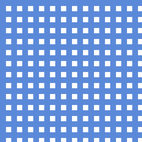
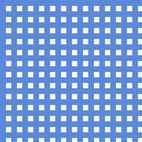




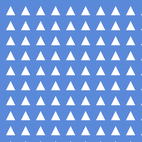
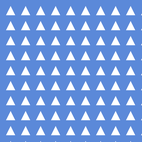




Patterns can be customized by applying rotation, gap, stroke, and other settings, which we’ll explore in a bit.
Setting pattern
Section titled “Setting pattern”To set a pattern fill on an element, we need to assign it to element’s fillPattern setting.
Similarly, to assign it to element’s stroke (line), we can use strokePattern.
columnSeries.columns.template.set("fillPattern", am5.LinePattern.new(root, { color: am5.color(0xffffff), angle: 45, width: 200, height: 200}));columnSeries.columns.template.set("fillPattern", am5.LinePattern.new(root, { color: am5.color(0xffffff), angle: 45, width: 200, height: 200}));Colors
Section titled “Colors”Primary color
Section titled “Primary color”To set a color and opacity for pattern shapes, we use its color and colorOpacity settings.
If those are not set, the pattern will inherit stroke and fill colors from the element it is applied to.
columnSeries.columns.template.set("fillPattern", am5.RectanglePattern.new(root, { color: am5.color(0xffffff), colorOpacity: 0.5}));columnSeries.columns.template.set("fillPattern", am5.RectanglePattern.new(root, { color: am5.color(0xffffff), colorOpacity: 0.5}));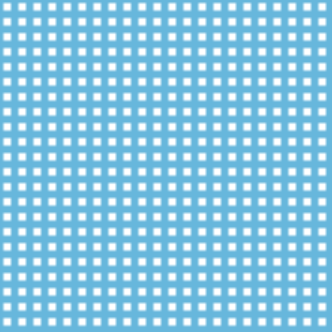


Fill color
Section titled “Fill color”Pattern will use color to color it shapes, but will leave gaps between them transparent.
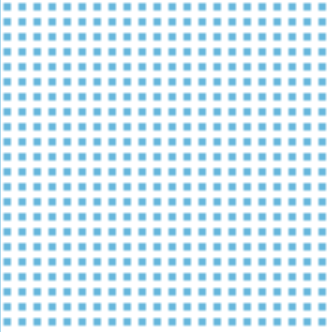
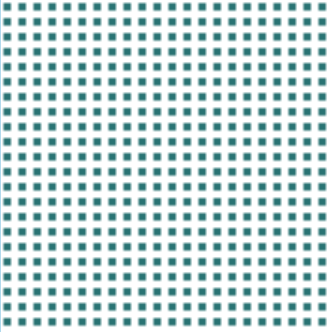
If we’d rather have that area filled, we can use pattern’s fill and fillOpacity settings.
We can also “invert” the color pattern, by setting fill but omitting the color setting.
columnSeries.columns.template.set("fillPattern", am5.RectanglePattern.new(root, { fill: am5.color(0xffffff), fillOpacity: 1}));columnSeries.columns.template.set("fillPattern", am5.RectanglePattern.new(root, { fill: am5.color(0xffffff), fillOpacity: 1}));
Color inheritance
Section titled “Color inheritance”If fill color is not set, pattern will have a transparent background.
In such case, any original fill that target object has - either via its own fill or fillGradient - will be visible through the pattern.
Sizing patterns
Section titled “Sizing patterns”Most patterns will try to auto-size themselves to fit the target element.
However, in some cases, you might need to manually size them. In such cases, we can use width and height settings:
columnSeries.columns.template.set("fillPattern", am5.RectanglePattern.new(root, { color: am5.color(0x297373), fill: am5.color(0xffffff), rotation: 45, width: 400, height: 400,}));columnSeries.columns.template.set("fillPattern", am5.RectanglePattern.new(root, { color: am5.color(0x297373), fill: am5.color(0xffffff), rotation: 45, width: 400, height: 400,}));

Rotation
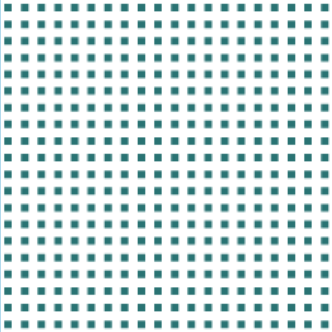
Section titled “Rotation”By setting rotation on a pattern, we can create wholly distinctive patterns:
columnSeries.columns.template.set("fillPattern", am5.RectanglePattern.new(root, { fill: am5.color(0xffffff), fillOpacity: 1, rotation: 45}));columnSeries.columns.template.set("fillPattern", am5.RectanglePattern.new(root, { fill: am5.color(0xffffff), fillOpacity: 1, rotation: 45}));



Rotating line pattern
Section titled “Rotating line pattern”A better way to rotate a LinePattern is to use its angle setting (instead of rotation). It’s faster than basic rotation as it will draw lines at specific angle instead of rotating the numerous tiles.
columnSeries.columns.template.set("fillPattern", am5.LinePattern.new(root, { color: am5.color(0xffffff), angle: 45, width: 200, height: 200}));columnSeries.columns.template.set("fillPattern", am5.LinePattern.new(root, { color: am5.color(0xffffff), angle: 45, width: 200, height: 200}));Rotating rectangles
Section titled “Rotating rectangles”To turn rectangles into diamonds (or place them at any other angle than 0), set its rotateShapes: true in addition to rotation. It will rotate each individual rectangle rather than the whole pattern tile, which is faster.
columnSeries.columns.template.set("fillPattern", am5.RectanglePattern.new(root, { fill: am5.color(0xffffff), fillOpacity: 1, rotation: 45, rotateShapes: true}));columnSeries.columns.template.set("fillPattern", am5.RectanglePattern.new(root, { fill: am5.color(0xffffff), fillOpacity: 1, rotation: 45, rotateShapes: true}));Repetition
Section titled “Repetition”Normally, pattern repeats the tiles in all directions, until all of the target area is filled.
The setting repetition can be used to change that.
Available values are: "repeat" (default), "repeat-x", "repeat-y", and "no-repeat".
Configuration
Section titled “Configuration”Each pattern type also has specific configuration settings.
For example, gap setting is available in all pattern types, and is used to set spacing between elements: lines, rectangles, or other shapes.
columnSeries.columns.template.set("fillPattern", am5.LinePattern.new(root, { color: am5.color(0xffffff), angle: 45, width: 200, height: 200, gap: 10}));columnSeries.columns.template.set("fillPattern", am5.LinePattern.new(root, { color: am5.color(0xffffff), angle: 45, width: 200, height: 200, gap: 10}));


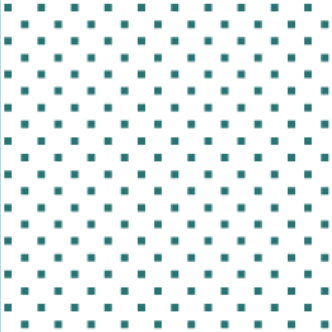
There are also type specific settings, e.g. checkered (default: false) for rectangle and circle patterns:
columnSeries.columns.template.set("fillPattern", am5.RectanglePattern.new(root, { color: am5.color(0xffffff), checkered: true}));columnSeries.columns.template.set("fillPattern", am5.RectanglePattern.new(root, { color: am5.color(0xffffff), checkered: true}));
For more configuration options, visit following class references:
Examples
Section titled “Examples”The below example uses CirclePattern and LinePattern:
And this one uses a PathPattern to use SVG paths as a fill pattern:
Image patterns
Section titled “Image patterns”Creating an image pattern
Section titled “Creating an image pattern”We can also use any image (external or in-line) as a pattern using PicturePattern.
It requires its setting src to be set either to a URL of the image:
columnSeries.columns.template.set("fillPattern", am5.PicturePattern.new(root, { src: "/path/to/pattern.svg"}));columnSeries.columns.template.set("fillPattern", am5.PicturePattern.new(root, { src: "/path/to/pattern.svg"}));Or it can also contain a data URL (in-line) info:
columnSeries.columns.template.set("fillPattern", am5.PicturePattern.new(root, { src: "data:image/svg+xml;base64,....."}));columnSeries.columns.template.set("fillPattern", am5.PicturePattern.new(root, { src: "data:image/svg+xml;base64,....."}));Sizing and fitting
Section titled “Sizing and fitting”There are a few ways to size the pattern using fit setting, which accepts three values:
"image"(default) - the pattern will automatically size itself using image’s native dimensions."pattern"- will size image using pattern’swidthandheightsettings."none"- will size pattern tiles according towidthandheightsettings, but will let the image use own dimensions. Using this option is risky since it may produce non-fitting tiles if image is larger than the tile.
The following code will make pattern use custom dimensions, effectively sizing the image:
columnSeries.columns.template.set("fillPattern", am5.PicturePattern.new(root, { src: "/path/to/pattern.svg", fit: "pattern", width: 100, height: 100}));columnSeries.columns.template.set("fillPattern", am5.PicturePattern.new(root, { src: "/path/to/pattern.svg", fit: "pattern", width: 100, height: 100}));Here’s an example:
Grain patterns
Section titled “Grain patterns”Grain pattern is another special kind of pattern that can complement regular fills with overhead pixel noise to add that additional fuzzy look.
It works by applying a random assortment of semi-transparent dots over existing fills.
Adding grain pattern
Section titled “Adding grain pattern”As with other patterns, we use fillPattern to add grain pattern:
series.slices.template.setAll({ fillPattern: am5.GrainPattern.new(root, {})});series.slices.template.setAll({ fillPattern: am5.GrainPattern.new(root, {})});Configuring noise pixels
Section titled “Configuring noise pixels”There are a few configuration options we can use to tweak appearance of the noise pixels.
| Setting | Value range | Default | Comment |
|---|---|---|---|
size |
1 to X |
1 |
Size of a grain in pixels. |
density |
0 to 1 |
1 |
Density of pixels. The closer number to 1 the more dense the noise.0 means no noise. |
minOpacity |
0 to 1 |
0 |
Minimum opacity of a noise pixel. |
maxOpacity |
0 to 1 |
0.3 |
Maximum opacity of a noise pixel. |
colors |
N/A | An array of Color objects to use for noise pixels. Will use color setting or black if colors is not set. |
|
horizontalGap |
0 to X |
Horizontal gap between noise pixels measured in size. |
|
verticalGap |
0 to X |
Vertical gap between noise pixels measured in size. |
Combining with gradients
Section titled “Combining with gradients”We can also combine grain pattern with gradient fills as both fillGradient and fillPattern will be honored:
series.slices.template.setAll({ fillGradient: am5.RadialGradient.new(root, { stops: [ { offset: 0.5 }, { brighten: -0.5 }] }), fillPattern: am5.GrainPattern.new(root, {})});series.slices.template.setAll({ fillGradient: am5.RadialGradient.new(root, { stops: [ { offset: 0.5 }, { brighten: -0.5 }] }), fillPattern: am5.GrainPattern.new(root, {})});Pattern sets
Section titled “Pattern sets”Pattern sets, similar to color sets, are collection patterns that can be used to auto-assign pattern fills to series elements, like slices, series, nodes, etc.
Pattern sets are created by instantiating a PatternSet class. It will have a predefined list of some distinctive patterns, which, upon need, can be overridden (see later in this section).
XY chart
Section titled “XY chart”An XYChart can auto-assign fillPattern to each series added to it.
All we need to do is to set patterns setting with a value holding a reference to a PatternSet object:
let chart = root.container.children.push(am5xy.XYChart.new(root, { patterns: am5.PatternSet.new(root, {})}));var chart = root.container.children.push(am5xy.XYChart.new(root, { patterns: am5.PatternSet.new(root, {})}));Pie chart
Section titled “Pie chart”In a PieChart (or any other Percent chart type), instead of chart, we set patterns to its series, because we will need to assign a different pattern to each individual item (slice):
let series = chart.series.push(am5percent.PieSeries.new(root, { valueField: "sales", categoryField: "country", patterns: am5.PatternSet.new(root, {})}));var series = chart.series.push(am5percent.PieSeries.new(root, { valueField: "sales", categoryField: "country", patterns: am5.PatternSet.new(root, {})}));Hierarchy charts
Section titled “Hierarchy charts”Similarly, in Hierarchy charts (Force-directed, Treemap), we set patterns directly on series:
let series = container.children.push( am5hierarchy.Treemap.new(root, { valueField: "value", categoryField: "name", childDataField: "children", patterns: am5.PatternSet.new(root, {}) }));var series = container.children.push( am5hierarchy.Treemap.new(root, { valueField: "value", categoryField: "name", childDataField: "children", patterns: am5.PatternSet.new(root, {}) }));Flow charts
Section titled “Flow charts”For a Flow chart (e.g. Sankey, Chord), we assign patterns to its nodes template:
series.nodes.set("patterns", am5.PatternSet.new(root, {}));series.nodes.set("patterns", am5.PatternSet.new(root, {}));Customizing colors
Section titled “Customizing colors”The default patterns from the set will use a light interface stroke color for their elements (lines, squares, etc.) and will have no fill, so that original fill of the target element is visible.
If you are using a dark theme, it will use its dark stroke interface color instead.
To override the default element color, we can use pattern set’s color setting:
let series = chart.series.push(am5percent.PieSeries.new(root, { valueField: "sales", categoryField: "country", patterns: am5.PatternSet.new(root, { color: am5.color(0x000000) })}));var series = chart.series.push(am5percent.PieSeries.new(root, { valueField: "sales", categoryField: "country", patterns: am5.PatternSet.new(root, { color: am5.color(0x000000) })}));Custom pattern list
Section titled “Custom pattern list”We can also override a default list of patterns with our own, by setting set’s patterns with an array of Pattern objects.
let series = chart.series.push(am5percent.PieSeries.new(root, { valueField: "sales", categoryField: "country", patterns: am5.PatternSet.new(root, { patterns: [ am5.LinePattern.new(root, { color: am5.color(0xffffff), rotation: 45, width: 200, height: 200, gap: 10 }), am5.RectanglePattern.new(root, { color: am5.color(0xffffff), checkered: true }) ] })}));var series = chart.series.push(am5percent.PieSeries.new(root, { valueField: "sales", categoryField: "country", patterns: am5.PatternSet.new(root, { patterns: [ am5.LinePattern.new(root, { color: am5.color(0xffffff), rotation: 45, width: 200, height: 200, gap: 10 }), am5.RectanglePattern.new(root, { color: am5.color(0xffffff), checkered: true }) ] })}));