Dropdown list control
It’s a generic control that can be populated with custom items for user to choose from, allowing enhancing stock toolbar with proprietary functionality.
Adding
Section titled “Adding”Like any other control, it should be instantiated using new() syntax, and pushed into toolbar’s controls list:
// Add custom dropdownlet myDropdown = am5stock.DropdownListControl.new(root, {  stockChart: stockChart});
// Add toolbarlet toolbar = am5stock.StockToolbar.new(root, {  container: document.getElementById("chartcontrols"),  stockChart: stockChart,  controls: [    myDropdown  ]});
// Add custom dropdownlet myDropdown = am5stock.DropdownListControl.new(root, { stockChart: stockChart});
// Add toolbarvar toolbar = am5stock.StockToolbar.new(root, { container: document.getElementById("chartcontrols"), stockChart: stockChart, controls: [ myDropdown ]});This will add a control, but it won’t be useful just yet. We still need to:
- Add items to the list.
- Set up an event to handle selections.
Populating the list
Section titled “Populating the list”To add items to the list, we need to supply an array of objects that correspond to IDropdownListItem interface.
Basic labels
Section titled “Basic labels”While there are a number of options available for each list item, the two required ones are: id and label.
id- a unique ID of the element. It will be used to identify chosen item internally, and in DOM.label- a textual label to display.
// Add custom dropdownlet myDropdown = am5stock.DropdownListControl.new(root, {  stockChart: stockChart,  items: [{    id: "id1",    label: "First choice"  }, {    id: "id2",    label: "Second choice"  }, {    id: "id3",    label: "Third choice"  }]});
// Add toolbarlet toolbar = am5stock.StockToolbar.new(root, {  container: document.getElementById("chartcontrols"),  stockChart: stockChart,  controls: [    myDropdown  ]});
// Add custom dropdownvar myDropdown = am5stock.DropdownListControl.new(root, { stockChart: stockChart, items: [{ id: "id1", label: "First choice" }, { id: "id2", label: "Second choice" }, { id: "id3", label: "Third choice" }]});
// Add toolbarvar toolbar = am5stock.StockToolbar.new(root, { container: document.getElementById("chartcontrols"), stockChart: stockChart, controls: [ myDropdown ]});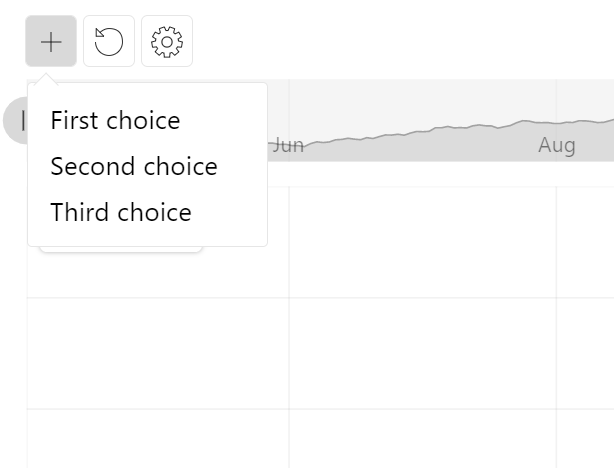
Sub-labels
Section titled “Sub-labels”Just like we are using label property of a list item to set main label, we can also add a second line using subLabel:
// Add custom dropdownlet myDropdown = am5stock.DropdownListControl.new(root, {  stockChart: stockChart,  items: [{    id: "id1",    label: "First choice",    subLabel: "Choose this first"  }, {    id: "id2",    label: "Second choice",    subLabel: "Another alternative for us to choose from"  }, {    id: "id3",    label: "Third choice",    subLabel: "The last resort"  }]});
// Add toolbarlet toolbar = am5stock.StockToolbar.new(root, {  container: document.getElementById("chartcontrols"),  stockChart: stockChart,  controls: [    myDropdown  ]});
// Add custom dropdownvar myDropdown = am5stock.DropdownListControl.new(root, { stockChart: stockChart, items: [{ id: "id1", label: "First choice", subLabel: "Choose this first" }, { id: "id2", label: "Second choice", subLabel: "Another alternative for us to choose from" }, { id: "id3", label: "Third choice", subLabel: "The last resort" }]});
// Add toolbarvar toolbar = am5stock.StockToolbar.new(root, { container: document.getElementById("chartcontrols"), stockChart: stockChart, controls: [ myDropdown ]});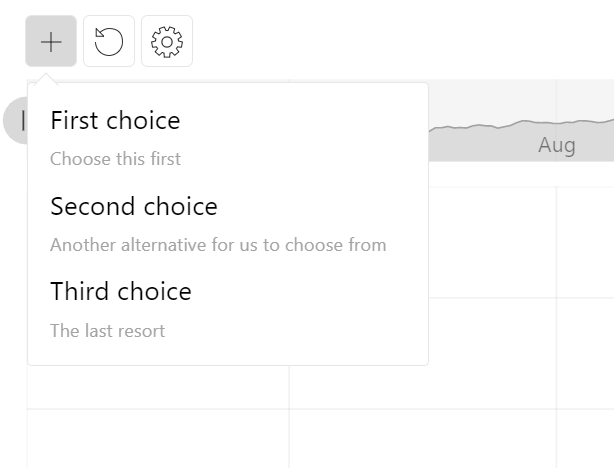
Headings
Section titled “Headings”If we need to display a non-selectable item, such as heading, we can use className property to apply specific class names.
amCharts comes with a pre-defined CSS classes, that can be used for such occasions: "am5stock-list-info am5stock-list-heading":
// Add custom dropdownlet myDropdown = am5stock.DropdownListControl.new(root, {  stockChart: stockChart,  items: [{    id: "heading1",    label: "Choices",    className: "am5stock-list-info am5stock-list-heading"  }, {    id: "id1",    label: "First choice",    subLabel: "Choose this first"  }, {    id: "id2",    label: "Second choice",    subLabel: "Another alternative for us to choose from"  }, {    id: "id3",    label: "Third choice",    subLabel: "The last resort"  }]});
// Add toolbarlet toolbar = am5stock.StockToolbar.new(root, {  container: document.getElementById("chartcontrols"),  stockChart: stockChart,  controls: [    myDropdown  ]});
// Add custom dropdownvar myDropdown = am5stock.DropdownListControl.new(root, { stockChart: stockChart, items: [{ id: "heading1", label: "Choices", className: "am5stock-list-info am5stock-list-heading" }, { id: "id1", label: "First choice", subLabel: "Choose this first" }, { id: "id2", label: "Second choice", subLabel: "Another alternative for us to choose from" }, { id: "id3", label: "Third choice", subLabel: "The last resort" }]});
// Add toolbarvar toolbar = am5stock.StockToolbar.new(root, { container: document.getElementById("chartcontrols"), stockChart: stockChart, controls: [ myDropdown ]});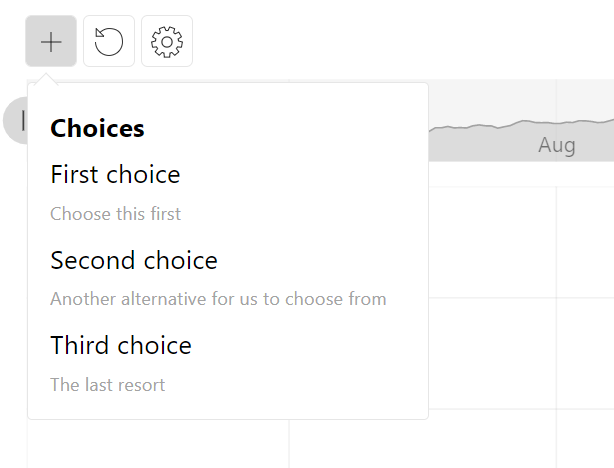
Form fields
Section titled “Form fields”Besides text labels, an item can contain form elements like radio and check-boxes.
The type of the form element is determined via item’s form property. Currently it supports only two values: "radio" and "checkbox".
Besides form, it also provides two additional properties that are related to form fields:
value- a text value attribute of the checkbox.checked- a Boolean value indicating whether radio/checkbox is checked on by default.
Please note that radio items that need to belong to the same group must have the same id set.
// Add custom dropdownlet myDropdown = am5stock.DropdownListControl.new(root, {  stockChart: stockChart,  items: [{    id: "heading1",    label: "Choices",    className: "am5stock-list-info am5stock-list-heading"  }, {    id: "id1",    label: "First choice",    subLabel: "Choose this first"  }, {    id: "id2",    label: "Second choice",    subLabel: "Another alternative for us to choose from"  }, {    id: "id3",    label: "Third choice",    subLabel: "The last resort"  }, {    id: "heading2",    label: "Options",    className: "am5stock-list-info am5stock-list-heading"  }, {    id: "check1",    label: "Enable option #1",    form: "checkbox",    value: "1",    checked: true  }, {    id: "heading3",    label: "Types",    className: "am5stock-list-info am5stock-list-heading"  }, {    id: "type1",    label: "Type #1",    form: "radio",    value: "1",    checked: true  }, {    id: "type2",    label: "Type #2",    form: "radio",    value: "2"  }]});
// Add toolbarlet toolbar = am5stock.StockToolbar.new(root, {  container: document.getElementById("chartcontrols"),  stockChart: stockChart,  controls: [    myDropdown  ]});
// Add custom dropdownvar myDropdown = am5stock.DropdownListControl.new(root, { stockChart: stockChart, items: [{ id: "heading1", label: "Choices", className: "am5stock-list-info am5stock-list-heading" }, { id: "id1", label: "First choice", subLabel: "Choose this first" }, { id: "id2", label: "Second choice", subLabel: "Another alternative for us to choose from" }, { id: "id3", label: "Third choice", subLabel: "The last resort" }, { id: "heading2", label: "Options", className: "am5stock-list-info am5stock-list-heading" }, { id: "check1", label: "Enable option #1", form: "checkbox", value: "1", checked: true }, { id: "heading3", label: "Types", className: "am5stock-list-info am5stock-list-heading" }, { id: "type1", label: "Type #1", form: "radio", value: "1", checked: true }, { id: "type2", label: "Type #2", form: "radio", value: "2" }]});
// Add toolbarvar toolbar = am5stock.StockToolbar.new(root, { container: document.getElementById("chartcontrols"), stockChart: stockChart, controls: [ myDropdown ]});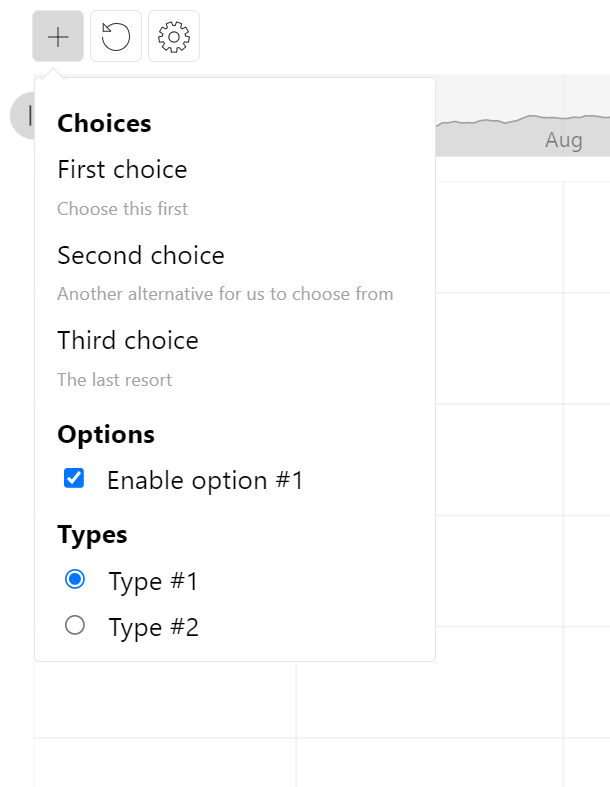
Name of the control
Section titled “Name of the control”Default name
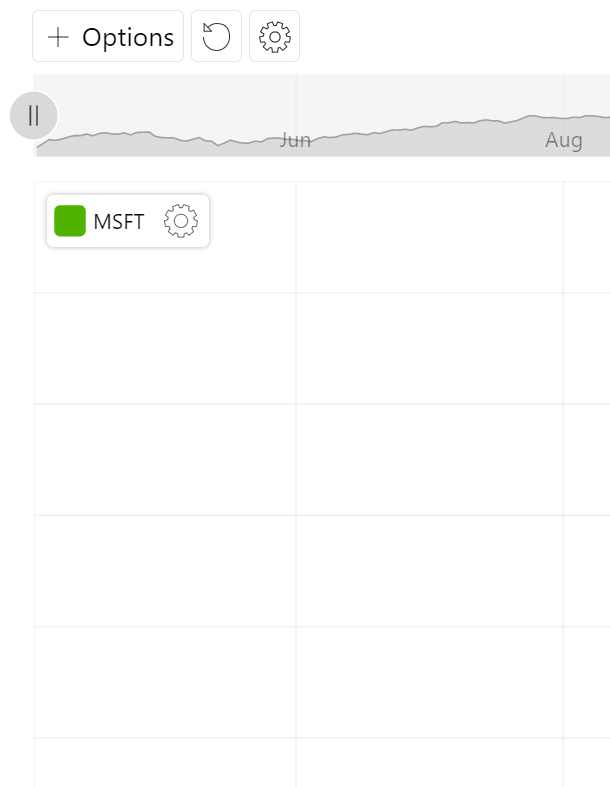
Section titled “Default name”By default, control will be represented with just an icon.
We can also set its name setting to supply a text label next to the icon:
let myDropdown = am5stock.DropdownListControl.new(root, { stockChart: stockChart, name: "Options", items: [{ id: "id1", label: "First choice" }, { id: "id2", label: "Second choice" }, { id: "id3", label: "Third choice" }]});var myDropdown = am5stock.DropdownListControl.new(root, { stockChart: stockChart, name: "Options", items: [{ id: "id1", label: "First choice" }, { id: "id2", label: "Second choice" }, { id: "id3", label: "Third choice" }]});Selectable or fixed name
Section titled “Selectable or fixed name”Once an item is chosen from the list, it will replace default name.
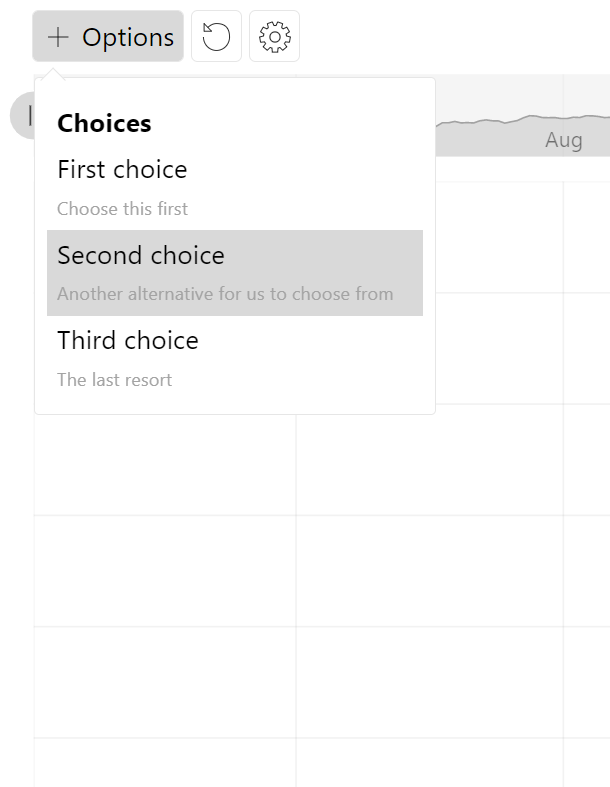
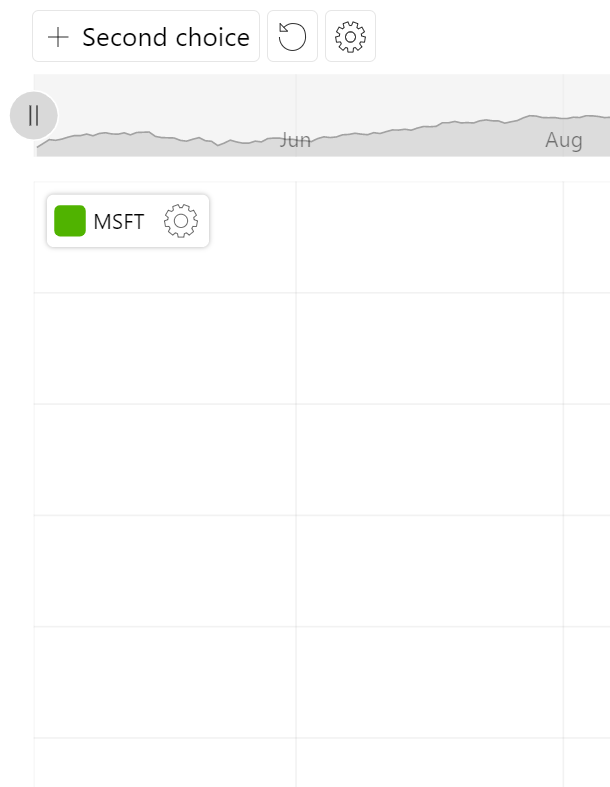
If we’d like our control button to keep the original name (or no remain label-less), we can set control’s fixedLabel: true setting.
let myDropdown = am5stock.DropdownListControl.new(root, { stockChart: stockChart, name: "Options", fixedLabel: true, items: [{ id: "id1", label: "First choice" }, { id: "id2", label: "Second choice" }, { id: "id3", label: "Third choice" }]});var myDropdown = am5stock.DropdownListControl.new(root, { stockChart: stockChart, name: "Options", fixedLabel: true, items: [{ id: "id1", label: "First choice" }, { id: "id2", label: "Second choice" }, { id: "id3", label: "Third choice" }]});Searchable list
Section titled “Searchable list”Enabling search
Section titled “Enabling search”We can also enable search in the list by setting searchable: true in control’s settings:
let myDropdown = am5stock.DropdownListControl.new(root, { stockChart: stockChart, name: "Options", fixedLabel: true, searchable: true, items: [{ id: "id1", label: "First choice" }, { id: "id2", label: "Second choice" }, { id: "id3", label: "Third choice" }]});var myDropdown = am5stock.DropdownListControl.new(root, { stockChart: stockChart, name: "Options", fixedLabel: true, searchable: true, items: [{ id: "id1", label: "First choice" }, { id: "id2", label: "Second choice" }, { id: "id3", label: "Third choice" }]});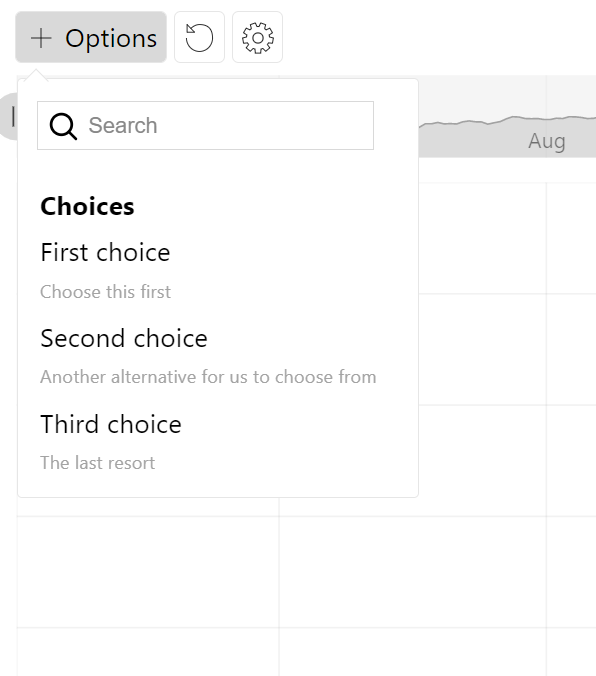
Dynamic search results
Section titled “Dynamic search results”Typing in the search box, will automatically filter the list by looking for text appearances among item labels and sub-labels.
We can also supply a custom function via searchCallback setting.
It must be a function that will receive a search query, and which returns an array of list items matching that query.
let myDropdown = am5stock.DropdownListControl.new(root, { stockChart: stockChart, name: "Options", fixedLabel: true, searchable: true, searchCallback: function(query) { // ... }, items: [{ id: "id1", label: "First choice" }, { id: "id2", label: "Second choice" }, { id: "id3", label: "Third choice" }]});var myDropdown = am5stock.DropdownListControl.new(root, { stockChart: stockChart, name: "Options", fixedLabel: true, searchable: true, searchCallback: function(query) { // ... }, items: [{ id: "id1", label: "First choice" }, { id: "id2", label: "Second choice" }, { id: "id3", label: "Third choice" }]});Events
Section titled “Events”List item selected
Section titled “List item selected”To catch the moment user chooses something from the list, we’ll use control’s selected event:
let myDropdown = am5stock.DropdownListControl.new(root, {  stockChart: stockChart,  items: [{    id: "id1",    label: "First choice"  }, {    id: "id2",    label: "Second choice"  }, {    id: "id3",    label: "Third choice"  }]});
myDropdown.events.on("selected", function(ev) {  // An item selected  console.log(ev.item)});
var myDropdown = am5stock.DropdownListControl.new(root, { stockChart: stockChart, items: [{ id: "id1", label: "First choice" }, { id: "id2", label: "Second choice" }, { id: "id3", label: "Third choice" }]});
myDropdown.events.on("selected", function(ev) { // An item selected console.log(ev.item)});Radio/checkbox checked
Section titled “Radio/checkbox checked”To catch an event when some form element is interacted with, we will use changed event on the control’s list element:
let myDropdown = am5stock.DropdownListControl.new(root, {  stockChart: stockChart,  items: [{    id: "id1",    label: "First choice"  }, {    id: "id2",    label: "Second choice"  }, {    id: "id3",    label: "Third choice"  }]});
myDropdown.getPrivate("dropdown").events.on("changed", function(ev) {  // Form field changed  console.log(ev);});
var myDropdown = am5stock.DropdownListControl.new(root, { stockChart: stockChart, items: [{ id: "id1", label: "First choice" }, { id: "id2", label: "Second choice" }, { id: "id3", label: "Third choice" }]});
myDropdown.getPrivate("dropdown").events.on("changed", function(ev) { // Form field changed console.log(ev);});