Gauge charts
This tutorial will address how to build gauges using radar chart components.
Creating chart
Section titled “Creating chart”In amCharts 5, we use radar chart to create gauges.
That means that the process of creating a gauge is identical as creating a radar chart:
Loading required modules
Section titled “Loading required modules”import * as am5 from "@amcharts/amcharts5";import * as am5xy from "@amcharts/amcharts5/xy";import * as am5radar from "@amcharts/amcharts5/radar";<script src="https://cdn.amcharts.com/lib/5/index.js"></script><script src="https://cdn.amcharts.com/lib/5/xy.js"></script><script src="https://cdn.amcharts.com/lib/5/radar.js"></script>Creating chart instance
Section titled “Creating chart instance”let root = am5.Root.new("chartdiv");let chart = root.container.children.push( am5radar.RadarChart.new(root, {}));var root = am5.Root.new("chartdiv");var chart = root.container.children.push( am5radar.RadarChart.new(root, {}));Adding axes
Section titled “Adding axes”Gauges are one-dimensional chart, that’s why we will only need one circular axis here.
We can use any axis type in gauge/radar, by pushing it into chart’s xAxes list:
let axis = chart.xAxes.push( am5xy.ValueAxis.new(root, { renderer: am5radar.AxisRendererCircular.new(root, {}) }));var axis = chart.xAxes.push( am5xy.ValueAxis.new(root, { renderer: am5radar.AxisRendererCircular.new(root, {}) }));Axis scale
Section titled “Axis scale”Since gauges do not have any actual series, its axis can’t calculate it’s own scale, so we will need to set it manually using axis’ min and max settings:
let axis = chart.xAxes.push( am5xy.ValueAxis.new(root, { min: 0, max: 100, renderer: am5radar.AxisRendererCircular.new(root, {}) }));var axis = chart.xAxes.push( am5xy.ValueAxis.new(root, { min: 0, max: 100, renderer: am5radar.AxisRendererCircular.new(root, {}) }));Grid and ticks
Section titled “Grid and ticks”Grid and ticks can be configured using like on any other axis: via its grid.template and ticks.template:
// Create axis rendererlet axisRenderer = am5radar.AxisRendererCircular.new(root, {  strokeOpacity: 0.1,  minGridDistance: 30});
// Enable ticksaxisRenderer.ticks.template.setAll({  visible: true,  strokeOpacity: 0.5});
// Disable gridaxisRenderer.grid.template.setAll({  visible: false});
// Create axis renderervar axisRenderer = am5radar.AxisRendererCircular.new(root, { strokeOpacity: 0.1, minGridDistance: 30});
// Enable ticksaxisRenderer.ticks.template.setAll({ visible: true, strokeOpacity: 0.5});
// Disable gridaxisRenderer.grid.template.setAll({ visible: false});For more information about configuration of grid and ticks, refer to “Axes: Grid” and “Axes: Ticks”.
Axis configuration
Section titled “Axis configuration”For more information on how to configure axes - labels, ticks, grid, individual radii and angles - refer to the “Radar axes” tutorial.
Start/end angles
Section titled “Start/end angles”Gauges (radar chart) is not limited to a full circle. It can start and end at any angle.
For that we have to chart’s settings: startAngle and radarAngle.
These are numeric values denoting degrees.
A zero angle is one that goes from the center of the chart directly to right.
Defaults are -90 (startAngle) and 270 (endAngle) forming full circle starting at vertical line up.
We can change that any way we want.
let chart = root.container.children.push( am5radar.RadarChart.new(root, { startAngle: -180, endAngle: 0 }));var chart = root.container.children.push( am5radar.RadarChart.new(root, { startAngle: -180, endAngle: 0 }));The above will result in a horizontal semi-circle:
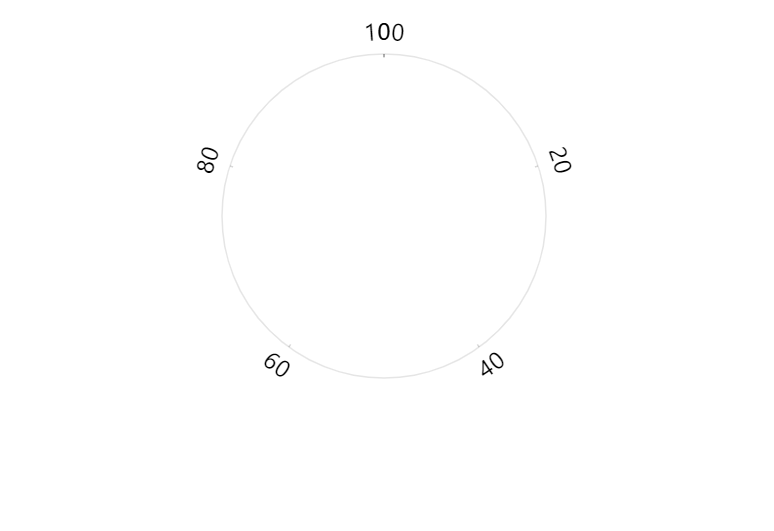
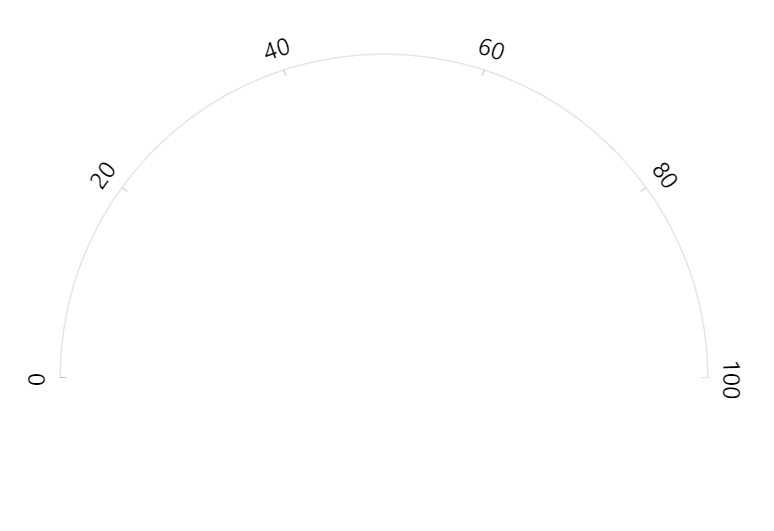
Chart radius
Section titled “Chart radius”Radar chart (which is used for gauges) have two radius settings:
radius- outer radius.innerRadius- inner radius.
Both can be either percent value (relative to available space) or fixed pixel value.
radius is set to 80% by default to leave some space for possible ticks and labels.
innerRadius (default: 0) percent value is relative to the chart’s radius, rather than available space.
We can also use negative values in innerRadius. Those will mean pixel distance from the outer radius. This allows creating fixed-width bands.
The inner radius will affect grid length as well as width of the bands.
let chart = root.container.children.push( am5radar.RadarChart.new(root, { radius: am5.percent(95), innerRadius: -20 }));var chart = root.container.children.push( am5radar.RadarChart.new(root, { radius: am5.percent(95), innerRadius: -20 }));For more information about chart radii settings, refer to “Radar chart: Radius”.
To add colored bands to axis, we can use axis ranges.
Creating a range
Section titled “Creating a range”Creating an axis range requires:
- Creating an axis data item using axis’
makeDataItem()method. - Creating an axis range from a data item using axis’
createAxisRange()method. - Specifying start and end value/date/category (depending on axis type used) for the range.
// Create range axis data itemlet rangeDataItem = axis.makeDataItem({  value: 0,  endValue: 70});
// Create a rangelet range = axis.createAxisRange(rangeDataItem);
// Create range axis data itemvar rangeDataItem = axis.makeDataItem({ value: 0, endValue: 70});
// Create a rangevar range = axis.createAxisRange(rangeDataItem);For more information about setting start and end values depending on axis type, refer to “Axis ranges: Range start and end” tutorial.
Setting fill
Section titled “Setting fill”Range fills are not visible by default. We need to configure them using axisFill setting, which is a generic object of type Graphics.
rangeDataItem.get("axisFill").setAll({ fill: color, fillOpacity: 0.2});rangeDataItem.get("axisFill").setAll({ fill: color, fillOpacity: 0.2});Band width
Section titled “Band width”Bad widths depend on the chart’s radius and innerRadius settings.
let chart = root.container.children.push( am5radar.RadarChart.new(root, { innerRadius: -20 }));var chart = root.container.children.push( am5radar.RadarChart.new(root, { innerRadius: -20 }));The above will make bands 2% the radius of the chart itself.
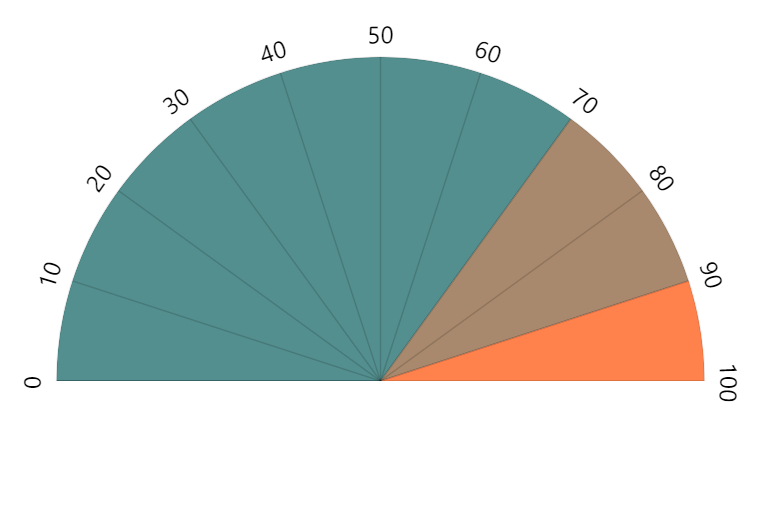
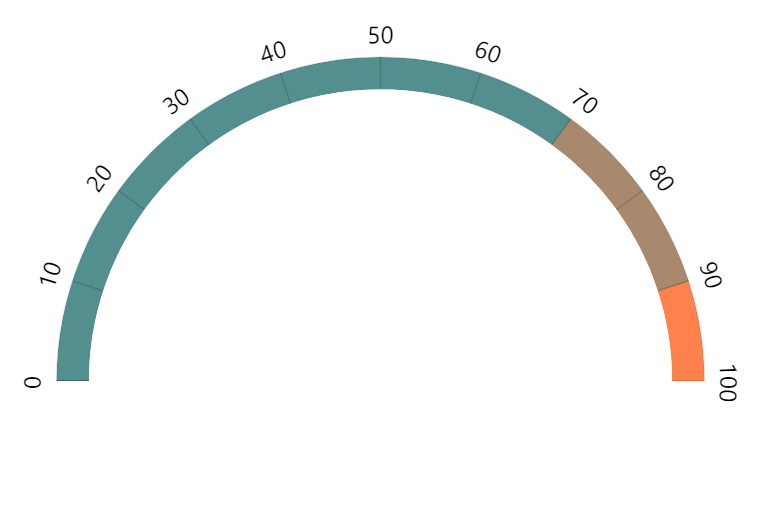
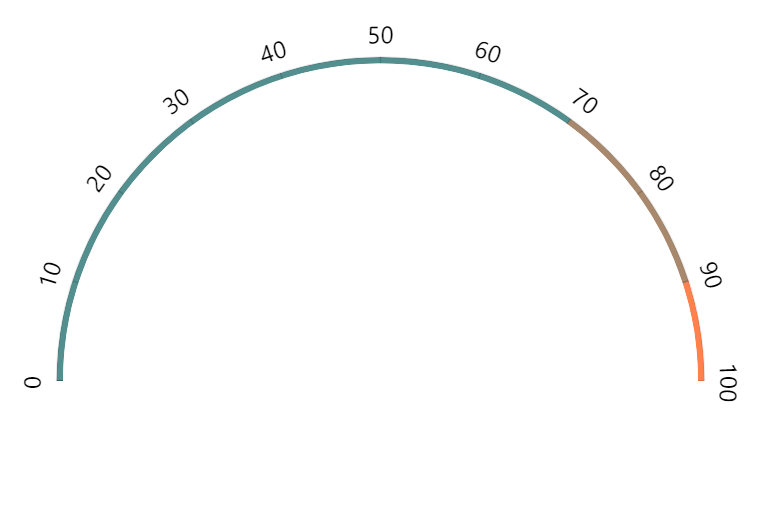
Variable-width bands
Section titled “Variable-width bands”We can set radius and innerRadius directly on axis range fill data item, too.
This way we can make each range/band specific width:
rangeDataItem.get("axisFill").setAll({ visible: true, fill: color, fillOpacity: 0.8, innerRadius: -45});rangeDataItem.get("axisFill").setAll({ visible: true, fill: color, fillOpacity: 0.8, innerRadius: -45});Band labels
Section titled “Band labels”To add labels to a band/axis range, use label setting:
rangeDataItem.get("label").setAll({ text: "Warning", inside: true, radius: 5, fontSize: "0.9em", fill: am5.color(0xffffff)});rangeDataItem.get("label").setAll({ text: "Warning", inside: true, radius: 5, fontSize: "0.9em", fill: am5.color(0xffffff)});For more information about labels on a circular axis, refer to “Radar axes: Labels”.
Clock hands
Section titled “Clock hands”Adding
Section titled “Adding”In amCharts 5, clock hands are added as an axis range bullet.
As a “sprite” for the axis bullet, we are going to be using special element of type ClockHand:
let handDataItem = axis.makeDataItem({  value: 0});
let hand = handDataItem.set("bullet", am5xy.AxisBullet.new(root, {  sprite: am5radar.ClockHand.new(root, {    radius: am5.percent(99)  })}));
axis.createAxisRange(handDataItem);
var handDataItem = axis.makeDataItem({ value: 0});
var hand = handDataItem.set("bullet", am5xy.AxisBullet.new(root, { sprite: am5radar.ClockHand.new(root, { radius: am5.percent(99) })}));
axis.createAxisRange(handDataItem);Setting value
Section titled “Setting value”Initial value
Section titled “Initial value”As per code snippet above, initial hand value is set via data item’s value setting:
let handDataItem = axis.makeDataItem({ value: 55});var handDataItem = axis.makeDataItem({ value: 55});Dynamic value
Section titled “Dynamic value”To move the clock hand to different value, all we need to do is to set value setting of the data item again:
handDataItem.set("value", 20);handDataItem.set("value", 20);Or, if we want the hand to smoothly turn to a new value, we can animate its value setting:
handDataItem.animate({ key: "value", to: 20, duration: 800, easing: am5.ease.out(am5.ease.cubic)});handDataItem.animate({ key: "value", to: 20, duration: 800, easing: am5.ease.out(am5.ease.cubic)});Radius
Section titled “Radius”There are three clock hand settings that effect its radii:
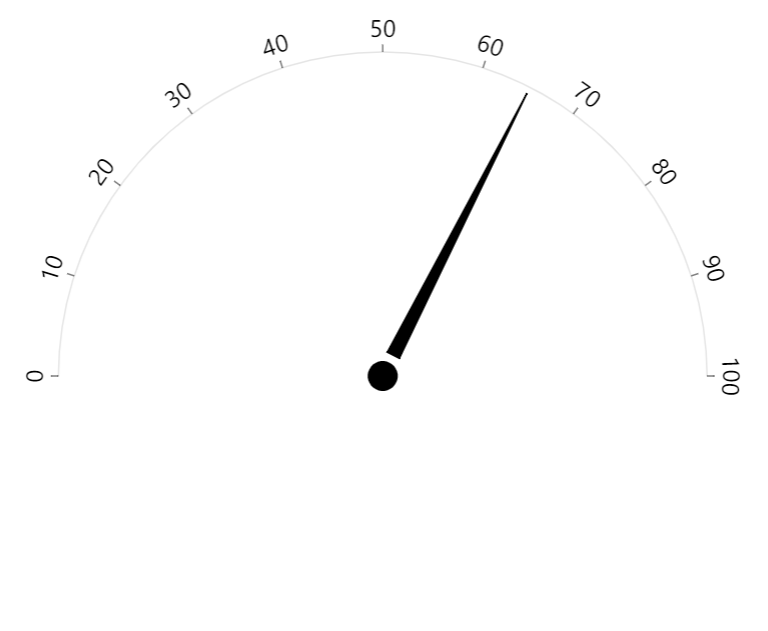
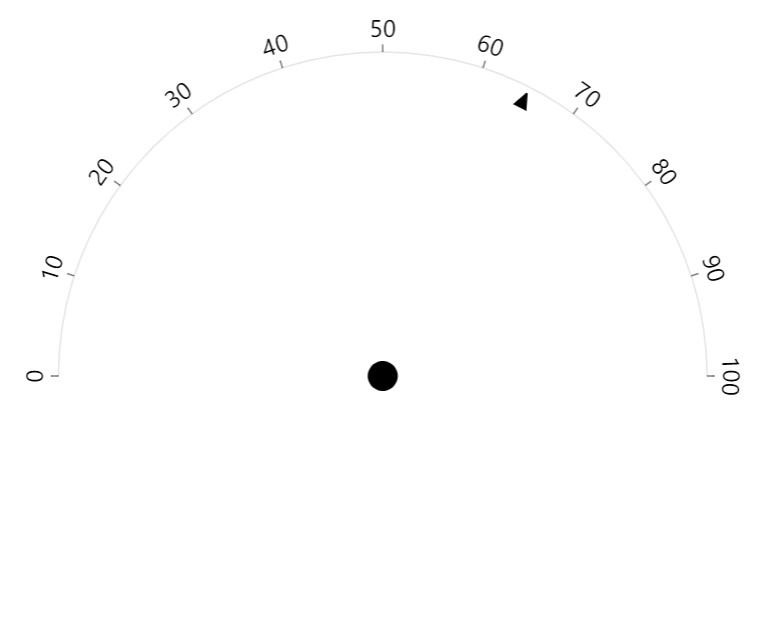
radius- radius from the center of the chart to the tip of the hand.innerRadius- radius from the center of the chart to the base of the hand.pinRadius- radius of the pin - a circle at the center of the chart.
All radii can be either set in absolute pixel values from the center of the chart, as well as percent values.
Percent values are relative to the axis radius.
Radii can also be set in negative absolute value. In such case the radius will be counted from the axis, rather then from the center of the chart.
let hand = handDataItem.set("bullet", am5xy.AxisBullet.new(root, { sprite: am5radar.ClockHand.new(root, { radius: am5.percent(85), innerRadius: 15, pinRadius: 10 })}));var hand = handDataItem.set("bullet", am5xy.AxisBullet.new(root, { sprite: am5radar.ClockHand.new(root, { radius: am5.percent(85), innerRadius: 15, pinRadius: 10 })}));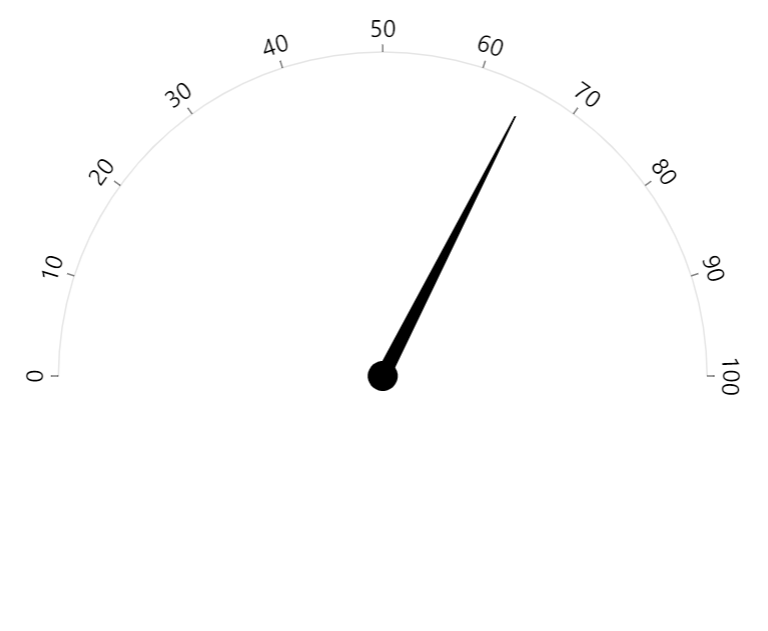
Configuring hand elements
Section titled “Configuring hand elements”Setting colors
Section titled “Setting colors”There are two properties on a clock hand: hand and pin.
They are both elements of type Graphics that can be used to set basic settings like fill and stroke.
hand.get("sprite").pin.setAll({  fill: am5.color(0x946b49),  fillOpacity: 0.5});
hand.get("sprite").hand.setAll({ fill: am5.color(0x946b49), fillOpacity: 0.9});hand.get("sprite").pin.setAll({ fill: am5.color(0x946b49), fillOpacity: 0.5});
hand.get("sprite").hand.setAll({ fill: am5.color(0x946b49), fillOpacity: 0.9});Or, if we need to disable an element, we can simply set its visible setting:
hand.get("sprite").pin.set("visible", false);hand.get("sprite").pin.set("visible", false);Setting hand end widths
Section titled “Setting hand end widths”Besides radius settings, a clock hand also has two additional settings that control widths of hand’s ends:
topWidth- width of the hand’s tip, in pixels (default:1).bottomWidth- width of the hand’s base, in pixels (default:10).
let hand = handDataItem.set("bullet", am5xy.AxisBullet.new(root, { sprite: am5radar.ClockHand.new(root, { topWidth: 5, bottomWidth: 5 })}));var hand = handDataItem.set("bullet", am5xy.AxisBullet.new(root, { sprite: am5radar.ClockHand.new(root, { radius: am5.percent(85), topWidth: 5, bottomWidth: 5 })}));The above will create a straight hand line, 5 pixel wide.
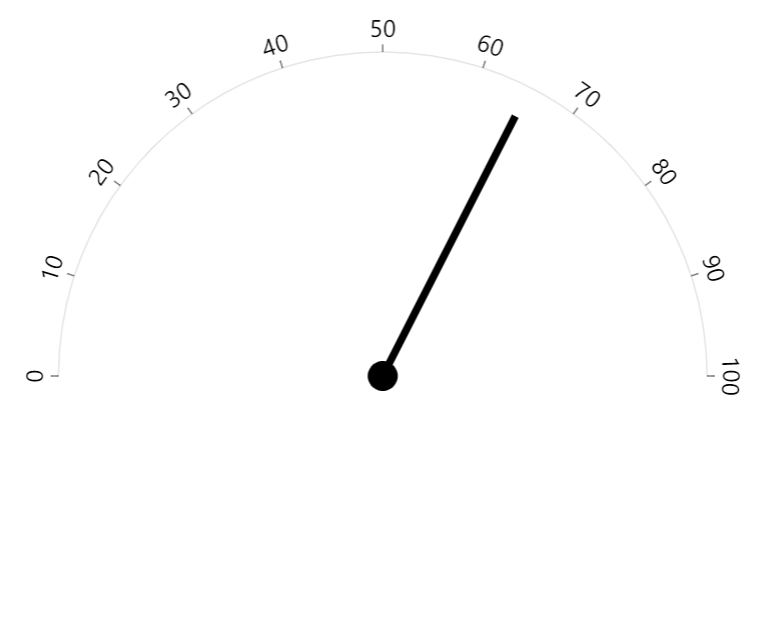
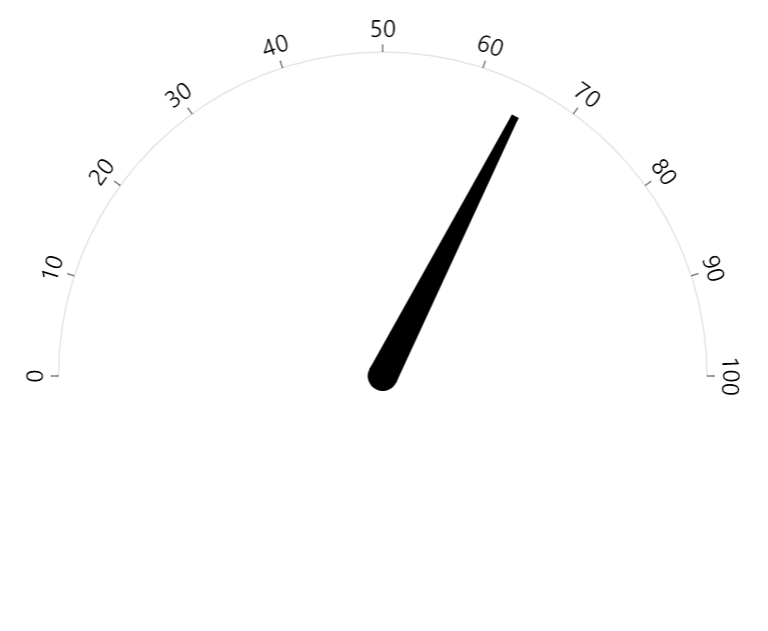
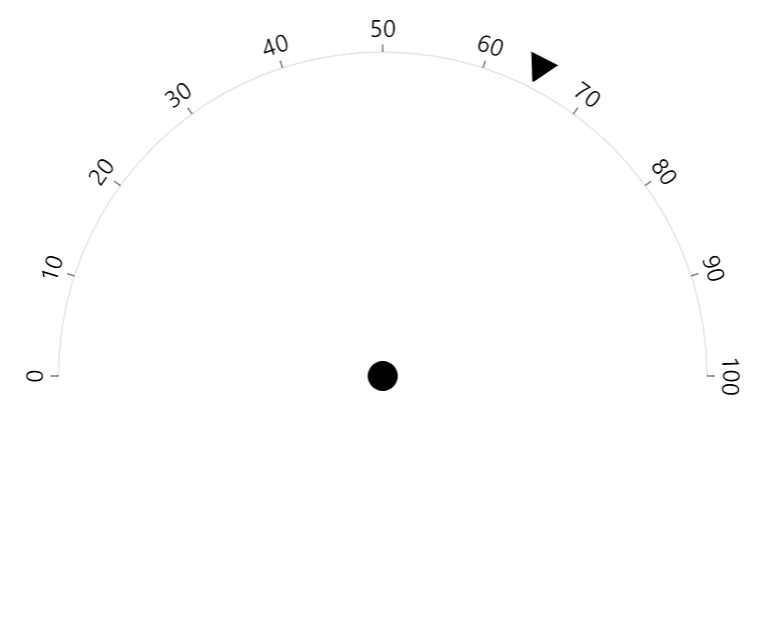
Disabling ticks and grid
Section titled “Disabling ticks and grid”Clock hand is an axis data item, which in turn may have a tick and grid enabled.
If we don’t want those to show up next to our hand, we need to disable them:
handDataItem.get("grid").set("visible", false);handDataItem.get("tick").set("visible", false);handDataItem.get("grid").set("visible", false);handDataItem.get("tick").set("visible", false);Example
Section titled “Example”And here’s a more advanced example, using multiple axes and hands at different start/end angles: