Gantt Chart
A Gantt chart is a project management tool that visually represents a project’s schedule. It uses horizontal bars to show the timeline, dependencies, and progress of tasks, making it easy to track and manage projects from start to finish.
Loading required modules
Section titled “Loading required modules”Everything required to create a Gantt chart are three amCharts 5 modules: “index”, “xy” and “gantt”.
You can import those in your TypeScript / ES6 application as JavaScript modules:
import * as am5 from "@amcharts/amcharts5";import * as am5xy from "@amcharts/amcharts5/xy";import * as am5gantt from "@amcharts/amcharts5/gantt";import am5plugins_colorPicker from "@amcharts/amcharts5/plugins/colorPicker";For vanilla JavaScript applications and web pages, you can use “script” version:
<script src="https://cdn.amcharts.com/lib/5/index.js"></script><script src="https://cdn.amcharts.com/lib/5/xy.js"></script><script src="https://cdn.amcharts.com/lib/5/gantt.js"></script><script src="https://cdn.amcharts.com/lib/5/plugins/colorPicker.js"></script>Instantiating the chart
Section titled “Instantiating the chart”As with any chart type in amCharts 5, we’ll need to start with creation of the Root element.
In it we will create an instance of Gantt class.
let root = am5.Root.new("chartdiv");let chart = root.container.children.push( am5gantt.Gantt.new(root, {}));var root = am5.Root.new("chartdiv");var chart = root.container.children.push( am5gantt.Gantt.new(root, {}));While technically Gantt is an XY Chart, there is no need to create axes or series for it. Those will be created automatically together with the chart.
Configuring the chart
Section titled “Configuring the chart”Edit mode
Section titled “Edit mode”Gantt chart can be displayed in two modes:
- Editable (on by default), where user can add/remove/edit tasks via user interface.
- Read-only, where user can only view the chart, but can’t make any edits to data.
By default, the chart is displayed in editable mode. To disable it, use editable setting:
let chart = root.container.children.push( am5gantt.Gantt.new(root, { editable: false }));var chart = root.container.children.push( am5gantt.Gantt.new(root, { editable: false }));Duration units
Section titled “Duration units”All tasks on the Gantt chart are measured in a numeric “duration” values, which are provided in data.
Those can be set in Gantt’s setting durationUnit. Available values: "year", "month", "week", "day" (default), "hour", "minute", and "second".
let chart = root.container.children.push( am5gantt.Gantt.new(root, { durationUnit: "hour" }));var chart = root.container.children.push( am5gantt.Gantt.new(root, { durationUnit: "hour" }));Weekends and holidays
Section titled “Weekends and holidays”The Gantt chart can exclude certain non-working days, such as weekends and holidays, from the task durations. For example, if a 3-day task starts at Thursday it will end on Monday, rather than Sunday.
Saturday and Sunday is considered to be a weekend by default, but we can modify it using weekends setting, which accepts an array of numbers, denoting each week day, starting with 0 for Sunday, 1 for Monday, etc.
Weekend exclusion can be disabled by setting excludeWeekends to false.
There’s an additional setting - holidays - which accepts an array of Date objects. The days identified as holidays will not be counted towards the task duration, resembling the functionality of weekends.
let chart = root.container.children.push( am5gantt.Gantt.new(root, { durationUnit: "hour", weekends: [0,5,6], // Set Sunday, Friday, and Saturday as non-working days excludeWeekends: true, holidays: [ new Date(2025, 0, 1), // New Year Day new Date(2025, 6, 4), // Independence Day new Date(2025, 10, 27) // Thanksgiving ] }));var chart = root.container.children.push( am5gantt.Gantt.new(root, { durationUnit: "hour", weekends: [0,5,6], // Set Sunday, Friday, and Saturday as non-working days excludeWeekends: true, holidays: [ new Date(2025, 0, 1), // New Year Day new Date(2025, 6, 4), // Independence Day new Date(2025, 10, 27) // Thanksgiving ] }));Snapping behavior
Section titled “Snapping behavior”When manually resizing or moving the task bars, they will snap to either start or beginning of the target period (e.g. day). A setting snapThreshold controls the position within the period that determines the direction of this action.
The setting accepts values from 0 (zero) to 1 (one), that indicate relative position within the period. The default is 0.5 which means that the task bar’s end that is currently being dragged will snap to the beginning of the period if dropped within the first half, and similarly snap to the end if dropped in the second half.
If we’d like to tweak the behavior to make it snap to the end if dropped anywhere on the last 70% of the period cell, we’d need to set snapThreshold to 0.3:
let chart = root.container.children.push( am5gantt.Gantt.new(root, { snapThreshold: 0.3 }));var chart = root.container.children.push( am5gantt.Gantt.new(root, { snapThreshold: 0.3 }));Category axis width
Section titled “Category axis width”Normally, the width of the left area of the chart which contains categories and related controls takes up 30% of the whole chart.
We can change that using Gantt chart’s setting sidebarWidth. The setting accepts fixed numeric values in pixels or relative width as Percent.
let chart = root.container.children.push( am5gantt.Gantt.new(root, { sidebarWidth: 300 }));var chart = root.container.children.push( am5gantt.Gantt.new(root, { sidebarWidth: 300 }));Setting data
Section titled “Setting data”Unless we intend to start with an empty chart, we need to set the initial Gantt data in two places:
- Category data on the vertical axis, which is a
CategoryAxis. - Task data on the chart’s Gantt series.
Category data
Section titled “Category data”While Gantt’s category axis is essentially a CategoryAxis, its data can carry more information than just a list of categories. It also includes hierarchy relations (parent category links), colors (each category can have a custom color assigned to it), and state (is category collapsed or expanded).
Here’s a sample “flat data” (single level):
[{ name: "Idea", id: "gantt_0"}, { name: "Kick-off", id: "gantt_1"}, { name: "Planning", id: "gantt_2"}, { name: "Development", id: "gantt_3"}, { name: "Testing", id: "gantt_4"}, { name: "Finalization", id: "gantt_5"}, { name: "Release", id: "gantt_6"}]As you can see from the sample above, each item contains two keys: a category id which needs to be unique, and a name that will be used for display and can repeat across multiple categories.
Here’s a more complex sample data, that shows how ids are used to create a multi-level, nested category tree:
[{ name: "Idea", id: "gantt_0"}, { name: "Preparation", id: "gantt_1"}, { name: "Kick-off", id: "gantt_2", parentId: "gantt_1"}, { name: "Planning", id: "gantt_3", parentId: "gantt_1"}, { name: "Implementation", id: "gantt_4"}, { name: "Setup", id: "gantt_5", parentId: "gantt_4"}, { name: "Development", id: "gantt_6", parentId: "gantt_4"}, { name: "Finalization", id: "gantt_7", parentId: "gantt_4"}, { name: "Release", id: "gantt_8"}]Besides id and name fields, it introduces a third one: parentId. When, set it will treat the category as a child for another category with that specific id.
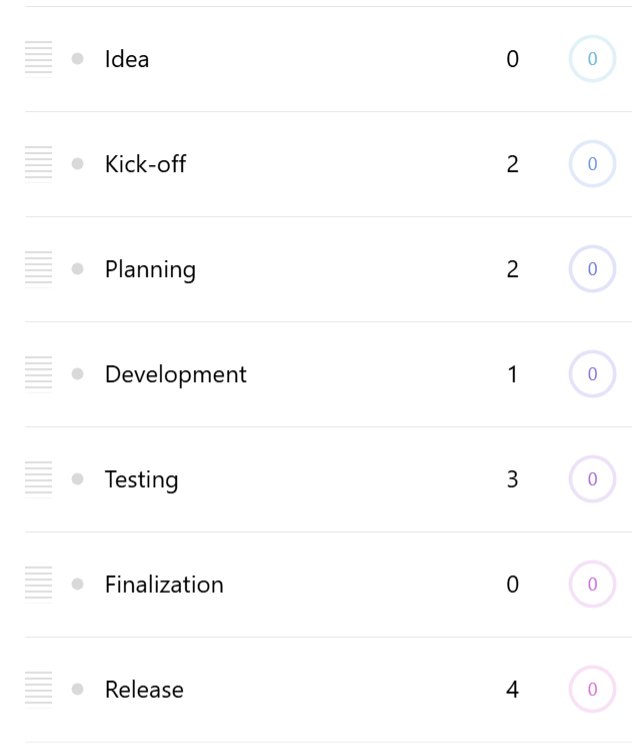
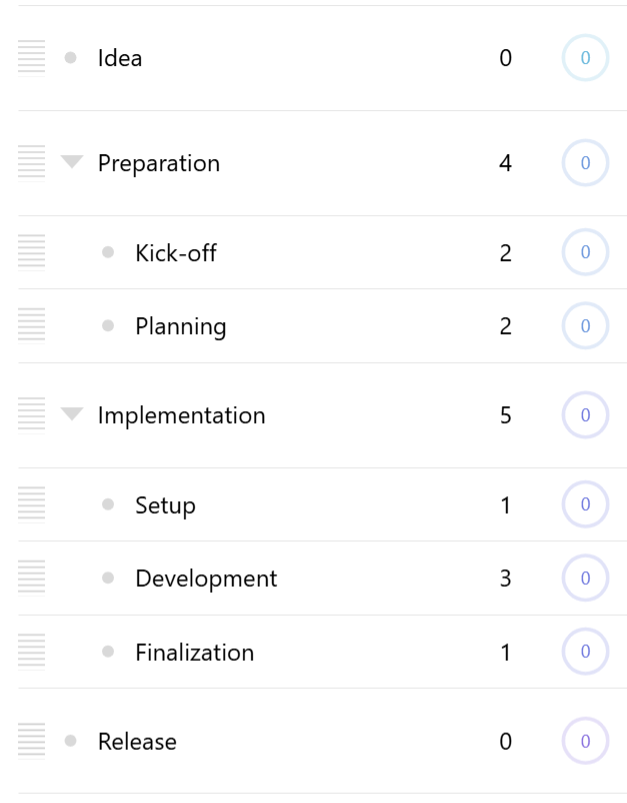
In addition to id, name, and parentId, the data can contain additional information. Here’s the full list:
| Field | Type | Example | Comment |
|---|---|---|---|
id |
string |
"cat_1" |
A unique category id. |
name |
string |
"Testing" |
A category name. |
parentId |
string |
"cat_0" |
The id of the parent category. |
collapsed |
boolean |
true |
Whether category should start off collapsed. |
color |
number || Color |
0xff0000 |
A category color. |
Setting category data
Section titled “Setting category data”Like with a regular CategoryAxis, we use its data.setAll() method:
gantt.yAxis.data.setAll([{ name: "Idea", id: "gantt_0"}, { name: "Kick-off", id: "gantt_1"}, { name: "Planning", id: "gantt_2"}, { name: "Development", id: "gantt_3"}, { name: "Testing", id: "gantt_4"}, { name: "Finalization", id: "gantt_5"}, { name: "Release", id: "gantt_6"}]);gantt.yAxis.data.setAll([{ name: "Idea", id: "gantt_0"}, { name: "Kick-off", id: "gantt_1"}, { name: "Planning", id: "gantt_2"}, { name: "Development", id: "gantt_3"}, { name: "Testing", id: "gantt_4"}, { name: "Finalization", id: "gantt_5"}, { name: "Release", id: "gantt_6"}]);Category axis data fields
Section titled “Category axis data fields”The fields in data do not necessarily have to be named like in the above example. They can be changed via category axis’ data field settings, e.g.:
chart.yAxis.setAll({ nameField: "task", collapsedField: "closed"});chart.yAxis.setAll({ nameField: "task", collapsedField: "closed"});Here’s a full list of field settings:
| Setting | Default | Comment |
|---|---|---|
idField |
"id" |
A unique category id. |
nameField |
"name" |
A category name. |
parentIdField |
"parentId" |
The id of the parent category. |
collapsedField |
"collapsed" |
Whether category should start off collapsed. |
colorField |
"color" |
A category color. |
Using same field for id and name
Section titled “Using same field for id and name”If we can assure that we can keep category names unique, we can reuse the same field in data for both the ids and names, by setting nameField to the same value as idField, e.g. "id":
chart.yAxis.setAll({ nameField: "id"});chart.yAxis.setAll({ nameField: "id"});Now we can simplify our category data:
[{ id: "Idea"}, { id: "Preparation"}, { id: "Kick-off", parentId: "Preparation"}, { id: "Planning", parentId: "Preparation"}, { id: "Implementation"}, { id: "Setup", parentId: "Implementation"}, { id: "Development", parentId: "Implementation"}, { id: "Finalization", parentId: "Implementation"}, { id: "Release"}]Series data
Section titled “Series data”The information about the actual tasks are provided via Gantt series data.
Here’s a sample series data:
[{ start: 1758142800000, duration: 0, progress: 0, id: "gantt_0", linkTo: ["gantt_1"]}, { start: 1758142800000, duration: 2, progress: 0, id: "gantt_1", linkTo: ["gantt_2"]}, { start: 1758488400000, duration: 2, progress: 0, id: "gantt_2", linkTo: ["gantt_3"]}, { start: 1758661200000, duration: 1, progress: 0, id: "gantt_3", linkTo: ["gantt_4"]}, { start: 1758747600000, duration: 3, progress: 0, id: "gantt_4", linkTo: ["gantt_5"]}, { start: 1759179600000, duration: 0, progress: 0, id: "gantt_5", linkTo: ["gantt_6"]}, { start: 1759179600000, duration: 4, progress: 0, id: "gantt_6"}])Each task item can contain the following details:
| Field | Type | Example | Comment |
|---|---|---|---|
id |
string |
"cat_1" |
A related category id. |
start |
number |
1759179600000 |
A timestamp for task’s start. |
duration |
number |
4 |
Task length in duration units, e.g. days. |
progress |
number |
0.5 |
A completion progress. 0 - not started, 0.5 - 50% complete, 1 - finished. |
linkTo |
array<string> |
["gantt_6"] |
An array of category ids that this task’s end should be linked to the beginning of. |
Series data fields
Section titled “Series data fields”As with the axis, the fields in data do not necessarily have to be named like in the above example. They can be changed via series’ data field settings, e.g.:
chart.series.setAll({ durationField: "days", progressField: "completion"});chart.series.setAll({ durationField: "days", progressField: "completion"});Here’s a full list of field settings:
| Setting | Default | Comment |
|---|---|---|
idField |
"id" |
Parent category id. |
openValueXField |
"start" |
Task start timestamp. |
progressField |
"progress" |
Completion progress value (0-1). |
durationField |
"duration" |
Task length duration units, e.g. days. |
linkToField |
"linkTo" |
Array of category ids containing linked tasks. |
Category (vertical) axis
Section titled “Category (vertical) axis”The vertical axis in a Gantt chart is an axis of type GanttCategoryAxis. It’s accessible via chart’s yAxis property, and is essentially an enhanced CategoryAxis.
Cell height
Section titled “Cell height”Each cell on the category axis will be sized according to available space.
We can use Gantt chart category’s setting minCellHeight to set the minimum possible height of the category in pixels. (default: 70)
If there are more categories than the chart area is capable to accommodate at minCellHeight, the plot area will become scrollable.
chart.yAxis.setAll({ minCellHeight: 80});chart.yAxis.setAll({ minCellHeight: 80});Cell height for child categories
Section titled “Cell height for child categories”The minCellHeight setting affect the size (height) of the top-level categories.
The height of child categories is 70% of the height of the parent ones, to make them appear smaller.
The relative child category size can be controlled using axis’ childCellSize setting, which accepts a number, where 1 (one) means the same size as parent.
For example, if we’d like the child categories to be of equal size as parent, we’d set it to 1 (one):
chart.yAxis.setAll({ childCellSize: 1});chart.yAxis.setAll({ childCellSize: 1});Child category offset
Section titled “Child category offset”The titles for child categories are shown offset to the right to emphasize the hierarchy. The offset for each new level is 25 pixels, and is configurable via category axis’ childShift setting.
chart.yAxis.setAll({ childShift: 0});chart.yAxis.setAll({ childShift: 0});The above code will disable offsetting of child categories.
Timeline (horizontal) axis
Section titled “Timeline (horizontal) axis”Gantt chart has two axes: primary and secondary. Both are created automatically when Gantt chart is instantiated, and are accessible via xAxis and xAxisMinor properties, in case we’d like to configure them beyond the defaults:
chart.xAxis; // Primary axischart.xAxisMinor; // Secondary axischart.xAxis; // Primary axischart.xAxisMinor; // Secondary axisThe primary axis acts like a regular XY Chart Date axis, dynamically adjusting its granularity to best suit current available space and zoom.
The secondary axis is used for providing a more granular grid, e.g. if primary axis displays a weekly grid, the secondary one will display a grid/label for each individual day.
Grid intervals
Section titled “Grid intervals”The grid intervals for the secondary axis is chosen dynamically, based on the current granularity of the primary axis.
For example, if the primary axis scope is large enough to display increments in years, the secondary axis will switch to either weekly or monthly increments, depending on available space and minGridDistance setting on the secondary axis’ renderer.
This is controlled via Gantt chart’s gridIntervals settings, with the default set like this:
{ "year": [ { timeUnit: "week", count: 1 }, { timeUnit: "month", count: 1 }, { timeUnit: "month", count: 2 }, { timeUnit: "month", count: 6 } ], "month": [ { timeUnit: "week", count: 1 }, { timeUnit: "week", count: 2 } ], "week": [ { timeUnit: "day", count: 1 } ], "day": [ { timeUnit: "hour", count: 1 }, { timeUnit: "hour", count: 3 }, { timeUnit: "hour", count: 6 }, { timeUnit: "hour", count: 12 } ], "hour": [ { timeUnit: "minute", count: 1 }, { timeUnit: "minute", count: 5 }, { timeUnit: "minute", count: 15 }, { timeUnit: "minute", count: 30 } ],}Disabling secondary X-axis
Section titled “Disabling secondary X-axis”To disable secondary axis, simply call its hide() method:
chart.xAxisMinor.hide();chart.xAxisMinor.hide();Marked dates
Section titled “Marked dates”Gantt chart offers a functionality for users to toggle visual markers (vertical lines) on any date (or other time period) by clicking on the secondary axis.
The functionality can be disabled by removing “click” event from the secondary axis:
gantt.xAxisMinor.events.off("click");gantt.xAxisMinor.events.off("click");Gantt series
Section titled “Gantt series”Gantt series is a heavily customized ColumnSeries, meaning that anything we can to with the latter, we can do with Gantt series, too.
The series is created automatically, and is accessible via Gantt chart’s series property.
gantt.series.columns.template.setAll({  strokeWidth: 2,  height: am5.percent(90)});
gantt.series.columns.template.adapters.add("stroke", function() { return am5.color(0x000000)});gantt.series.columns.template.setAll({ strokeWidth: 2, height: am5.percent(90)});
gantt.series.columns.template.adapters.add("stroke", function() { return am5.color(0x000000)});For a thorough documentation, please refer to ColumnSeries docs.
Colors
Section titled “Colors”Auto-assigned colors
Section titled “Auto-assigned colors”By default, Gantt chart will assign a unique color for each newly added task. Whenever a new task is added, the chart pulls the next color from a “color set”. The colors depend on the theme used.
Gantt’s color set can be accessed via chart’s colors setting, and used to configure available colors, stepping parameters, or even disable color iteration altogether.
The following example defines a pre-defined list of colors:
chart.get("colors").set("colors", [ am5.color(0x095256), am5.color(0x087f8c), am5.color(0x5aaa95), am5.color(0x86a873), am5.color(0xbb9f06)]);chart.get("colors").set("colors", [ am5.color(0x095256), am5.color(0x087f8c), am5.color(0x5aaa95), am5.color(0x86a873), am5.color(0xbb9f06)]);Or, if we’d like all newly-added tasks use the same color, we can do so by disabling color set stepping:
gantt.get("colors").setAll({ colors: [ am5.color(0x095256)], step: 0});gantt.get("colors").setAll({ colors: [ am5.color(0x095256)], step: 0});Colors via the UI
Section titled “Colors via the UI”Colors for tasks/categories can be changed via UI using built-in color picker component.
Users can click on a task or the category to select it, then click on the color picker button in the upper left corner to change the color.
Hide the color picker button to disable the functionality:
chart.colorPickerButton.hide(0);chart.colorPickerButton.hide(0);Buttons
Section titled “Buttons”Control buttons
Section titled “Control buttons”Gantt chart comes with a selection of controls (buttons), lined up in the upper-left corner.
They are added as children to chart’s controls container, and are accessible via dedicated properties:
| Chart property | Class | Function |
|---|---|---|
addButton |
Button |
Adds a new task. |
colorPickerButton |
ColorPickerButton |
Invokes a color picker. |
expandButton |
Button |
Expands all categories. |
collapseButton |
Button |
Collapses all categories. |
linkButton |
Button |
Toggles auto-linking to newly added tasks. |
clearButton |
ConfirmButton |
Deletes all data (categories, tasks, marked dates). |
editButton |
Button |
Toggles between edit and read-only modes. (hidden by default) |
If we’d like to hide certain buttons, we can do so using their hide() method:
chart.colorPickerButton.hide(0);chart.clearButton.hide(0);chart.addButton.hide(0);chart.colorPickerButton.hide(0);chart.clearButton.hide(0);chart.addButton.hide(0);Or, if we’d like to hide all controls, we can just hide the whole controls container:
chart.controls.hide(0);chart.controls.hide(0);The edit button is hidden by default. Use show() method on it, to unihide:
chart.editButton.show(0);chart.editButton.show(0);Zoom buttons
Section titled “Zoom buttons”In chart’s plot area, depending on zoom conditions, there might be two buttons displayed: Zoom out and Fit tasks to view.
| Chart property | Class | Function |
|---|---|---|
zoomOutButton |
Button |
Zooms out the X axis to full width. |
fitButton |
Button |
Zooms the X axis to fit currently visible tasks. |
As with the control buttons, those can be disabled individually:
If we’d like to hide certain buttons, we can do so using their hide() method:
chart.zoomOutButton.hide(0);chart.fitButton.hide(0);chart.zoomOutButton.hide(0);chart.fitButton.hide(0);Events and data serialization
Section titled “Events and data serialization”Please refer to “Serializing and restoring Gantt data”.