Pictorial stacked series
This tutorial is about configuring various aspects of a pictorial stacked series appearance.
Shape of the series
Section titled “Shape of the series”Shape path
Section titled “Shape path”Pictorial stacked series is basically a pyramid series framed into a custom shape mask.
The mask is set using series’ svgPath setting.
Its content must be a string representing an SVG path.
Here’s an example of an SVG path representing a shape of a man:
M53.5,476c0,14,6.833,21,20.5,21s20.5-7,20.5-21V287h21v189c0,14,6.834,21,20.5,21 c13.667,0,20.5-7,20.5-21V154h10v116c0,7.334,2.5,12.667,7.5,16s10.167,3.333,15.5,0s8-8.667,8-16V145c0-13.334-4.5-23.667-13.5-31 s-21.5-11-37.5-11h-82c-15.333,0-27.833,3.333-37.5,10s-14.5,17-14.5,31v133c0,6,2.667,10.333,8,13s10.5,2.667,15.5,0s7.5-7,7.5-13 V154h10V476 M61.5,42.5c0,11.667,4.167,21.667,12.5,30S92.333,85,104,85s21.667-4.167,30-12.5S146.5,54,146.5,42 c0-11.335-4.167-21.168-12.5-29.5C125.667,4.167,115.667,0,104,0S82.333,4.167,74,12.5S61.5,30.833,61.5,42.5zLet’s use it for the pictorial stacked series:
let shape = "M53.5,476c0,14,6.833,21,20.5,21s20.5-7,20.5-21V287h21v189c0,14,6.834,21,20.5,21 c13.667,0,20.5-7,20.5-21V154h10v116c0,7.334,2.5,12.667,7.5,16s10.167,3.333,15.5,0s8-8.667,8-16V145c0-13.334-4.5-23.667-13.5-31 s-21.5-11-37.5-11h-82c-15.333,0-27.833,3.333-37.5,10s-14.5,17-14.5,31v133c0,6,2.667,10.333,8,13s10.5,2.667,15.5,0s7.5-7,7.5-13 V154h10V476 M61.5,42.5c0,11.667,4.167,21.667,12.5,30S92.333,85,104,85s21.667-4.167,30-12.5S146.5,54,146.5,42 c0-11.335-4.167-21.168-12.5-29.5C125.667,4.167,115.667,0,104,0S82.333,4.167,74,12.5S61.5,30.833,61.5,42.5z";
let series = chart.series.push(  am5percent.PictorialStackedSeries.new(root, {    name: "Series",    categoryField: "stage",    valueField: "applicants",    orientation: "vertical",    svgPath: shape  }));
var shape = "M53.5,476c0,14,6.833,21,20.5,21s20.5-7,20.5-21V287h21v189c0,14,6.834,21,20.5,21 c13.667,0,20.5-7,20.5-21V154h10v116c0,7.334,2.5,12.667,7.5,16s10.167,3.333,15.5,0s8-8.667,8-16V145c0-13.334-4.5-23.667-13.5-31 s-21.5-11-37.5-11h-82c-15.333,0-27.833,3.333-37.5,10s-14.5,17-14.5,31v133c0,6,2.667,10.333,8,13s10.5,2.667,15.5,0s7.5-7,7.5-13 V154h10V476 M61.5,42.5c0,11.667,4.167,21.667,12.5,30S92.333,85,104,85s21.667-4.167,30-12.5S146.5,54,146.5,42 c0-11.335-4.167-21.168-12.5-29.5C125.667,4.167,115.667,0,104,0S82.333,4.167,74,12.5S61.5,30.833,61.5,42.5z";
var series = chart.series.push( am5percent.PictorialStackedSeries.new(root, { name: "Series", categoryField: "stage", valueField: "applicants", orientation: "vertical", svgPath: shape }));Slices
Section titled “Slices”Slice colors
Section titled “Slice colors”Slice colors are important. They identify a slice and connect it to its legend item visually.
There are a few ways to control how colors are assigned to slices.
Auto-assigned colors
Section titled “Auto-assigned colors”A series will automatically assign a unique color to each slice from its own color set.
Should we want to, we can override the whole list of colors by either setting it directly on series color set, creating a quick theme, or a reusable full theme, e.g.:
series.get("colors").set("colors", [ am5.color(0x095256), am5.color(0x087f8c), am5.color(0x5aaa95), am5.color(0x86a873), am5.color(0xbb9f06)]);series.get("colors").set("colors", [ am5.color(0x095256), am5.color(0x087f8c), am5.color(0x5aaa95), am5.color(0x86a873), am5.color(0xbb9f06)]);Manual slice colors
Section titled “Manual slice colors”We can also specify color for each slice through data and template fields.
For more information on how to do it, refer to “Template fields” tutorial.
Configuring slices
Section titled “Configuring slices”Configuration of a slice is done via its template, which is accessible via series template list: series.slices.template.
We can set any setting via template:
series.slices.template.setAll({ fillOpacity: 0.5, stroke: am5.color(0xffffff), strokeWidth: 2});series.slices.template.setAll({ fillOpacity: 0.5, stroke: am5.color(0xffffff), strokeWidth: 2});Labels
Section titled “Labels”Configuring labels
Section titled “Configuring labels”Series label configuration is done via its template, accessible via series property labels.template.
series.labels.template.setAll({ fontSize: 20, fill: am5.color(0x550000), text: "{category}"});series.labels.template.setAll({ fontSize: 20, fill: am5.color(0x550000), text: "{category}"});Pictorial stacked series uses Label for its labels. Check out its class reference for all the possible settings.
Label content
Section titled “Label content”Slice labels are pre-set to display name of the category and its percent value.
We can modify contents of the tooltips using text setting on a series label template:
series.labels.template.set("text", "{category}: [bold]{valuePercentTotal.formatNumber('0.00')}%[/] ({value})");series.labels.template.set("text", "{category}: [bold]{valuePercentTotal.formatNumber('0.00')}%[/] ({value})");Contents of the tooltip can include data placeholders (codes in curly brackets that will be replaced by actual data) and in-line formatting blocks (formatting instructions enclosed in square brackets).
Disabling labels
Section titled “Disabling labels”To disable series labels, we can set forceHidden setting to true in their template:
series.labels.template.set("forceHidden", true);series.labels.template.set("forceHidden", true);Alignment
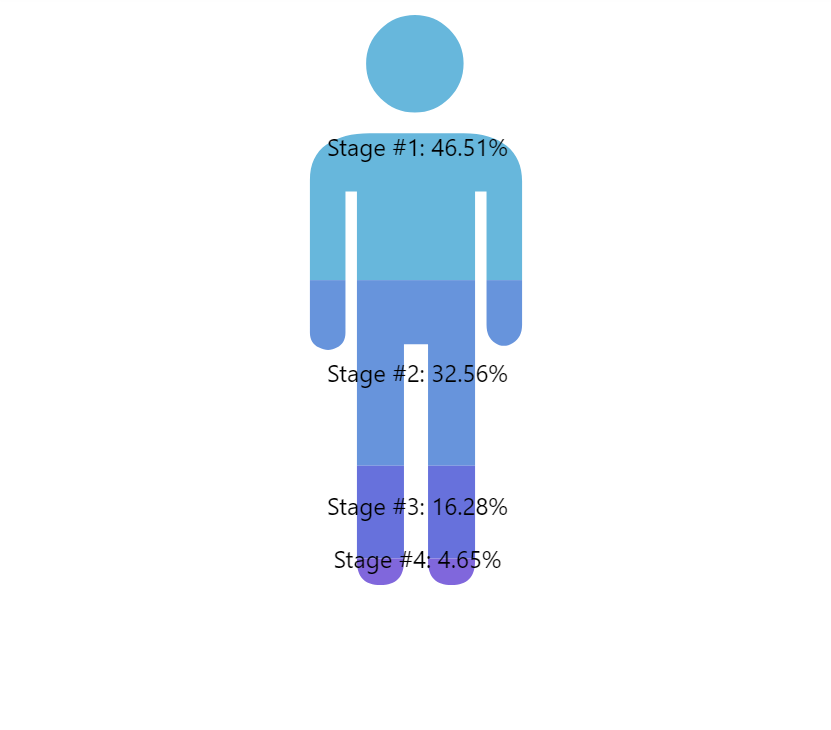
Section titled “Alignment”Pictorial stacked series labels can either be aligned into a column (or row for horizontal series).
This can be disabled using series setting alignLabels (default: true). When alignment is disabled, the labels will position themselves directly over the slice.
let series = chart.series.push( am5percent.PictorialStackedSeries.new(root, { valueField: "applicants", orientation: "vertical", alignLabels: false }));var series = chart.series.push( am5percent.PictorialStackedSeries.new(root, { valueField: "applicants", orientation: "vertical", alignLabels: false }));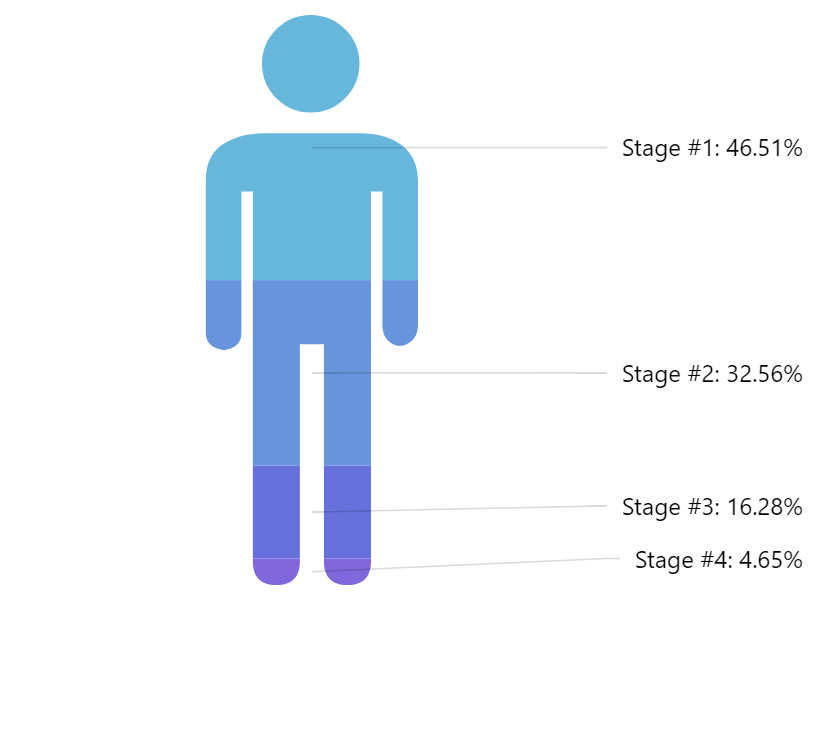
Configuring ticks
Section titled “Configuring ticks”Series tick configuration is done via its template, accessible via series property ticks.template.
series.ticks.template.setAll({ stroke: am5.color(0x550000), strokeWidth: 2});series.ticks.template.setAll({ stroke: am5.color(0x550000), strokeWidth: 2});Series uses Tick for its labels. Check out its class reference for all the possible settings.
Disabling ticks
Section titled “Disabling ticks”To disable series ticks, we can set forceHidden setting to true in their template:
series.ticks.template.set("forceHidden", true);series.ticks.template.set("forceHidden", true);Tick location
Section titled “Tick location”The tick will point to the slice edge on the label side, by default.
That can be changed using tick template setting location.
It’s a numeric value from 0 (zero) to 1 (one) indicating relative position within the slice.
series.ticks.template.setAll({ location: 0.5});series.ticks.template.setAll({ location: 0.5});The above will make tick point to the middle of the slice.
Tooltips
Section titled “Tooltips”To enable slice tooltips, all we need to do is to set tooltipText on slice’s template:
series.slices.template.set("tooltipText", "{category}: [bold]{valuePercentTotal.formatNumber('0.00')}%[/] ({value})");series.slices.template.set("tooltipText", "{category}: [bold]{valuePercentTotal.formatNumber('0.00')}%[/] ({value})");Contents of the tooltip can include data placeholders (codes in curly brackets that will be replaced by actual data) and in-line formatting blocks (formatting instructions enclosed in square brackets).
Series layout
Section titled “Series layout”Orientation
Section titled “Orientation”Pictorial stacked series can either be vertical or horizontal.
It must set via orientation property with possible values "vertical" and "horizontal".
let series = chart.series.push( am5percent.PictorialStackedSeries.new(root, { name: "Series", categoryField: "stage", valueField: "applicants", orientation: "horizontal", svgPath: horizontalShape }));var series = chart.series.push( am5percent.PictorialStackedSeries.new(root, { name: "Series", categoryField: "stage", valueField: "applicants", svgPath: horizontalShape }));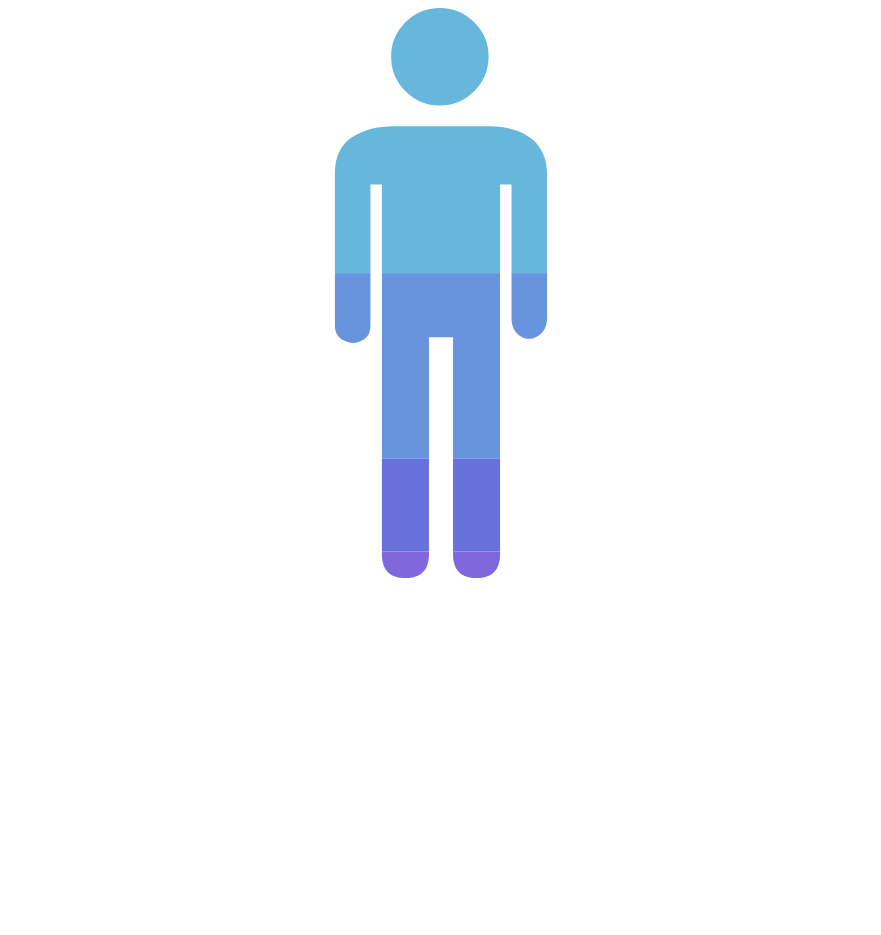

Mask orientation
Section titled “Mask orientation”The mask (svgPath setting) will need to be suitable for series orientation. E.g. vertical mask may not be suitable for horizontal series, and vice versa.
Pading
Section titled “Pading”Pictorial stacked series has 10 pixels on padding on all sides by default, so there’s little bit space around it.
We can disable it (or increase) using series paddingTop, paddingRight, paddingBottom, and paddingLeft settings:
let series = chart.series.push( am5percent.PictorialStackedSeries.new(root, { name: "Series", categoryField: "stage", valueField: "applicants", orientation: "vertical", paddingLeft: 0, paddingRight: 0, paddingTop: 0, paddingBottom: 0 }));var series = chart.series.push( am5percent.PictorialStackedSeries.new(root, { name: "Series", categoryField: "stage", valueField: "applicants", orientation: "vertical", paddingLeft: 0, paddingRight: 0, paddingTop: 0, paddingBottom: 0 }));Start/end locations
Section titled “Start/end locations”Normally, series starts and ends at the edge of its available space.
We can use its startLocation and endLocation to set where series starts and ends in comparison to the available space.
The values can be from 0 (zero) to 1 (one), with zero meaning start of the series area, and 1 - the end.
let series = chart.series.push( am5percent.PictorialStackedSeries.new(root, { name: "Series", categoryField: "stage", valueField: "applicants", orientation: "vertical", startLocation: 0.2, endLocation: 0.8 }));var series = chart.series.push( am5percent.PictorialStackedSeries.new(root, { name: "Series", categoryField: "stage", valueField: "applicants", orientation: "vertical", startLocation: 0.2, endLocation: 0.8 }));The above will start and end series 20% of the whole width/height from the edges of the series area.
Binding settings to data
Section titled “Binding settings to data”It’s possible to bind settings of a series slice, label, and tick templates to values in data.
For more information on how to do it, refer to “Template fields” tutorial.