Colors, gradients, and patterns
Colors
Section titled “Colors”Colors in amCharts 5 are represented by a Color object.
Color class also has a bunch of static methods that can be used to convert hex numbers or RGB color identifiers into proper Color objects, but the most common method is to use a standalone am5.color() function which can convert any number or string into a Color object:
series.set("fill", am5.color(0xff0000)); // set Series color to redseries2.set("fill", am5.color("#00ff00")); // set Series color to greenseries.set("fill", am5.color(0xff0000)); // set Series color to redseries2.set("fill", am5.color("#00ff00")); // set Series color to greenWherever you need to specify a color in amCharts 5 you need to pass in a Color object.
Typical settings to use colors for is fill which indicates area fill color, and stroke which indicates line or border (outline) color of the visual elements.
Text color is specified via its fill setting.
Blending colors
Section titled “Blending colors”am5.Color.interpolate() returns a color between two others. To blend through more than two, e.g. red, yellow and green, use am5.Color.interpolateColors(). It takes a position, from 0 (the first color) to 1 (the last), and the colors in order:
const color = am5.Color.interpolateColors(0.25, [ root.interfaceColors.get("negative"), root.interfaceColors.get("warning"), root.interfaceColors.get("positive")]);var color = am5.Color.interpolateColors(0.25, [ root.interfaceColors.get("negative"), root.interfaceColors.get("warning"), root.interfaceColors.get("positive")]);With three colors, 0.5 gives the middle one. An optional third argument, "hsl", blends hue, saturation and lightness instead of the red, green and blue channels.
Color sets
Section titled “Color sets”Colors sets are basically collections of colors with ability to generate new colors according to certain rules as needed.
In most scenarios, a chart would grab next color from the color set using its next() method.
Color set has internal counter, so it will produce new color every time.
Setting own list of colors
Section titled “Setting own list of colors”A color set comes with a pre-defined list of colors, depending on the theme we are using (if any).
There is a number of ways to override the list as needed.
The most easiest way is to simply set its colors setting to an array of Color objects:
chart.get("colors").set("colors", [ am5.color(0x095256), am5.color(0x087f8c), am5.color(0x5aaa95), am5.color(0x86a873), am5.color(0xbb9f06)]);chart.get("colors").set("colors", [ am5.color(0x095256), am5.color(0x087f8c), am5.color(0x5aaa95), am5.color(0x86a873), am5.color(0xbb9f06)]);Another option is to modify default theme:
root.defaultTheme.rule("ColorSet").set("colors", [ am5.color(0x095256), am5.color(0x087f8c), am5.color(0x5aaa95), am5.color(0x86a873), am5.color(0xbb9f06)]);root.defaultTheme.rule("ColorSet").set("colors", [ am5.color(0x095256), am5.color(0x087f8c), am5.color(0x5aaa95), am5.color(0x86a873), am5.color(0xbb9f06)]);Obviously, creating own custom theme is also an option.
Repeating colors
Section titled “Repeating colors”When a color set runs out of colors, it makes new ones. With reuse: true, it starts its list again instead. repeatLightness makes each new round lighter (a negative value makes it darker), so repeated colors are not exactly the same:
chart.get("colors").setAll({ reuse: true, repeatLightness: 0.1});chart.get("colors").setAll({ reuse: true, repeatLightness: 0.1});Most themes with a fixed list of colors already do this, 10% lighter each round. More about it in “Themes”.
Interface colors
Section titled “Interface colors”Each root element in amCharts 5 has a special version of a color set: interfaceColors.
Unlike a regular color set, it defines colors for specific purposes, rather than plain list of colors.
For example, it defines background, text, grid, and similar colors, that are used throughout chart elements and controls.
To get a color for a specific purpose, we use its get() method.
List of purposes
Section titled “List of purposes”| Setting (purpose) | Default | Comment |
|---|---|---|
stroke |
0xe5e5e5 | Used for all line elements and outlines. |
fill |
0xf3f3f3 | Used for element fills. |
primaryButton |
0x6794dc | Primary button background color (e.g. zoom out button). |
primaryButtonHover |
0x6771dc | Primary button background when hovered. |
primaryButtonDown |
0x68dc76 | Primary button background when pressed. |
primaryButtonActive |
0x68dc76 | Primary button background when active. |
primaryButtonText |
0xffffff | Primary button text color. |
primaryButtonStroke |
0xffffff | Primary button border/outline color. |
secondaryButton |
0xd9d9d9 | Secondary button background color (e.g. scrollbar grip). |
secondaryButtonHover |
0xa3a3a3 | Secondary button background when hovered. |
secondaryButtonDown |
0x8d8d8d | Secondary button background when pressed. |
secondaryButtonActive |
0xe6e6e6 | Secondary button background when active. |
secondaryButtonText |
0x000000 | Secondary button text color. |
secondaryButtonStroke |
0xffffff | Secondary button border/outline color. |
grid |
0x000000 | Axis grid color. Also used for some other elements like, ticks, hierarchy links, etc. |
background |
0xffffff | Background color. |
alternativeBackground |
0x000000 | Alternative background. Used for chart cursor’s lines, axis fills, clock hands. |
text |
0x000000 | Default color text. |
alternativeText |
0xffffff | Alternative color text. |
disabled |
0xadadad | Fill color for disabled elements. |
positive |
0x50b300 | Color to express positive value (e.g. in candlesticks). |
negative |
0xb30000 | Color to express negative value (e.g. in candlesticks). |
warning |
0xf2c230 | A yellow between negative and positive, e.g. for a warning or the middle of a scale from bad to good. Since version 5.21.2. |
Using interface colors
Section titled “Using interface colors”To grab a color meant for specific use, we can use get() method:
xAxis.get("renderer").labels.template.setAll({  fill: root.interfaceColors.get("alternativeText")});
xAxis.setAll({ background: am5.Rectangle.new(root, { fill: root.interfaceColors.get("alternativeBackground"), fillOpacity: 0.7 })});xAxis.get("renderer").labels.template.setAll({ fill: root.interfaceColors.get("alternativeText")});
xAxis.setAll({ background: am5.Rectangle.new(root, { fill: root.interfaceColors.get("alternativeBackground"), fillOpacity: 0.7 })});The above will use alternativeText (default: white) for X axis labels, as well as add alternativeBackground (default: black) to the whole axis.
Now, if we would also enable “Dark” theme, the labels would become black, and axis fill white, because it flips values of the alternativeText and text as well as alternativeBackground and background.
Changing interface colors
Section titled “Changing interface colors”We can also modify interface colors, using set() method:
root.interfaceColors.set("grid", am5.color(0xff0000));root.interfaceColors.set("grid", am5.color(0xff0000));The above will make all grid lines (as well as some other elements that use grid color) to be red.
Dashed lines
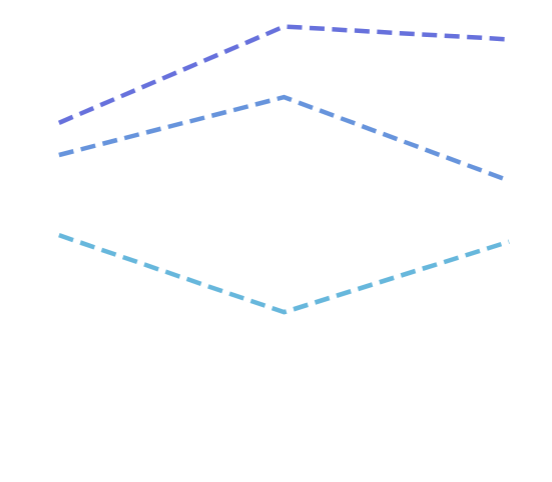
Section titled “Dashed lines”To make a line (stroke) dashed, we can use element’s strokeDasharray setting.
It needs to be set to an array of numbers, that define dash pattern.
If it’s just a single number, it will define a length of the dash and the length of the gap between them.
If there are two numbers, the first one will define length of the dash, and the second one length of the gap.
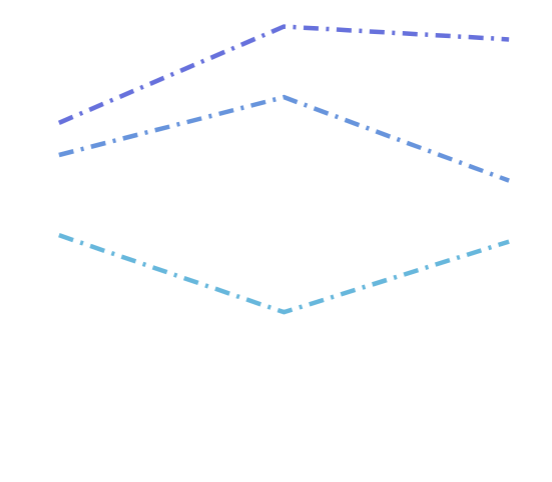
There can be multiple numbers to create more intricate patterns.
series.strokes.template.setAll({ strokeWidth: 3, strokeDasharray: [10, 5, 2, 5]});series.strokes.template.setAll({ strokeWidth: 3, strokeDasharray: [10, 5, 2, 5]});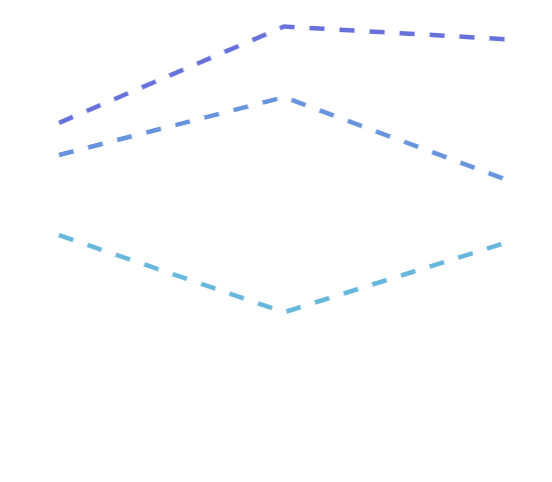
Gradients
Section titled “Gradients”For information on how to create gradients for fills and strokes, refer to “Gradients” tutorial.
Patterns
Section titled “Patterns”For information on how to create patterned fills and strokes, refer to “Patterns” tutorial.
Shadows
Section titled “Shadows”For information on how to enable shadows on graphic elements, refer to “Shadows” tutorial.
Filters
Section titled “Filters”For information on how to apply various filters on graphic elements, refer to “Filters” tutorial.