Using axis ranges to place labels at arbitrary values or dates
Axes of various types follow their own logic when they choose where to place its grid and labels. However, sometimes you need to place those labels at precisely value X, or on date Y. That’s where axis ranges might come in handy, which is the focus of this tutorial.
Prerequisites
Section titled “Prerequisites”Just to refresh your memory - axis ranges is a way to highlight specific point or a range on an axis, together with custom label, fill, and grid line.
Base chart
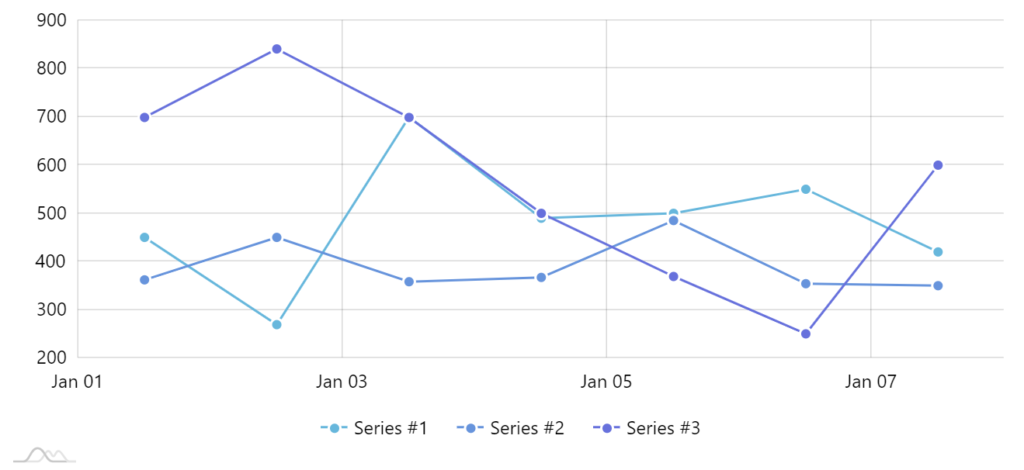
Section titled “Base chart”Let’s start with a very regular XYChart with ValueAxis as its Y-axis, DateAxis on its X-axis.
Disabling default labels and grid
Section titled “Disabling default labels and grid”If we’re going to be placing labels using our own logic, we probably don’t need build-in labels getting in the way.
Let’s disable them:
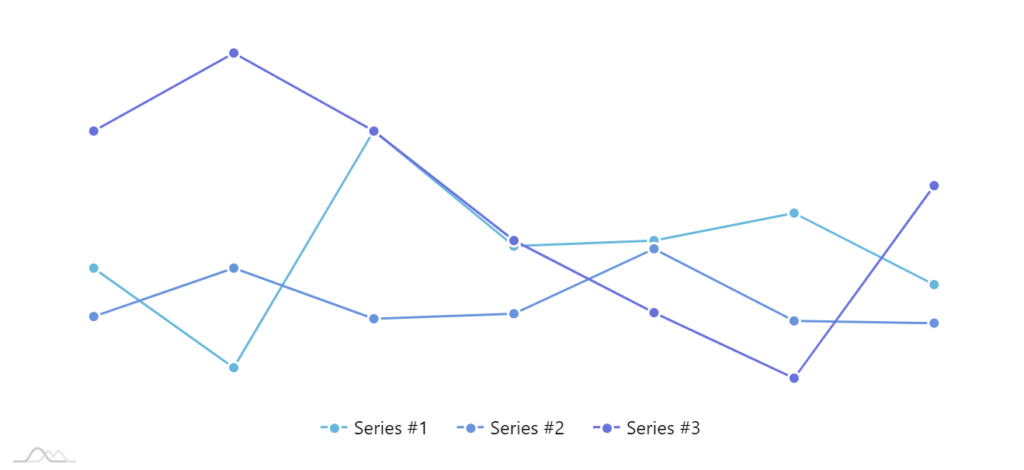
var rendererY = yAxis.get("renderer");rendererY.grid.template.set("forceHidden", true);rendererY.labels.template.set("forceHidden", true);var rendererY = yAxis.get("renderer");rendererY.grid.template.set("forceHidden", true);rendererY.labels.template.set("forceHidden", true);If we do these for both axes, we end up with a perfectly “naked” chart.
Adding custom grid and labels
Section titled “Adding custom grid and labels”Now that we’ve demolished all grid and labels, we can start rebuilding it the way we see fit.
ValueAxis
Section titled “ValueAxis”Let’s start with the ValueAxis.
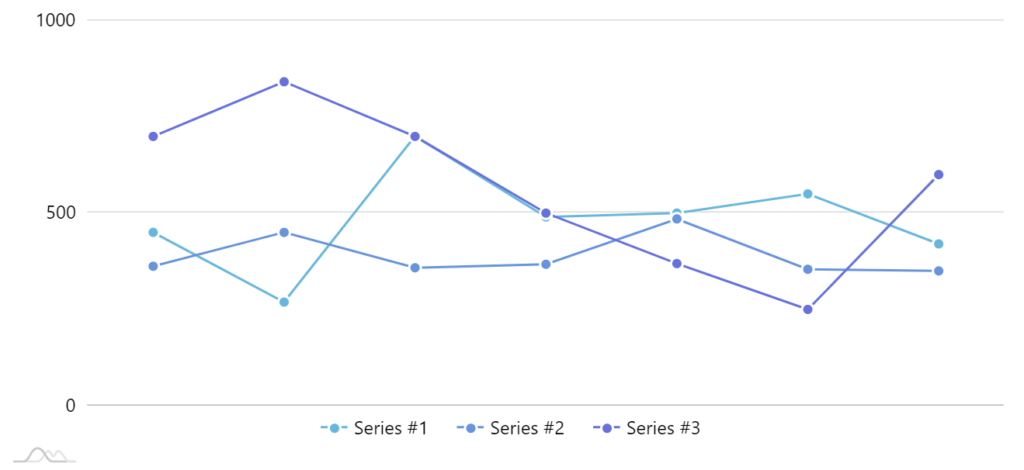
Say we want to have a fixed grid with labels at precisely 0, 500, and 1000.
First of all we’ll need to ensure that our axis scale starts at 0 and ends and 1000.
For that we’ll use ValueAxis’ min and max properties.
let yAxis = chart.yAxes.push( am5xy.ValueAxis.new(root, { min: 0, max: 1000, renderer: am5xy.AxisRendererY.new(root, {}) }));var yAxis = chart.yAxes.push( am5xy.ValueAxis.new(root, { min: 0, max: 1000, renderer: am5xy.AxisRendererY.new(root, {}) }));Next up, we’ll add grid and labels at 0, 500, and 1000 values.
function createRange(value, axis, label) {  let rangeDataItem = axis.makeDataItem({    value: value  });
  let range = axis.createAxisRange(rangeDataItem);
  range.get("label").setAll({    forceHidden: false,    text: label  });
  range.get("grid").setAll({    forceHidden: false,    strokeOpacity: 0.2,    location: 1  });}
createRange(0, yAxis, "0");createRange(500, yAxis, "500");createRange(1000, yAxis, "1000");
function createRange(value, axis, label) { var rangeDataItem = axis.makeDataItem({ value: value });
var range = axis.createAxisRange(rangeDataItem);
range.get("label").setAll({ forceHidden: false, text: label });
range.get("grid").setAll({ forceHidden: false, strokeOpacity: 0.2, location: 1 });}
createRange(0, yAxis, "0");createRange(500, yAxis, "500");createRange(1000, yAxis, "1000");Our chart starts regaining its shape:
DateAxis
Section titled “DateAxis”Now, let’s add some grid and labels to our DateAxis as well.
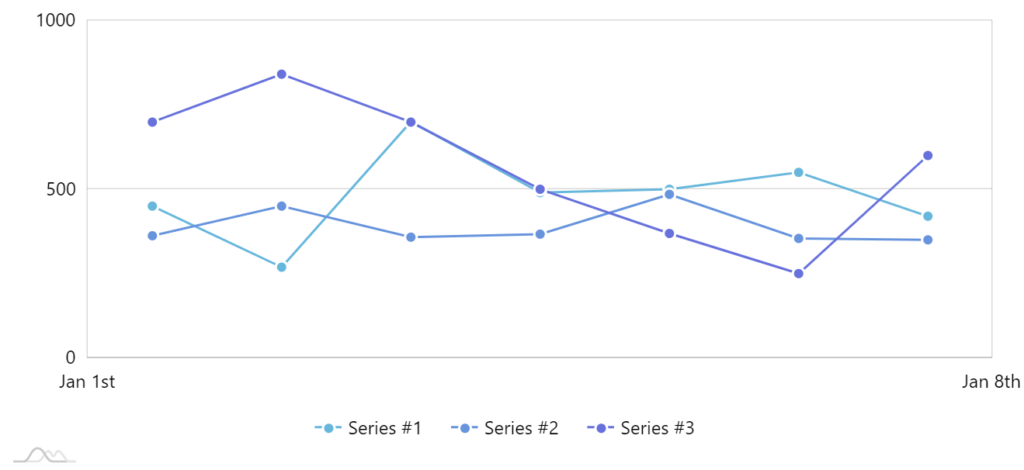
As, we’re not happy with the choices axis made in placement of those labels, we want grid items for just Jan 1 and Jan 8.
This works exactly as for ValueAxis, except that we will be using timestamps for the value. We’ll re-use the createRange() function we’ve already created.
createRange(new Date(2018, 0, 1).getTime(), xAxis, "Jan 1st");createRange(new Date(2018, 0, 8).getTime(), xAxis, "Jan 8th");createRange(new Date(2018, 0, 1).getTime(), xAxis, "Jan 1st");createRange(new Date(2018, 0, 8).getTime(), xAxis, "Jan 8th");Our job is finished: