Panels
Panels are instances of StockPanel class (which in turn extends an XYChart) comprising the Stock chart. Zoom state of their X axes as well as cursor are automatically synced by the stock chart itself.
Adding panels
Section titled “Adding panels”To add a panel, we need to:
- Create an instance of an
StockPanel. - Configure it fully (remember it’s an
XYChartso we can use any configuration options available to it), including axes and series that will go into it. - Push it into stock chart’s
panelslist.
The following code will add a single panel. Let’s call it a “main chart”.
let mainPanel = stockChart.panels.push(am5stock.StockPanel.new(root, { wheelY: "zoomX", panX: true, panY: true}));var mainPanel = stockChart.panels.push(am5stock.StockPanel.new(root, { wheelY: "zoomX", panX: true, panY: true}));Panel controls
Section titled “Panel controls”If the stock chart has more than one panel, a special set of controls is enabled on each panel.
Controls are buttons that allow:
- Moving panel up and down.
- Expanding panel to full chart size.
- Closing panel.
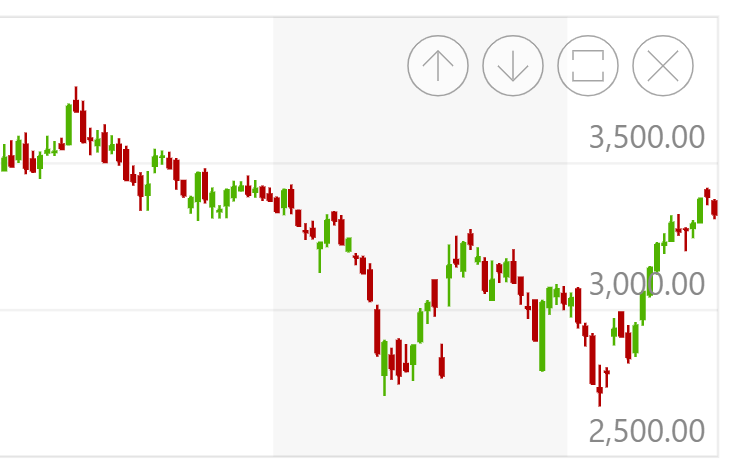
Panel controls is an object of type PanelControls, and is accessible via panel’s panelControls property.
Disabling panel controls
Section titled “Disabling panel controls”To disable panel controls, simply set its forceHidden: true:
mainPanel.panelControls.set("forceHidden");mainPanel.panelControls.set("forceHidden");Disabling individual buttons
Section titled “Disabling individual buttons”Individual button elements from the controls are available via the following properties of the PanelControls instance:
upButtondownButtonexpandButtoncloseButton
To selectively disable them, use their forceHidden setting:
mainPanel.panelControls.expandButton.set("forceHidden");mainPanel.panelControls.closeButton.set("forceHidden");mainPanel.panelControls.expandButton.set("forceHidden");mainPanel.panelControls.closeButton.set("forceHidden");Disabling panel resizer
Section titled “Disabling panel resizer”The easiest way to disabling resizing of panels is via custom theme:
let myTheme = am5.Theme.new(root);
myTheme.rule("Rectangle", ["panelresizer"]).setAll({  forceInactive: true});
root.setThemes([  am5themes_Animated.new(root),  myTheme]);
var myTheme = am5.Theme.new(root);
myTheme.rule("Rectangle", ["panelresizer"]).setAll({ forceInactive: true});
root.setThemes([ am5themes_Animated.new(root), myTheme]);Initial order
Section titled “Initial order”We can push as many StockPanel instances into stock chart’s panels list as we need to.
They will appear in the same order as the were pushed: the first panel will be displayed on top, with the rest following.
Reordering via UI
Section titled “Reordering via UI”Panels can also be re-ordered by user via panel controls, described earlier in this tutorial.
Reordering via API
Section titled “Reordering via API”Each panel instance offers two methods, that allow changing its position: moveUp() and moveDown().
Their functionality is self-explanatory.
Sizing
Section titled “Sizing”Via settings
Section titled “Via settings”Normally, all panels will divide the vertical space between them equally.
We can modify that manually, using panel/chart’s height setting.
It accepts both absolute pixel as well as percent values.
let mainPanel = stockChart.panels.push(am5stock.StockPanel.new(root, {  wheelY: "zoomX",  panX: true,  panY: true}));
let volumePanel = stockChart.panels.push(am5stock.StockPanel.new(root, {  wheelY: "zoomX",  panX: true,  panY: true,  height: am5.percent(30)}));
var mainPanel = stockChart.panels.push(am5stock.StockPanel.new(root, { wheelY: "zoomX", panX: true, panY: true}));
var volumePanel = stockChart.panels.push(am5stock.StockPanel.new(root, { wheelY: "zoomX", panX: true, panY: true, height: am5.percent(30)}));In the above example, only “volumePanel” has its height set to 30%.
That means that it will take 30% of the height of the stock chart, with “mainPanel” taking up the rest 70% even if it does not have height explicitly set.
Via user interface
Section titled “Via user interface”The panels are resizable out-of-the-box.
User can drag space between panels to resize them manually.
Syncing cursors
Section titled “Syncing cursors”Cursors between panels will be automatically synced across all panels.
To disable it, use this line of code for each panel after it has been added to the chart:
panel.removePrivate("otherCharts");panel.removePrivate("otherCharts");Removing panels
Section titled “Removing panels”Via API
Section titled “Via API”To remove a panel programmatically, all we need to do is call panel’s close() method:
volumePanel.close();volumePanel.close();stockChart.panels.autoDispose = false;stockChart.panels.autoDispose = false;Via controls
Section titled “Via controls”If panel/chart has panel controls added to it, it can be removed by the user by pressing the “close” button in control bar.
Events
Section titled “Events”Panels have a few events you can tap into:
| Event | Kicks in when |
|---|---|
closed |
Panel is closed (removed). |
collapsed |
Panel returns from its expanded state. |
expanded |
Panel is expanded. |
moved |
Panel is moved up and down using its controls or API. |
volumePanel.events.on("closed", function(ev) { console.log("Buh bye, Volume Panel");});volumePanel.events.on("closed", function(ev) { console.log("Buh bye, Volume Panel");});Example
Section titled “Example”Below is a working multi-panel stock chart: