Treemap
This tutorial will look at how to configure treemap series.
Layout algorithm
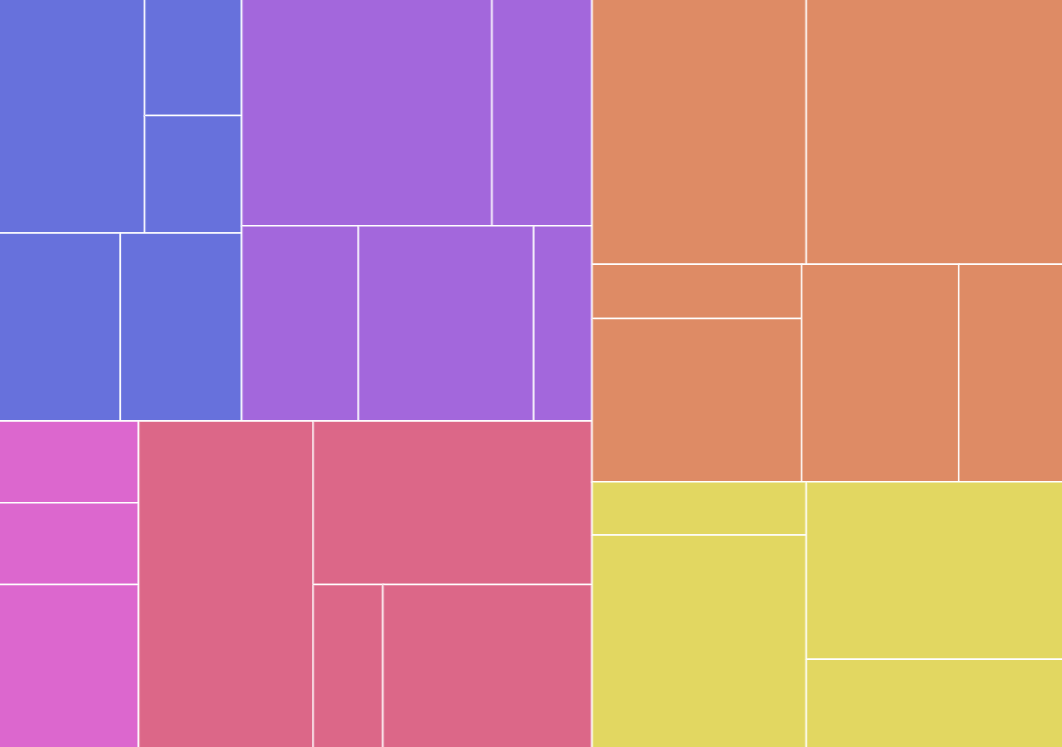
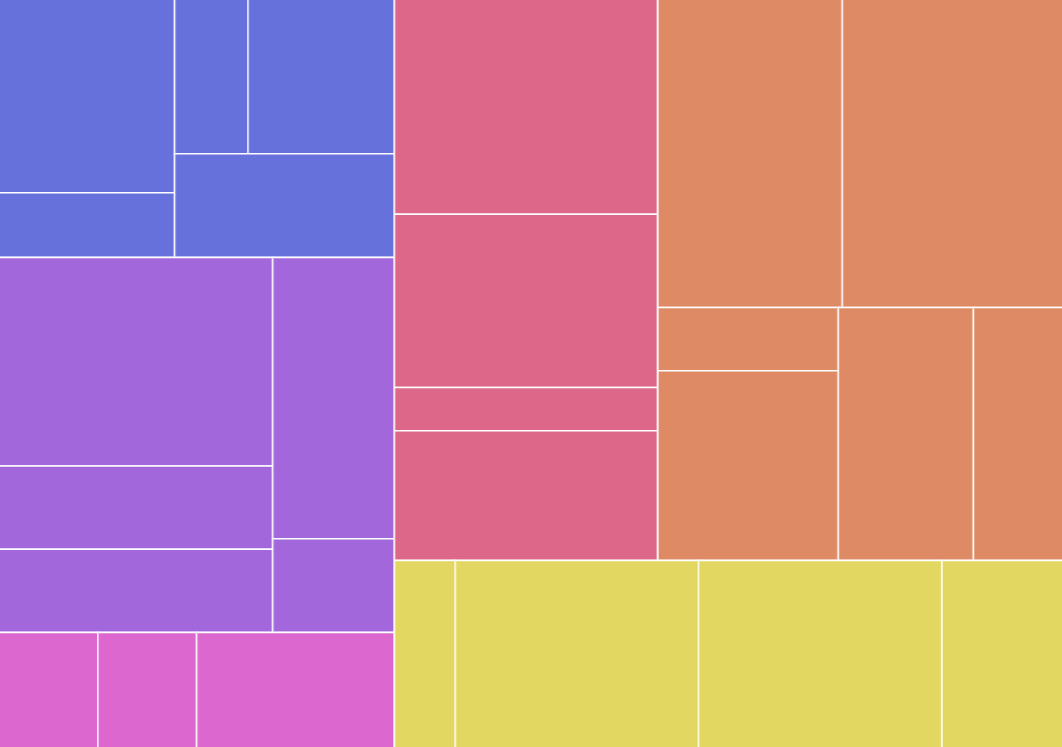
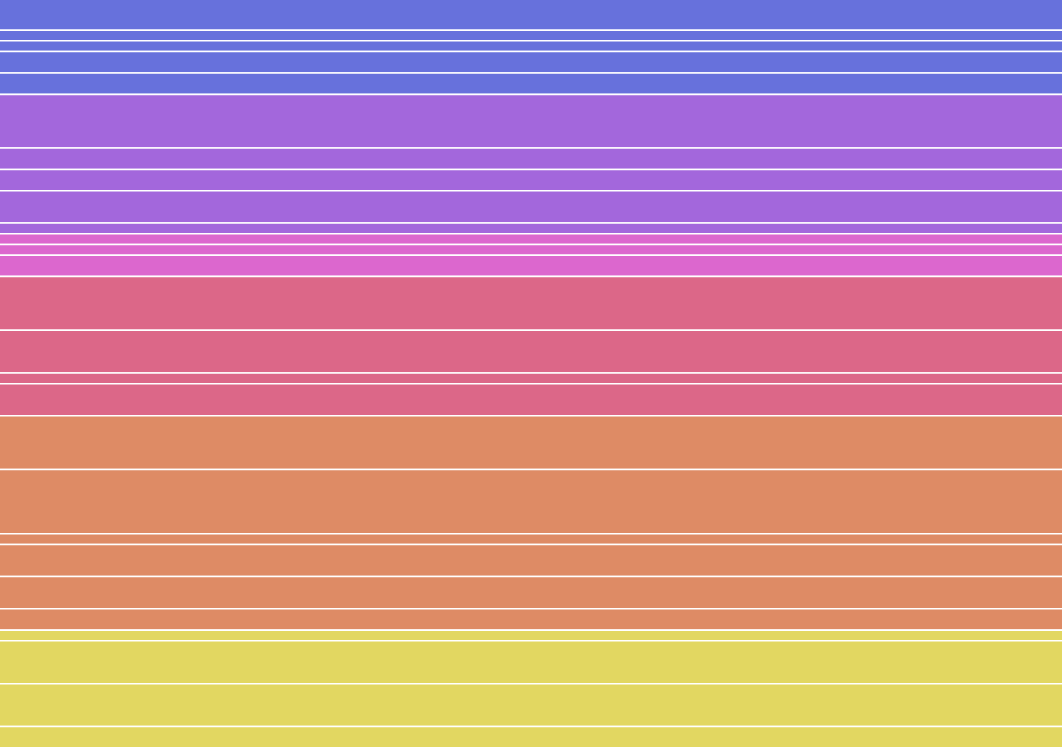
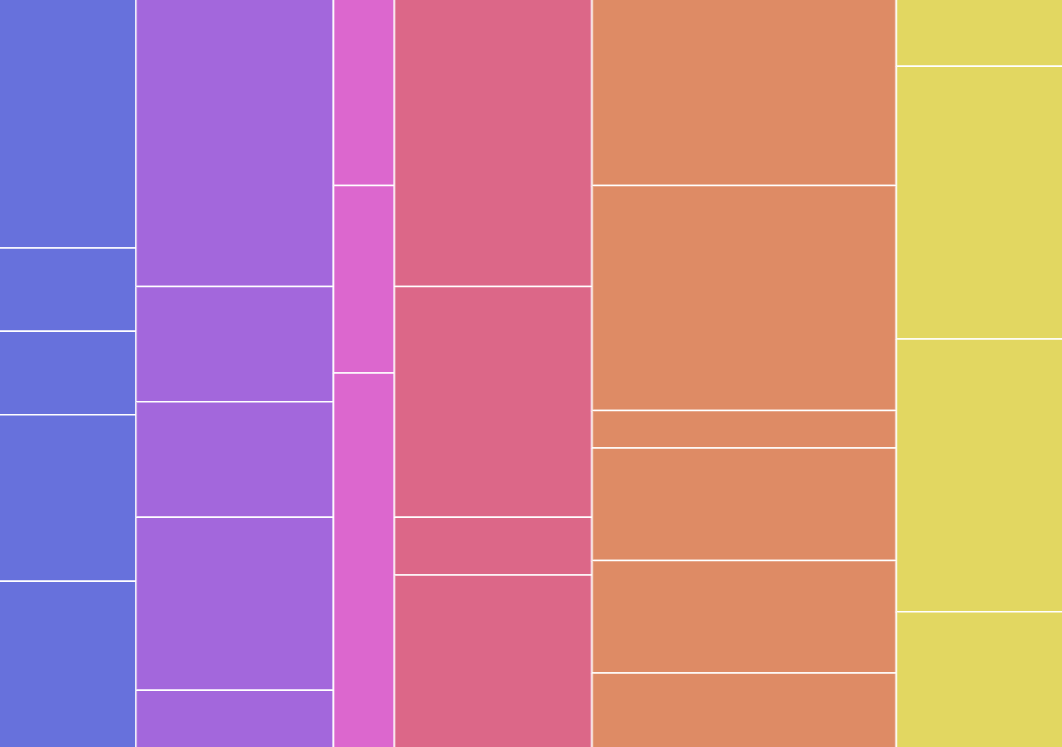
Section titled “Layout algorithm”Treemap can use different ways to layout algorithms.
It’s controlled by the setting layoutAlgorithm:
let series = root.container.children.push( am5hierarchy.Treemap.new(root, { valueField: "value", categoryField: "name", childDataField: "children", layoutAlgorithm: "sliceDice" }));var series = root.container.children.push( am5hierarchy.Treemap.new(root, { valueField: "value", categoryField: "name", childDataField: "children", layoutAlgorithm: "sliceDice" }));Available settings are as follows:
Setting value | Example |
|---|---|
|
|
|
|
|
|
|
|
|
|

Margins
Section titled “Margins”By default, the rectangles of the nodes are plotted without any gaps between them.
We do have a few settings at our disposal that we can use to control the gaps. All accept numeric value in pixels.
| Setting | Comment |
|---|---|
nodePaddingInner |
Gap between nodes. |
nodePaddingOuter |
Gap between nodes and outer edge of the chart. |
nodePaddingTop |
Gap between nodes and top edge. Will be ignored if nodePaddingOuter is set. |
nodePaddingBottom |
Gap between nodes and bottomedge. Will be ignored if nodePaddingOuter is set. |
nodePaddingLeft |
Gap between nodes and left edge. Will be ignored if nodePaddingOuter is set. |
nodePaddingRight |
Gap between nodes and bottom edge. Will be ignored if nodePaddingOuter is set. |
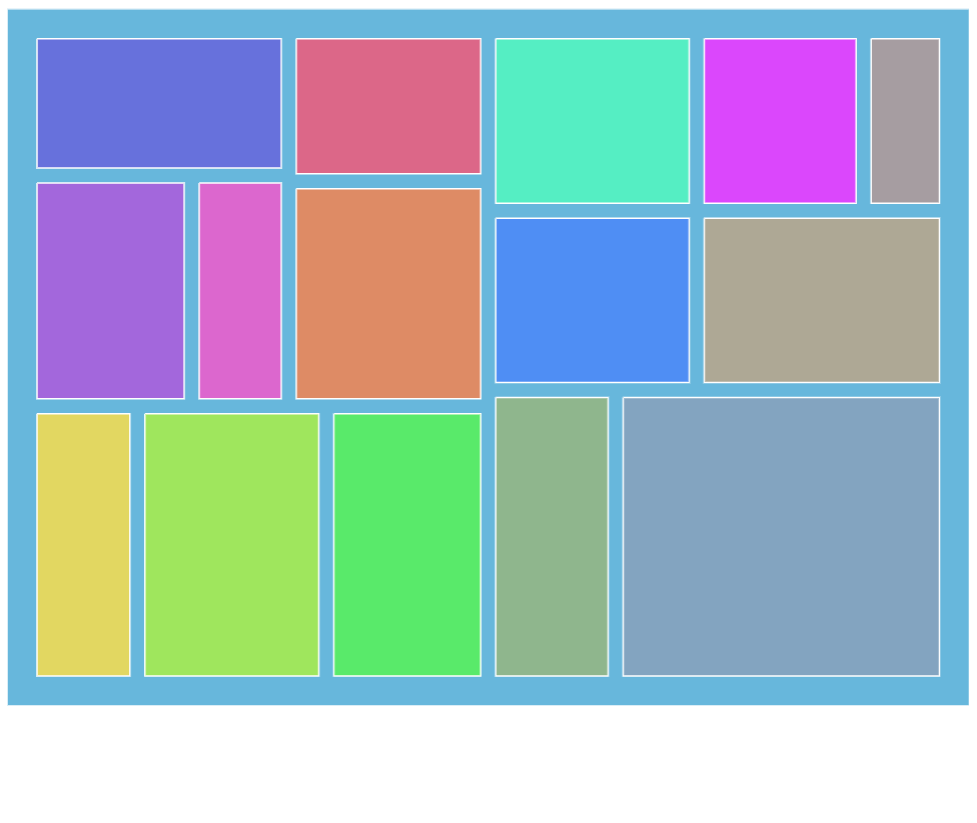
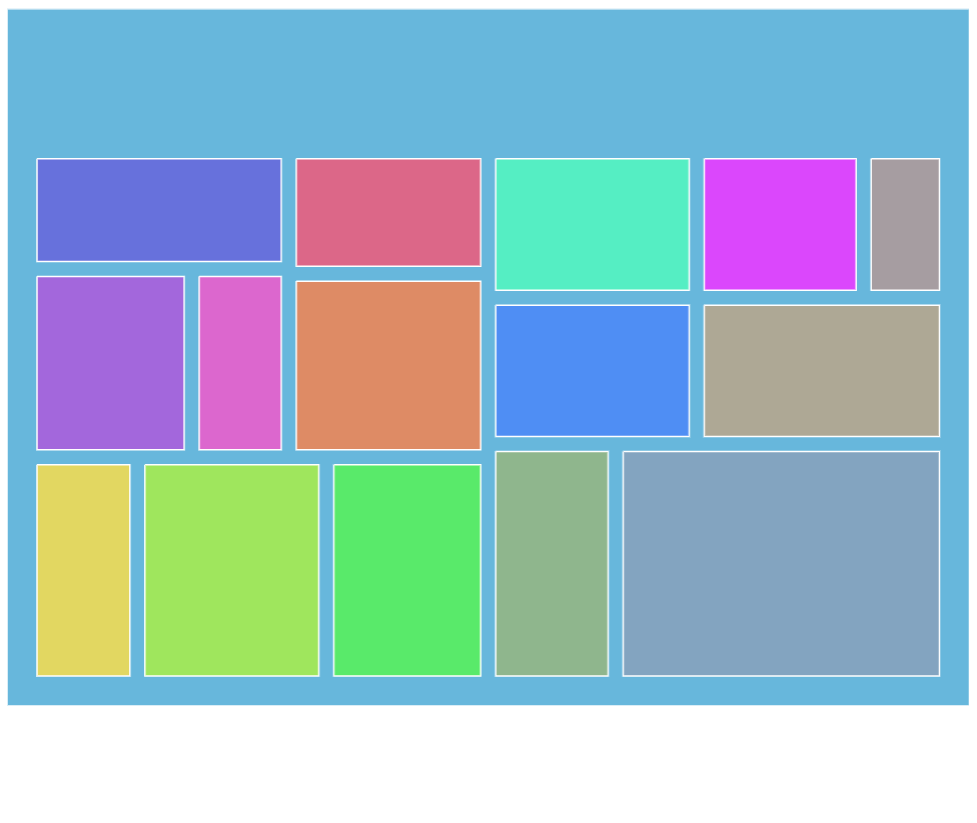
let series = root.container.children.push( am5hierarchy.Treemap.new(root, { valueField: "value", categoryField: "name", childDataField: "children", nodePaddingOuter: 20, nodePaddingInner: 10 }));var series = root.container.children.push( am5hierarchy.Treemap.new(root, { valueField: "value", categoryField: "name", childDataField: "children", nodePaddingOuter: 20, nodePaddingInner: 10 }));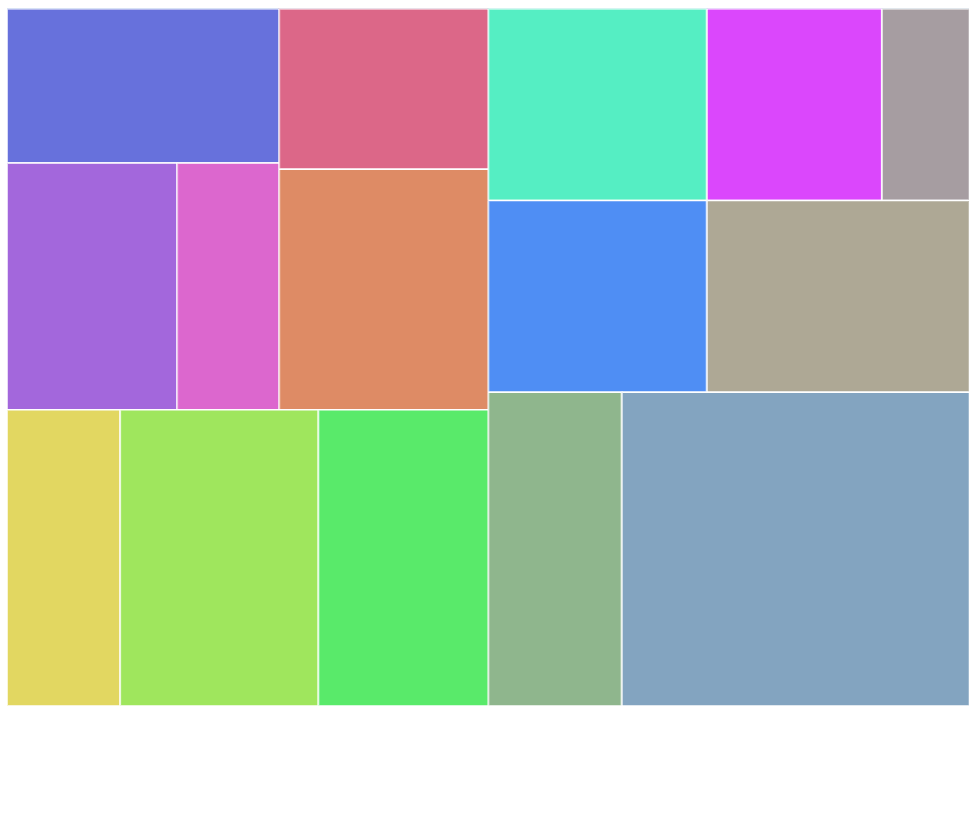
Node appearance
Section titled “Node appearance”The appearance of node rectangles can be configured using their template, accessible on series property: rectangles.template.
The template can have contain any RoundedRectangle setting.
series.rectangles.template.setAll({ fillOpacity: 0.7, cornerRadiusTL: 4, cornerRadiusTR: 4, cornerRadiusBL: 4, cornerRadiusBR: 4});series.rectangles.template.setAll({ fillOpacity: 0.7, cornerRadiusTL: 4, cornerRadiusTR: 4, cornerRadiusBL: 4, cornerRadiusBR: 4});Hover behavior
Section titled “Hover behavior”We can set setting values to apply to a rectangle when it is hovered by creating a “hover” state for it.
series.rectangles.template.states.create("hover", { fill: am5.color(0x677935), fillOpacity: 1});series.rectangles.template.states.create("hover", { fill: am5.color(0x677935), fillOpacity: 1});Labels
Section titled “Labels”Configuring labels
Section titled “Configuring labels”Series label configuration is done via its template, accessible via series property labels.template.
series.labels.template.setAll({ fontSize: 20, fill: am5.color(0x550000), text: "{category}"});series.labels.template.setAll({ fontSize: 20, fill: am5.color(0x550000), text: "{category}"});Partition series uses Label for its labels. Check out its class reference for all the possible settings.
Label content
Section titled “Label content”Node labels are pre-set to display name of the category and its percent value.
We can modify contents of the tooltips using text setting on a series label template:
series.labels.template.setAll({ text: "{category}: [bold]{sum}[/]", fontSize: 14});series.labels.template.setAll({ text: "{category}: [bold]{sum}[/]", fontSize: 14});Contents of the tooltip can include data placeholders (codes in curly brackets that will be replaced by actual data) and in-line formatting blocks (formatting instructions enclosed in square brackets).
Disabling labels
Section titled “Disabling labels”To disable series labels, we can set forceHidden setting to true in their template:
series.labels.template.set("forceHidden", true);series.labels.template.set("forceHidden", true);Tooltips
Section titled “Tooltips”Rectangles series are pre-set to display a tooltip on hover containing name of the category and its value.
We can modify contents of the tooltips using tooltipText on node’s template:
series.nodes.template.set("tooltipText", "{category}: [bold]{sum}[/]");series.nodes.template.set("tooltipText", "{category}: [bold]{sum}[/]");Contents of the tooltip can include data placeholders (codes in curly brackets that will be replaced by actual data) and in-line formatting blocks (formatting instructions enclosed in square brackets).