Arc Diagram
This tutorial contains information for creating Arc diagram.
Flow chart
Section titled “Flow chart”An Arc diagram is a flow chart. For generic flow chart related information, please visit “Flow charts” tutorial.
Orientation
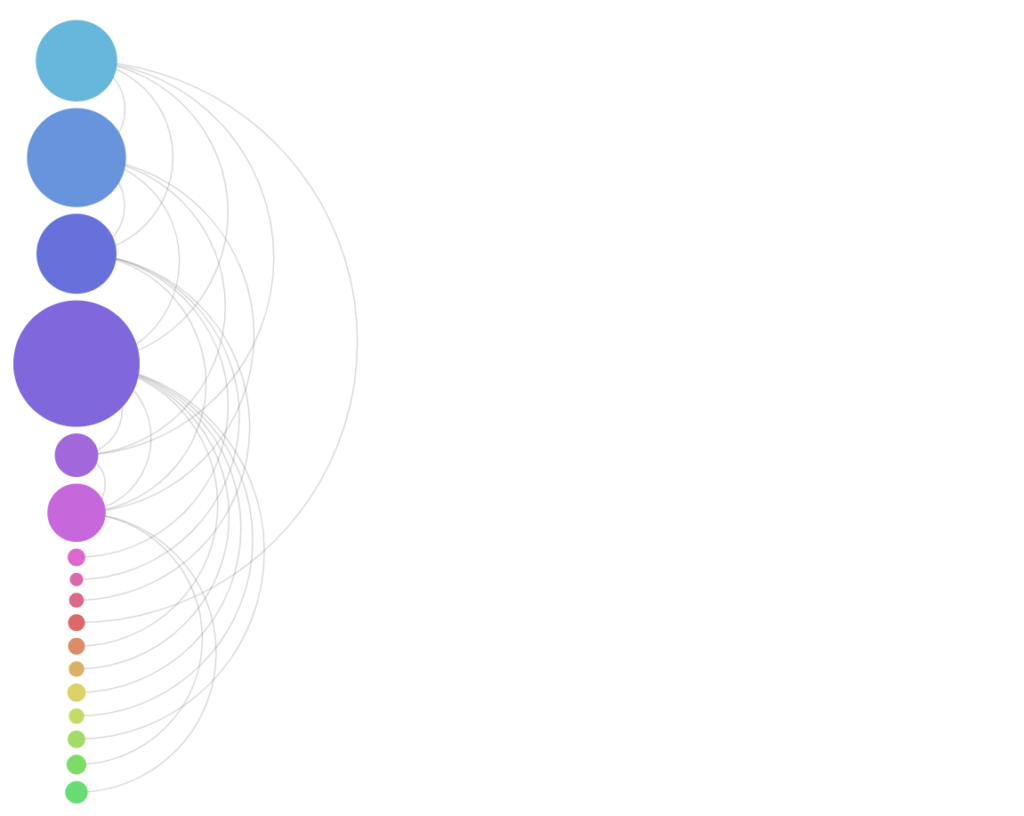
Section titled “Orientation”Arc diagram is drawn horizontal by default.
We can change it using series’ orientation setting:
let series = root.container.children.push( am5flow.ArcDiagram.new(root, { sourceIdField: "from", targetIdField: "to", valueField: "value", orientation: "vertical" }));var series = root.container.children.push( am5flow.ArcDiagram.new(root, { sourceIdField: "from", targetIdField: "to", valueField: "value", orientation: "vertical" }));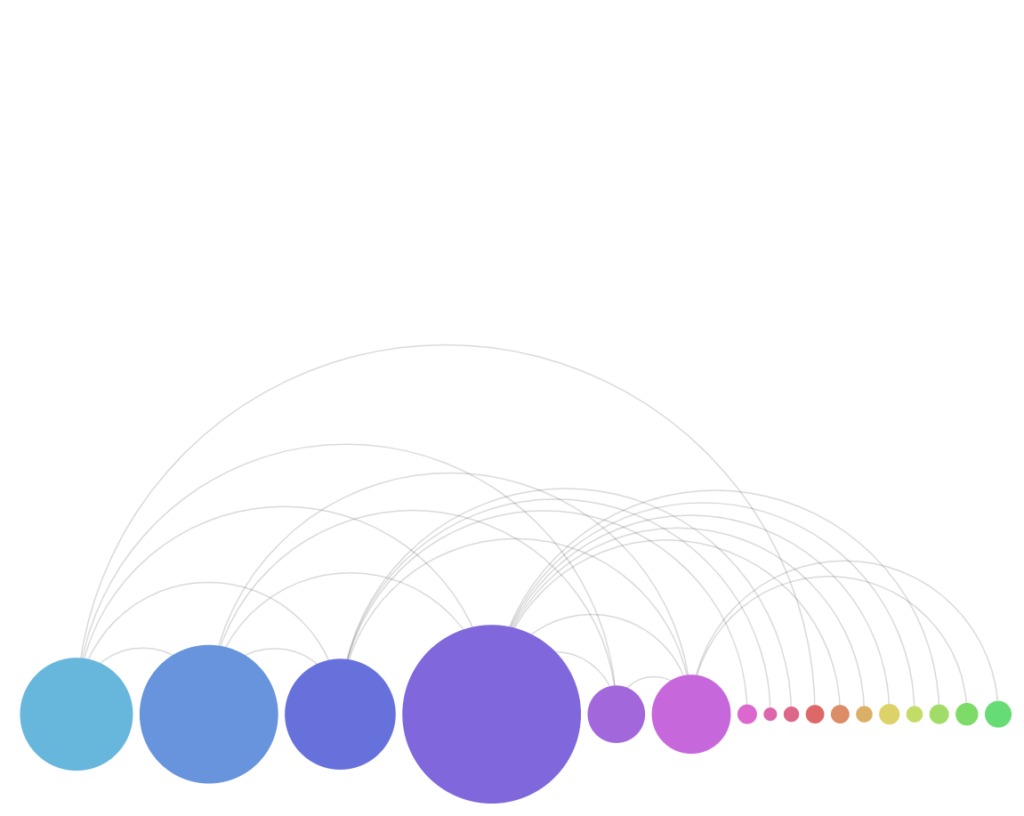
Nodes (circles)
Section titled “Nodes (circles)”Nodes in Arc diagram are represented by circles.
Circle radius
Section titled “Circle radius”The radius of the circles in an Arc diagram represent its relative value: the bigger the value, the bigger the circle.
The value of a node is determined by sum of all incoming and outgoing links.
We can change the value used in calculation of node’s size using diagram’s radiusKey setting:
let series = root.container.children.push( am5flow.ArcDiagram.new(root, { sourceIdField: "from", targetIdField: "to", valueField: "value", radiusKey: "sumIncoming" }));var series = root.container.children.push( am5flow.ArcDiagram.new(root, { sourceIdField: "from", targetIdField: "to", valueField: "value", radiusKey: "sumIncoming" }));| Value | Comment |
|---|---|
"sum" (default) |
Sum of values of all incoming and outgoing links. |
"sumIncoming" |
Sum of values of all incoming links. |
"sumOutgoing" |
Sum of values of all outgoing links. |
"none" |
No values are calculated. All circles will be the same size. |
Minimal radius
Section titled “Minimal radius”When sizing nodes, the diagram takes into account available space: the circle of each node will have its radius set proportionally to the highest available value.
However, the diagram will not allow circles to get smaller than 5px radius, even if their value would call for a smaller circle.
We can change this threshold using minRadius setting:
let series = root.container.children.push( am5flow.ArcDiagram.new(root, { sourceIdField: "from", targetIdField: "to", valueField: "value", minRadius: 10 }));var series = root.container.children.push( am5flow.ArcDiagram.new(root, { sourceIdField: "from", targetIdField: "to", valueField: "value", minRadius: 10 }));Configuring circles
Section titled “Configuring circles”Nodes in Arc diagrams are represented by their own series, accessible via read-only property nodes which is an object of type ArcDiagramNodes.
It subsequently has a property circles which is a list of all nodes in series.
Since it’s a “list template”, we can use its template property to set any setting for the node, which is of type Circle:
series.nodes.circles.template.setAll({ fillOpacity: 0.5, stroke: am5.color(0x000000), strokeWidth: 1});series.nodes.circles.template.setAll({ fillOpacity: 0.5, stroke: am5.color(0x000000), strokeWidth: 1});Node data
Section titled “Node data”Setting node data
Section titled “Setting node data”In Arc diagrams, node ids (and names) are derived from link data (via sourceIdField and targetIdField).
In some cases, we might need more than just node id which comes from chord data.
For that we can set own data on series.nodes.data:
series.nodes.data.setAll([ { id: "A", name: "Node A" }, { id: "B", name: "Node B" }, { id: "C", name: "Node C" }]);series.nodes.data.setAll([ { id: "A", name: "Node A" }, { id: "B", name: "Node B" }, { id: "C", name: "Node C" }]);Modifying data fields
Section titled “Modifying data fields”Node series (which is ArcDiagramNodes) is automatically set up for these data fields:
| Data field | Default value | Comment |
|---|---|---|
idField |
"id" |
ID of the node. |
nameField |
"id" |
Name of the node. |
fillField |
"fill" |
Fill color for the node. |
We can modify those to suit our data:
series.nodes.setAll({  idField: "id",  nameField: "name"});
series.nodes.data.setAll([ { id: "A", name: "Node A" }, { id: "B", name: "Node B" }, { id: "C", name: "Node C" }]);series.nodes.setAll({ idField: "id", nameField: "name"});
series.nodes.data.setAll([ { id: "A", name: "Node A" }, { id: "B", name: "Node B" }, { id: "C", name: "Node C" }]);Node colors via data
Section titled “Node colors via data”We can also specify custom colors for nodes via node data:
series.nodes.data.setAll([ { id: "A", name: "Node A", fill: am5.color(0xFF621F) }, { id: "B", name: "Node B", fill: am5.color(0x297373) }, { id: "C", name: "Node C", fill: am5.color(0x946B49) }]);series.nodes.data.setAll([ { id: "A", name: "Node A", fill: am5.color(0xFF621F) }, { id: "B", name: "Node B", fill: am5.color(0x297373) }, { id: "C", name: "Node C", fill: am5.color(0x946B49) }]);The fill color will be lookup up in a "fill" field of the data. If we need to use something else, we will need to configure node series’ fillField as well:
series.nodes.setAll({  idField: "id",  nameField: "name",  fillField: "color"});
series.nodes.data.setAll([ { id: "A", name: "Node A", color: am5.color(0xFF621F) }, { id: "B", name: "Node B", color: am5.color(0x297373) }, { id: "C", name: "Node C", color: am5.color(0x946B49) }]);series.nodes.setAll({ idField: "id", nameField: "name", fillField: "color"});
series.nodes.data.setAll([ { id: "A", name: "Node A", color: am5.color(0xFF621F) }, { id: "B", name: "Node B", color: am5.color(0x297373) }, { id: "C", name: "Node C", color: am5.color(0x946B49) }]);Configuring links
Section titled “Configuring links”The links can be configured using series.links.template:
series.links.template.setAll({ stroke: am5.color(0xff0000), strokeWidth: 5, strokeOpacity: 0.3});series.links.template.setAll({ stroke: am5.color(0xff0000), strokeWidth: 5, strokeOpacity: 0.3});Refer to the class reference of the ArcDiagramLink for more settings.
Color mode
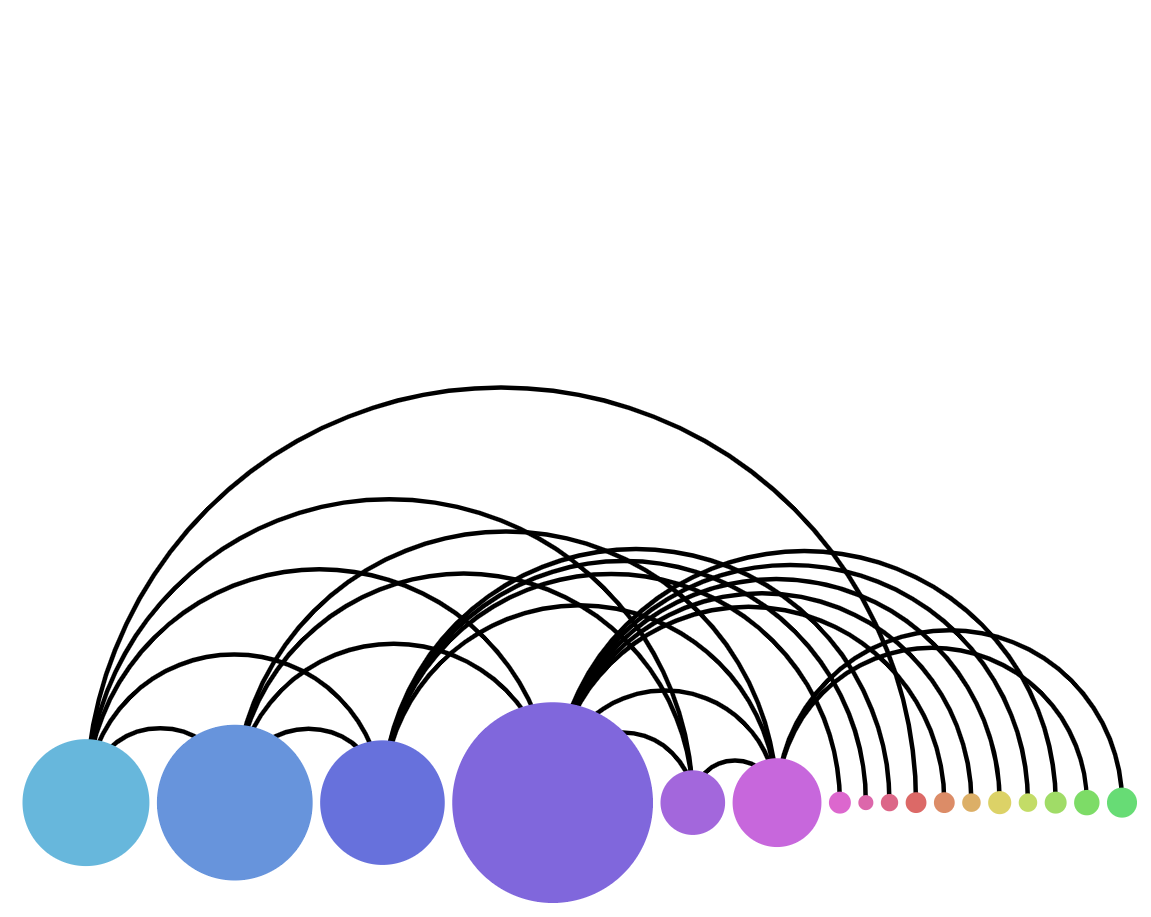
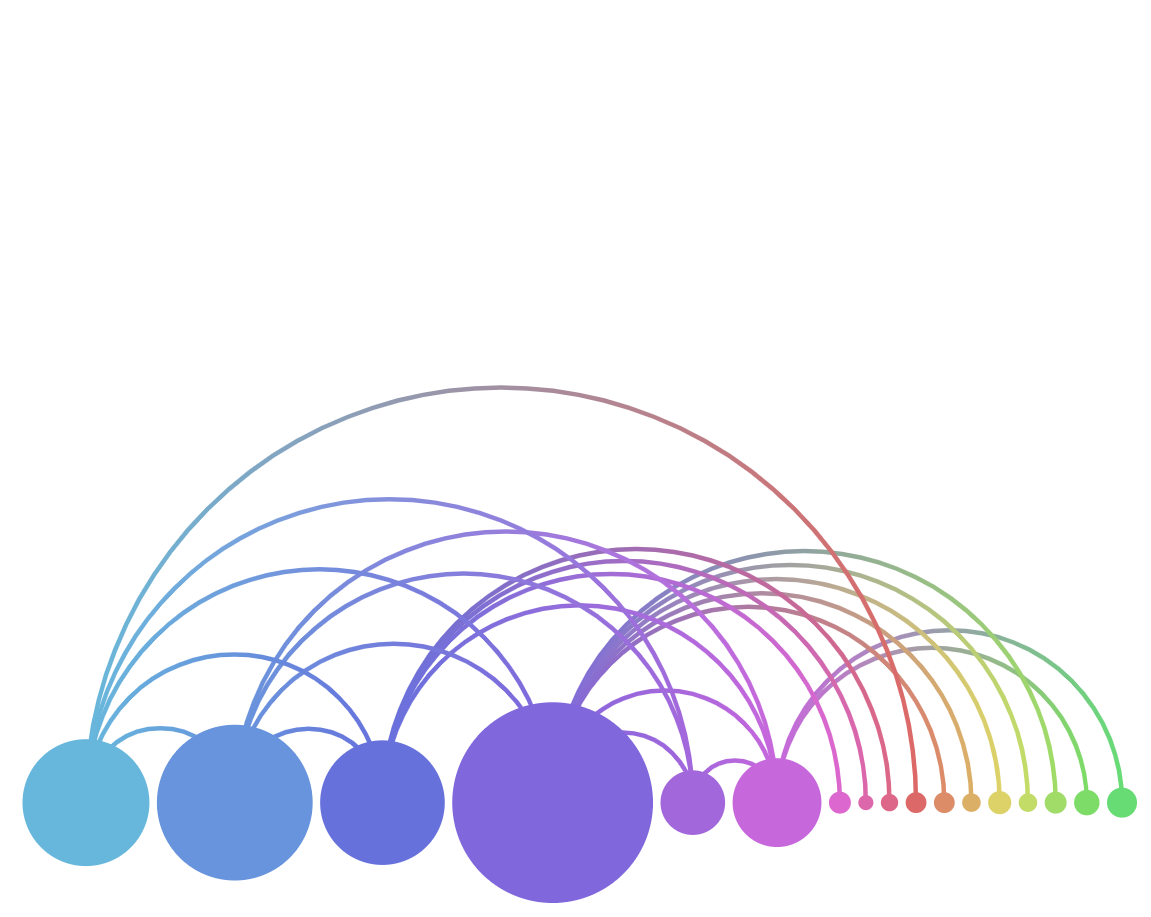
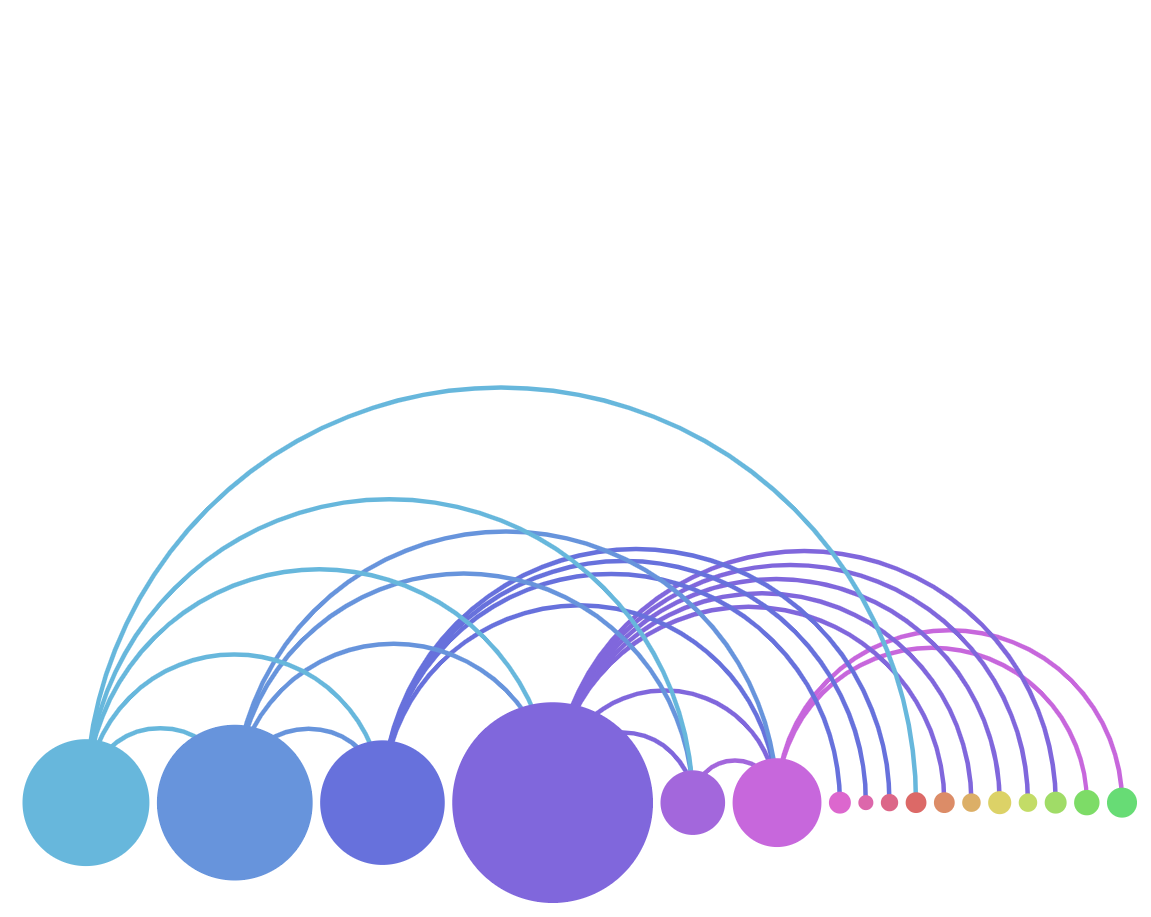
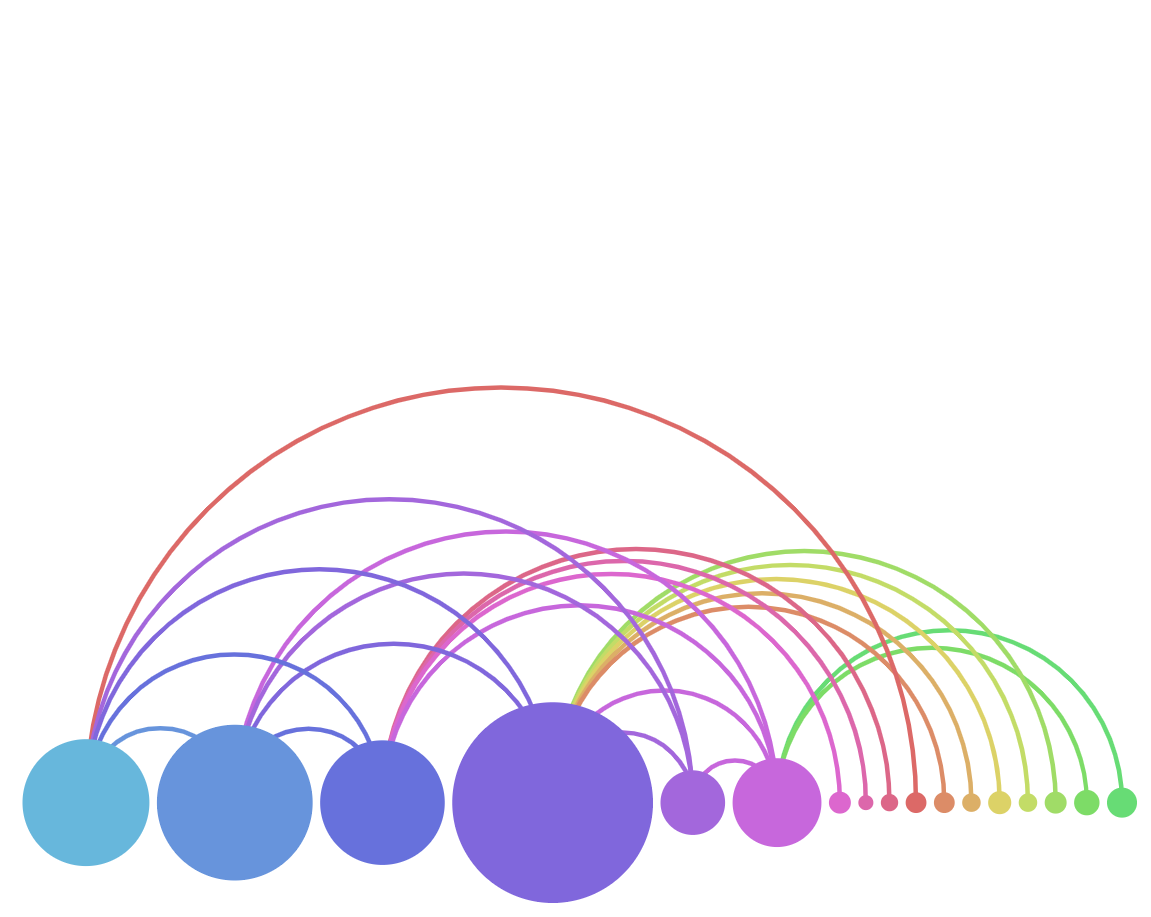
Section titled “Color mode”The links can be colored in a number of ways via link template’s strokeStyle setting:
series.links.template.setAll({ fillStyle: "solid"});series.links.template.setAll({ fillStyle: "solid"});These values are available for fillStyle:
| Comment | Example |
|---|---|---|
| Solid color. |
|
| Gradient from source node color to target node color. |
|
| Source node color. |
|
| Target node color. |
|
Labels
Section titled “Labels”Configuring labels
Section titled “Configuring labels”Labels in an Arc diagram are attached to nodes, so they can be configured via nodes sub-series, specifically nodes.labels.template:
series.nodes.labels.template.setAll({ fontSize: 20, maxWidth: 150, wrap: true});series.nodes.labels.template.setAll({ fontSize: 20, maxWidth: 150, wrap: true});Refer to Label class reference for a full list of available settings.
Label content
Section titled “Label content”To change label content, we only need to set text property of the label template:
series.nodes.labels.template.setAll({ text: "[bold]{name}[/] ({sumOutgoing})"});series.nodes.labels.template.setAll({ text: "[bold]{name}[/] ({sumOutgoing})"});Contents of the label can include data placeholders (codes in curly brackets that will be replaced by actual data) and in-line formatting blocks (formatting instructions enclosed in square brackets).
For available data placeholder fields refer to IArcDiagramNodesDataItem.
Alignment
Section titled “Alignment”By default, labels are aligned to the center of the node (rotated vertically for the horizontal version of the diagram).
We can use a combination of label’s settings to control how they are aligned, positioned, and rotated:
| Setting | Default (horizontal) | Default (vertical) | Comment |
|---|---|---|---|
centerY |
am5.percent(50) |
am5.percent(50) |
Vertical center of the label |
centerX |
am5.percent(100) |
am5.percent(100) |
HNorizontal center of the label |
rotation |
-90 |
- | Rotation in degrees |
paddingRight |
- | 15 |
Top padding |
The following code will “unrotate” horizontal diagram’s labels, as well as place them in the middle of the circle:
series.nodes.labels.template.setAll({ rotation: 0, centerX: am5.percent(50)});series.nodes.labels.template.setAll({ rotation: 0, centerX: am5.percent(50)});Disabling labels
Section titled “Disabling labels”To disable labels, we can simply set their forceHidden to true:
series.nodes.labels.template.set("forceHidden", true);series.nodes.labels.template.set("forceHidden", true);