Force-directed
This tutorial will look at how to configure force-directed series.
There are two lists of elements that we can use to configure nodes: circles and outerCircles.
Circles
Section titled “Circles”circles.template can be used to configure node circles. All nodes have them.
The template accepts all Circle settings.
series.circles.template.setAll({ fillOpacity: 0.7, strokeWidth: 1, strokeOpacity: 1});series.circles.template.setAll({ fillOpacity: 0.7, strokeWidth: 1, strokeOpacity: 1});Outer circles
Section titled “Outer circles”outerCircles.template configures additional node circle outline. Only nodes with children have them.
series.outerCircles.template.setAll({ strokeWidth: 2});series.outerCircles.template.setAll({ strokeWidth: 2});Outer circles play special role in linked hierarchies: they indicate if node has children.
The outer circle also has different looks based on whether it is expanded or collapsed.
Those looks are controlled via application of certain states.
An outer circle can have four built-in states:
State | Example | Comment |
|---|---|---|
|
| Applied when node is collapsed. |
|
| Applied when node is hovered. |
|
| Applied when collapsed node is hovered. |
|
| Applied to nodes that do not have children. |
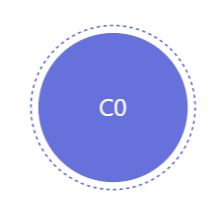
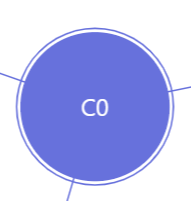
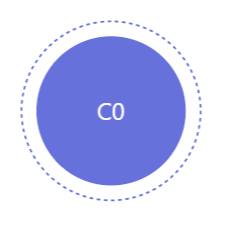
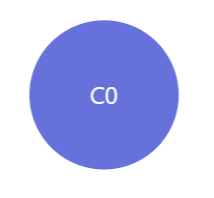
The following code modifies how outer circle looks like:
series.outerCircles.template.states.create("disabled", {  fillOpacity: 0.5,  strokeOpacity: 0,  strokeDasharray: 0});
series.outerCircles.template.states.create("hoverDisabled", { fillOpacity: 0.5, strokeOpacity: 0, strokeDasharray: 0});series.outerCircles.template.states.create("disabled", { fillOpacity: 0.5, strokeOpacity: 0, strokeDasharray: 0});
series.outerCircles.template.states.create("hoverDisabled", { fillOpacity: 0.5, strokeOpacity: 0, strokeDasharray: 0});Sizing nodes
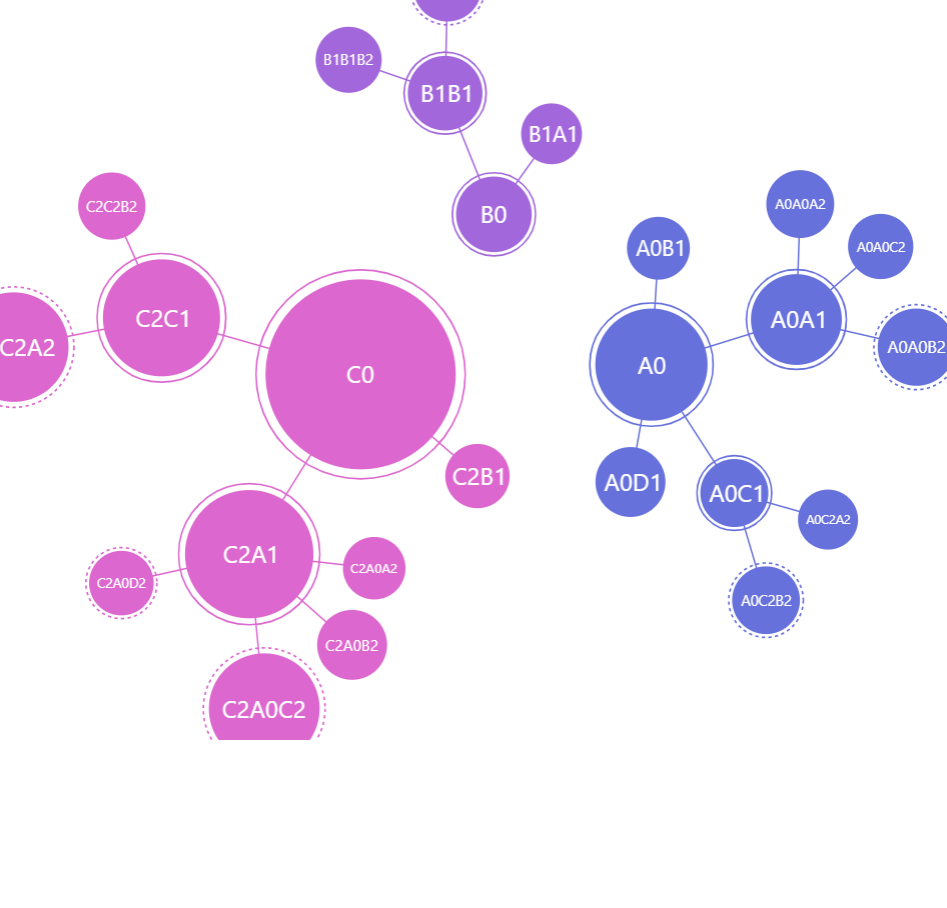
Section titled “Sizing nodes”Normally, nodes are sized based on their value, which is either value from data or sum of values of all node children.
The smallest and biggest possible node circle is controlled by series minRadius and maxRadius settings.
Both accept numeric values in pixels or percent values relative to the size of the chart itself.
let series = container.children.push( am5hierarchy.ForceDirected.new(root, { valueField: "value", categoryField: "name", childDataField: "children", minRadius: 20, maxRadius: am5.percent(15) }));var series = container.children.push( am5hierarchy.ForceDirected.new(root, { valueField: "value", categoryField: "name", childDataField: "children", minRadius: 20, maxRadius: am5.percent(15) }));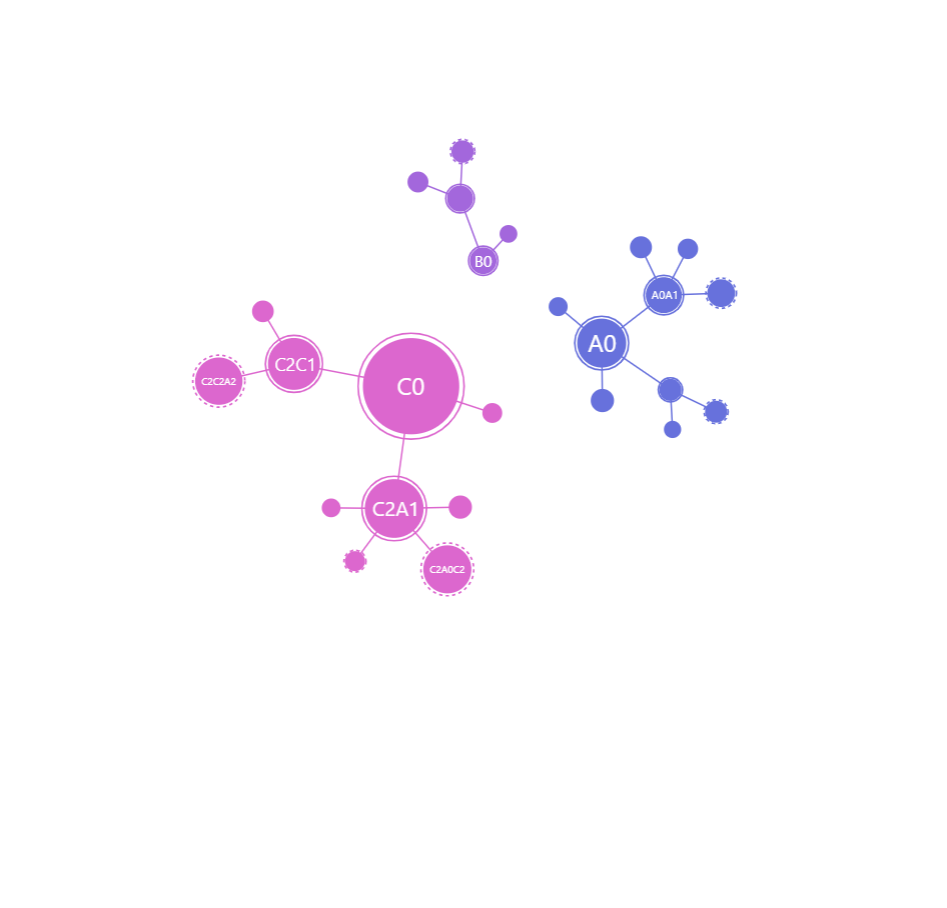
Disabling dragging
Section titled “Disabling dragging”Nodes in the tree are draggable. We can disable it by setting draggable to false:
series.nodes.template.setAll({ draggable: false});series.nodes.template.setAll({ draggable: false});Disabling toggling
Section titled “Disabling toggling”To disable toggle behavior on a node, all we need to do is to reset toggle key for node template, as well as resetting pointer cursor:
series.nodes.template.setAll({ toggleKey: "none", cursorOverStyle: "default"});series.nodes.template.setAll({ toggleKey: "none", cursorOverStyle: "default"});Gaps between nodes
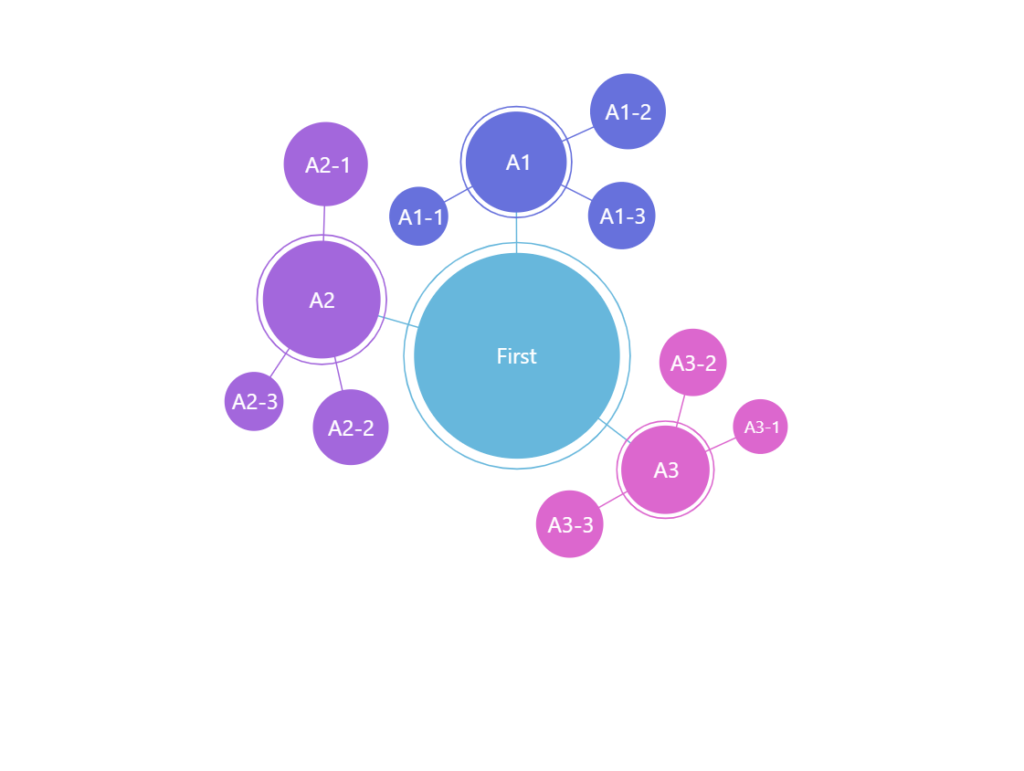
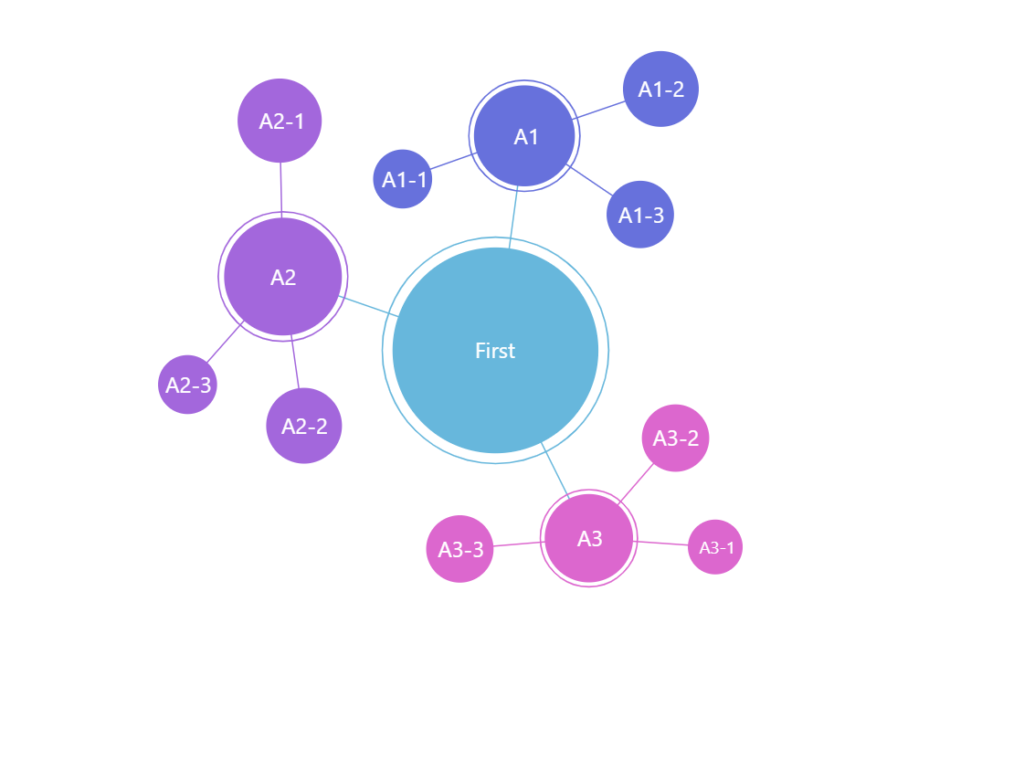
Section titled “Gaps between nodes”Depending on force simulation settings, nodes can be pulled quite close together.
We can control how close they can get using series’ nodePadding setting.
let series = container.children.push( am5hierarchy.ForceDirected.new(root, { valueField: "value", categoryField: "name", childDataField: "children", manyBodyStrength: -1, nodePadding: 10 }));var series = container.children.push( am5hierarchy.ForceDirected.new(root, { valueField: "value", categoryField: "name", childDataField: "children", minRadius: 20, maxRadius: am5.percent(15), manyBodyStrength: -1, nodePadding: 10 }));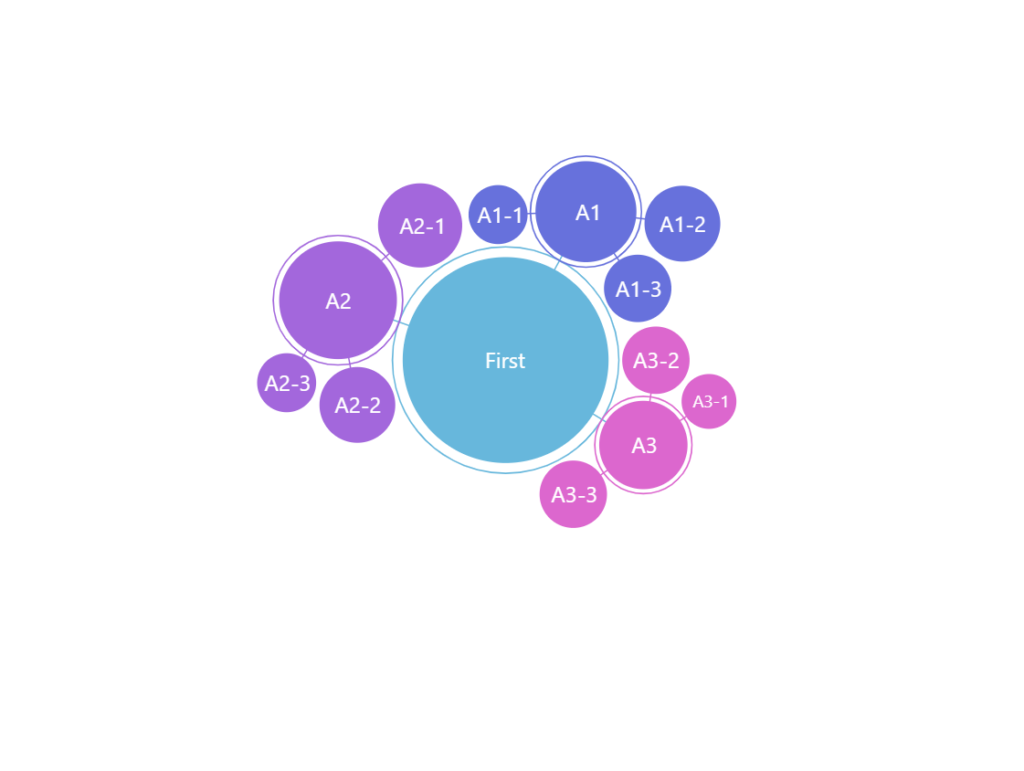
Fixed nodes
Section titled “Fixed nodes”Normally, force-directed nodes would find and settle in their own place, based on force interactions with other nodes.
We can make some (or all) nodes stick to specific place by providing their X and Y coordinates in data. We just need to bind series using xField and yField.
The keys in data pointed to by xField and yField can either hold numeric pixel value or percent objects.
let series = container.children.push( am5hierarchy.ForceDirected.new(root, { valueField: "value", categoryField: "name", childDataField: "children", xField: "x", yField: "y" }));var series = container.children.push( am5hierarchy.ForceDirected.new(root, { valueField: "value", categoryField: "name", childDataField: "children", xField: "x", yField: "y" }));Using images
Section titled “Using images”We can replace standard circles with custom images.
For that we’ll need to go through some steps:
- Disable inner and outer circles.
- Create images in node using
setup()method of its template. - Disable or reposition labels.
// Hide circlesseries.circles.template.set("forceHidden", true);series.outerCircles.template.set("forceHidden", true);
// Add an icon to nodeseries.nodes.template.setup = function(target) {  let icon = target.children.push(am5.Picture.new(root, {    width: 70,    height: 70,    centerX: am5.percent(50),    centerY: am5.percent(50),    src: "https://assets.codepen.io/t-160/star.svg"  }));}
// Hide circlesseries.circles.template.set("forceHidden", true);series.outerCircles.template.set("forceHidden", true);
// Add an icon to nodeseries.nodes.template.setup = function(target) { var icon = target.children.push(am5.Picture.new(root, { width: 70, height: 70, centerX: am5.percent(50), centerY: am5.percent(50), src: "https://assets.codepen.io/t-160/star.svg" }));}The above will replace regular circles for all nodes with an icon of a star.
If we’d like to display different images for each node, we’ll need to enhance our code a bit:
- Add image information to data.
- Enhance
setupcode to grab imageurlfrom the data.
We’ll also reposition the labels while we’re at it.
// Disable circlesseries.circles.template.set("forceHidden", true);series.outerCircles.template.set("forceHidden", true);
// ... except for central nodeseries.circles.template.adapters.add("forceHidden", function(forceHidden, target) {  return target.dataItem.get("depth") == 0 ? false: forceHidden;});
// Set up labelsseries.labels.template.setAll({  fill: am5.color(0x000000),  y: 45,  oversizedBehavior: "none"});
// Use adapter to leave central node label centeredseries.labels.template.adapters.add("y", function(y, target) {  return target.dataItem.get("depth") == 0 ? 0 : y;});
// Use template.setup function to prep up node with an imageseries.nodes.template.setup = function(target) {  target.events.on("dataitemchanged", function(ev) {    let icon = target.children.push(am5.Picture.new(root, {      width: 70,      height: 70,      centerX: am5.percent(50),      centerY: am5.percent(50),      src: ev.target.dataItem.dataContext.image    }));  });}
// Disable circlesseries.circles.template.set("forceHidden", true);series.outerCircles.template.set("forceHidden", true);
// ... except for central nodeseries.circles.template.adapters.add("forceHidden", function(forceHidden, target) { return target.dataItem.get("depth") == 0 ? false: forceHidden;});
// Set up labelsseries.labels.template.setAll({ fill: am5.color(0x000000), y: 45, oversizedBehavior: "none"});
// Use adapter to leave central node label centeredseries.labels.template.adapters.add("y", function(y, target) { return target.dataItem.get("depth") == 0 ? 0 : y;});
// Use template.setup function to prep up node with an imageseries.nodes.template.setup = function(target) { target.events.on("dataitemchanged", function(ev) { var icon = target.children.push(am5.Picture.new(root, { width: 70, height: 70, centerX: am5.percent(50), centerY: am5.percent(50), src: ev.target.dataItem.dataContext.image })); });}Using other shapes
Section titled “Using other shapes”We can also use any other shapes in places of default circles.
The process works similarly as with the image-based nodes described above, albeit with a bit more steps, since we need to grab some metrics from the circles, that are created later into the game.
The below code will replace circles with ellipses:
// Hide circlesseries.circles.template.set("forceHidden", true);series.outerCircles.template.set("forceHidden", true);
// Add an ellipsis to nodeseries.nodes.template.setup = function(target) {  target.events.once("dataitemchanged", function(ev) {    let target = ev.target;    target.dataItem.on("circle", function(circle) {      circle.on("radius", function(radius, circle) {        let ellipsis = circle.getPrivate("customData");        if (ellipsis) {          ellipsis.setAll({            radiusX: circle.get("radius"),            radiusY: circle.get("radius") * 0.6          });        }        else {          ellipsis = target.children.unshift(am5.Ellipse.new(root, {            radiusX: circle.get("radius"),            radiusY: circle.get("radius") * 0.6,            centerX: am5.percent(50),            centerY: am5.percent(50),            fill: circle.get("fill")          }));          circle.setPrivate("customData", ellipsis);        }      })    })  });}
// Hide circlesseries.circles.template.set("forceHidden", true);series.outerCircles.template.set("forceHidden", true);
// Add an ellipsis to nodeseries.nodes.template.setup = function(target) { target.events.once("dataitemchanged", function(ev) { var target = ev.target; target.dataItem.on("circle", function(circle) { circle.on("radius", function(radius, circle) { var ellipsis = circle.getPrivate("customData"); if (ellipsis) { ellipsis.setAll({ radiusX: circle.get("radius"), radiusY: circle.get("radius") * 0.6 }); } else { ellipsis = target.children.unshift(am5.Ellipse.new(root, { radiusX: circle.get("radius"), radiusY: circle.get("radius") * 0.6, centerX: am5.percent(50), centerY: am5.percent(50), fill: circle.get("fill") })); circle.setPrivate("customData", ellipsis); } }) }) });}Link appearance
Section titled “Link appearance”Links can be configured using series’ links.template. It accepts all HierarchyLink settings.
series.links.template.setAll({ strokeWidth: 5, strokeOpacity: 0.5});series.links.template.setAll({ strokeWidth: 5, strokeOpacity: 0.5});Cross-linking nodes
Section titled “Cross-linking nodes”It’s possible to link nodes not directly related with a parent-child relation.
That will require:
- Adding an array of nodes to link to in data.
- Specifying
linkWithFieldandidFieldsetting for series.
Sample data:
[{ "name": "First", "value": 1, "link": ["Second"]}, { "name": "Second", "value": 1, "link": ["Third"]}, { "name": "Third", "value": 1, "link": ["First"]}]And code:
var series = container.children.push( am5hierarchy.ForceDirected.new(root, { valueField: "value", categoryField: "name", idField: "name", childDataField: "children", linkWithField: "link" }));var series = container.children.push( am5hierarchy.ForceDirected.new(root, { valueField: "value", categoryField: "name", idField: "name", childDataField: "children", linkWithField: "link" }));Link bullets
Section titled “Link bullets”Refer to “Hierarchy link bullets”.
Labels
Section titled “Labels”Configuring labels
Section titled “Configuring labels”Series label configuration is done via its template, accessible via series property labels.template.
series.labels.template.setAll({ fontSize: 20, fill: am5.color(0x550000), text: "{category}"});series.labels.template.setAll({ fontSize: 20, fill: am5.color(0x550000), text: "{category}"});Force-directed series uses Label for its labels. Check out its class reference for all the possible settings.
Label content
Section titled “Label content”Node labels are pre-set to display name of the node.
We can modify contents of the tooltips using text setting on a series label template:
series.labels.template.setAll({ text: "{category}: [bold]{sum}[/]", fontSize: 14});series.labels.template.setAll({ text: "{category}: [bold]{sum}[/]", fontSize: 14});Contents of the tooltip can include data placeholders (codes in curly brackets that will be replaced by actual data) and in-line formatting blocks (formatting instructions enclosed in square brackets).
Refer to IForceDirectedDataItem for available keys for the data placeholders.
Disabling labels
Section titled “Disabling labels”To disable series labels, we can set forceHidden setting to true in their template:
series.labels.template.set("forceHidden", true);series.labels.template.set("forceHidden", true);Tooltips
Section titled “Tooltips”Nodes are pre-set to display a tooltip on hover containing name of the category and its value.
We can modify contents of the tooltips using tooltipText on node’s template:
series.nodes.template.set("tooltipText", "{category}: [bold]{sum}[/]");series.nodes.template.set("tooltipText", "{category}: [bold]{sum}[/]");Contents of the tooltip can include data placeholders (codes in curly brackets that will be replaced by actual data) and in-line formatting blocks (formatting instructions enclosed in square brackets).
Refer to IForceDirectedDataItem for available keys for the data placeholders.
Layout and force simulation
Section titled “Layout and force simulation”Configuring forces
Section titled “Configuring forces”Force-directed series, as the name suggests, layouts itself according to various attraction/pushback force simulations.
Those are governed by a number of series settings:
| Setting key | Default | Comment |
|---|---|---|
centerStrength |
0.5 |
Strength all nodes are attracted (or pushed back) to the center of the chart. It also means that nodes will re-center themselves if dragged away. |
manyBodyStrength |
-15 |
Strength all nodes are attracted (or pushed back) to each other. |
linkWithStrength |
0.5 |
Strength nodes linked directly with linkWithField are attracted (or pushed back) to each other. |
Positive number means a force of attraction to other node or a point.
Negative number means a force of pushing back from other node or a point.
The greater the number (positive or negative) the greater the force.
The final layout of the nodes will be determined by combined workings of all forces involved.
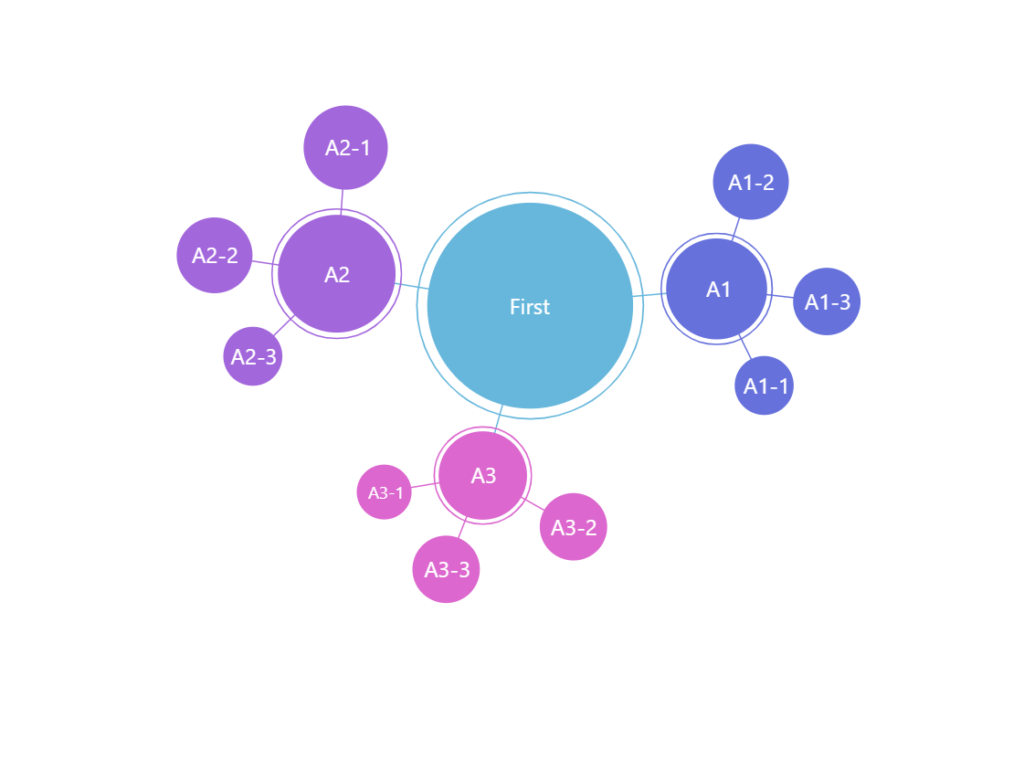
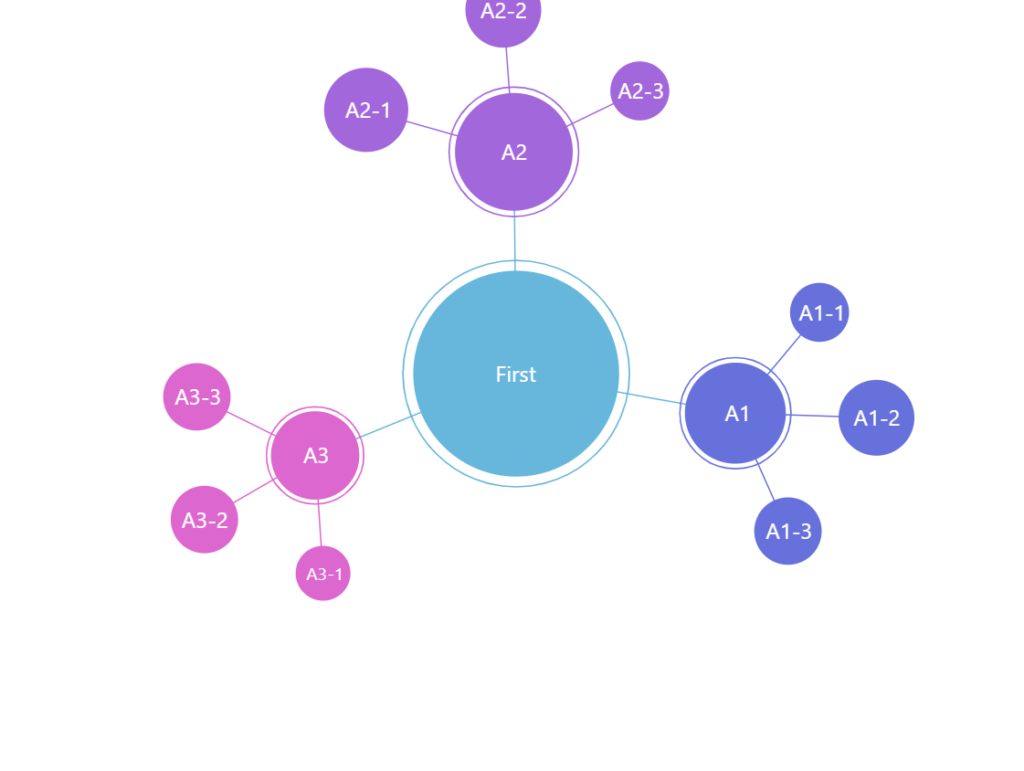
var series = container.children.push( am5hierarchy.ForceDirected.new(root, { valueField: "value", categoryField: "name", childDataField: "children", centerStrength: 0.5, manyBodyStrength: -1 }));var series = container.children.push( am5hierarchy.ForceDirected.new(root, { valueField: "value", categoryField: "name", childDataField: "children", centerStrength: 0.5, manyBodyStrength: -1 }));The above will make all nodes bunch up around the center since the force pushing them away from each other is not that much greater than force that is attracting them all to the center.
Tweaking animations
Section titled “Tweaking animations”Force-directed series also has three settings related to animation: initialFrames, showOnFrame, and velocityDecay.
initialFrames indicates the length of initial force simulation in frames. With default set at 500 we might want to decrease it for simpler trees, and increase it for complex data.
showOnFrame (default 10) allows skipping X number of frames of animation, so that user does not need to watch all of the process of nodes settling into places.
Setting both initialFrames and showOnFrame to the same value will ensure that the chart will be fully static on load, although it may display blank area until layout physics are resolved.
velocityDecay (default 0.5) controls the resistance acting against movement of nodes, making it stop eventually. The bigger the number, the more “sluggish” the nodes will be.
var series = container.children.push( am5hierarchy.ForceDirected.new(root, { valueField: "value", categoryField: "name", childDataField: "children", initialFrames: 300, showOnFrame: 150, velocityDecay: 1 }));var series = container.children.push( am5hierarchy.ForceDirected.new(root, { valueField: "value", categoryField: "name", childDataField: "children", initialFrames: 300, showOnFrame: 150, velocityDecay: 1 }));The above will start showing actual nodes halfway through the settling animation.
Zoomable force-directed tree
Section titled “Zoomable force-directed tree”It’s possible to make force-directed tree zoomable by utilizing ZoomableContainer.
For more information and an example, refer to “Containers: Zoomable container”.
Related tutorials
Section titled “Related tutorials”- Limit to single open branch in ForceDirectedSeries
- Consistent radius of outer circles of a Force-Directed Tree
- Highlighting links of a force-directed node on hover
- Force-directed tree with adaptively positioned labels
- ForceDirected with custom nodes/buttons/legend
- Applying individual styles for Force-directed links
- Centering on a clicked node in a Force-Directed Tree