Settings
Settings is a set of key - value pairs that each and every element of the chart has, that are used to configure its appearance and behavior. Settings can be manipulated in a number of ways, and, as we will see later in this tutorial, is the main method of configuring most of the things.
Setting values
Section titled “Setting values”There are three main ways to set settings directly on the elment:
- By passing in an object as a second parameter to
new()method when instantiating an element. - By using
set()method of the element object. - By using
setAll()method of the element object.
When creating an element
Section titled “When creating an element”The most common and convenient way to specify element’s settings is to pass those in when creating it by its new() method:
const series = chart.series.push( am5pie.PieSeries.new( root, { valueField: "value", categoryField: "category" } ));var series = chart.series.push( am5pie.PieSeries.new( root, { valueField: "value", categoryField: "category" } ));On an element object
Section titled “On an element object”Once we have element object, we can also set settings via its set() (to set single key) or setAll() (to set multiple keys in one go) methods as well.
The above can be refactored to this:
const series = chart.series.push( am5pie.PieSeries.new(root, {}));series.set("valueField", "value");series.set("categoryField", "category");var series = chart.series.push( am5pie.PieSeries.new(root, {}));series.set("valueField", "value");series.set("categoryField", "category");Or even like this:
const series = chart.series.push( am5pie.PieSeries.new(root, {}));series.setAll({ valueField: "value", categoryField: "category"});var series = chart.series.push( am5pie.PieSeries.new(root, {}));series.setAll({ valueField: "value", categoryField: "category"});All three approaches are correct and will produce identical output.
Available setting keys
Section titled “Available setting keys”We can find out what settings each element has by consulting the class reference of its class.
Each class’ reference will have a separate section named “Settings”, accessible via right-hand menu:
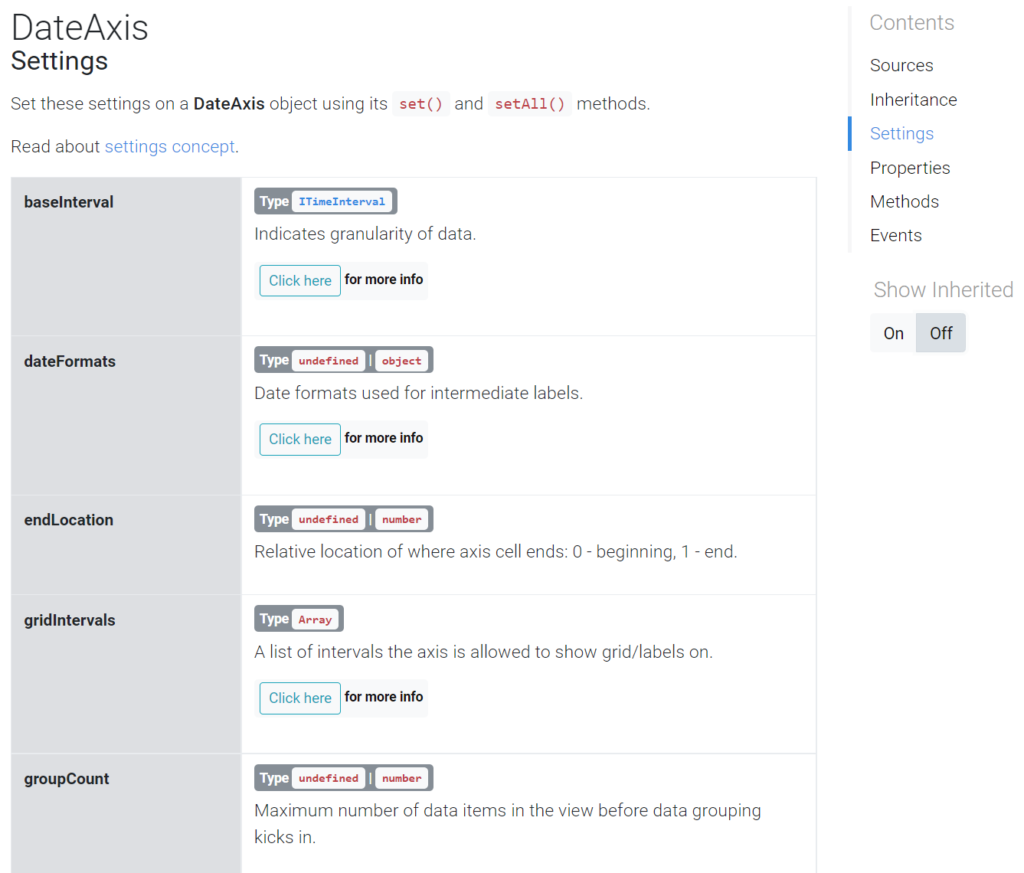
As an example, check out DateAxis settings here.
Getting setting value
Section titled “Getting setting value”Use element’s get() method to read current value of the setting. E.g.:
series.get("valueField");series.get("valueField");Binding to data
Section titled “Binding to data”Element’s settings can be bound to a value in its data via its templateField setting. More info.
Dynamic modification
Section titled “Dynamic modification”Value for each setting can be manipulated dynamically by a custom function, called adapter. More info.
Applying states
Section titled “Applying states”Each element can have any number of states attached to it. A state is basically a collection of setting values to be applied to the element when certain conditions are met or as required.
For example, we might want to change button’s fill color when it is hovered by a mouse cursor.
For more information refer to the “Sates” tutorial.
Settings via themes
Section titled “Settings via themes”We can use themes - either built-in or custom ones - to automatically set setting values to certain elements. “Themes” tutorial explains how.
Tracking changes
Section titled “Tracking changes”An element can invoke a custom function when value of particular setting changes. More info.
Animating setting values
Section titled “Animating setting values”Element can smoothly animate between two values of its settings, like colors, positions, scale, etc. More info.
Private settings
Section titled “Private settings”Some objects have “private” settings.
Those are mostly informational values that can be retrieved using getPrivate() method.
let cursorPosition = cursor.getPrivate("positionX");var cursorPosition = cursor.getPrivate("positionX");