Timeline chart
Timeline chart is used to create axis-based two-dimensional plots that can follow serpentine, spiral, or basically any custom shape. It can be used to depict linear data in a space-saving, non-boring way. The following sections will get you acquainted with this unique chart type.
Below are a few of super-basic examples from our friends at Data Viz Project:
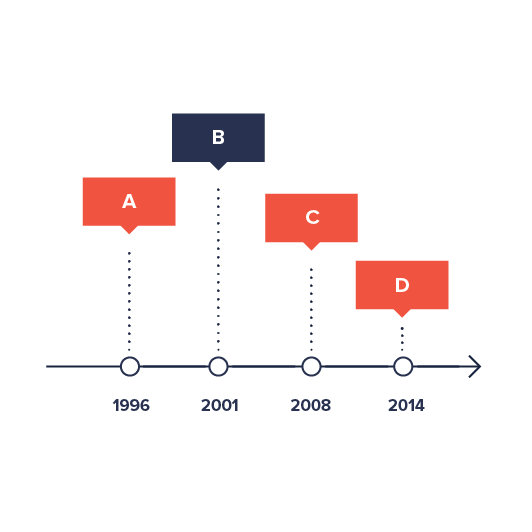
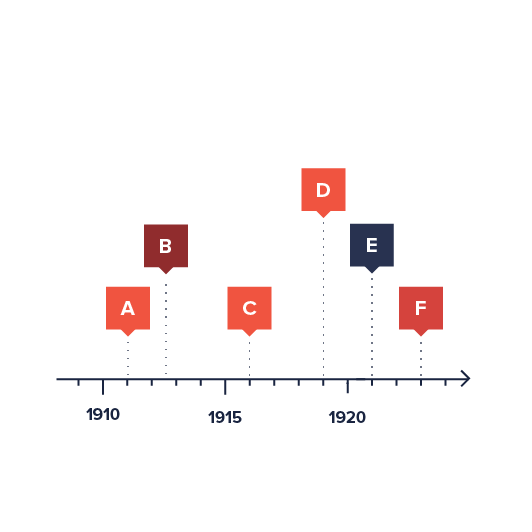
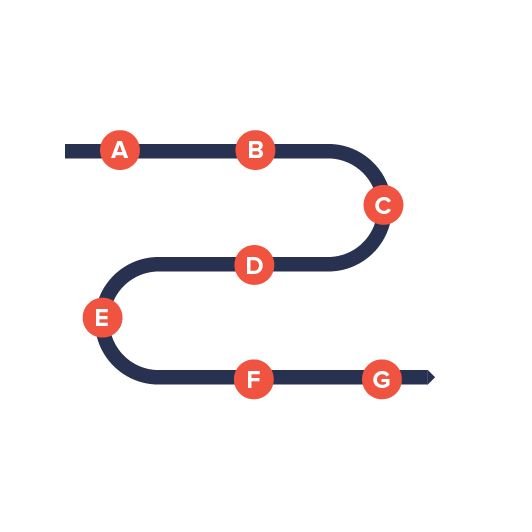
However, as we will see during the course of this article, it can be much much more.
Timeline vs XY
Section titled “Timeline vs XY”We can think of a Timeline chart as a twisted XY chart. Under the hood, it is in fact an XY chart, inheriting all of its capabilities and functionality, except for a few differences and additions, which we will discuss during this tutorial.
To keep it simple, we are going to provide bare basics here, and will not repeat vas information outlined in XY-related tutorials.
In a nutshell, Timeline chart acts and is configured much like XY chart, except it uses different classes:
| Timeline class | Equivalent XY class |
|---|---|
CurveChartSerpentineChartSpiralChart |
XYChart |
CurveColumnSeries |
ColumnSeries |
CurveLineSeries |
LineSeries |
CurveCursor |
XYCursor |
AxisRendererCurveX |
AxisRendererX |
AxisRendererCurveY |
AxisRendererY |
Now that we have this out of the way, let’s look at common components that Timeline chart is made of.
Loading required modules
Section titled “Loading required modules”Timeline charts require three amCharts 5 modules: “index”, “xy”, and “timeline”.
You can import those in your TypeScript / ES6 application as JavaScript modules:
import * as am5 from "@amcharts/amcharts5";import * as am5xy from "@amcharts/amcharts5/xy";import * as am5timeline from "@amcharts/amcharts5/timeline";For vanilla JavaScript applications and web pages, you can use “script” version:
<script src="https://cdn.amcharts.com/lib/5/index.js"></script><script src="https://cdn.amcharts.com/lib/5/xy.js"></script><script src="https://cdn.amcharts.com/lib/5/timeline.js"></script>Instantiating the chart
Section titled “Instantiating the chart”As with any chart type in amCharts 5, we’ll need to start with creation of the Root element.
In it we will create an instance of one of the Timeline classes: CurveChart, SerpentineChart, or SpiralChart. We will look at the differences for each of those in later sections of this tutorial.
let root = am5.Root.new("chartdiv");let chart = root.container.children.push( am5timeline.SerpentineChart.new(root, {}));var root = am5.Root.new("chartdiv");var chart = root.container.children.push( am5timeline.SerpentineChart.new(root, {}));Adding axes
Section titled “Adding axes”Just like any XY-based chart, a Timeline chart requires at least one X axis and one Y axis, although it can support any number of axes.
The chart has two properties: xAxes and yAxes.
xAxes hold axes that start out horizontally. yAxes hold vertical axes. However, given the nature of the Timeline chart, which can take any shape, those may be arbitrary.
To add axes to chart we just push their instances to the respective list:
let xAxis = chart.xAxes.push(  am5xy.DateAxis.new(root, {    renderer: am5timeline.AxisRendererCurveX.new(root, {})  }));
let yAxis = chart.yAxes.push(  am5xy.ValueAxis.new(root, {    renderer: am5timeline.AxisRendererCurveY.new(root, {})  }));
var xAxis = chart.xAxes.push( am5xy.DateAxis.new(root, { renderer: am5timeline.AxisRendererCurveX.new(root, {}) }));
var yAxis = chart.yAxes.push( am5xy.ValueAxis.new(root, { renderer: am5timeline.AxisRendererCurveY.new(root, {}) }));The above will create a vertical axis of type ValueAxis, which is used to indicate numeric value, as well as a DateAxis to be used as “horizontal” axis.
There are number of different axes types. We will examine those in subsequent sections.
Axis renderer
Section titled “Axis renderer”The axis object itself provides logic functionality. It relies on a helper class to actually render it. That’s where “renderer” comes in.
To put it differently, axis knows how to treat data, calculate scale, etc. It does not care about how it should be displayed.
Renderer, knows how to put the axis on screen.
For example, a ValueAxis on X would be drawn differently than on Y. That’s why we need to specify a renderer, which “specializes” of displaying an axis in specific direction.
Timeline chart uses two types of renderers: AxisRendererCurveX and AxisRendererCurveY.
Axis types
Section titled “Axis types”Timeline chart supports 4 axis types:
| Class | Comment | |
|---|---|---|
CategoryAxis |
For plotting data with string identifiers - categories. | More info |
CategoryDateAxis |
For plotting time-based data without maintaining actual time scale. Grid/labels are displayed only where there is actual data. | More info |
DateAxis |
For plotting time-based data. The axis will maintain natural time scale regardless on how actual data points are spaced out. | More info |
ValueAxis |
For plotting numeric values. | More info |
Some axis types require additional configuration besides renderer to work.
For example CategoryAxis needs categoryField which specifies a field in data that holds category names, as well as the actual data, so that it knows which categories to display:
let xAxis = chart.xAxes.push( am5xy.CategoryAxis.new(root, { renderer: am5timeline.AxisRendererCurveX.new(root, {}), categoryField: "category" }));xAxis.data.setAll([{ category: "Research"}, { category: "Marketing"}, { category: "Sales"}];var xAxis = chart.xAxes.push( am5xy.CategoryAxis.new(root, { renderer: am5timeline.AxisRendererCurveX.new(root, {}), categoryField: "category" }));xAxis.data.setAll([{ category: "Research"}, { category: "Marketing"}, { category: "Sales"}];Similarly, DateAxis needs to know granularity of your data, set via baseInterval property:
let xAxis = chart.xAxes.push( am5xy.DateAxis.new(root, { renderer: am5timeline.AxisRendererCurveX.new(root, {}), baseInterval: { timeUnit: "day", count: 1 } }));var xAxis = chart.xAxes.push( am5xy.DateAxis.new(root, { renderer: am5timeline.AxisRendererCurveX.new(root, {}), baseInterval: { timeUnit: "day", count: 1 } }));Configuring series
Section titled “Configuring series”For more information on how to configure axes, please visit Configuring XY (and timeline) axes.
Adding series
Section titled “Adding series”Timeline chart is a “serial” chart, meaning it needs at least one series to display anything.
As with anything else in amCharts 5, we create a series object using new() method of its class.
There is also a number of properties that need to be set for series, like its X and Y axis, as well as data fields.
We will look at those shortly, but here’s a very basic example of CurveColumnSeries usage:
let series = chart.series.push( am5timeline.CurveColumnSeries.new(root, { name: "Series", xAxis: xAxis, yAxis: yAxis, valueYField: "value", valueXField: "date" }));var series = chart.series.push( am5timeline.CurveColumnSeries.new(root, { name: "Series", xAxis: xAxis, yAxis: yAxis, valueYField: "value", valueXField: "date" }));Let’s examine the above.
Assigning series to axis
Section titled “Assigning series to axis”This is pretty much self-explanatory. We use series xAxis property to tell which axis object will be series X-axis (or “circular “horizontal” axis), and yAxis to specify which axis is responsible for its Y (“vertical”) plot.
Each series can have only on X and one Y axis, whereas an axis can have any number of series attached to it.
Data fields
Section titled “Data fields”Since Timeline chart is a twisted but still a two-dimensional chart, each point in its series requires at least two values to be plotted: X and Y.
Data fields are used to specify which fields in data hold both of those values.
The name of the data field reflects its axis direction, as well as its type.
“value” indicates numeric value, including time.
“category” indicates string-based category.
The type of data field depends on the type of axis we are using.
For example, if we have a ValueAxis as a Y-axis, and a CategoryAxis as an X-axis, our series will need to define valueYField and categoryXField.
Some series can define additional data fields (e.g. for open values) to draw floating columns, or semi-filled area series.
Types of series
Section titled “Types of series”Timeline chart currently supports these types of series:
| Class | Comment | |
|---|---|---|
CurveColumnSeries |
Displays columns or bars. | More info |
CurveLineSeries |
Displays lines or area. | More info |
Configuring series
Section titled “Configuring series”For more information on how to configure series, please visit Configuring XY (and timeline) series.
Setting data
Section titled “Setting data”Data in a Timeline chart is set directly to series. There is no chart-wide data storage.
For that, each series has a property named data, which in turn is an object that can be used to supply data.
The most common method for setting data is its setAll() method:
series.data.setAll([{ category: "Research", value: 1000}, { category: "Marketing", value: 1200}, { category: "Sales", value: 850}]);series.data.setAll([{ category: "Research", value: 1000}, { category: "Marketing", value: 1200}, { category: "Sales", value: 850}]);If we have more than one series, we will need to set data for each and everyone one of them, even if the data is identical.
That’s why it makes sense to have repeating data in a separate variable. E.g.:
let data = [{ category: "Research", value1: 1000, value2: 588}, { category: "Marketing", value1: 1200, value2: 1800}, { category: "Sales", value1: 850, value2: 1230}];series1.data.setAll(data);series2.data.setAll(data);var data = [{ category: "Research", value1: 1000, value2: 588}, { category: "Marketing", value1: 1200, value2: 1800}, { category: "Sales", value1: 850, value2: 1230}];series1.data.setAll(data);series2.data.setAll(data);Date-based data
Section titled “Date-based data”A quick note about date-based charts (with a DateAxis): they expect data to be passed in as integer numbers - JavaScript timestamps (milliseconds elapsed since the UNIX epoch).
If you we have dates in any other format (as strings or Date objects), we’ll need to set up a data processor to convert our dates to timestamps.
Additional controls
Section titled “Additional controls”Legend
Section titled “Legend”To add a legend, we simply need to create an instance of a Legend class (which is a part of “index” package), push it to chart’s children (or any other place we want it to be), as well as set its data (in case of XY chart, we will probably want to use series as legend items).
let legend = chart.children.push(am5.Legend.new(root, {}));legend.data.setAll(chart.series.values);var legend = chart.children.push(am5.Legend.new(root, {}));legend.data.setAll(chart.series.values);Cursor
Section titled “Cursor”Adding chart cursor, which is a very useful tool, providing crosshairs and other functionality, like series and axis tooltips is pretty straightforward: we just need to create an instance of CurveCursor (from “timeline” module) and set it to chart’s cursor property:
chart.set("cursor", am5timeline.CurveCursor.new(root, {}));chart.set("cursor", am5timeline.CurveCursor.new(root, {}));Scrollbars
Section titled “Scrollbars”Setting shape of the chart
Section titled “Setting shape of the chart”The shape of the CurveChart is controlled via its X axis.
Regardless of its type, whichever X (horizontal) axis the chart has, its shape will be chart’s shape.
Let’s see how the shape is controlled and fine tuned.
Control points
Section titled “Control points”What are control points?
Section titled “What are control points?”As we already mentioned, the shape of the chart is controlled via curvature of its X axis.
The curvature is set via array of control points, connected by straight lines.
Graphically it looks something like this:
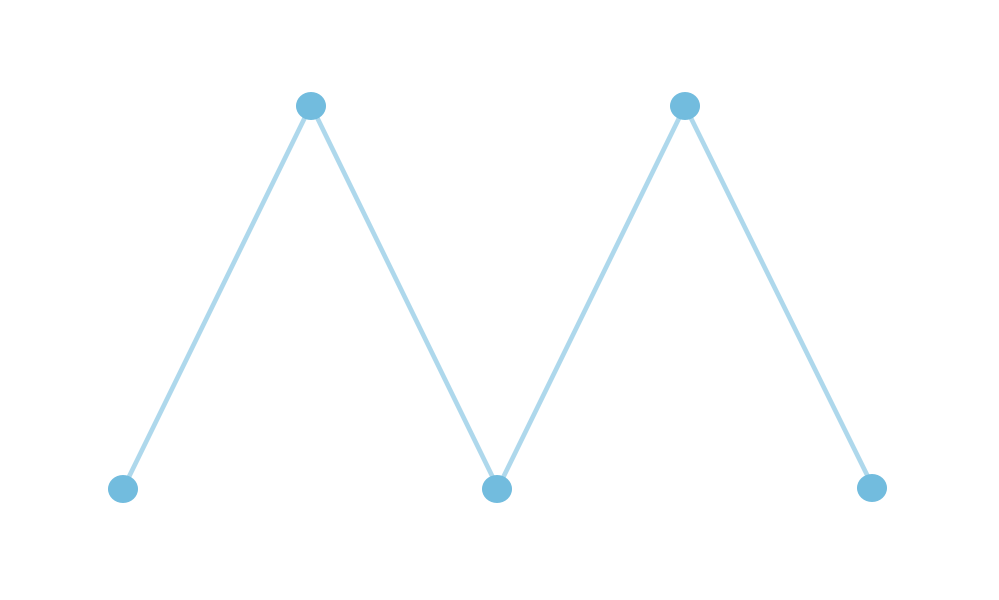
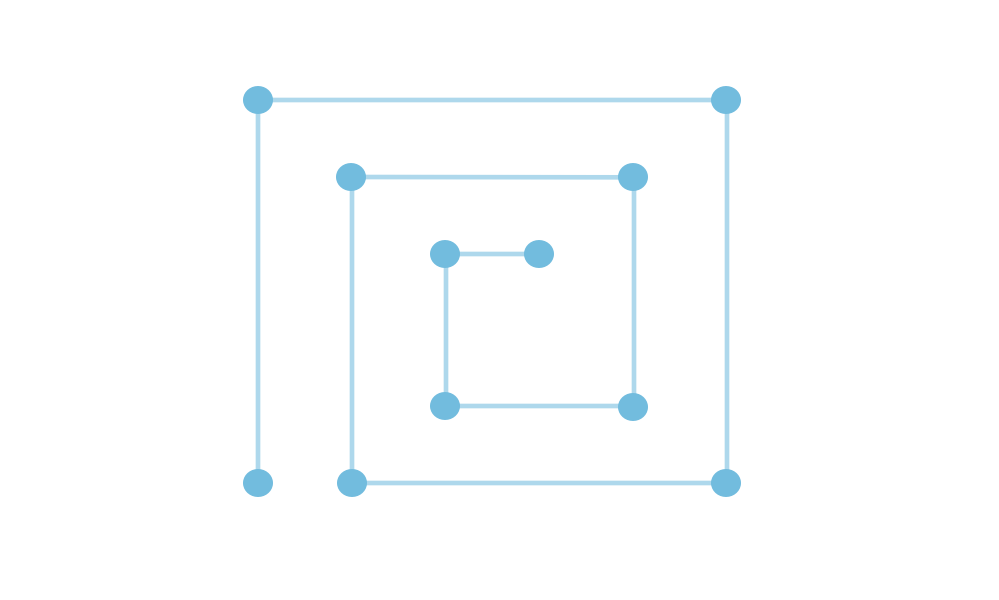
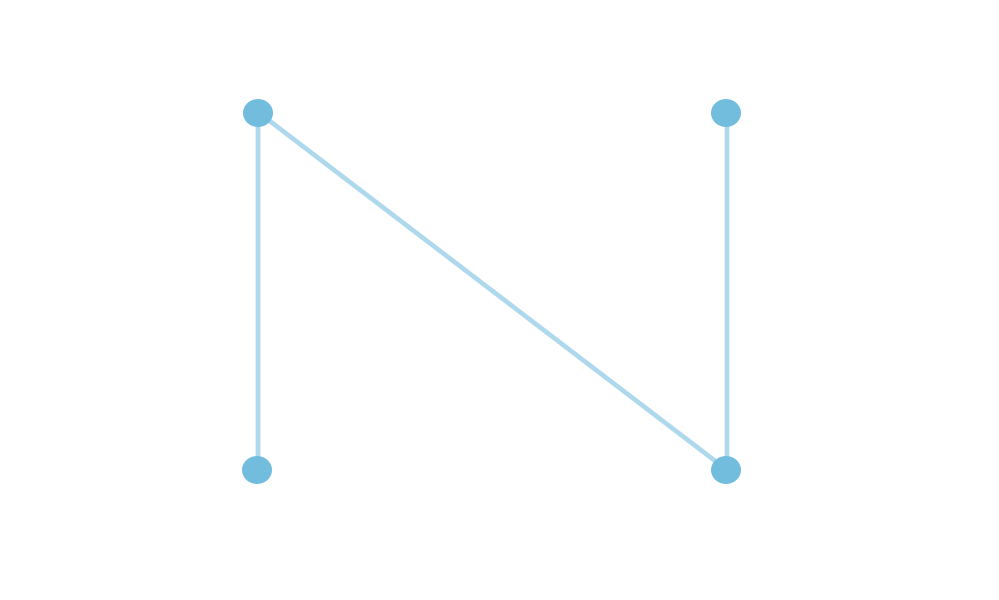
Each shape, however we put it is controlled by a few control points, connected by a straight line.
How to set control points?
Section titled “How to set control points?”Each point is expressed by its X/Y coordinate in form of the object, e.g.:
{ x: 100, y: 100}Each shape is expressed by an array of such objects, e.g.:
[ { x: -400, y: 0 }, { x: -250, y: 0 }, { x: 0, y: 60 }, { x: 250, y: 0 }, { x: 400, y: 0 }]And this array is set to X axis renderer’s points property:
let xRenderer = am5timeline.AxisRendererCurveX.new(root, { points: [ { x: -400, y: 0 }, { x: -250, y: 0 }, { x: 0, y: 60 }, { x: 250, y: 0 }, { x: 400, y: 0 } ], yRenderer: yRenderer});var xRenderer = am5timeline.AxisRendererCurveX.new(root, { points: [ { x: -400, y: 0 }, { x: -250, y: 0 }, { x: 0, y: 60 }, { x: 250, y: 0 }, { x: 400, y: 0 } ], yRenderer: yRenderer});Auto-scale
Section titled “Auto-scale”While the points technically represent X and Y pixel coordinates, the chart will try to adjust them to fit the size of the container better.
This means that if you have your shape control points from, say, -100 to 100, and a chart container that’s 400 pixels wide, those coordinates will be adjusted accordingly.
Auto-center
Section titled “Auto-center”The chart will try to automatically center your custom-curve chart to the middle of the chart container.
Axis length
Section titled “Axis length”OK, now that we know about creating curves for the chart to follow, let’s talk about other dimensions: chart’s thickness.
So far we have been looking at the curve as a line. However, a chart is not a line, it has height/thickness.
The length of the Y axis (“vertical”) is a way to controlling it.
For the shape we have been using our X axis.
To control chart height, we will be using its Y axis.
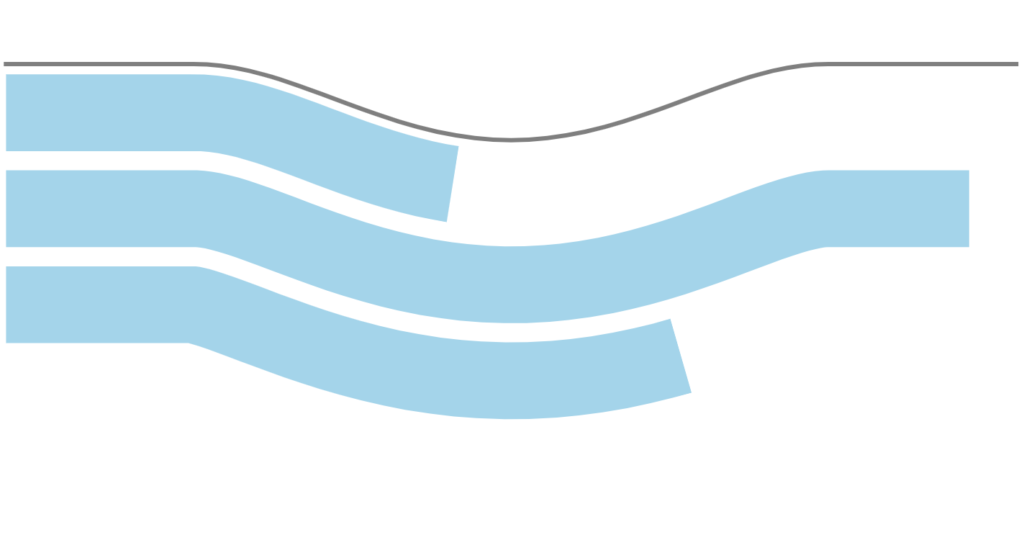
For that its renderer has two settings: axisLength and axisLocation.
| Setting | Default | Comment |
|---|---|---|
axisLength |
60 | Absolute axis length in pixels. |
axisLocation |
0.5 | Relative position of the horizontal axis in in relation to the vertical axis. From 0 to 1. |
let yAxis = chart.yAxes.push(  am5xy.ValueAxis.new(root, {    renderer: am5timeline.AxisRendererCurveY.new(root, {      axisLength: 80      axisLocation: 1    })  }));
var yAxis = chart.yAxes.push(  am5xy.ValueAxis.new(root, {    renderer: am5timeline.AxisRendererCurveY.new(root, {      axisLength: 80      axisLocation: 1    })  }));
Here’s how radius axisLocation setting affect the real chart:
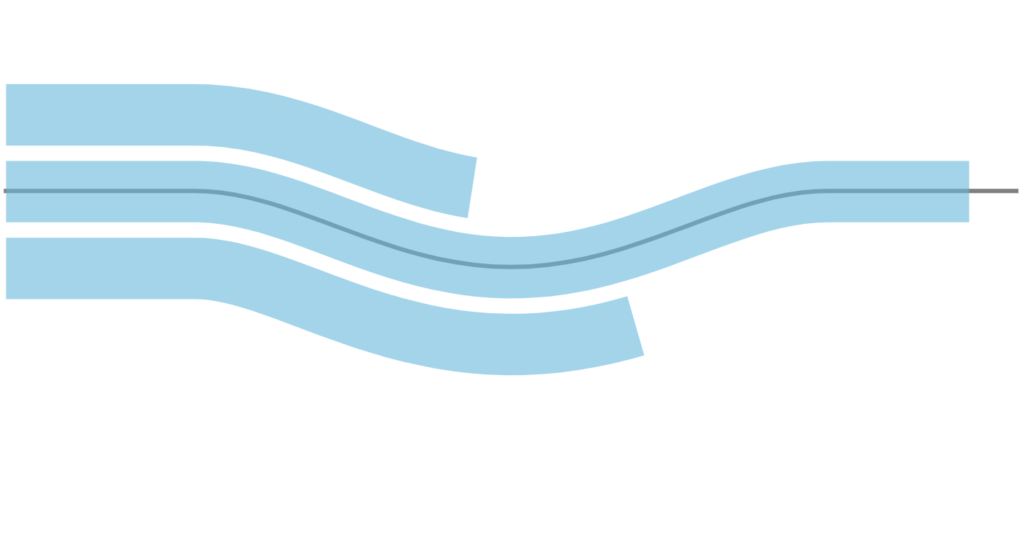
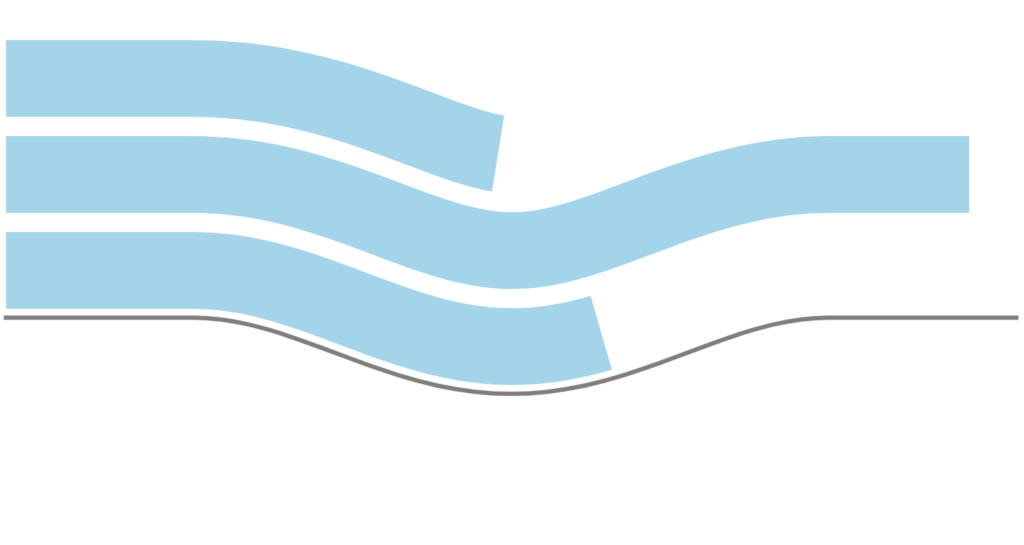
Using SVG paths
Section titled “Using SVG paths”Creating custom SVG path in an editor
Section titled “Creating custom SVG path in an editor”You can use any graphical editor, that is capable of saving vector-based information in an SVG format.
For the purpose of this tutorial, let’s use Inkscape - an excellent open-source vector graphics editor.
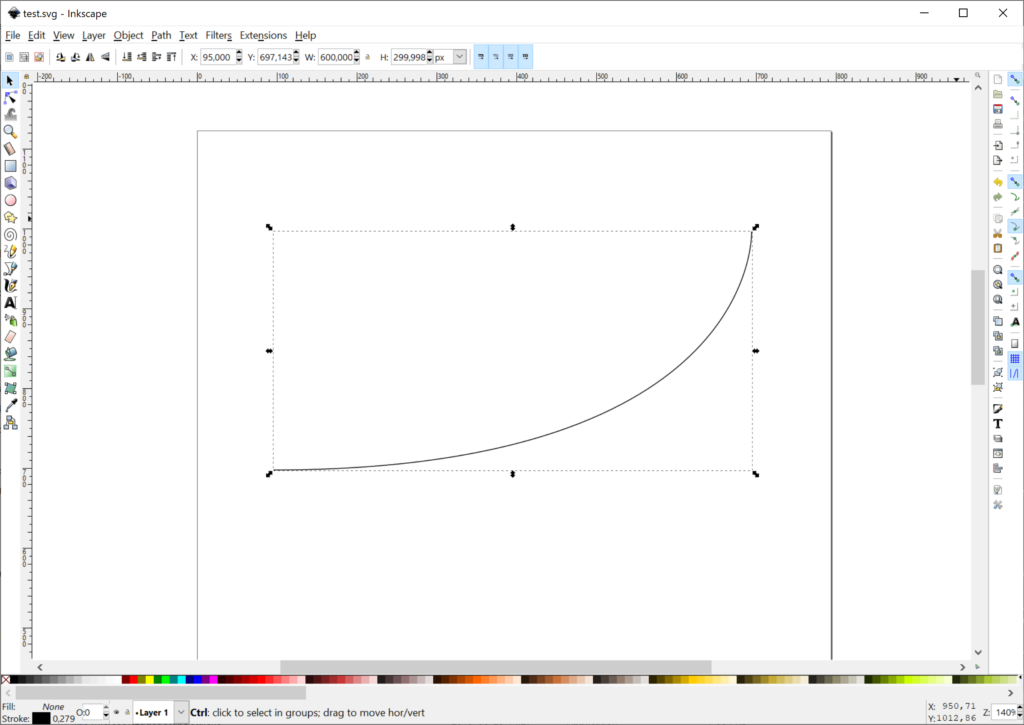
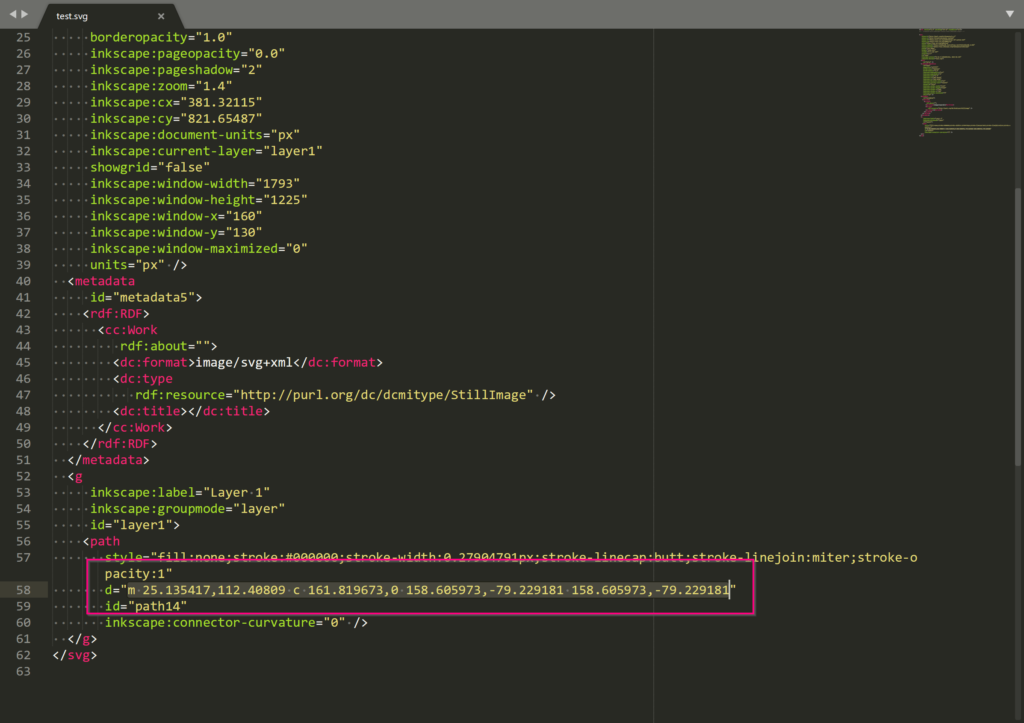
To create a path, follow these three steps:
- Create a path in editor.
- Save as SVG, open it in any text editor, and look for the
<path>element. Then grab whatever in it’sdattribute - it’s the SVG path.
Using existing SVG file
Section titled “Using existing SVG file”You can use existing SVG as well.
Like in previous step, open them in a text editor, and look for <path> elements.
Converting path to curve points
Section titled “Converting path to curve points”Finally, we need to convert an SVG path, into a curve points we’ve discussed earlier in this article.
For that, simply use this pre-made tool.
Paste your path data into the first text area. Click submit button. Grab converted point data from the second text area.
Why can’t we use SVG path instead of points?
Section titled “Why can’t we use SVG path instead of points?”The tool above uses some methods that are not available in all browsers.
As a developer, you have a choice of using different browsers to create point data once.
But you don’t want to enforce that on your users, hence converting it to point data, which will work in all browsers now, or in the future.
Complimentary chart types
Section titled “Complimentary chart types”Timeline comes with a couple complimentary chart types, that allows easy creation of the configurable Curve charts, without defining actual points.
Serpentine
Section titled “Serpentine”Serpentine chart (SerpentineChart) is a wrapper for CurveChart which automatically generates horizontal or vertical waved curves, based on certain parameters. It sort of looks like a mountain road, hence the name.
It’s configured exactly the same way as CurveChart we already learned, except we use SerpentineChart class which brings a few additional options to the table.
Serpentine chart options
Section titled “Serpentine chart options”Let’s take a look at the few unique options available for SerpentineChart.
| Option | Default | Comment |
|---|---|---|
levelCount |
3 |
Number of “levels” the chart will have. E.g. 3 (three) means there will be three straight lines of chart with two curved turns connecting them. |
orientation |
"vertical" |
Indicates the direction the “road” will weave in:"vertical" (default) will make the chart start at the top and go down."horizontal" will start at the left and got to right. |
startLocation |
0 |
A relative location to start the “road” in relation to the width of the chart. E.g. 0 means the start, 0.5 - the middle, and 1 - the end. |
endLocation |
1 |
A relative location to end the “road” in relation to the width of the chart. E.g. 0 means the start, 0.5 - the middle, and 1 - the end. |
yAxisRadius |
50% |
This setting will be automatically applied to all Y axes’ radius. |
Serpentine example
Section titled “Serpentine example”Spiral
Section titled “Spiral”SpiralChart is another helpful wrapper for CurveChart. Based on parameters it automatically wraps the chart into a spiral, without the need to define control points for that shape.
Serpentine chart options
Section titled “Serpentine chart options”Let’s see what options are available for the SpiralChart.
| Option | Default | Comment |
|---|---|---|
endAngle |
0 |
An angle the spiral will end at. |
innerRadius |
20% |
Inner radius of the the spiral. |
levelCount |
3 |
Number of rings the spiral will consist of. |
startAngle |
-90 | An angle the spiral will start at. |
yAxisRadius |
60% |
This setting will be automatically applied to all Y axes’ radius. |
Spiral example
Section titled “Spiral example”Complete example
Section titled “Complete example”import * as am5 from "@amcharts/amcharts5";import * as am5xy from "@amcharts/amcharts5/xy";import * as am5timeline from "@amcharts/amcharts5/timeline";
// Create root and chartlet root = am5.Root.new("chartdiv");let chart = root.container.children.push( am5timeline.CurveChart.new(root, {}));
// Define datalet data = [{ date: new Date(2021, 0, 1).getTime(), value: 100}, { date: new Date(2021, 0, 2).getTime(), value: 320}, { date: new Date(2021, 0, 3).getTime(), value: 216}, { date: new Date(2021, 0, 4).getTime(), value: 150}, { date: new Date(2021, 0, 5).getTime(), value: 156}, { date: new Date(2021, 0, 6).getTime(), value: 199}, { date: new Date(2021, 0, 7).getTime(), value: 114}, { date: new Date(2021, 0, 8).getTime(), value: 269}, { date: new Date(2021, 0, 9).getTime(), value: 190}, { date: new Date(2021, 0, 10).getTime(), value: 380}, { date: new Date(2021, 0, 11).getTime(), value: 250}, { date: new Date(2021, 0, 12).getTime(), value: 110}, { date: new Date(2021, 0, 13).getTime(), value: 185}, { date: new Date(2021, 0, 14).getTime(), value: 105}];
// Create axeslet yRenderer = am5timeline.AxisRendererCurveY.new(root, { axisLocation: 0, axisLength: 150});
let xRenderer = am5timeline.AxisRendererCurveX.new(root, { points: [ { x: 0, y: -300 }, { x: 300, y: -300 }, { x: 346.9, y: -296.3 }, { x: 392.7, y: -285.3 }, { x: 436.2, y: -267.3 }, { x: 476.3, y: -242.7 }, { x: 512.1, y: -212.1 }, { x: 542.7, y: -176.3 }, { x: 567.3, y: -136.2 }, { x: 585.3, y: -92.7 }, { x: 596.3, y: -46.9 }, { x: 600, y: 0 }, { x: 596.3, y: 46.9 }, { x: 585.3, y: 92.7 }, { x: 567.3, y: 136.2 }, { x: 542.7, y: 176.3 }, { x: 512.1, y: 212.1 }, { x: 476.3, y: 242.7 }, { x: 436.2, y: 267.3 }, { x: 392.7, y: 285.3 }, { x: 346.9, y: 296.3 }, { x: -300, y: 300 }, { x: -346.9, y: 296.3 }, { x: -392.7, y: 285.3 }, { x: -436.2, y: 267.3 }, { x: -476.3, y: 242.7 }, { x: -512.1, y: 212.1 }, { x: -542.7, y: 176.3 }, { x: -567.3, y: 136.2 }, { x: -585.3, y: 92.7 }, { x: -596.3, y: 46.9 }, { x: -600, y: 0 }, { x: -596.3, y: -46.9 }, { x: -585.3, y: -92.7 }, { x: -567.3, y: -136.2 }, { x: -542.7, y: -176.3 }, { x: -512.1, y: -212.1 }, { x: -476.3, y: -242.7 }, { x: -436.2, y: -267.3 }, { x: -392.7, y: -285.3 }, { x: -346.9, y: -296.3 }, { x: 0, y: -300 } ], yRenderer: yRenderer});
let yAxis = chart.yAxes.push( am5xy.ValueAxis.new(root, { renderer: yRenderer }));
let xAxis = chart.xAxes.push( am5xy.DateAxis.new(root, { baseInterval: { timeUnit: "day", count: 1 }, renderer: xRenderer }));
// Create serieslet series = chart.series.push( am5timeline.CurveColumnSeries.new(root, { name: "Series", xAxis: xAxis, yAxis: yAxis, valueYField: "value", valueXField: "date" }));
series.columns.template.setAll({ width: am5.percent(30)});
series.data.setAll(data);
// Add legendlet legend = chart.children.push(am5.Legend.new(root, {}));legend.data.setAll(chart.series.values);
// Add cursorlet cursor = chart.set("cursor", am5timeline.CurveCursor.new(root, { behavior: "zoomX", xAxis: xAxis, yAxis}));<script src="https://cdn.amcharts.com/lib/5/index.js"></script><script src="https://cdn.amcharts.com/lib/5/xy.js"></script><script src="https://cdn.amcharts.com/lib/5/timeline.js"></script><div id="chartdiv"></div><script>// Create root and chartvar root = am5.Root.new("chartdiv");var chart = root.container.children.push( am5timeline.CurveChart.new(root, {}));// Define datavar data = [{ date: new Date(2021, 0, 1).getTime(), value: 100}, { date: new Date(2021, 0, 2).getTime(), value: 320}, { date: new Date(2021, 0, 3).getTime(), value: 216}, { date: new Date(2021, 0, 4).getTime(), value: 150}, { date: new Date(2021, 0, 5).getTime(), value: 156}, { date: new Date(2021, 0, 6).getTime(), value: 199}, { date: new Date(2021, 0, 7).getTime(), value: 114}, { date: new Date(2021, 0, 8).getTime(), value: 269}, { date: new Date(2021, 0, 9).getTime(), value: 190}, { date: new Date(2021, 0, 10).getTime(), value: 380}, { date: new Date(2021, 0, 11).getTime(), value: 250}, { date: new Date(2021, 0, 12).getTime(), value: 110}, { date: new Date(2021, 0, 13).getTime(), value: 185}, { date: new Date(2021, 0, 14).getTime(), value: 105}];// Create axesvar yRenderer = am5timeline.AxisRendererCurveY.new(root, { axisLocation: 0, axisLength: 150});var xRenderer = am5timeline.AxisRendererCurveX.new(root, { points: [ { x: 0, y: -300 }, { x: 300, y: -300 }, { x: 346.9, y: -296.3 }, { x: 392.7, y: -285.3 }, { x: 436.2, y: -267.3 }, { x: 476.3, y: -242.7 }, { x: 512.1, y: -212.1 }, { x: 542.7, y: -176.3 }, { x: 567.3, y: -136.2 }, { x: 585.3, y: -92.7 }, { x: 596.3, y: -46.9 }, { x: 600, y: 0 }, { x: 596.3, y: 46.9 }, { x: 585.3, y: 92.7 }, { x: 567.3, y: 136.2 }, { x: 542.7, y: 176.3 }, { x: 512.1, y: 212.1 }, { x: 476.3, y: 242.7 }, { x: 436.2, y: 267.3 }, { x: 392.7, y: 285.3 }, { x: 346.9, y: 296.3 }, { x: -300, y: 300 }, { x: -346.9, y: 296.3 }, { x: -392.7, y: 285.3 }, { x: -436.2, y: 267.3 }, { x: -476.3, y: 242.7 }, { x: -512.1, y: 212.1 }, { x: -542.7, y: 176.3 }, { x: -567.3, y: 136.2 }, { x: -585.3, y: 92.7 }, { x: -596.3, y: 46.9 }, { x: -600, y: 0 }, { x: -596.3, y: -46.9 }, { x: -585.3, y: -92.7 }, { x: -567.3, y: -136.2 }, { x: -542.7, y: -176.3 }, { x: -512.1, y: -212.1 }, { x: -476.3, y: -242.7 }, { x: -436.2, y: -267.3 }, { x: -392.7, y: -285.3 }, { x: -346.9, y: -296.3 }, { x: 0, y: -300 } ], yRenderer: yRenderer});var yAxis = chart.yAxes.push( am5xy.ValueAxis.new(root, { renderer: yRenderer }));var xAxis = chart.xAxes.push( am5xy.DateAxis.new(root, { baseInterval: { timeUnit: "day", count: 1 }, renderer: xRenderer }));// Create seriesvar series = chart.series.push( am5timeline.CurveColumnSeries.new(root, { name: "Series", xAxis: xAxis, yAxis: yAxis, valueYField: "value", valueXField: "date" }));series.columns.template.setAll({ width: am5.percent(30)});series.data.setAll(data);// Add legendvar legend = chart.children.push(am5.Legend.new(root, {}));legend.data.setAll(chart.series.values);// Add cursorvar cursor = chart.set("cursor", am5timeline.CurveCursor.new(root, { behavior: "zoomX", xAxis: xAxis, yAxis}));</script>