Hierarchy charts
Hierarchy charts (Treemap, Sunburst, Force-directed tree, etc.) are used to display multi-level data, in a branching parent-child tree.
Loading required modules
Section titled “Loading required modules”Everything required to create hierarchy charts are two amCharts 5 modules: “index” and “hierarchy”.
You can import those in your TypeScript / ES6 application as JavaScript modules:
import * as am5 from "@amcharts/amcharts5";import * as am5hierarchy from "@amcharts/amcharts5/hierarchy";For vanilla JavaScript applications and web pages, you can use “script” version:
<script src="https://cdn.amcharts.com/lib/5/index.js"></script><script src="https://cdn.amcharts.com/lib/5/hierarchy.js"></script>Series
Section titled “Series”Hierarchy charts are chart-less. This means that rather than creating a chart element, we add series directly to the root container.
Adding
Section titled “Adding”There are following types of series supported in hierarchy charts:
Class | Example | |
|---|---|---|
|
| |
|
| |
|
| |
|
| |
|
| |
|
| |
|
|
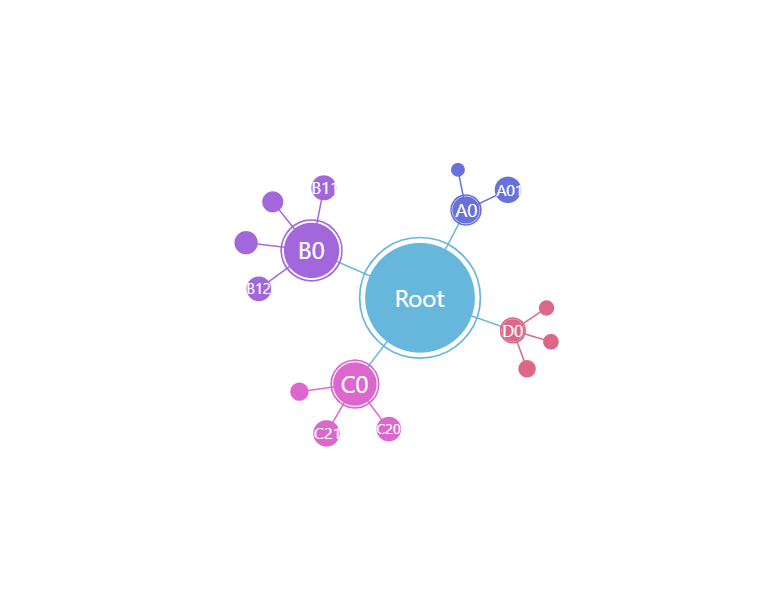
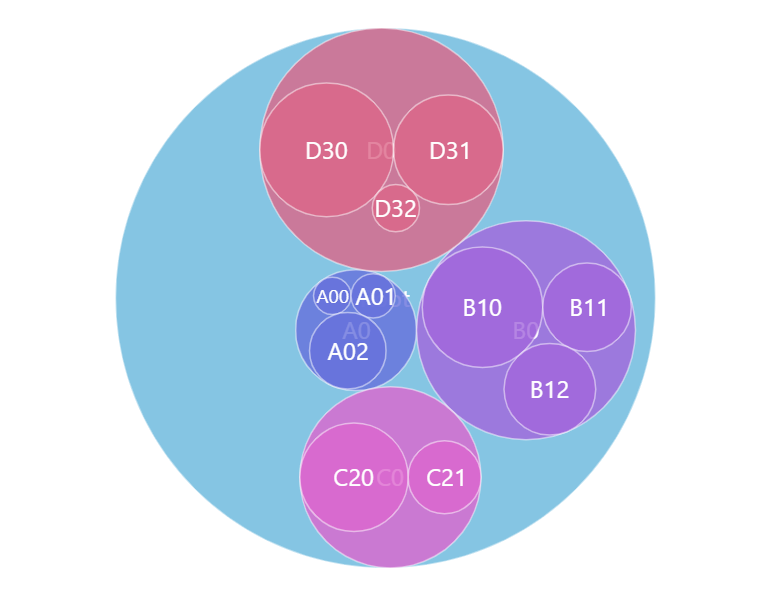
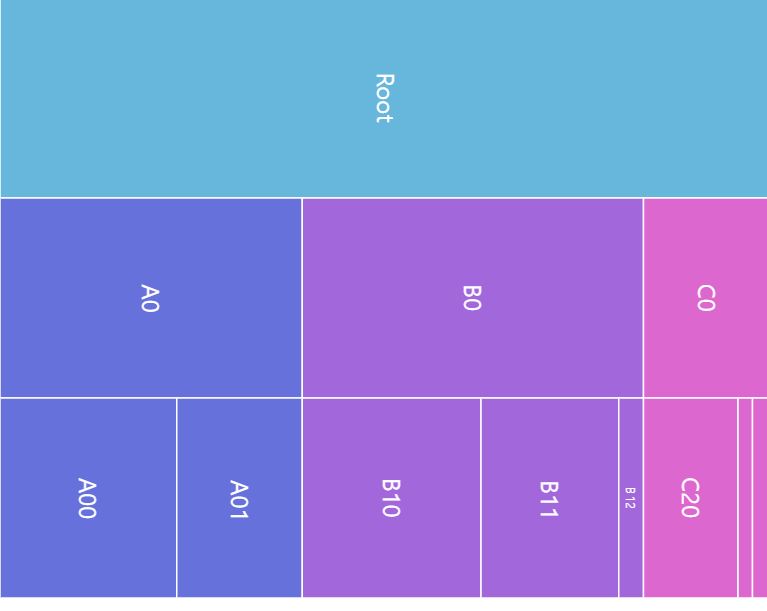
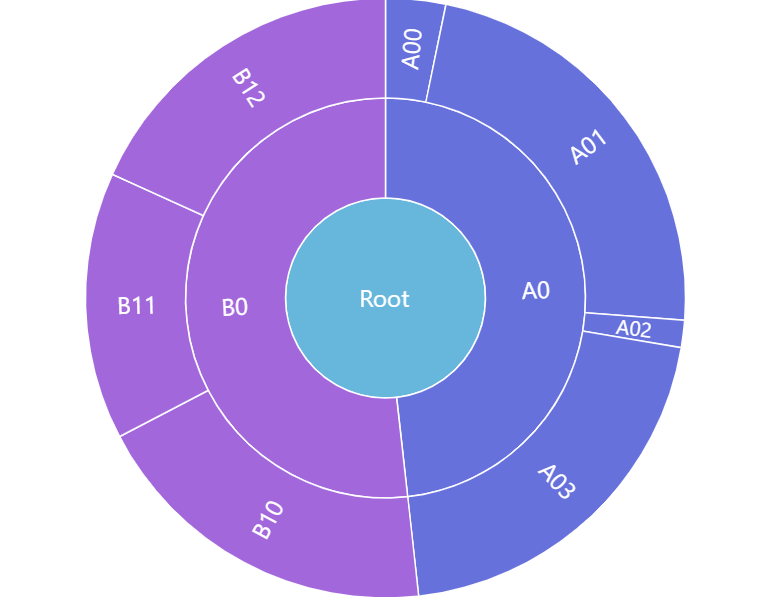
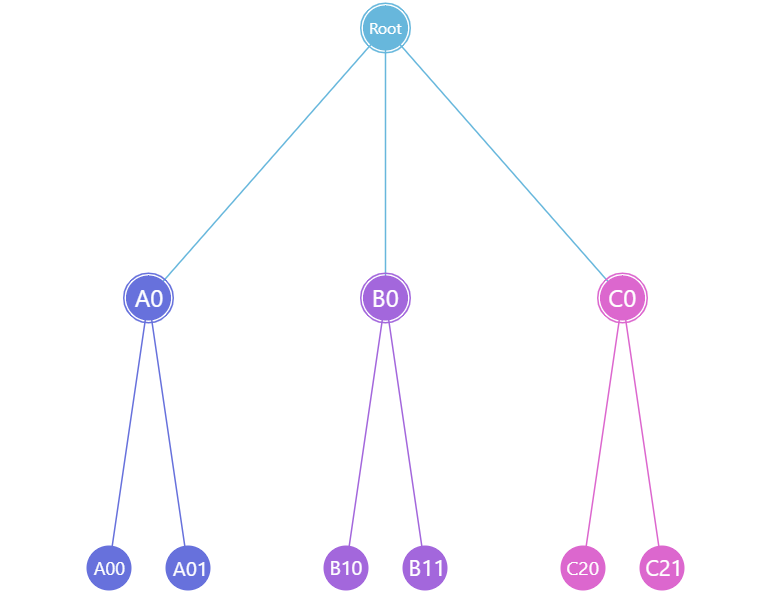
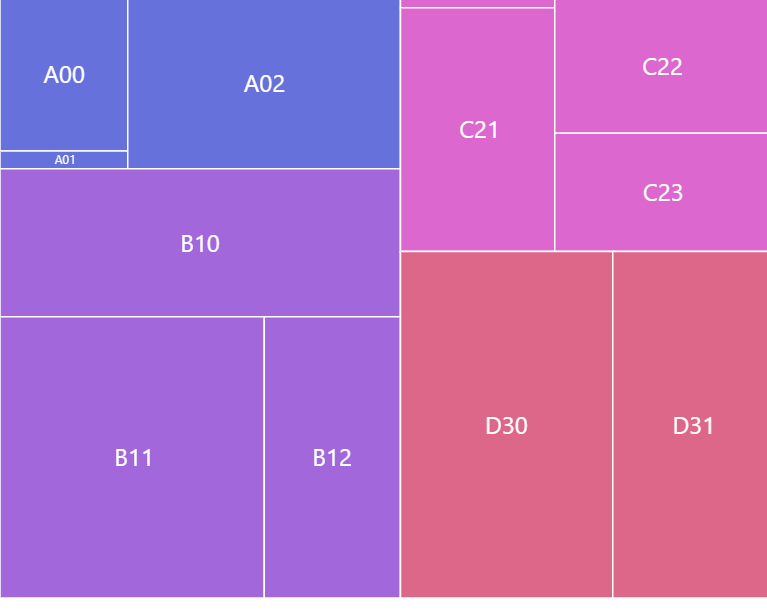
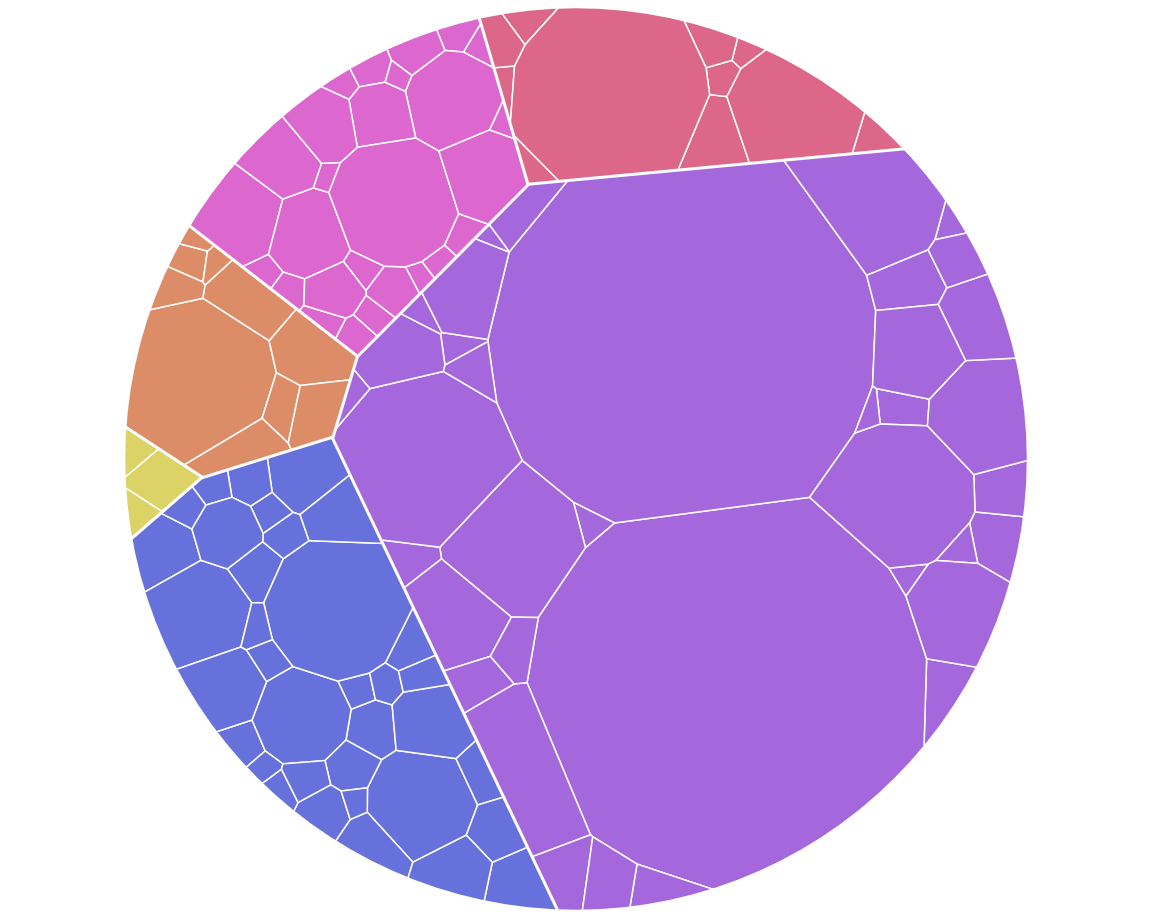
Like everywhere else, we use its new() method to instantiate series, then push it into series list of the chart:
let series = root.container.children.push( am5hierarchy.Treemap.new(root, { valueField: "value", categoryField: "name", childDataField: "children" }));var series = root.container.children.push( am5hierarchy.Treemap.new(root, { valueField: "value", categoryField: "name", childDataField: "children" }));Data fields
Section titled “Data fields”Most hierarchy charts require three data fields:
- Category: a field in data that holds a string-based identifier, like a name.
- Children: a field in data that holds array of data objects for child nodes.
- Value of the node: a field in data that holds numeric value of the node.
Data fields basically mean which keys in data objects to look for specific value.
They can be set via series’ settings categoryField, childDataField, and valueField.
Let’s take sample data:
[{ name: "Root", children: [{ name: "A0", children: [{ name: "A00", value: 71 }, { name: "A01", value: 33 }, { name: "A02", value: 2 }] }, { name: "B0", children: [{ name: "B10", value: 78 }, { name: "B11", value: 36 }] }, { name: "C0", children: [{ name: "C20", value: 46 }, { name: "C21", value: 28 }, { name: "C22", value: 18 }] }]}]The following data fields would need to describe data fields like this:
let series = root.container.children.push( am5hierarchy.Treemap.new(root, { valueField: "value", categoryField: "name", childDataField: "children" }));var series = root.container.children.push( am5hierarchy.Treemap.new(root, { valueField: "value", categoryField: "name", childDataField: "children" }));Optional data fields
Section titled “Optional data fields”Besides the three required data fields, hierarchy charts can also have a number of other data fields, that can be used to control initial state of the nodes (disabledField) or their color (colorField).
The following code show how we can use disabledField to pre-collapse individual nodes.
Here’s the data”
[{ name: "Root", children: [{ name: "A0", collapsed: true, children: [{ name: "A00", value: 71 }, { name: "A01", value: 33 }, { name: "A02", value: 2 }] }, { name: "B0", children: [{ name: "B10", value: 78 }, { name: "B11", value: 36 }] }, { name: "C0", collapsed: true, children: [{ name: "C20", value: 46 }, { name: "C21", value: 28 }, { name: "C22", value: 18 }] }]}]And he code:
let series = root.container.children.push( am5hierarchy.Treemap.new(root, { valueField: "value", categoryField: "name", childDataField: "children", disabledField: "collapsed" }));var series = root.container.children.push( am5hierarchy.Treemap.new(root, { valueField: "value", categoryField: "name", childDataField: "children", disabledField: "collapsed" }));The above will make the chart start with “A0” and “C0” nodes collapsed, while “B0” expanded.
Data structure
Section titled “Data structure”Setting data
Section titled “Setting data”In all hierarchy charts, each entry in data represents a node. If it has data for children (as identified by childDataField), it also may have child nodes, which in turn can have their own children, etc.
Node can also have a value, which in most hierarchy charts will determine its size.
Basically, if node has value in its data, this value will be used. If node does not have value set in data, but has children, than its value will be the sum of all child values.
The data is set directly on series via its data property:
series.data.setAll([{ name: "Root", children: [{ name: "A0", children: [{ name: "A00", value: 71 }, { name: "A01", value: 33 }, { name: "A02", value: 2 }] }, { name: "B0", children: [{ name: "B10", value: 78 }, { name: "B11", value: 36 }] }, { name: "C0", children: [{ name: "C20", value: 46 }, { name: "C21", value: 28 }, { name: "C22", value: 18 }] }]}]);series.data.setAll([{ name: "Root", children: [{ name: "A0", children: [{ name: "A00", value: 71 }, { name: "A01", value: 33 }, { name: "A02", value: 2 }] }, { name: "B0", children: [{ name: "B10", value: 78 }, { name: "B11", value: 36 }] }, { name: "C0", children: [{ name: "C20", value: 46 }, { name: "C21", value: 28 }, { name: "C22", value: 18 }] }]}]);Flat data
Section titled “Flat data”Hierarchy charts can handle “flat data” — data items in a single array that define their parent-child relations via IDs rather than children.
There are two elements to using flat data:
parentIdFieldneeds to be specified, so that Hierarchy knows which field to use in looking up for a parent ID.- Instead of
series.data.setAll(), we need to useseries.setFlatData().
let tree = root.container.children.push(am5hierarchy.Tree.new(root, {  valueField: "value",  categoryField: "name",  childDataField: "children",  idField: "id",  parentIdField: "parentId"}));
tree.setFlatData([  { id: "root", name: "Root", value: 100 },  { id: "a",    name: "A",    value: 50,  parentId: "root" },  { id: "a1",   name: "A1",   value: 20,  parentId: "a" },  { id: "b",    name: "B",    value: 30,  parentId: "root" }]);
var tree = root.container.children.push(am5hierarchy.Tree.new(root, { valueField: "value", categoryField: "name", childDataField: "children", idField: "id", parentIdField: "parentId"}));
tree.setFlatData([ { id: "root", name: "Root", value: 100 }, { id: "a", name: "A", value: 50, parentId: "root" }, { id: "a1", name: "A1", value: 20, parentId: "a" }, { id: "b", name: "B", value: 30, parentId: "root" }]);Pre-selected branch
Section titled “Pre-selected branch”In order for our chart to function properly, we need to tell series which node is currently selected.
It ensures that:
- Current active node is correctly set.
- Initial chart tree depths are respected.
We do that by setting series selectedDataItem. Please note that this is a data item, not a node itself.
For the most uses, this will be the root data item, which will always come first in series’ dataItems list:
series.set("selectedDataItem", series.dataItems[0]);series.set("selectedDataItem", series.dataItems[0]);For more information about configuring appearance of the flow series, refer to respective tutorials:
- Configuring Force-directed series.
- Configuring Pack series.
- Configuring Partition.
- Configuring Sunburst.
- Configuring Tree.
- Configuring Treemap.
Node value
Section titled “Node value”Each node in a hierarchy has its value, which mainly affects its size.
Value of a node is calculated this way:
- Value is retrieved from data via
valueFielddata field if present. - If value is not present in data, but node has children, its value will be the sum of values of all its children.
To paraphrase the above, there are two “correct” ways to set values in hierarchy data:
- Set values only on “end” nodes (nodes that do not have children).
- Set value for all nodes, including the top node.
Node colors
Section titled “Node colors”There is a number of ways we can specify all colors for hierarchy nodes.
For information on how to do that, refer to “Hierarchy node colors” tutorial.
Tooltips
Section titled “Tooltips”Nodes are pre-set to display a tooltip on hover containing name of the category and its value.
We can modify contents of the tooltips using tooltipText on node’s template:
series.nodes.template.set("tooltipText", "{category}: [bold]{sum}[/]");series.nodes.template.set("tooltipText", "{category}: [bold]{sum}[/]");Contents of the tooltip can include data placeholders (codes in curly brackets that will be replaced by actual data) and in-line formatting blocks (formatting instructions enclosed in square brackets).
Refer to IHierarchyDataItem for available keys for the data placeholders.
Tree depth
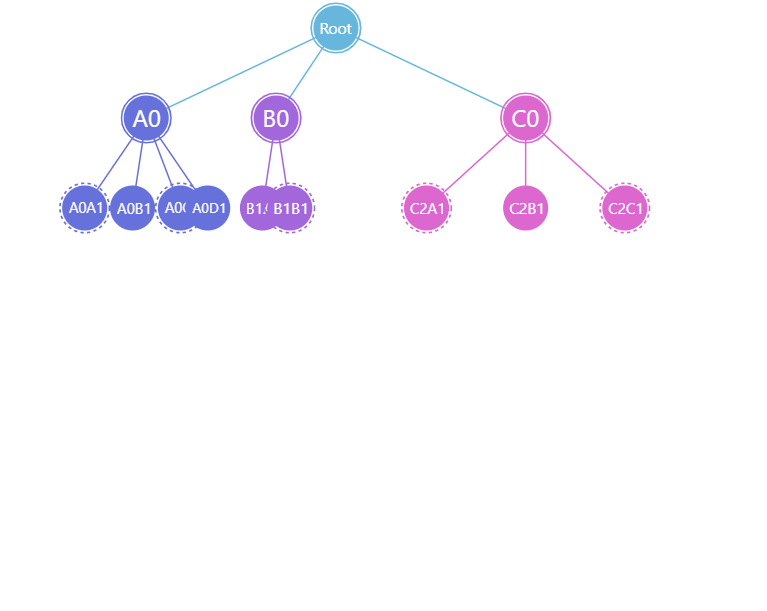
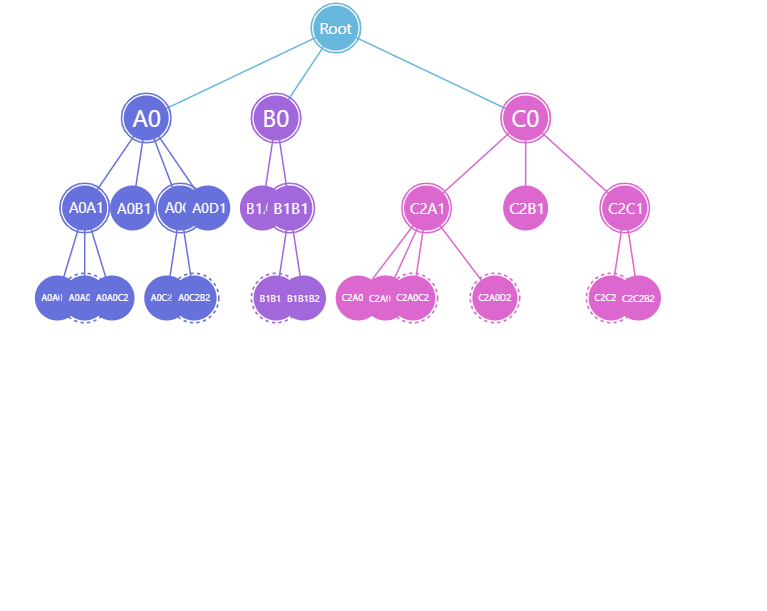
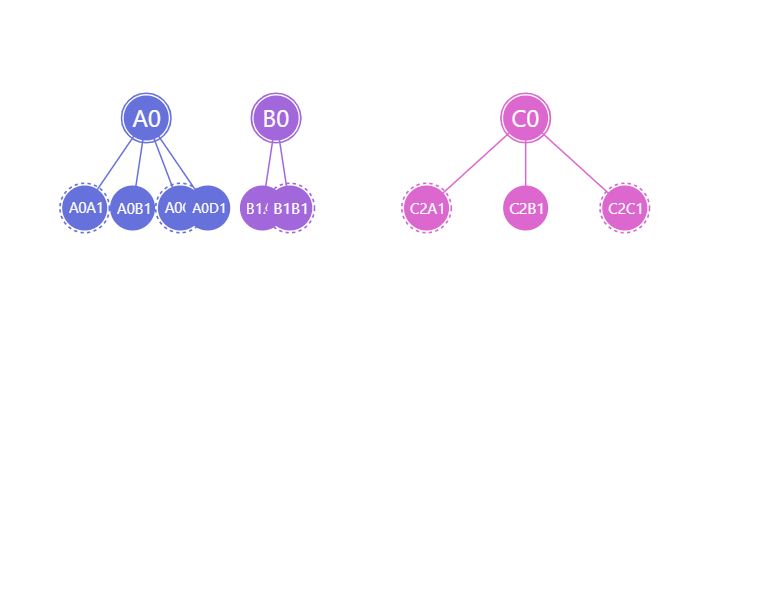
Section titled “Tree depth”There are two hierarchy settings that control depth of the tree: initialDepth and topDepth.
initialDepth specifies how mane levels to show initially, when the chart loads.
It will also be used when resetting the chart to the top level.
topDepth indicates the level, which should be considered top level. Any level in data above that will be ignored and not shown on the chart.
let series = root.container.children.push( am5hierarchy.Treemap.new(root, { valueField: "value", categoryField: "name", childDataField: "children", initialDepth: 2, topDepth: 1 }));var series = root.container.children.push( am5hierarchy.Treemap.new(root, { valueField: "value", categoryField: "name", childDataField: "children", initialDepth: 2, topDepth: 1 }));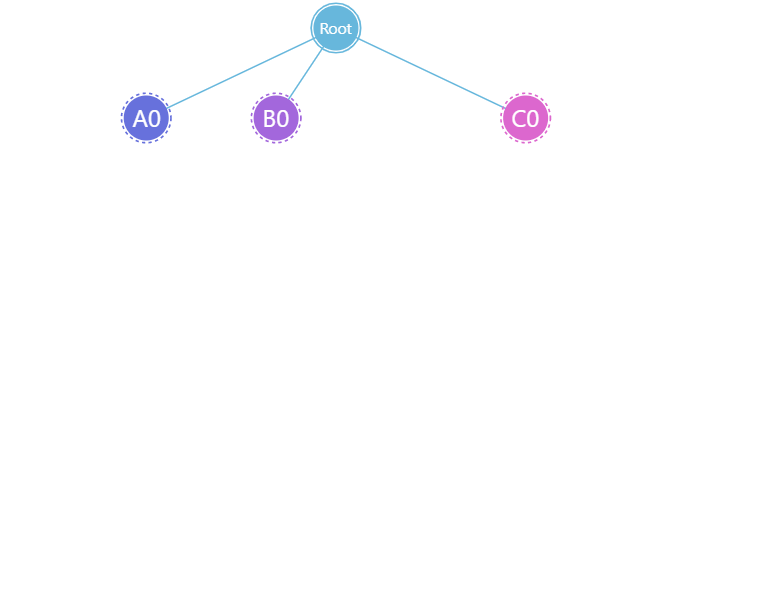
Drill-down
Section titled “Drill-down”Hierarchy nodes that have children are clickable.
Depending on series type and settings, certain drill-down actions happen, like zooming in on the node, exploding a children tree, etc.
For more information about this, please refer to “Hierarchy drill-down” tutorial.
Additional controls
Section titled “Additional controls”Hierarchy is a “container-less” chart. This means that there’s no wrapper “chart” element, that can be used to add series and external controls to.
If we don’t need anything else besides series, we can add it directly to the container of the root element.
However, if we need to add other elements, we’ll need to first create a “wrapper (or main) container”, we’ll be using add all the stuff to:
let container = root.container.children.push(am5.Container.new(root, { width: am5.percent(100), height: am5.percent(100), layout: root.verticalLayout}));var container = root.container.children.push(am5.Container.new(root, { width: am5.percent(100), height: am5.percent(100), layout: root.verticalLayout}));Chart title
Section titled “Chart title”Chart title can be added as a Label element child to the wrapper container:
var title = container.children.push(am5.Label.new(root, { text: "Network Schema", fontSize: 20, x: am5.percent(50), centerX: am5.percent(50)}));var title = container.children.push(am5.Label.new(root, { text: "Network Schema", fontSize: 20, x: am5.percent(50), centerX: am5.percent(50)}));Breadcrumb navigation
Section titled “Breadcrumb navigation”All hierarchy charts support breadcrumb control, which will show current drill-down path, as well as allow jumping to specific level/node in the path.
We can add as wrapper container’s child:
container.children.unshift( am5hierarchy.BreadcrumbBar.new(root, { series: series }));container.children.unshift( am5hierarchy.BreadcrumbBar.new(root, { series: series }));For more information on how to use breadcrumb control, refer to “Breadcrumb navigation” tutorial.
Legend
Section titled “Legend”To add a legend, we simply need to create an instance of a Legend class (which is a part of “core” package), push it to wrapper container’s children (or any other place we want it to be), as well as set its data (in case of hierarchy chart, we will probably want to have series data items in legend).
Since legend needs to have a data, and hierarchy charts have multi-level nested data items, we will need to specify what exactly we want in the legend.
In most cases it will be the first level data items (ones directly below the root):
let legend = container.children.push(am5.Legend.new(root, {  centerX: am5.percent(50),  x: am5.percent(50),  layout: root.horizontalLayout}));
legend.data.setAll(series.dataItems[0].get("children"));
var legend = container.children.push(am5.Legend.new(root, { centerX: am5.percent(50), x: am5.percent(50), layout: root.horizontalLayout}));
legend.data.setAll(series.dataItems[0].get("children"));Complete example
Section titled “Complete example”import * as am5 from "@amcharts/amcharts5";import * as am5hierarchy from "@amcharts/amcharts5/hierarchy";
// Create root and main containerlet root = am5.Root.new("chartdiv");
root.setThemes([ am5themes_Animated.new(root)]);
let container = root.container.children.push( am5.Container.new(root, { width: am5.percent(100), height: am5.percent(100), layout: root.verticalLayout }));
// Create series and set datalet series = container.children.push( am5hierarchy.Treemap.new(root, { valueField: "value", categoryField: "name", childDataField: "children", initialDepth: 2 }));
series.data.setAll([{ name: "Root", children: [{ name: "A0", children: [{ name: "A0A1", children: [{ name: "A0A0A2", value: 71 }, { name: "A0A0B2", children: [{ name: "A0A0B1A3", value: 69 }, { name: "A0A0B1B3", value: 85 }] }, { name: "A0A0C2", value: 48 }] }, { name: "A0B1", value: 27 }, { name: "A0C1", children: [{ name: "A0C2A2", value: 2 }, { name: "A0C2B2", children: [{ name: "A0C2B1A3", value: 54 }, { name: "A0C2B1B3", value: 16 }] }] }, { name: "A0D1", value: 89 }] }, { name: "B0", children: [{ name: "B1A1", value: 9 }, { name: "B1B1", children: [{ name: "B1B1A2", children: [{ name: "B1B1A0A3", value: 35 }, { name: "B1B1A0B3", value: 40 }] }, { name: "B1B1B2", value: 55 }] }] }, { name: "C0", children: [{ name: "C2A1", children: [{ name: "C2A0A2", value: 24 }, { name: "C2A0B2", value: 89 }, { name: "C2A0C2", children: [{ name: "C2A0C2A3", children: [{ name: "C2A0C2A0A4", children: [{ name: "C2A0C2A0A00", value: 90 }, { name: "C2A0C2A0A01", value: 70 }, { name: "C2A0C2A0A02", value: 66 }, { name: "C2A0C2A0A03", value: 58 }] }, { name: "C2A0C2A0B4", children: [{ name: "C2A0C2A0B10", value: 80 }, { name: "C2A0C2A0B11", value: 40 }] }] }, { name: "C2A0C2B3", value: 44 }] }, { name: "C2A0D2", children: [{ name: "C2A0D3A3", value: 28 }, { name: "C2A0D3B3", value: 14 }] }] }, { name: "C2B1", value: 40 }, { name: "C2C1", children: [{ name: "C2C2A2", children: [{ name: "C2C2A0A3", value: 28 }, { name: "C2C2A0B3", children: [{ name: "C2C2A0B1A4", value: 19 }, { name: "C2C2A0B1B4", children: [{ name: "C2C2A0B1B10", value: 11 }, { name: "C2C2A0B1B11", value: 10 }, { name: "C2C2A0B1B12", value: 97 }, { name: "C2C2A0B1B13", value: 47 }] }, { name: "C2C2A0B1C4", children: [{ name: "C2C2A0B1C20", value: 40 }, { name: "C2C2A0B1C21", value: 37 }, { name: "C2C2A0B1C22", value: 53 }] }] }, { name: "C2C2A0C3", value: 96 }] }, { name: "C2C2B2", value: 66 }] }] }]}]);series.set("selectedDataItem", series.dataItems[0]);
// Add breadcrumbscontainer.children.unshift( am5hierarchy.BreadcrumbBar.new(root, { series: series }));<script src="https://cdn.amcharts.com/lib/5/index.js"></script><script src="https://cdn.amcharts.com/lib/5/hierarchy.js"></script>
<div id="chartdiv"></div>
<script>// Create root and main containervar root = am5.Root.new("chartdiv");
root.setThemes([ am5themes_Animated.new(root)]);
var container = root.container.children.push( am5.Container.new(root, { width: am5.percent(100), height: am5.percent(100), layout: root.verticalLayout }));
// Create series and set datavar series = container.children.push( am5hierarchy.Treemap.new(root, { valueField: "value", categoryField: "name", childDataField: "children", initialDepth: 2 }));
series.data.setAll([{ name: "Root", children: [{ name: "A0", children: [{ name: "A0A1", children: [{ name: "A0A0A2", value: 71 }, { name: "A0A0B2", children: [{ name: "A0A0B1A3", value: 69 }, { name: "A0A0B1B3", value: 85 }] }, { name: "A0A0C2", value: 48 }] }, { name: "A0B1", value: 27 }, { name: "A0C1", children: [{ name: "A0C2A2", value: 2 }, { name: "A0C2B2", children: [{ name: "A0C2B1A3", value: 54 }, { name: "A0C2B1B3", value: 16 }] }] }, { name: "A0D1", value: 89 }] }, { name: "B0", children: [{ name: "B1A1", value: 9 }, { name: "B1B1", children: [{ name: "B1B1A2", children: [{ name: "B1B1A0A3", value: 35 }, { name: "B1B1A0B3", value: 40 }] }, { name: "B1B1B2", value: 55 }] }] }, { name: "C0", children: [{ name: "C2A1", children: [{ name: "C2A0A2", value: 24 }, { name: "C2A0B2", value: 89 }, { name: "C2A0C2", children: [{ name: "C2A0C2A3", children: [{ name: "C2A0C2A0A4", children: [{ name: "C2A0C2A0A00", value: 90 }, { name: "C2A0C2A0A01", value: 70 }, { name: "C2A0C2A0A02", value: 66 }, { name: "C2A0C2A0A03", value: 58 }] }, { name: "C2A0C2A0B4", children: [{ name: "C2A0C2A0B10", value: 80 }, { name: "C2A0C2A0B11", value: 40 }] }] }, { name: "C2A0C2B3", value: 44 }] }, { name: "C2A0D2", children: [{ name: "C2A0D3A3", value: 28 }, { name: "C2A0D3B3", value: 14 }] }] }, { name: "C2B1", value: 40 }, { name: "C2C1", children: [{ name: "C2C2A2", children: [{ name: "C2C2A0A3", value: 28 }, { name: "C2C2A0B3", children: [{ name: "C2C2A0B1A4", value: 19 }, { name: "C2C2A0B1B4", children: [{ name: "C2C2A0B1B10", value: 11 }, { name: "C2C2A0B1B11", value: 10 }, { name: "C2C2A0B1B12", value: 97 }, { name: "C2C2A0B1B13", value: 47 }] }, { name: "C2C2A0B1C4", children: [{ name: "C2C2A0B1C20", value: 40 }, { name: "C2C2A0B1C21", value: 37 }, { name: "C2C2A0B1C22", value: 53 }] }] }, { name: "C2C2A0C3", value: 96 }] }, { name: "C2C2B2", value: 66 }] }] }]}]);series.set("selectedDataItem", series.dataItems[0]);
// Add breadcrumbscontainer.children.unshift( am5hierarchy.BreadcrumbBar.new(root, { series: series }));</script>