

Handling pie chart labels that don't fit
In some cases we will come across chart setups that will have their slice labels cut off, especially on smaller charts. This tutorial will look at few ways to handle those situations.
The problem
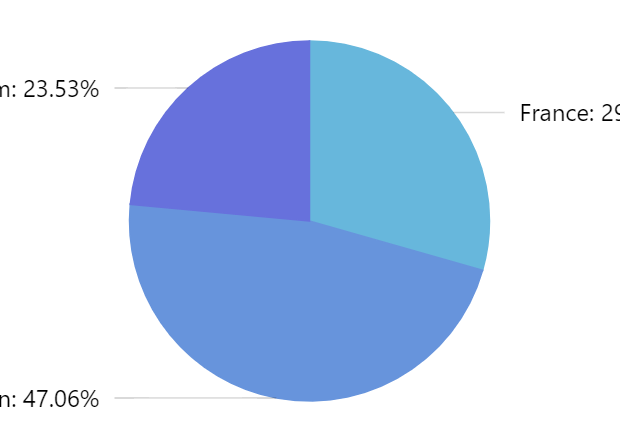
Section titled “The problem”Pie chart does not factor in width of slice labels when sizing the pie itself. This means that on some smaller charts, with longer labels they might not fit and will be cut off, or completely invisible.
Possible solutions
Section titled “Possible solutions”Wrap or truncate labels
Section titled “Wrap or truncate labels”We can specify maximum width of the labels as well as what to do with such labels: wrap to multiple lines, or truncate them with an ellipsis.
series.labels.template.setAll({ maxWidth: 150, oversizedBehavior: "wrap" // to truncate labels, use "truncate"});series.labels.template.setAll({ maxWidth: 150, oversizedBehavior: "wrap" // to truncate labels, use "truncate"});Reduce font size
Section titled “Reduce font size”Reducing font size is another option:
series.labels.template.setAll({ fontSize: 10});series.labels.template.setAll({ maxWidth: 150, fontSize: 10});Reduce pie radius
Section titled “Reduce pie radius”Reducing pie radius (default: 80%) will leave more space for labels:
let chart = root.container.children.push( am5percent.PieChart.new(root, { radius: am5.percent(70) }));var chart = root.container.children.push( am5percent.PieChart.new(root, { radius: am5.percent(70) }));Change label content
Section titled “Change label content”Labels will display both category and percent value by default.
If some of that information is not critical, we may reduce the width of the labels further by including only relevant information:
series.labels.template.setAll({ text: "{category}"});series.labels.template.setAll({ text: "{category}"});Un-align labels
Section titled “Un-align labels”Labels are aligned into two columns by default.
We can disable that so label is drawn as close to the slice as possible:
let series = chart.series.push( am5percent.PieSeries.new(root, { categoryField: "country", valueField: "sales", alignLabels: false }));var series = chart.series.push( am5percent.PieSeries.new(root, { categoryField: "country", valueField: "sales", alignLabels: false }));Labels inside slice
Section titled “Labels inside slice”We can also put labels inside slice.
Since we don’t need extra space for labels, we can make the pit take up the whole area of the chart, too.
let chart = root.container.children.push(  am5percent.PieChart.new(root, {    radius: am5.percent(100)  }));
// ...
series.labels.template.setAll({  radius: 10,  inside: true});
var chart = root.container.children.push( am5percent.PieChart.new(root, { radius: am5.percent(100) }));
// ...
series.labels.template.setAll({ radius: 10, inside: true});Hide labels/ticks for small slices
Section titled “Hide labels/ticks for small slices”series.labels.template.adapters.add("y", function(y, target) { let dataItem = target.dataItem; if (dataItem) { let tick = dataItem.get("tick"); if (tick) { if (dataItem.get("valuePercentTotal") < 1) { target.set("forceHidden", true); tick.set("forceHidden", true); } else { target.set("forceHidden", false); tick.set("forceHidden", false); } } return y; }});series.labels.template.adapters.add("y", function(y, target) { var dataItem = target.dataItem; if (dataItem) { var tick = dataItem.get("tick"); if (tick) { if (dataItem.get("valuePercentTotal") < 1) { target.set("forceHidden", true); tick.set("forceHidden", true); } else { target.set("forceHidden", false); tick.set("forceHidden", false); } } return y; }});Hide ticks for off-chart labels
Section titled “Hide ticks for off-chart labels”We can also use an adapter to automatically hide ticks for labels that area outside the chart area:
series.labels.template.adapters.add("y", function(y, target) {  let dataItem = target.dataItem;  if (dataItem) {    var tick = dataItem.get("tick");    if (tick) {      if (y < -chart.height() / 2) {        tick.set("forceHidden", true);
} else { tick.set("forceHidden", false); } } return y; }});series.labels.template.adapters.add("y", function(y, target) { var dataItem = target.dataItem; if (dataItem) { var tick = dataItem.get("tick"); if (tick) { if (y < -chart.height() / 2) { tick.set("forceHidden", true);
} else { tick.set("forceHidden", false); } } return y; }});Use responsive theme
Section titled “Use responsive theme”By using a responsive theme, we can set up labels to be reduced in size, their contents changed, or completely hidden at certain chart width/height.
For more information, check out “Responsive” tutorial.