

Creating multi-content PDF export
This extensive tutorial will show how you can use pdfmake library, which is bundled with amCharts 5 plugin Exporting, to generate full page, multi-content report PDF documents.
Disclaimer
Section titled “Disclaimer”Majority of this tutorial is based on using pdfmake. It’s an excellent third party library enabling generating PDF documents in JavaScript. Our aim is to walk you through basics of using pdfmake. For advanced usage, support, and community head over to pdfmake page.
The task
Section titled “The task”To start with, let’s say we want to generate something like this:
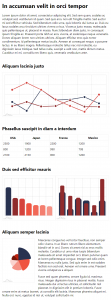
Here’s a live version:
Building a PDF
Section titled “Building a PDF”Preparing
Section titled “Preparing”Let’s create a function, that will handle the exporting. It can be invoked with a press of a button, or on some other event.
function savePDF() { // This is where the magic will be happening}function savePDF() { // This is where the magic will be happening}Getting a pdfmake object
Section titled “Getting a pdfmake object”You already know that we will be using pdfmake to build our PDF.
It comes with the plugin Exporting, so we will need to import or load it first:
import * as am5exporting from "@amcharts/amcharts5/plugins/exporting";<script src="https://cdn.amcharts.com/lib/5/plugins/exporting.js"></script>Then create a plugin instance:
let exporting = am5plugins_exporting.Exporting.new(root, { menu: am5plugins_exporting.ExportingMenu.new(root, {})});var exporting = am5plugins_exporting.Exporting.new(root, { menu: am5plugins_exporting.ExportingMenu.new(root, {})});We’ll grab a pdfmake object right out of the plugin’s instance, using its getPdfmake() method:
function savePDF() { exporting.getPdfmake().then(function(pdfmake) { // pdfmake is ready // ... );}function savePDF() { exporting.getPdfmake().then(function(pdfmake) { // pdfmake is ready // ... );}Since pdfmake is loaded dynamically on-demand, the async accessor exporting.getPdfmake() returns a Promise, not the object itself. This is why we are using then() clause, which kicks in when pdfmake is loaded and ready.
All of the subsequent code in this tutorial will go inside this promise handler.
Chart snapshots
Section titled “Chart snapshots”Besides getting pdfmake object we have a few other asynchronous operations on our hands: getting snapshots of all the charts.
This is done via exporting object’s export() method. Just like getPdfmake(), it returns a Promise.
Since we need all of those to create a document, let’s combine all of them into a single Promise.all call.
function savePDF() {  let exporting = am5plugins_exporting.Exporting.new(root, {    menu: am5plugins_exporting.ExportingMenu.new(root, {})  });
  let exporting2 = am5plugins_exporting.Exporting.new(root2, {    menu: am5plugins_exporting.ExportingMenu.new(root2, {})  });
  let exporting3 = am5plugins_exporting.Exporting.new(root3, {    menu: am5plugins_exporting.ExportingMenu.new(root3, {})  });
  let exporting4 = am5plugins_exporting.Exporting.new(root4, {    menu: am5plugins_exporting.ExportingMenu.new(root4, {})  });
  Promise.all([    exporting.getPdfmake(),    exporting.export("png"),    exporting2.export("png"),    exporting3.export("png"),    exporting4.export("png")  ]).then(function(res) {     // pdfmake and chart snapshots are ready     // res[0] contains pdfmake instance     // res[1] contains shapshot of chart 1     // etc.     let pdfMake = res[0];  );}
function savePDF() { var exporting = am5plugins_exporting.Exporting.new(root, { menu: am5plugins_exporting.ExportingMenu.new(root, {}) });
var exporting2 = am5plugins_exporting.Exporting.new(root2, { menu: am5plugins_exporting.ExportingMenu.new(root2, {}) });
var exporting3 = am5plugins_exporting.Exporting.new(root3, { menu: am5plugins_exporting.ExportingMenu.new(root3, {}) });
var exporting4 = am5plugins_exporting.Exporting.new(root4, { menu: am5plugins_exporting.ExportingMenu.new(root4, {}) });
Promise.all([ exporting.getPdfmake(), exporting.export("png"), exporting2.export("png"), exporting3.export("png"), exporting4.export("png") ]).then(function(res) { // pdfmake and chart snapshots are ready // res[0] contains pdfmake instance // res[1] contains shapshot of chart 1 // etc. var pdfMake = res[0]; );}Document definition
Section titled “Document definition”Now that we have all of our async stuff loaded and ready, let’s create a PDF document definition.
pdfmake uses a structured JavaScript object to describe the documents:
// pdfmake is ready// Create document templatelet doc = { pageSize: "A4", pageOrientation: "portrait", pageMargins: [30, 30, 30, 30], content: []};// pdfmake is ready// Create document templatevar doc = { pageSize: "A4", pageOrientation: "portrait", pageMargins: [30, 30, 30, 30], content: []};As you may already guessed, all content that needs to go into PDF document will be included as objects into content array.
Headers and text
Section titled “Headers and text”Now that we have our (blank) PDF document definition object ready, let’s add some text to it.
doc.content.push({ text: "In accumsan velit in orci tempor", fontSize: 20, bold: true, margin: [0, 20, 0, 15]});doc.content.push({ text: "Lorem ipsum dolor sit amet, consectetur adipiscing elit...", fontSize: 15, margin: [0, 0, 0, 15]});doc.content.push({ text: "In accumsan velit in orci tempor", fontSize: 20, bold: true, margin: [0, 20, 0, 15]});doc.content.push({ text: "Lorem ipsum dolor sit amet, consectetur adipiscing elit...", fontSize: 15, margin: [0, 0, 0, 15]});Charts
Section titled “Charts”Adding images is similar to text.
We already have snapshots of our charts in res array, so we can start pushing those into document content.
doc.content.push({ image: res[1], width: 530});doc.content.push({ image: res[1], width: 530});width is important. Without it, your image might not fit into the page. The full width of the A4 page is 595.28 (Letter is 612).
Make sure you take document’s margins into account when calculating allowed image width.
Tables
Section titled “Tables”Now, let’s add a table.
doc.content.push({ table: { headerRows: 1, widths: [ "*", "*", "*", "*" ], body: [ [ { text: "USA", bold: true }, { text: "Japan", bold: true }, { text: "France", bold: true }, { text: "Mexico", bold: true } ], [ "2500", "2500", "2200", "1200" ], [ "800", "1200", "990", "708" ], [ "2100", "2150", "900", "1260" ], ] }});doc.content.push({ table: { headerRows: 1, widths: [ "*", "*", "*", "*" ], body: [ [ { text: "USA", bold: true }, { text: "Japan", bold: true }, { text: "France", bold: true }, { text: "Mexico", bold: true } ], [ "2500", "2500", "2200", "1200" ], [ "800", "1200", "990", "708" ], [ "2100", "2150", "900", "1260" ], ] }});Columns
Section titled “Columns”Next up: two charts set side by side.
For that we’ll need to utilize content columns.
doc.content.push({ columns: [{ image: res[2], width: 250 }, { image: res[3], width: 250 }], columnGap: 30});doc.content.push({ columns: [{ image: res[2], width: 250 }, { image: res[3], width: 250 }], columnGap: 30});Columns work like mini-content: you just add regular content definition objects, except they will be laid out horizontally next to each other.
We can add any content to columns, mix and match them, like for example image and text:
doc.content.push({ columns: [{ image: res[4], width: 150 }, { stack: [{ text: "Maecenas congue leo vel tortor faucibus, non semper odio viverra...", fontSize: 15, margin: [0, 0, 0, 15] }, { text: "Fusce sed quam pharetra, ornare ligula id, maximus risus...", fontSize: 15, margin: [0, 0, 0, 15] }], width: "*" }], columnGap: 30});doc.content.push({ columns: [{ image: res[4], width: 150 }, { stack: [{ text: "Maecenas congue leo vel tortor faucibus, non semper odio viverra...", fontSize: 15, margin: [0, 0, 0, 15] }, { text: "Fusce sed quam pharetra, ornare ligula id, maximus risus...", fontSize: 15, margin: [0, 0, 0, 15] }], width: "*" }], columnGap: 30});Download & print
Section titled “Download & print”That’s it. We’re done configuring our document. Let’s trigger download.
pdfmake has that included:
pdfMake.createPdf(doc).download("report.pdf");pdfMake.createPdf(doc).download("report.pdf");Or if we’d like to print it:
pdfMake.createPdf(doc).print();pdfMake.createPdf(doc).print();Full example
Section titled “Full example”Alternative example
Section titled “Alternative example”The following example uses am5.registry.rootElements global variable to automatically export all charts on page into a PDF:
Note about pdfmake
Section titled “Note about pdfmake”amCharts 5 Exporting plugin uses pdfmake library for PDF document generation. Starting with version 5.18.0, amCharts 5 now bundles and uses pdfmake 0.3 (was 0.2) which introduces some breaking changes to the API.
If you are just using amCharts 5 Exporting API, you don’t need to do anything.
If you are accessing pdfmake object directly to use its API, please read here.