

Styling or removing tooltip shadow
Most of the elements on charts can display a tooltip when hovered. By default, a tooltip will cast a slight shadow behind it. This tutorial will explain on how to style it, or get rid of it altogether.
Accessing tooltip
Section titled “Accessing tooltip”Before we can start, let’s see how we can access the tooltip, that is Tooltip object that represents it.
Each object has a property: tooltip. You can access tooltips of basic objects directly.
Some objects, like series and elements within series share a single Tooltip object, which is accessible “centrally”, e.g. series.tooltip.
Shadow is a filter
Section titled “Shadow is a filter”A shadow you see under a tooltip is actually a DropShadowFilter. For more information about how filters work, read here.
Important thing to know, is that this filter is not applied directly to the Tooltip object, but rather to its background object.
So, if we want to access current filters, we go deep, e.g.: series.tooltip.background.filters.
Modifying shadow
Section titled “Modifying shadow”Normally, a shadow filter is the first (and only) filter applied to tooltip’s background. So, if we want to modify it, we just need to fish it out and set its properties.
let shadow = series.tooltip.background.filters.getIndex(0);shadow.dx = 10;shadow.dy = 10;shadow.blur = 5;shadow.color = am4core.color("#f55");var shadow = series.tooltip.background.filters.getIndex(0);shadow.dx = 10;shadow.dy = 10;shadow.blur = 5;shadow.color = am4core.color("#f55");{ // ... "series": [{ // ... "tooltip": { "background": { "filters": [{ "dx": 10, "dy": 10, "blur": 5, "color": "#f55" }] } } }]}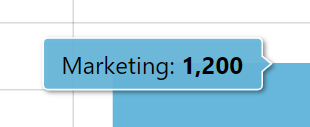
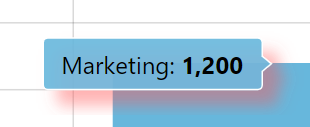
Here’s the above in live action:
Disabling shadow
Section titled “Disabling shadow”Disabling shadow is even easier. We just need to remove it from the filters list:
series.tooltip.background.filters.clear();series.tooltip.background.filters.clear();{ // ... "series": [{ // ... "tooltip": { "background": { "filters": [{ "opacity": 0 }] } } }]}