Formatting Numbers
Whenever a chart (or any other chart element) needs to format a numeric value, it turns to its NumberFormatter (accesible via numberFormatter property) to do the actual formatting.
Setting output format
Section titled “Setting output format”NumberFormatter uses format, set in its property numberFormat to turn a numeric value into a formatted string.
// Round all numbers to integerchart.numberFormatter.numberFormat = "#.";// Round all numbers to integerchart.numberFormatter.numberFormat = "#.";{ // ... // Round all numbers to integer "numberFormatter": { "numberFormat": "#." }, // ...}Examples
Section titled “Examples”| Format | Input value | Output |
|---|---|---|
#,###.## |
1000.125 | 1,000.13 |
#,###.00 |
1000 | 1,000.00 |
000.00 |
10 | 010.00 |
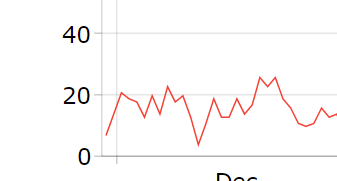
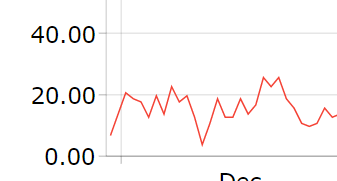
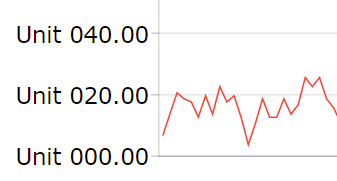
The below is a graphical representation on how dateFormat set on chart’s dateFormatter affects labels on a ValueAxis.
Format codes
Section titled “Format codes”Number formatting in amCharts is loosely based on Unicode standard. Please refer end of the table for unsupported parameters and other differences.
Code | Description |
|---|---|
Indicates passive number. Formatter will round to a number of #’s but will not pad with zeros. Example format:
| |
0 (zero) | Active number. Formatter will round decimals to a number of zeros. If the length of decimals or integers is less than number of active numbers, the formatter will pad the number with zeros. Example format:
|
. (dot) | Indicates a decimal place. Important: if dot is missing, the formatter will not round or format decimals, and will display the number as is. This may result in large numbers. If the number format ends with a dot, the number will be rounded to the nearest integer. Example format: Example format: |
, (comma) | Indicates thousand separator place. This is used to determine home many digits to consider a “thousand”. Only the rightmost comma will be used. Example format:
|
e | Convert the number into scientific (exponential) format. Important: Must go at the end of the format. Example format:
|
a | Recalculates very big and very small numbers by reducing their length according to rules and applying suffix/prefix. Important: Must go at the end of the format. The suffixes (“K”, “M”, “G”, etc.) are translatable via language files. Example format:
|
b | Recalculate to kilobytes, megabytes, etc. and add corresponding suffix. Important: Must go at the end of the format. The suffixes (“KB”, “MB”, “GB”, etc.) are translatable via language files. Example format:
|
s | Display an absolute number. (without the minus sign) Important: Must go at the end of the format. Example format:
|
‘ (single quote) | Enclose any text you don’t want to be parsed for format options into quotes quotes. It will be included in the formatted output as is. (minus the the quotes) If you need to display actual single quote, include it twice. This works both within and outside quoted text. Example format:
|
% | Multiple the number by 100 and display as percentage. A percent sign will be added either before or after the number, as per locale. |
‰ | Multiple the number by 1000 and display as per mile |
p | Same as “%” except value is not multiplied by 100. A percent sign will be added either before or after the number, as per locale. |
! |
|
Deviations from Unicode standard
Section titled “Deviations from Unicode standard”amCharts Number Formatter does not support following format features:
- Pad escaping (*)
- Significant numbers (@)
- Mantissa support in exponentes
- Primary and secondary digit grouping (just one grouping is supported)
We also use vertical bar “|” as a conditional format separator rather than semicolon “;”. There’s also a third conditional element available for zero value.
Using Intl object formats
Section titled “Using Intl object formats”Number formats can be specified using JavaScript’s built-in Intl object. Please refer to “Formatting date/time and numbers using “Intl” object” for further information.
Modifiers
Section titled “Modifiers”The modifiers must always come after the actual format. If there’s a space before “a”, “b” or “e” modifiers, it will be added before the actual suffix.
| Format | Input value | Output |
|---|---|---|
#,##a |
1000 | 1000K |
#,## a |
1000 | 1000 K |
Negative values and zeros
Section titled “Negative values and zeros”To apply different formatting to positive, negative and zeros, use | (vertical bar) to separate formats. (in that order).
[positive format] | [negative format] | [zero format]
| Format | Input value | Output |
|---|---|---|
#,###|(#,###s)|'-' |
1000 | 1000 |
#,###|(#,###s)|'-' |
-1000 | (1000) |
#,###|(#,###s)|'-' |
0 | - |
Negative base
Section titled “Negative base”Please note that this conditional formatting will respect the “negative base” set in the object the formatter is created for.
E.g. if you have a formatted set for value axis, which has negative base set at 100, and value that is below will be treated as negative, while 100 itself will be treated as zero.
Applying styles
Section titled “Applying styles”Number Formatter will respect and apply Text Formatter tags (enclosed in square brackets).
| Format | Input value | Output |
|---|---|---|
[#0f0]#,### |
1000 | 1000 |
[green]#,###|[red](#,###)|[#ccc]'-' |
1000 | 1000 |
[green]#,###|[red](#,###)|[#ccc]'-' |
-1000 | 1000 |
[green]#,###|[red](#,###)|[#ccc]'-' |
0 | - |
Please refer to “Formatting Strings” for more details.
Escaping
Section titled “Escaping”Quotes
Section titled “Quotes”To explicitly make formatter ignore a portion of text, enclose it within single quotes:
'Element # is' #.000
The "Element # is" above will not be parsed when being processed by NumberFormatter. It will be left as is:
Element # is 12.000
Any text enclosed in single quotes will be displayed as is, without applying formatting to it.
To use a single quote (either within quoted text or outside it) add single quote twice:
'Element ''#'' is' #.000
Will result in:
Element '#' is 12.000
Vertical bar
Section titled “Vertical bar”As we saw earlier in this article, a vertical bar “|” in number formats represents different version of the format to be applied for negative, positive and zero values.
If you need to explicitly use a vertical bar in your formatted text, just like with quotes, escape it with an additional vertical bar:
Positive || #,###|Negative ||(#,###a)|'-'
Square and curly brackets
Section titled “Square and curly brackets”Square and curly brackets have special meaning in formatting text labels as well.
Please refer to the “Formatting Strings” article for more info.
Overriding format
Section titled “Overriding format”As we saw in our introductory article on Formatters, you can override global or local numberFormat with a TextFormatter data field function formatNumber().
series.tooltipText = "{dateX.formatDate('yyyy-mm')}: {valueY.formatNumber('#.00')}";series.tooltipText = "{dateX.formatDate('yyyy-mm')}: {valueY.formatNumber('#.00')}";"series": [{ // ... "tooltipText": "{dateX.formatDate('yyyy-mm')}: {valueY.formatNumber('#.00')}"]}Locale
Section titled “Locale”Please note, that locale-specific punctuation, such as decimal and thousands point will be determined by whatever locale is set for the chart.
Please refer to article “Locales” for more details about chart translations and locale settings.