

Using filters
amCharts 4 comes with a set of ready-made visual filters that you can apply to virtually any element. This tutorial will explain how you can use them.
What is a filter?
Section titled “What is a filter?”A filter is a method to quickly apply some visual enhancement or modification to an element.
For example, you want your Line series to cast a shadow? Apply a “Drop shadow” filter to it.
Want to wash out your Column series so that colors are not as pronounced? Apply a “Desaturate” filter.
Creating and applying
Section titled “Creating and applying”Creating a filter is as easy as instantiating an object with the class name of the filter you need, e.g. “Drop shadow” filter uses DropShadowFilter class.
Assigning it to an element is as easy as push()’ing it to element’s filters list.
let shadow = series.filters.push(new am4core.DropShadowFilter());var shadow = series.filters.push(new am4core.DropShadowFilter());{ // ... "series": [{ "type": "LineSeries", // ... "filters": [{ "type": "DropShadowFilter" }] }]}That’s about it. Now, all columns in our Line series will have a shadow:
You can apply a filter to anything, not just series.
To apply a filter to, say, a column in a Column series, you can push it to a filters on a series’ column template:
let shadow = columnSeries.columns.template.filters.push(new am4core.DropShadowFilter());var shadow = columnSeries.columns.template.filters.push(new am4core.DropShadowFilter());{ // ... "series": [{ "type": "ColumnSeries", // ... "columns": { "filters": [{ "type": "DropShadowFilter" }] } }]}Or, if you’d like, you can add one to the series bullets:
let bullet = series.bullets.push(new am4charts.CircleBullet());let shadow = bullet.filters.push(new am4core.DropShadowFilter);var bullet = series.bullets.push(new am4charts.CircleBullet());var shadow = bullet.filters.push(new am4core.DropShadowFilter);{ // ... "series": [{ "type": "LineSeries", // ... "bullets": [{ "type": "CircleBullet", "filters": [{ "type": "DropShadowFilter" }] }] }]}Available filters
Section titled “Available filters”So far we’ve only looked at “Drop shadow” filter. There are more. Here’s the full list.
Filter | Example | Comment |
|---|---|---|
No filter |
| |
| Blurs the element. Useful property: | |
|
| Washes colors towards one specific color. This filter does not make sense without specific filter settings, like The above code makes all colors “greener”. |
| Desaturates colors. The higher the saturation the more grayscale colors become. Useful property: | |
| Adds a “shadow” in the shape of the element. Useful properties: | |
| Highlights an element with a distinctive outline. The outline thickness, color, opacity can be configured via filter’s properties. | |
| Lightens (or darkens) colors in target element. Will have not effect without |







Modifying filter settings
Section titled “Modifying filter settings”Some filters are good as they are. For example, the “Drop shadow” filter works completely without modification.
Others might require some tweaking, or might not even make sense without setting properties.
Please refer to the reference of each particular filter for the available properties.
Configuring a filter is as easy as setting it’s properties.
Revisiting our Line series with a shadow example, let’s put the shadow further away from the line, but make it less prominent by increasing blur:
let shadow = series.filters.push(new am4core.DropShadowFilter());shadow.dx = 20;shadow.dy = 20;shadow.blur = 5;var shadow = series.filters.push(new am4core.DropShadowFilter());shadow.dx = 20;shadow.dy = 20;shadow.blur = 5;{ // ... "series": [{ "type": "LineSeries", // ... "filters": [{ "type": "DropShadowFilter", "dx": 20, "dy": 20, "blur": 5 }] }]}Using multiple filters
Section titled “Using multiple filters”Applying multiple filters
Section titled “Applying multiple filters”The good news is that you are not limited to a single filter per element. You can push as many filters into its filters as you like.
Order of filters
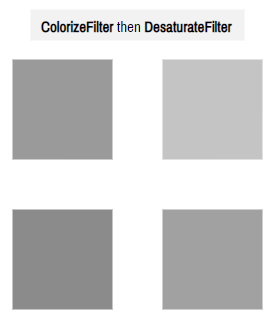
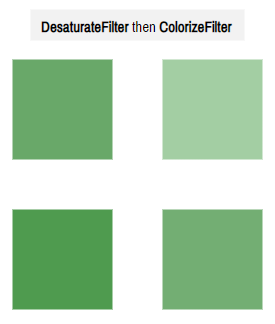
Section titled “Order of filters”The order in which we add filters to the filters list is important.
They will be applied in the same order as they came in, meaning that it might produce different results with different order.
Creating custom filters
Section titled “Creating custom filters”If you’re need to do something even cooler, you might consider “Creating custom filters”.
Using in states
Section titled “Using in states”You can apply a filter to an element via its states. For example, if you want your columns to gain a shadow when hovered, you can add a “Drop shadow” filter to a “hover” state.