Support for right-to-left languages
amCharts 4 has supports RTL (right-to-left) language support out-of-the-box. This article will explain how to turn it on, what it does, and other related topics.
Enabling
Section titled “Enabling”Enabling RTL is as simple as setting rtl = true on your chart object.
chart.rtl = true;chart.rtl = true;{ // ... "rtl": true}Labels
Section titled “Labels”In a nutshell, setting rtl = true has effect only on textual labels. It does not affect layout elements. This is covered in the next section.
Mixed content labels
Section titled “Mixed content labels”When your chart has RTL enabled, its labels will have special instructions attached to their elements so that browser’s draws them in a special way.
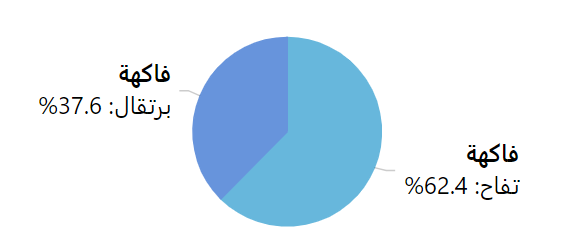
Let’s take this label definition (used for a Pie Chart Slice):
"[bold]فاكهة[/]\n{category}: {value.percent.formatNumber('#.#')}%"
When browser rendering engine encounters RTL text withing regular text, a pretty weird fuzzy logic kicks in, resulting in labels, that are formatted in definitely not right way:
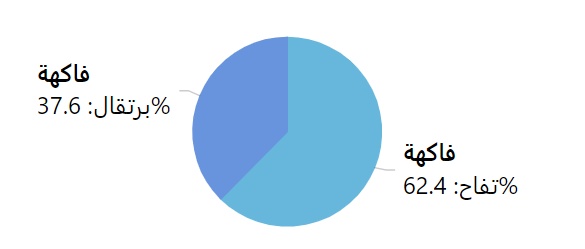
Enablig RTL fixes it by setting proper label attributes, so that order and alignment of the text is how you would expect it:
Gotchas
Section titled “Gotchas”Numbers
Section titled “Numbers”As we can see from the above screenshots, enabling RTL reverses order of blocks, including putting the "%" sign to the other side of the number.
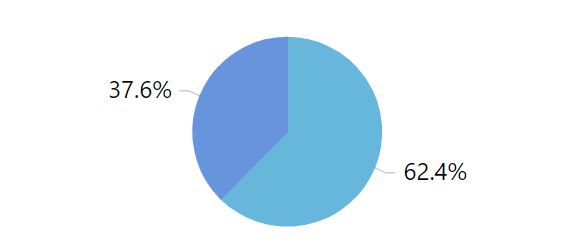
This is true for the mixed-language content only.
If our labels would contain only Latin (letf-to-right) text or numbers/symbols, it would remain as is: rtl setting would have no effect over it.
Formatting blocks
Section titled “Formatting blocks”Another thing that does not respect rtl setting is inline formatting block syntax.
One might expect for the RTL label the opening and closing blocks to work from right to left to right as well, e.g. ... [/]xxxxx[bold] ..., e.g. the “xxxxx” to be bold.
That is not how it works. The formatting block (i.e. [bold]) always affects text to the right of it, until it encounters closing block ([/]).
So, the correct usage is: ... [bold]xxxxx[/] ....
Legend
Section titled “Legend”By default, Legend is not affected by the rtl setting. However, for RTL languages, reversing order of legend items as well as items within single legend entry (marker to the right, then label, then value) might seem more natural.
Luckily this is easy to do as well: for that we have a universal reverseOrder setting.
Flipping entry elements
Section titled “Flipping entry elements”Each legend entry is a Container with a “horizontal” layout. All we have to do to reverse the order of its elements, is to set reverseOrder of the template for the legend item containers:
chart.legend.itemContainers.template.reverseOrder = true;chart.legend.itemContainers.template.reverseOrder = true;{ // ... "legend": { // ... "itemContainers": { "reverseOrder": true } }}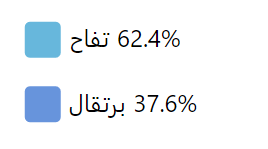
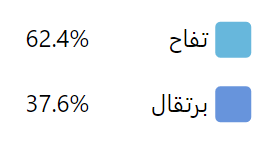
Changing item order
Section titled “Changing item order”We might also want to change the order of the items in legend, so that first item starts on the right.
For that we can simple use the reverseOrder on the legend itself.
chart.legend.reverseOrder = true;chart.legend.reverseOrder = true;{ // ... "legend": { // ... "reverseOrder": true }}