Anatomy of a TimeLine Chart
While the name says TimeLine, this chart type is a much more. Think of it as an XYChart that can be bent and twisted into any shape. Yes, you read it right: any… custom… shape. Sigh… yes, Tommy, even the shape you drew on your neighbor’s wall back and giggled at in 3rd grade. (More capabilities at a glance in our TimeLine Chart page)
It can be used to depict linear data in a space-saving, non-boring way. The following sections will get you acquainted with this unique chart type.
Below are a few of super-basic examples from our friends at Data Viz Project:
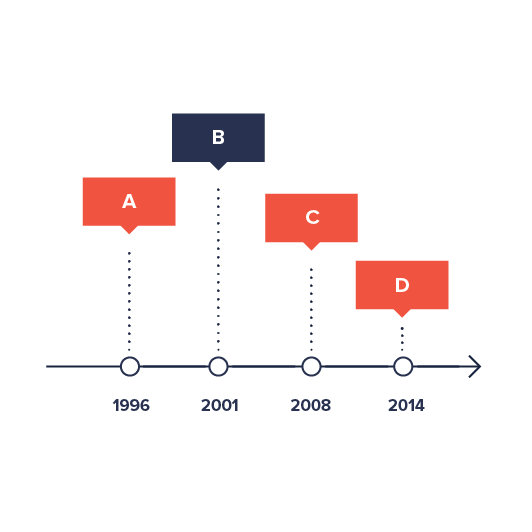
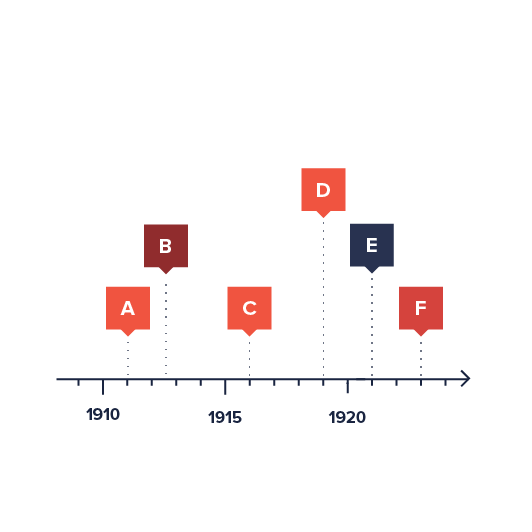
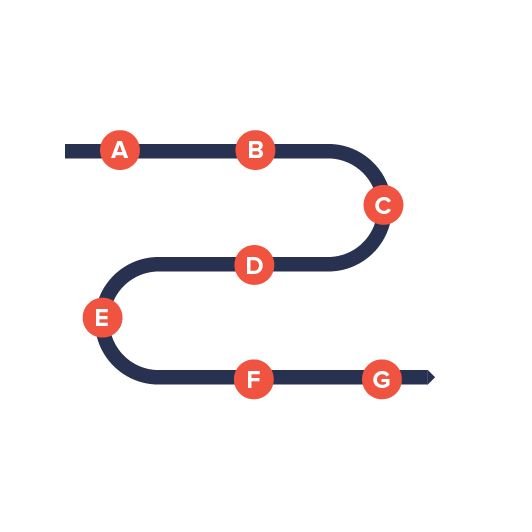
However, as we will see during the course of this article, it can be much much more.
What’s in a name?
Section titled “What’s in a name?”Let’s start with untangling some terminology here first.
For now there are two names in play: “TimeLine Chart” and “CurveChart”.
TimeLine is the name of the plugin/product, which, technically, is a collection of related chart types.
CurveChart is an actual chart type. Basically, it’s a “version of an XYChart, twisted into a custom shape”.
There might be other chart types coming to the TimeLine plugin in the future. When/if that happens, this article will be updated accordingly.
Relation to XYChart
Section titled “Relation to XYChart”We mention XYChart a lot for a reason. While being a different chart, using different classes, and not supporting the whole 100% of the features of an XYChart the CurveChart is almost identical ideologically and functionally.
You use the same data, you define and configure series and axes in absolutely the same way, even some controls like Cursor are used similarly in both charts.
The reason we stress this is that, chances are good, you are already familiar with the XYChart - our most popular chart type - so you will find most of the stuff familiar.
We’ll also provide references to XYChart for some topics, that we think are not necessary to be repeated here, because they are identical.
Creating a CurveChart
Section titled “Creating a CurveChart”To create a CurveChart you will only need just four things:
- Chart instance.
- Data.
- At least two axes - “vertical” (Y) and “horizontal” (X).
- At least one series.
This is a minimum requirement for the chart. We’ll go over each of those shortly.
Version info
Section titled “Version info”While TimeLine is a plugin to amCharts 4, it is a totally separate package/product, maintaining it’s own versioning, which does not coincide with amCharts 4 versions.
That said, you will need at least version 4.5.16 of the core amCharts 4 package in order to run TimeLine plugin.
Importing modules/scripts
Section titled “Importing modules/scripts”Needless to say, before you can use modules/objects, you need to make sure all required modules (in TypeScript), or files (in JavaScript) are imported. Please refer to our Getting started articles for more details:
Timeline comes in a form of a plugin. To start using it we will need to include both core (main module) and charts modules, as well as timeline plugin.
import * as am4core from "@amcharts/amcharts4/core";import * as am4charts from "@amcharts/amcharts4/charts";import * as am4plugins_timeline from "@amcharts/amcharts4/plugins/timeline";<script src="//cdn.amcharts.com/lib/4/core.js"></script><script src="//cdn.amcharts.com/lib/4/charts.js"></script><script src="//cdn.amcharts.com/lib/4/plugins/timeline.js"></script>We’ll be importing and referring these as am4core, am4charts, and am4plugins_timeline in the course of this article, and overall in our demos and tutorials.
Creating chart instance
Section titled “Creating chart instance”For that we’re going to be using am4core.create() function. (or am4core.createFromConfig() if you are using JSON-based config approach)
let chart = am4core.create("chartdiv", am4plugins_timeline.CurveChart);var chart = am4core.create("chartdiv", am4plugins_timeline.CurveChart);var chart = am4core.createFromConfig({ // ... chart config}, "chartdiv", am4plugins_timeline.CurveChart);As we already mentioned a number of times, most of the stuff in CurveChart carries over from XYChart. Data is no exception.
Just like in XYChart, the data for a CurveChart is an array of objects. Each of those objects will represent a data item and must at least two values, because CurveChart plots data in two dimensions: X and Y, although in CurveChart those two are purely relative.
CurveChart supports any kind of dimensional data. It can be string-based categories, numeric values, dates, etc. You can mix and match any of those.
In-line data
Section titled “In-line data”We assign the data to the data to chart’s data property:
chart.data = [{ "country": "Lithuania", "value": 501}, { "country": "Czechia", "value": 301}, { "country": "Ireland", "value": 201}, { "country": "Germany", "value": 165}, { "country": "Australia", "value": 139}, { "country": "Austria", "value": 128}, { "country": "UK", "value": 99}, { "country": "Belgium", "value": 60}, { "country": "The Netherlands", "value": 50}];chart.data = [{ "country": "Lithuania", "value": 501}, { "country": "Czechia", "value": 301}, { "country": "Ireland", "value": 201}, { "country": "Germany", "value": 165}, { "country": "Australia", "value": 139}, { "country": "Austria", "value": 128}, { "country": "UK", "value": 99}, { "country": "Belgium", "value": 60}, { "country": "The Netherlands", "value": 50}];{ // ... "data": [{ "country": "Lithuania", "value": 501 }, { "country": "Czechia", "value": 301 }, { "country": "Ireland", "value": 201 }, { "country": "Germany", "value": 165 }, { "country": "Australia", "value": 139 }, { "country": "Austria", "value": 128 }, { "country": "UK", "value": 99 }, { "country": "Belgium", "value": 60 }, { "country": "The Netherlands", "value": 50 }]}External data
Section titled “External data”We can also make the chart load external data using dataSource.
chart.dataSource.url = "chart_data.json";chart.dataSource.url = "chart_data.json";{ // ... "dataSource": { "url": "chart_data.json" }}Series
Section titled “Series”Creating series
Section titled “Creating series”Just like in XYChart you can add one or more series to CurveChart.
You do that by pushing a series object into chart’s series list, e.g.:
let series = chart.series.push(new am4charts.CurveColumnSeries());var series = chart.series.push(new am4charts.CurveColumnSeries());{ // ... "series": [{ "type": "CurveColumnSeries", // Series settings }]}What differs from XYChart is names and available options of series types. We’ll list all of the available series types a bit later.
Binding series to data
Section titled “Binding series to data”The most and foremost requirement when configuring series, is to specify on where it should get its data from.
Series’ property dataFields is used for exactly that. (more about series’ data fields)
Again, building up on our data example further up this article, we know that our column series should get categories from “category” field to be used on horizontal (X) axis, and numeric value from “value” to be used on vertical (Y) axis.
series.dataFields.valueY = "value";series.dataFields.categoryX = "country";series.dataFields.valueY = "value";series.dataFields.categoryX = "country";{ // ... "series": [{ "type": "CurveColumnSeries", "dataFields": { "valueY": "value", "categoryY": "country" } }]}Let’s say if we had a DateAxis instead of CategoryAxis. We’d need to set dateX instead of categoryX.
Available series types
Section titled “Available series types”| Series class | XY class quivalent | Example | Comment |
|---|---|---|---|
CurveColumnSeries |
ColumnSeries |
Displays columns, or bars. | |
CurveLineSeries |
LineSeries |
Displays a line graph.Can also be used to create an area graph. | |
CurveStepLineSeries |
StepLineSeries |
Displays a stepped line graph. Check this tutorial on configuring StepLineSeries. |
Configuring series
Section titled “Configuring series”While each series will work without any additional configuration, you can fully customize its look and behavior.
We’re not going to get into much detail here, since CurveChart series are configured identically to equivalent XYChart series.
Here are a few examples.
Configuring fill and outline of the CurveColumnSeries’ columns:
series.columns.template.fillOpacity = 0.5;series.columns.template.strokeWidth = 2;series.columns.template.fillOpacity = 0.5;series.columns.template.strokeWidth = 2;{ // ... "series": [{ "type": "CurveColumnSeries", // ... "columns": { "fillOpacity": 0.5, "strokeWidth": 2 } }]}Or, line width of the CurveLineSeries:
series.strokeWidth = 3;series.strokeWidth = 3;{ // ... "series": [{ "type": "CurveLineSeries", // ... "strokeWidth": 3 }]}For CurveChart to work, it needs at least two axes: one X (horizontal) and one Y (vertical) axis.
As we mentioned earlier, X and Y are symbolic, because CurveChart can take any shape and thus axes can head into any direction.
Data can take many shapes, so we have different axes for different requirements.
For example, taking the sample data we have shown earlier in this article, a country is a “category”, and “value” is numeric value.
If we’d like to build a simple column chart, we’d probably go for a CategoryAxis horizontally, and ValueAxis vertically.
That is just a basic example. In reality you can use any type of axis on both X and Y. As long as data is compatible with it, you’re all set.
Creating axes
Section titled “Creating axes”Each XY chart has two list properties: xAxes and yAxes.
When you create an axis of particular type, you push() it into appropriate list.
Let’s say, building on previous date example, we want to plot data that are string-based names (countries) horizontally, and numeric values (liters) vertically.
We’ll need to create an instance of CategoryAxis and push it into xAxes, as well as instance of ValueAxis for pushing into yAxes.
let categoryAxis = chart.xAxes.push(new am4charts.CategoryAxis());categoryAxis.dataFields.category = "country";let valueAxis = chart.yAxes.push(new am4charts.ValueAxis());var categoryAxis = chart.xAxes.push(new am4charts.CategoryAxis());categoryAxis.dataFields.category = "country";var valueAxis = chart.yAxes.push(new am4charts.ValueAxis());{ // ... "xAxes": [{ "type": "CategoryAxis", "dataFields": { "category": "country" } }], "yAxes": [{ "type": "ValueAxis" }]}So far so good.
Notice, the dataFields in CategoryAxis definition. This type of axis is special in such way, that it needs to access data (so that it can extract a list of categories). The dataFields instructs which property in data objects holds category names.
More about axes
Section titled “More about axes”There’s so much more to axes than that. You can configure its appearance down to a bolt, including grid, cursor tooltips, gaps, labels, and so much more. But this is a topic to a dedicated concept article about Axes.
Axis types
Section titled “Axis types”CurveChart supports and uses exactly same series as XYChart.
It can use any combination of the following axis types:
| Axis class | Comment |
|---|---|
CategoryAxis |
Displays equally divided string-based increments - categories. Requires dataFields.category to be set so that it can extract actual category names from data. Category labels are displayed as they are in data. |
DateAxis |
Used to position items on a date/time scale. Will format labels according to its DataFormatter. (more about formatters) |
DurationAxis |
The values on this axis is treated as time duration. This is different than date or time, since grid/labels do not point to specific date/time but rather are placed at increment of time. Will format labels according to its DurationFormatter. (more about formatters) |
ValueAxis |
Used to position items based on their numeric value. Will format labels according to its NumberFormatter. (more about formatters) |
Setting axis shape
Section titled “Setting axis shape”Now, this where it gets all interesting.
So far, in this tutorial we haven’t wandered off far from classic XYChart. If we ran the code now we’d get something very similar to what we would get if we’d run it on an XYChart.
What sets CurveChart apart, is that we can bend it into any shape we like.
Read on to the next chapter for the juicy details.
Setting shape of the chart
Section titled “Setting shape of the chart”The shape of the CurveChart is controlled via its X axis.
Regardless of its type, whichever X (horizontal) axis the chart has, its shape will be chart’s shape.
Let’s see how the shape is controlled and fine tuned.
Control points
Section titled “Control points”What are control points?
Section titled “What are control points?”As we already mentioned, the shape of the chart is controlled via curvature of its X axis.
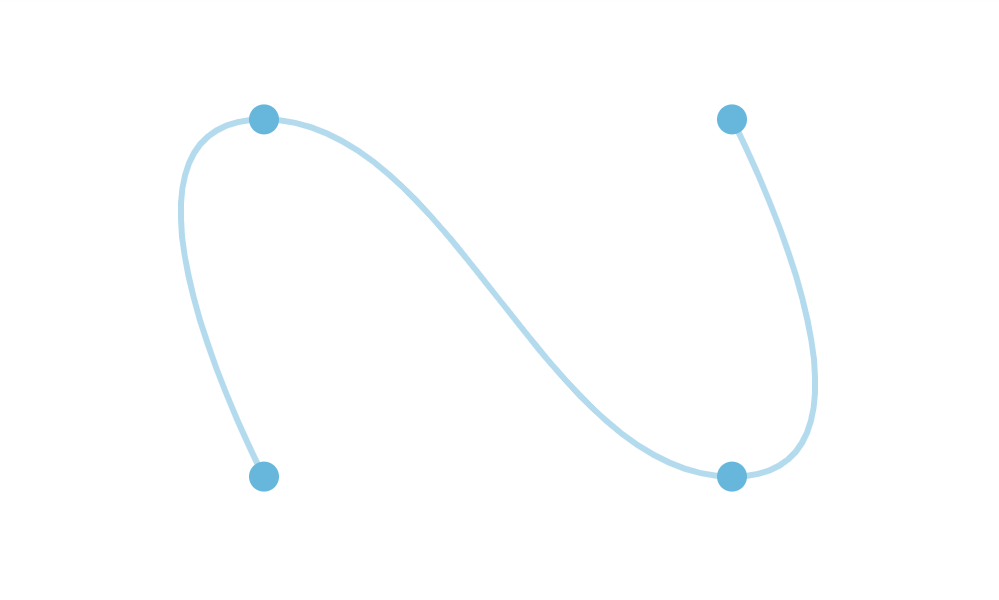
The curvature is set via array of control points, connected by a smooth curve.
Graphically it looks something like this:
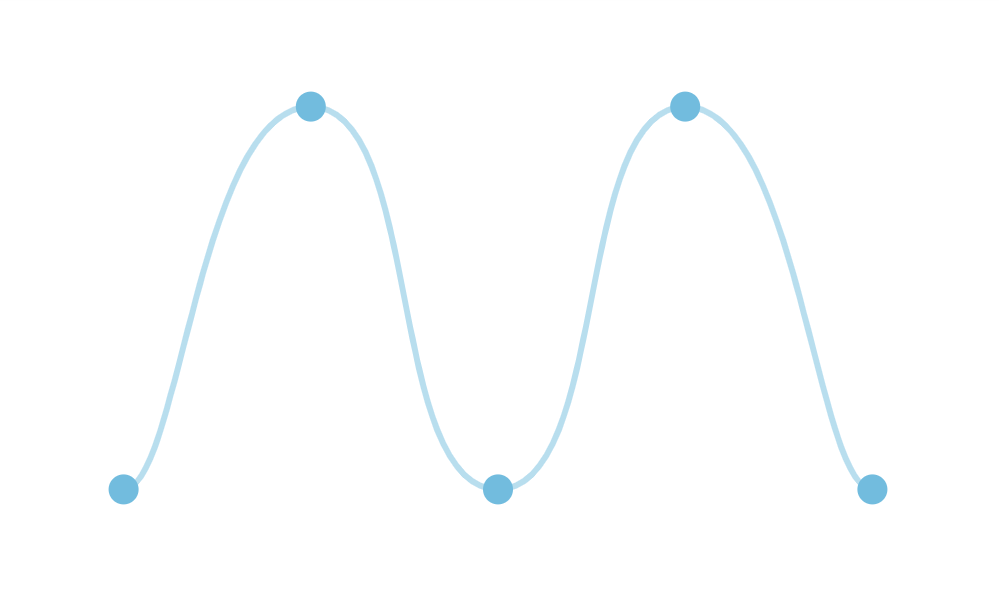
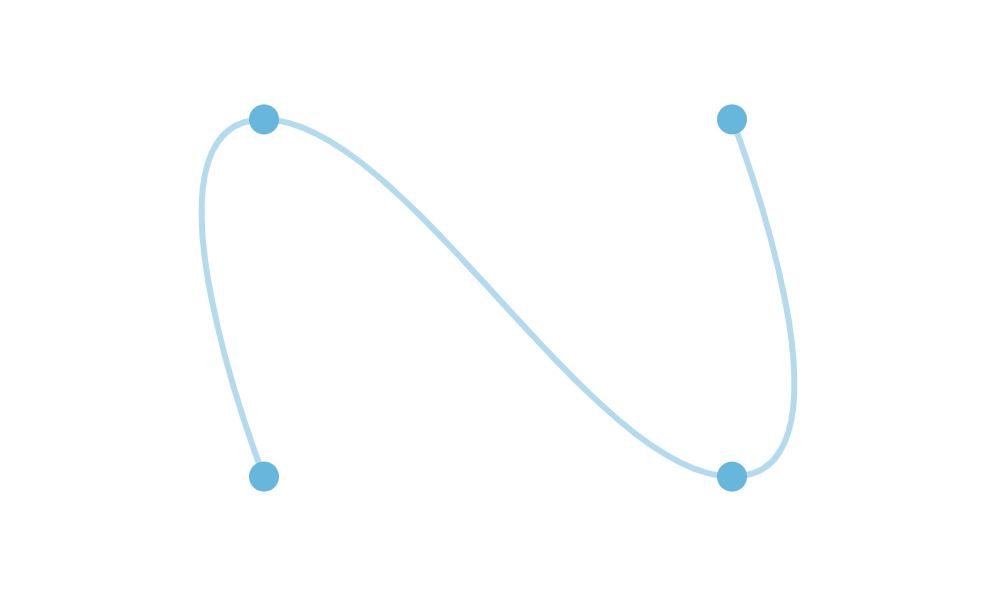
Each shape, however we put it is controlled by a few control points, connected by a straight or curved line.
How the curve is bent between the points is controlled by its “tension” setting, more about it later in this article.
How to set control points?
Section titled “How to set control points?”Each point is expressed by its X/Y coordinate in form of the object, e.g.:
{ "x": 100, "y": 100}Each shape is expressed by an array of such objects, e.g.:
[ { x: -400, y: 0 }, { x: -250, y: 0 }, { x: 0, y: 60 }, { x: 250, y: 0 }, { x: 400, y: 0 }]And this array is set to X axis renderer’s points property:
categoryAxis.renderer.points = [ { x: -400, y: 0 }, { x: -250, y: 0 }, { x: 0, y: 60 }, { x: 250, y: 0 }, { x: 400, y: 0 }];categoryAxis.renderer.points = [ { x: -400, y: 0 }, { x: -250, y: 0 }, { x: 0, y: 60 }, { x: 250, y: 0 }, { x: 400, y: 0 }];{ // ... "xAxes": [{ "type": "CategoryAxis", // ... "renderer": { // ... "points": [ { x: -400, y: 0 }, { x: -250, y: 0 }, { x: 0, y: 60 }, { x: 250, y: 0 }, { x: 400, y: 0 } ] }] }}Auto-scale
Section titled “Auto-scale”While the points technically represent X and Y pixel coordinates, the chart will try to adjust them to fit the size of the container better.
This means that if you have your shape control points from, say, -100 to 100, and a chart container that’s 400 pixels wide, those coordinates will be adjusted accordingly.
To disable auto-scale, simply set axis renderer’s autoScale to false:
categoryAxis.renderer.autoScale = false;categoryAxis.renderer.autoScale = false;{ // ... "xAxes": [{ "type": "CategoryAxis", // ... "renderer": { // ... "autoScale": false }] }}Auto-center
Section titled “Auto-center”The chart will try to automatically center your custom-curve chart to the middle of the chart container.
If for some reason, you would rather it not to, simply use autoCenter property of the axis renderer:
categoryAxis.renderer.autoCenter = false;categoryAxis.renderer.autoCenter = false;{ // ... "xAxes": [{ "type": "CategoryAxis", // ... "renderer": { // ... "autoCenter": false }] }}Curve tension
Section titled “Curve tension”The tension of the curve defines how strongly it is “pulled” between each two control points.
The value ranges from 0 (zero) and 1 (one), with the former meaning totally lose, and the latter maximum strength, resulting in completely straight lines.
There are two tension settings - tensionX and tensionY - that control respectively horizontal and vertical pull strength.
On a CurveChart those are set on a special polyspline object of the axis’ renderer:
categoryAxis.renderer.polyspline.tensionX = 0.8;categoryAxis.renderer.polyspline.tensionY = 0.8;categoryAxis.renderer.polyspline.tensionX = 0.8;categoryAxis.renderer.polyspline.tensionY = 0.8;{ // ... "xAxes": [{ "type": "CategoryAxis", // ... "renderer": { // ... "polyspline": { "tensionX": 0.8, "tensionY": 0.8 } }] }}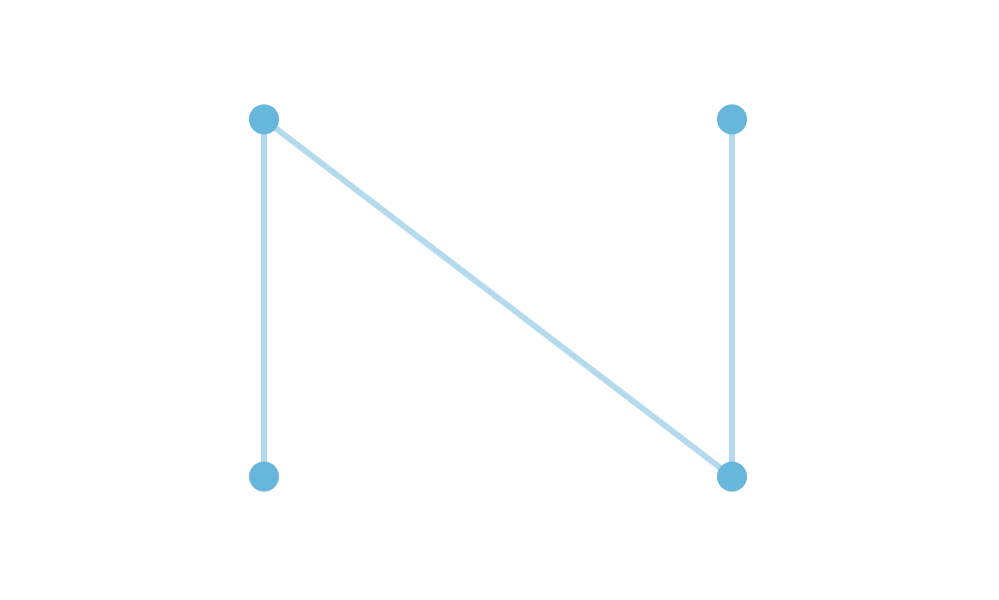
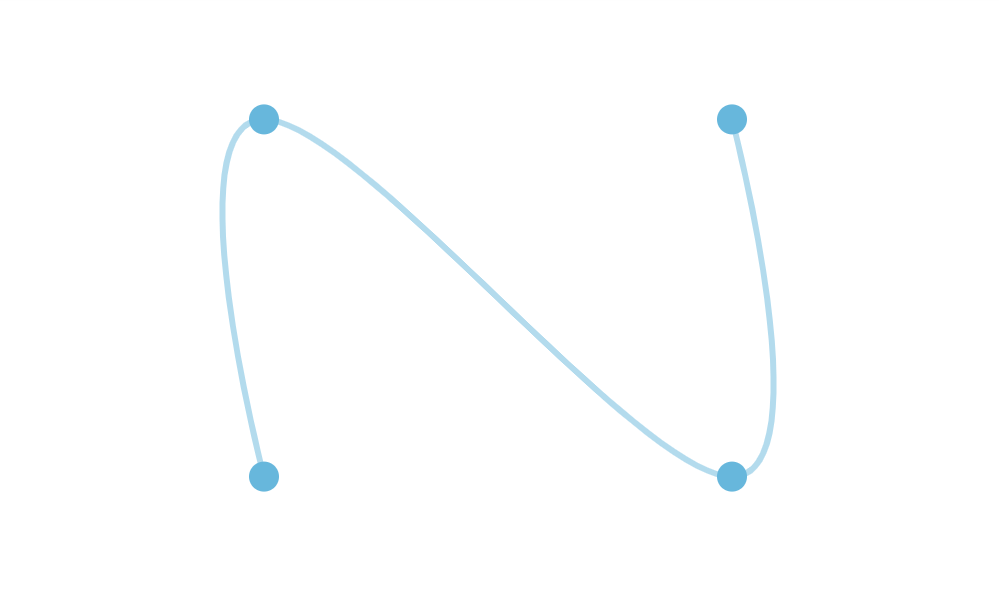
Here’s how tension affects real chart:
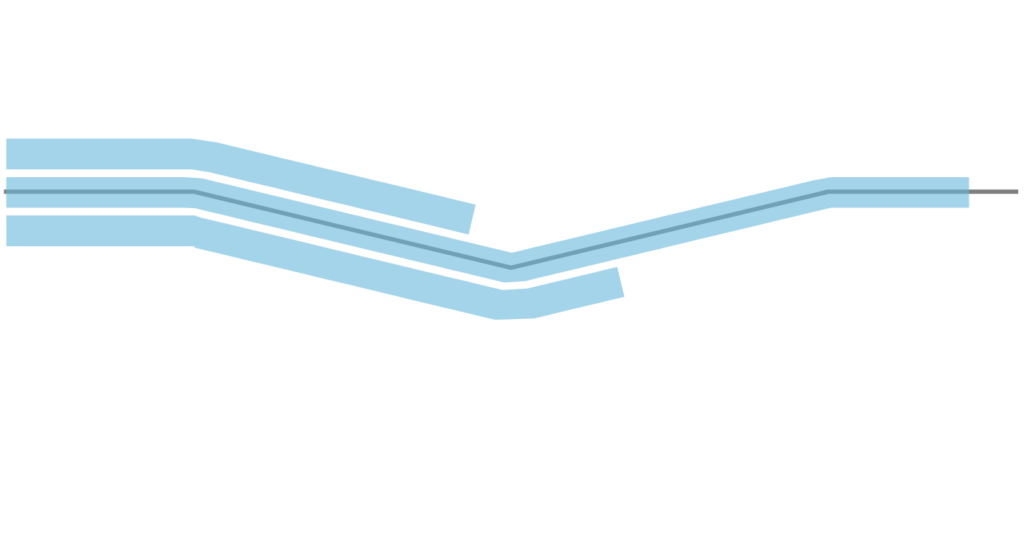
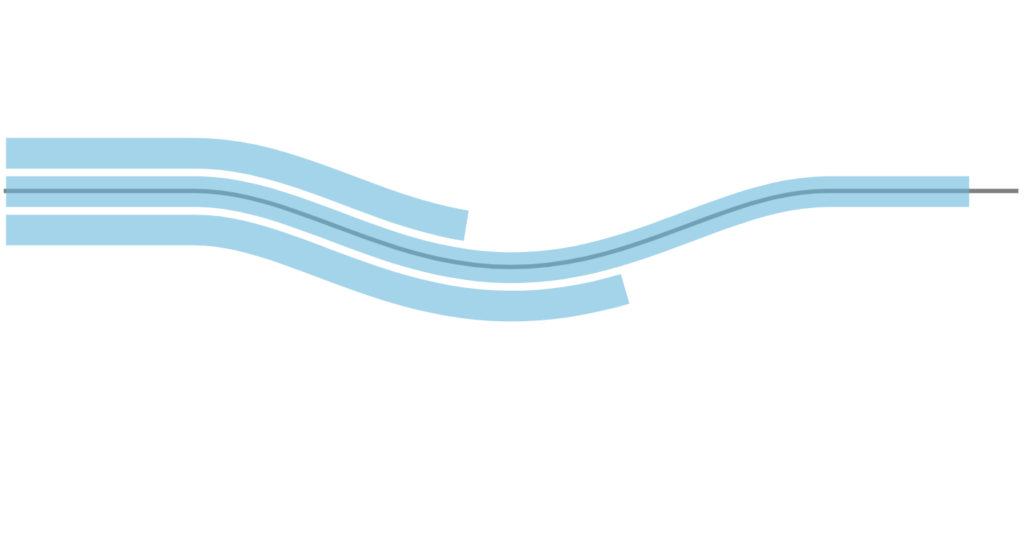
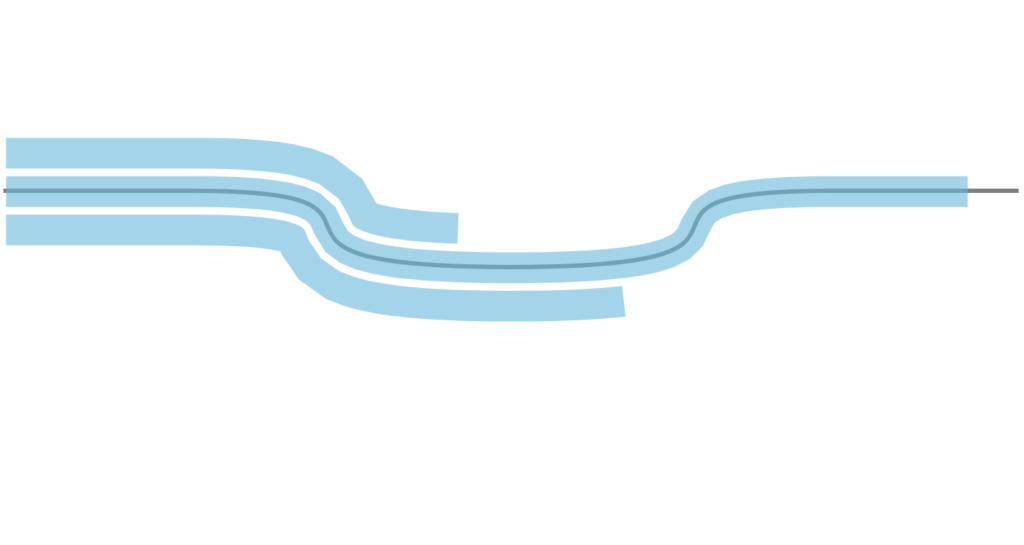
Using several and points with tension settings may not produce the perfect curve that you’re aiming for. Later in this article we’ll look at how we can create completely custom shapes.
Axis radii
Section titled “Axis radii”OK, now that we know about creating curves for the chart to follow, let’s talk about other dimensions: chart’s thickness.
So far we have been looking at the curve as a line. However, a chart is not a line, it has height/thickness.
And axis radii is a way to controlling it.
For the shape we have been using our X axis.
To control chart height, we will be using its Y axis.
For that its renderer has two settings: radius and innerRadius.
Both of them use absolute values in pixels, and can be negative and positive.
radius indicates number of pixels from control curve / X axis “outwards” to the “top” of the Y axis.
Similarly innerRadius indicates distance “inwards” to the “bottom” of the Y axis.
The following schema indicates it better:
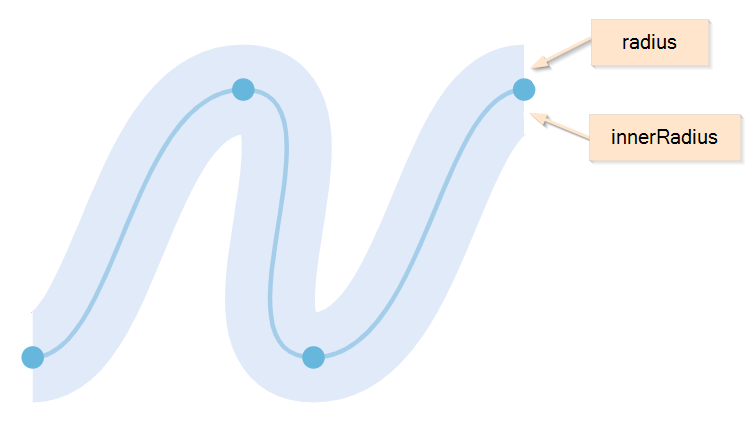
To put it in other words: using radius and innerRadius is a way to control both position and height/width of the (twisted) plot area.
Default values are 80 for radius and -80 for innerRadius. This means that, the plot area will be 160px high/wide, with X axis going straight through its middle.
Should we want the chart to start at the X axis, like in normal XYChart, we could set innerRadius = 0.
valueAxis.renderer.radius = 200;valueAxis.renderer.innerRadius = 0;valueAxis.renderer.radius = 200;valueAxis.renderer.innerRadius = 0;{ // ... "yAxes": [{ "type": "ValueAxis", // ... "renderer": { // ... "renderer": { "radius": 200, "innerRadius": 0 } }] }}Here’s how radius settings affect the real chart:
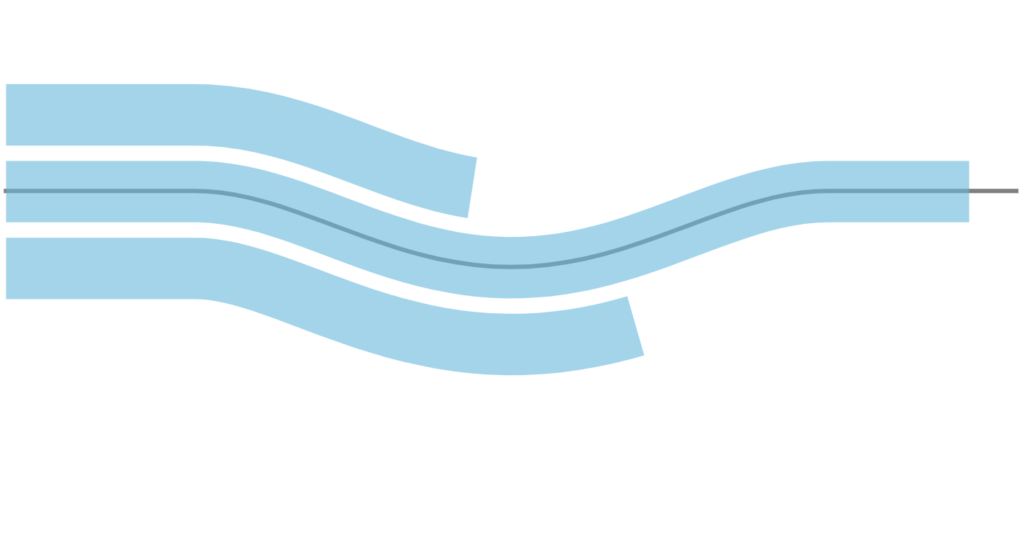
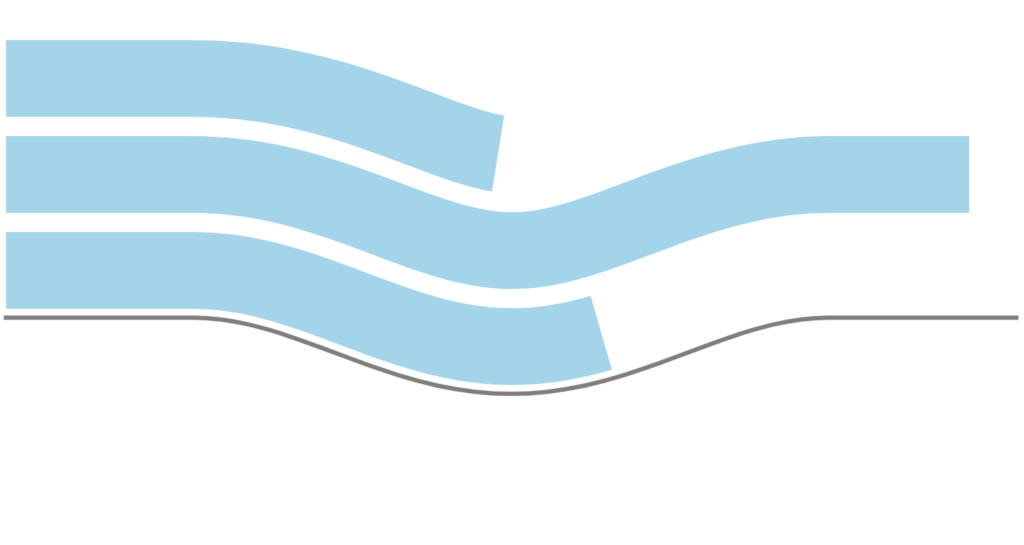
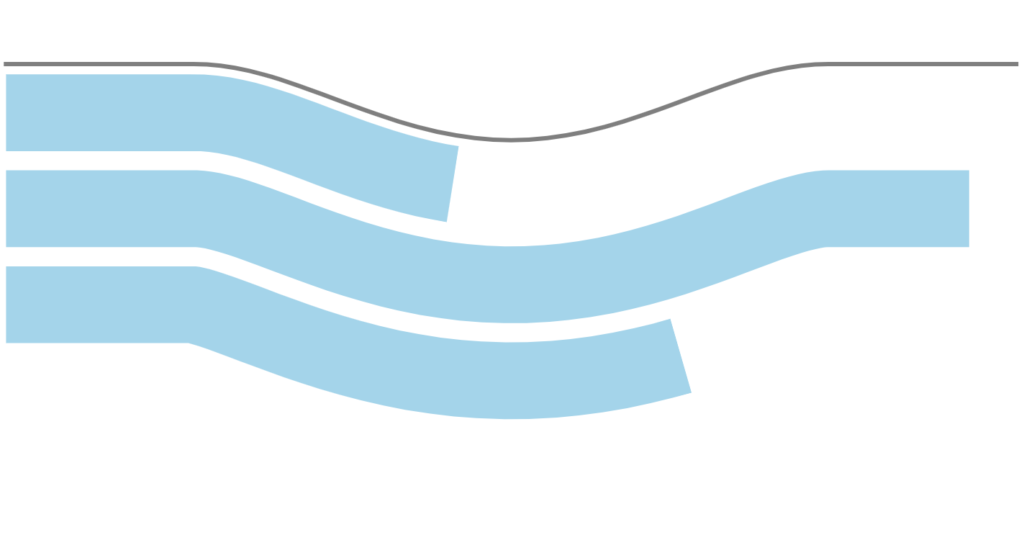
Using SVG paths
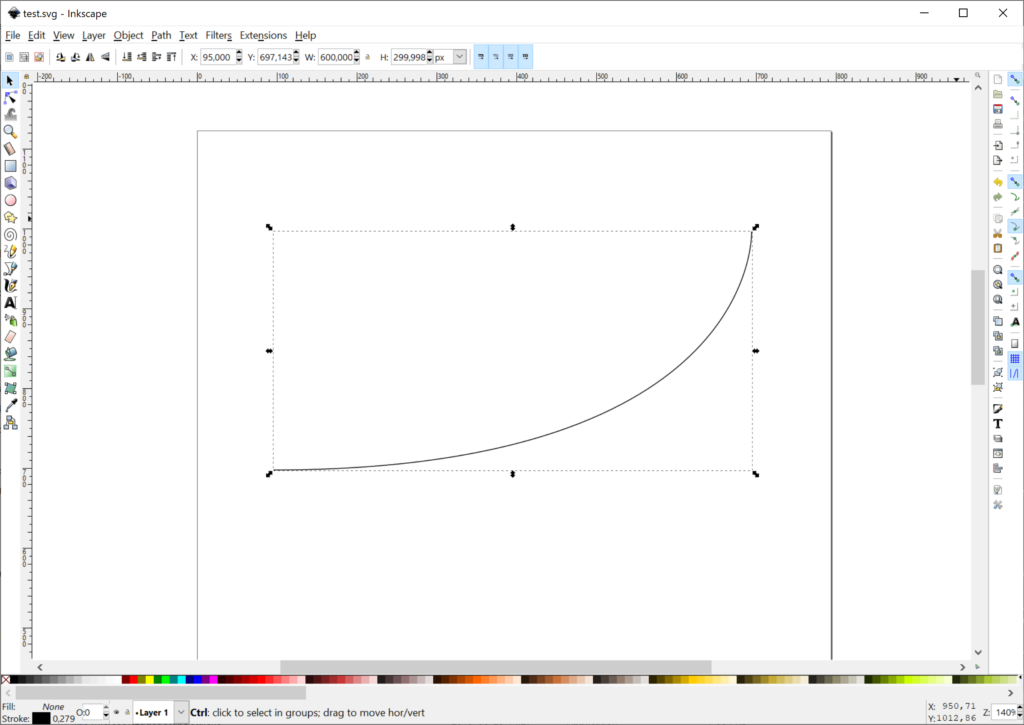
Section titled “Using SVG paths”Creating custom SVG path in an editor
Section titled “Creating custom SVG path in an editor”You can use any graphical editor, that is capable of saving vector-based information in an SVG format.
For the purpose of this tutorial, let’s use Inkscape - an excellent open-source vector graphics editor.
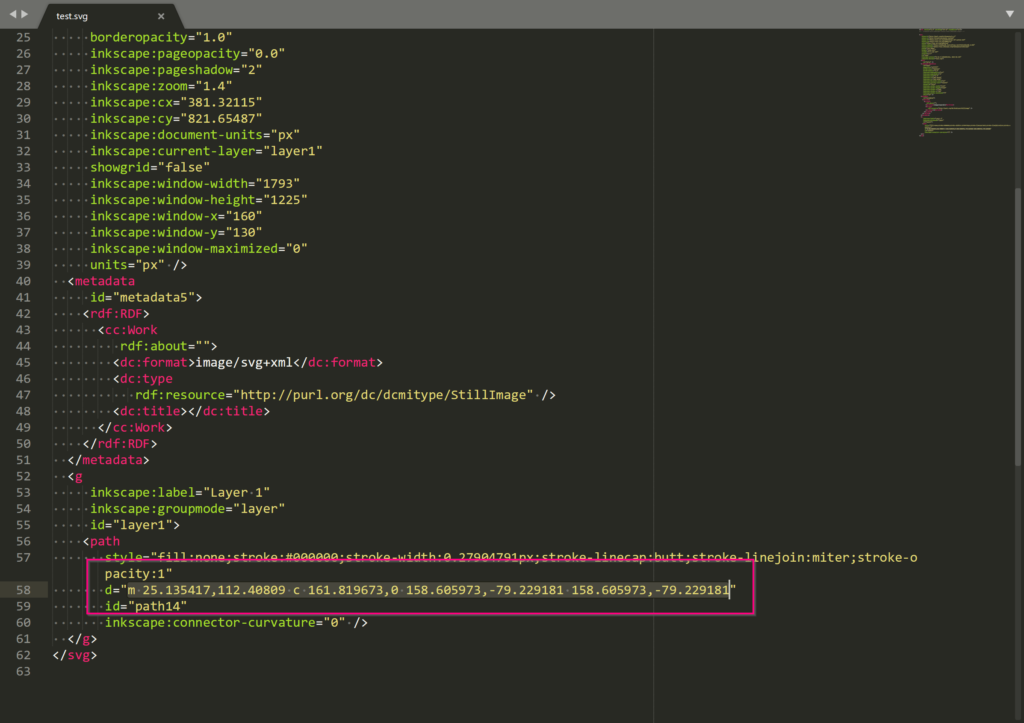
To create a path, follow these three steps:
- Create a path in editor.
- Save as SVG, open it in any text editor, and look for the
<path>element. Then grab whatever in it’sdattribute - it’s the SVG path.
Using existing SVG file
Section titled “Using existing SVG file”You can use existing SVG as well.
Like in previous step, open them in a text editor, and look for <path> elements.
Converting path to curve points
Section titled “Converting path to curve points”Finally, we need to convert an SVG path, into a curve points we’ve discussed earlier in this article.
For that, simply use this pre-made tool.
Paste your path data into the first text area. Click submit button. Grab converted point data from the second text area.
Why can’t we use SVG path instead of points?
Section titled “Why can’t we use SVG path instead of points?”The tool above uses some methods that are not available in all browsers.
As a developer, you have a choice of using different browsers to create point data once.
But you don’t want to enforce that on your users, hence converting it to point data, which will work in all browsers now, or in the future.
Full example
Section titled “Full example”// Create chart instancelet chart = am4core.create("chartdiv", am4plugins_timeline.CurveChart);
// Add datachart.data = [{ "country": "Lithuania", "value": 501}, { "country": "Czechia", "value": 301}, { "country": "Ireland", "value": 201}, { "country": "Germany", "value": 165}, { "country": "Australia", "value": 139}, { "country": "Austria", "value": 128}, { "country": "UK", "value": 99}, { "country": "Belgium", "value": 60}, { "country": "Netherlands", "value": 50}];
// Create category (X) axislet categoryAxis = chart.xAxes.push(new am4charts.CategoryAxis());categoryAxis.dataFields.category = "country";categoryAxis.renderer.grid.template.disabled = true;categoryAxis.renderer.polyspline.tensionX = 0.8categoryAxis.renderer.minGridDistance = 30;categoryAxis.renderer.points = [ { x: -400, y: 0 }, { x: -250, y: 0 }, { x: 0, y: 60 }, { x: 250, y: 0 }, { x: 400, y: 0 }];
// Create value (Y) axislet valueAxis = chart.yAxes.push(new am4charts.ValueAxis());valueAxis.renderer.radius = 100;valueAxis.renderer.innerRadius = 0;valueAxis.renderer.grid.template.disabled = true;
// Create serieslet series = chart.series.push(new am4plugins_timeline.CurveColumnSeries());series.dataFields.valueY = "value";series.dataFields.categoryX = "country";series.columns.template.fillOpacity = 0.5;series.columns.template.strokeWidth = 2;
// Add some white space around the chartchart.padding(40, 40, 40, 40);// Create chart instancevar chart = am4core.create("chartdiv", am4plugins_timeline.CurveChart);
// Add datachart.data = [{ "country": "Lithuania", "value": 501}, { "country": "Czechia", "value": 301}, { "country": "Ireland", "value": 201}, { "country": "Germany", "value": 165}, { "country": "Australia", "value": 139}, { "country": "Austria", "value": 128}, { "country": "UK", "value": 99}, { "country": "Belgium", "value": 60}, { "country": "Netherlands", "value": 50}];
// Create category (X) axisvar categoryAxis = chart.xAxes.push(new am4charts.CategoryAxis());categoryAxis.dataFields.category = "country";categoryAxis.renderer.grid.template.disabled = true;categoryAxis.renderer.polyspline.tensionX = 0.8categoryAxis.renderer.minGridDistance = 30;categoryAxis.renderer.points = [ { x: -400, y: 0 }, { x: -250, y: 0 }, { x: 0, y: 60 }, { x: 250, y: 0 }, { x: 400, y: 0 }];
// Create value (Y) axisvar valueAxis = chart.yAxes.push(new am4charts.ValueAxis());valueAxis.renderer.radius = 100;valueAxis.renderer.innerRadius = 0;valueAxis.renderer.grid.template.disabled = true;
// Create seriesvar series = chart.series.push(new am4plugins_timeline.CurveColumnSeries());series.dataFields.valueY = "value";series.dataFields.categoryX = "country";series.columns.template.fillOpacity = 0.5;series.columns.template.strokeWidth = 2;
// Add some white space around the chartchart.padding(40, 40, 40, 40);// Create chart instancevar chart = am4core.createFromConfig({
// Add data "data": [{ "country": "Lithuania", "value": 501 }, { "country": "Czechia", "value": 301 }, { "country": "Ireland", "value": 201 }, { "country": "Germany", "value": 165 }, { "country": "Australia", "value": 139 }, { "country": "Austria", "value": 128 }, { "country": "UK", "value": 99 }, { "country": "Belgium", "value": 60 }, { "country": "Netherlands", "value": 50 }],
// Create category (X) axis "xAxes": [{ "type": "CategoryAxis", "dataFields": { "category": "country" }, "renderer": { "minGridDistance": 30, "grid": { "disabled": true }, "polyspline": { "tensionX": 0.8 }, "points": [ { x: -400, y: 0 }, { x: -250, y: 0 }, { x: 0, y: 60 }, { x: 250, y: 0 }, { x: 400, y: 0 } ] } }],
// Create value (Y) axis "yAxes": [{ "type": "ValueAxis", "renderer": { "radius": 100, "innerRadius": 0, "grid": { "disabled": true } } }],
// Create series "series": [{ "type": "CurveColumnSeries", "dataFields": { "valueY": "value", "categoryX": "country" }, "columns": { "fillOpacity": 0.5, "strokeWidth": 2 } }],
// Add some white space around the chart "paddingTop": 40, "paddingRight": 40, "paddingBottom": 40, "paddingLeft": 40}, "chartdiv", am4plugins_timeline.CurveChart);And here it is live:
P.S. Yes, we know those horizontal labels don’t look good. This is why we created a separate tutorial on how to make them follow axis’ curve here.
Complimentary chart types
Section titled “Complimentary chart types”Timeline plugin comes with a few complimentary chart types, that allows easy creation of the configurable Curve charts, without defining actual points or playing with tension settings.
Serpentine
Section titled “Serpentine”Serpentine chart (SerpentineChart) is a wrapper for CurveChart which automatically generates horizontal or vertical waved curves, based on certain parameters. It sort of looks like a mountain road, hence the name.
It’s configured exactly the same way as CurveChart we already learned, except we use SerpentineChart class which brings a few additional options to the table.
Serpentine chart options
Section titled “Serpentine chart options”Let’s take a look at the few unique options available for SerpentineChart.
| Option | Default | Comment |
|---|---|---|
levelCount |
3 |
Number of “levels” the chart will have. E.g. 3 (three) means there will be three straight lines of chart with two curved turns connecting them. |
orientation |
"vertical" |
Indicates the direction the “road” will weave in:"vertical" (default) will make the chart start at the top and go down."horizontal" will start at the left and got to right. |
yAxisRadius |
25% |
This setting will be automatically applied to all Y axes’ radius. |
yAxisInnerRadius |
-25% |
This setting will be automatically applied to all Y axes’ innerRadius. |
Serpentine code example
Section titled “Serpentine code example”let chart = am4core.create("chartdiv", am4plugins_timeline.SerpentineChart);chart.orientation = "vertical";chart.levelCount = 4;chart.yAxisRadius = am4core.percent(50);chart.yAxisInnerRadius = 0;var chart = am4core.create("chartdiv", am4plugins_timeline.SerpentineChart);chart.orientation = "vertical";chart.levelCount = 4;chart.yAxisRadius = am4core.percent(50);chart.yAxisInnerRadius = 0;var chart = am4core.createFromConfig({ // ... "orientation": "vertical", "levelCount": 4, "yAxisRadius": "50%", "yAxisInnerRadius": 0}, "chartdiv", am4plugins_timeline.SerpentineChart);If you look at the code of the below example, you’ll see that there are no controls points defined: SerpentineChart took care of that for us.
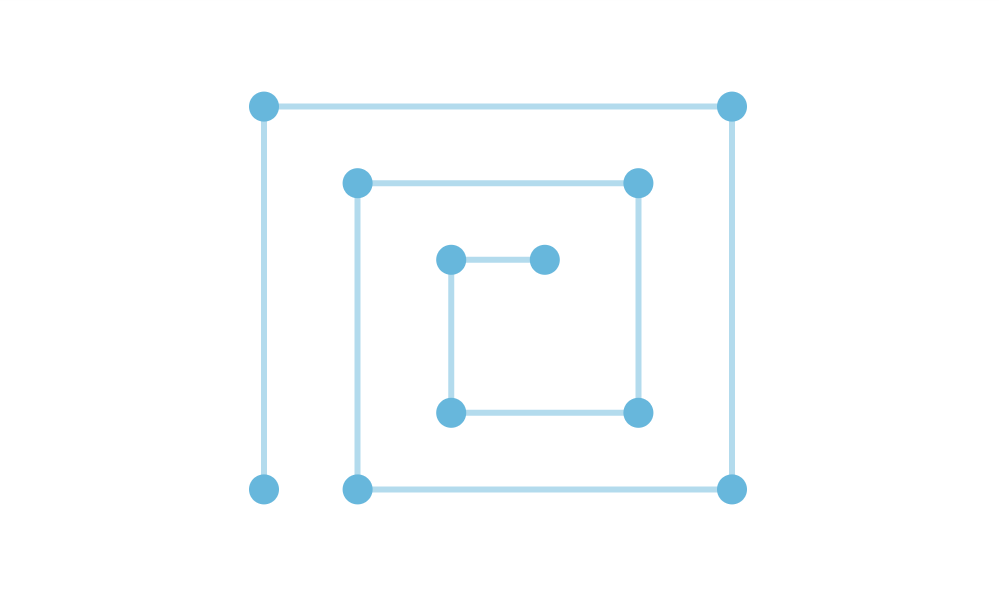
Spiral
Section titled “Spiral”SpiralChart is another helpful wrapper for CurveChart. Based on parameters it automatically wraps the chart into a spiral, without the need to define control points for that shape.
Serpentine chart options
Section titled “Serpentine chart options”Let’s see what options are available for the SpiralChart.
| Option | Default | Comment |
|---|---|---|
endAngle |
0 |
An angle the spiral will end at. |
innerRadius |
25% |
Inner radius of the the spiral. |
inversed |
false |
Normally the spiral will start at the center. Set this to true to start at the outer end. |
levelCount |
3 |
Number of rings the spiral will consist of. |
startAngle |
0 |
An angle the spiral will start at. |
yAxisInnerRadius |
-35% |
This setting will be automatically applied to all Y axes’ innerRadius. |
yAxisRadius |
35% |
This setting will be automatically applied to all Y axes’ radius. |
Spiral code example
Section titled “Spiral code example”let chart = am4core.create("chartdiv", am4plugins_timeline.SpiralChart);chart.levelCount = 3;chart.inversed = true;chart.endAngle = -135;var chart = am4core.create("chartdiv", am4plugins_timeline.SpiralChart);chart.levelCount = 3;chart.inversed = true;chart.endAngle = -135;var chart = am4core.createFromConfig({ // ... "levelCount": 3, "inversed": true, "endAngle": -135}, "chartdiv", am4plugins_timeline.SpiralChart);Bullets and event markers
Section titled “Bullets and event markers”TODO Information is being prepared.
Other chart controls
Section titled “Other chart controls”Cursor
Section titled “Cursor”As most things in CurveChart cursor works exactly the same way as in XYChart, except instead of XYCursor we are using CurveCursor:
chart.cursor = new am4plugins_timeline.CurveCursor();chart.cursor = new am4plugins_timeline.CurveCursor();{ // ... "cursor": { "type": "CurveCursor" }}Legend
Section titled “Legend”Same goes for the legend, except we don’t need any special class at all here:
chart.legend = new am4charts.Legend();chart.legend = new am4charts.Legend();{ // ... "legend": { "type": "Legend" }}