

Stacked Axes
This tutorial will introduce you to a powerful concept of “axis stacking”.
What is it?
Section titled “What is it?”amCharts 4 allows having multiple axes of any type. For example, you can have three series attached to three separate Value axes.
In a traditional charts those value axes might be put either to left or right, but they will always be parallel to each other:
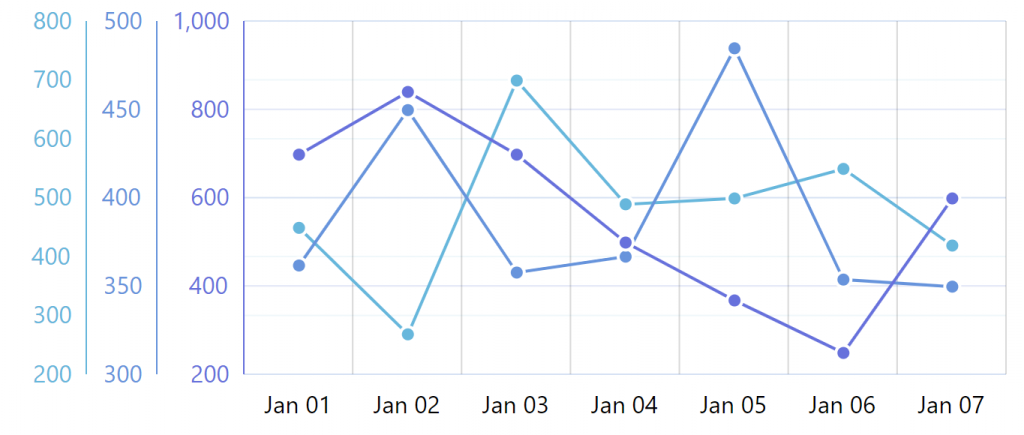
In this classical multi-axis scenario, all Series that belong to each separate Value axis are superimposed over each other, even though they are using different value scales.
Axis stacking allows separating axes and showing them separately, stacked over each other, like separate panels:
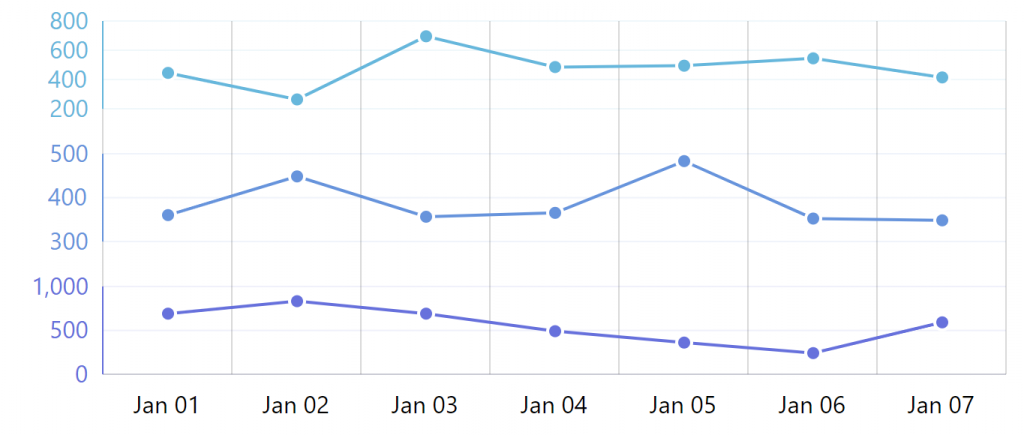
Same data, same axes, same series - totally different representation.
Enabling stacking
Section titled “Enabling stacking”An XY Chart has four special containers that all axes are added to. All axes that are shown on the left of the plot area are placed in the leftAxesContainer. Ones on the right go into rightAxesContainer. Bottom and top ones have bottomAxesContainer and topAxesContainer respectively.
Normally left and right containers have their layout set to “horizontal”, which means that all objects placed in it are arranged horizontally next to each other.
Similarly, on top and bottom containers, layout is “vertical” so that axes placed in it can be arranged vertically.
Could it be this as easy as changing layout of the *AxesContainer?
Yup!
Just change layout of the right axes container to “vertical” and watch those axes stack up.
chart.leftAxesContainer.layout = "vertical";chart.leftAxesContainer.layout = "vertical";{ "leftAxesContainer": { "layout": "vertical" }}Tweaking axis stacks
Section titled “Tweaking axis stacks”Even though it works, it might still require some tweaking:
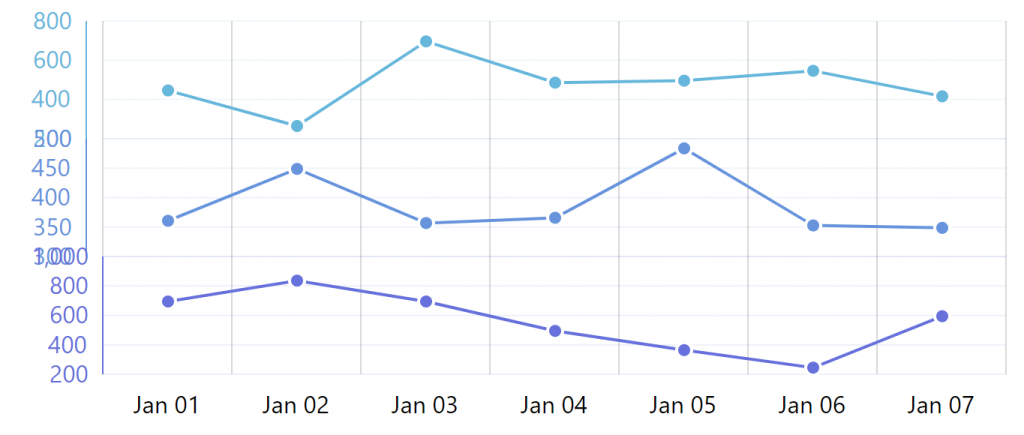
Notice how there’s no gab between the axes, so their end labels overlap.
The two upper axes are moved to the left. It’s a leftover of axes being left-aligned when they were destined to be arranged horizontally.
We may need to add some marginTop and marginBottom to put some distance between axes.
And we need to make all axes right-align by setting their align property to “right”.
valueAxis.marginTop = 10;valueAxis.marginBottom = 10;valueAxis.align = "right";valueAxis.marginTop = 10;valueAxis.marginBottom = 10;valueAxis.align = "right";{ "yAxes": [{ // ... "marginBottom": 20, "align": "right" }, { // ... "marginTop": 10, "marginBottom": 10, "align": "right" }, { // ... "marginTop": 20, "align": "right" }]}Here’s a complete working chart:
Stacking horizontal axes
Section titled “Stacking horizontal axes”Stacking horizontal axes works the same way: by changing layout of their respective containers.
chart.bottomAxesContainer.layout = "horizontal";chart.bottomAxesContainer.layout = "horizontal";{ "bottomAxesContainer": { "layout": "horizontal" }}Here’s an example:
Example with CategoryAxis
Section titled “Example with CategoryAxis”Can you stack Category axes? Sure:
Changing the stack order
Section titled “Changing the stack order”Want your axes to be stacked in reverse order?
Use container’s reverseOrder property:
chart.leftAxesContainer.reverseOrder = true; chart.leftAxesContainer.reverseOrder = true;{ "leftAxesContainer": { "layout": "vertical", "reverseOrder": true }}