

Configuring the zoom out button
When XYChart is zoomed in, a small round button appears in the corner to indicate that only partial data is show, and to provide means to zoom back out. This tutorial will show how you can configure, or outright disable this control.
Button element
Section titled “Button element”The zoom out button is accessible via chart’s zoomOutButton property. It’s an object of type Button, and we are going to be using it in order to configure it.
Positioning
Section titled “Positioning”Aligning
Section titled “Aligning”By default, the zoom out button is positioned in the upper right corner of the plotContainer of the chart.
To reposition it horizontally, we can use its align property, and to move vertically - valign.
The below code will place the button in the lower-right corner:
chart.zoomOutButton.align = "left";chart.zoomOutButton.valign = "bottom";chart.zoomOutButton.align = "left";chart.zoomOutButton.valign = "bottom";{ // ... "zoomOutButton": { "align": "left", "valign": "bottom" }}Placing outside plot area
Section titled “Placing outside plot area”If you’d rather move the zoom out button outside plot area, you can simply use its parent property to move it somewhere else, e.g. to tooltipContainer which spans whole area of the chart:
chart.zoomOutButton.parent = chart.tooltipContainer;chart.zoomOutButton.parent = chart.tooltipContainer;{ // ... "zoomOutButton": { "callback": function() { this.parent = this.baseSprite.tooltipContainer; } }}Disabling
Section titled “Disabling”In some case you might not want the zoom out button appearing at all. Maybe you have a scrollbar, or some external controls.
In such case you can simply set button’s disabled property to true:
chart.zoomOutButton.disabled = true;chart.zoomOutButton.disabled = true;{ // ... "zoomOutButton": { "disabled" true }}Changing appearance
Section titled “Changing appearance”As we already mentioned, zoom out button is an object of type Button.
This means we can use its properties to configure it any way we need.
Let’s make it not round by reducing corner radius of its background, as well as change colors:
chart.zoomOutButton.background.cornerRadius(5, 5, 5, 5);chart.zoomOutButton.background.fill = am4core.color("#25283D");chart.zoomOutButton.icon.stroke = am4core.color("#EFD9CE");chart.zoomOutButton.icon.strokeWidth = 2;chart.zoomOutButton.background.states.getKey("hover").properties.fill = am4core.color("#606271");chart.zoomOutButton.background.cornerRadius(5, 5, 5, 5);chart.zoomOutButton.background.fill = am4core.color("#25283D");chart.zoomOutButton.icon.stroke = am4core.color("#EFD9CE");chart.zoomOutButton.icon.strokeWidth = 2;chart.zoomOutButton.background.states.getKey("hover").properties.fill = am4core.color("#606271");{ // ... "zoomOutButton": { "background": { "fill": "#25283D", "cornerRadiusTopLeft": 5, "cornerRadiusTopRight": 5, "cornerRadiusBottomRight": 5, "cornerRadiusBottomLeft": 5, "states": { "hover": { "properties": { "fill": "#606271" } } } }, "icon": { "stroke": "#EFD9CE", "strokeWidth": 2 } }}Replacing the image
Section titled “Replacing the image”Let’s go one step further and replace a custom minus image which appears on zoom out button with something more custom. Say a magnifying class.
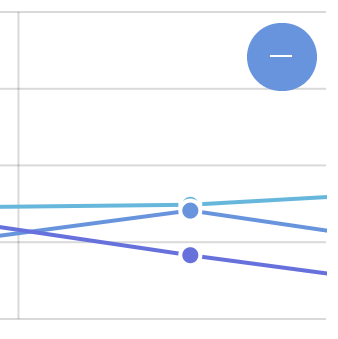
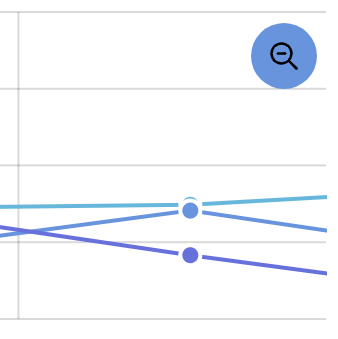
There are a few steps to it. Let’s walk through all of them.
Removing default icon
Section titled “Removing default icon”A default icon resides in button’s icon property.
To get rid of it, we’ll simply need to to disable it:
chart.zoomOutButton.icon.disabled = true;chart.zoomOutButton.icon.disabled = true;{ // ... "zoomOutButton": { "icon": { "disabled": true } }}Adding custom image
Section titled “Adding custom image”Now that our button is empty, let’s an image to it.
We do that by creating a child element of an Image type:
let zoomImage = chart.zoomOutButton.createChild(am4core.Image);zoomImage.href = "/path/to/zoomImage.png";zoomImage.width = 15;zoomImage.height = 15;zoomImage.interactionsEnabled = false;var zoomImage = chart.zoomOutButton.createChild(am4core.Image);zoomImage.href = "/path/to/zoomImage.png";zoomImage.width = 15;zoomImage.height = 15;zoomImage.interactionsEnabled = false;{ // ... "zoomOutButton": { "icon": { "disabled": true }, "children": [{ "type": "Image", "forceCreate": true, "href": "/path/to/zoomImage.png", "width": 15, "height": 15, "interactionsEnabled": false }] }}Besides creating an instance of Image we also need to at least set its width and height, as well as href which points to the actual image.