

Adding extra info in exported PDF
amCharts 4 comes pre-loaded with extensive chart export functionality. Besides ability to export chart to various image and data formats, it can also export to PDF documents. This tutorial will show, how you can easily tap into this process to include extra information, like text, tables, and even images, into exported PDF.
The task
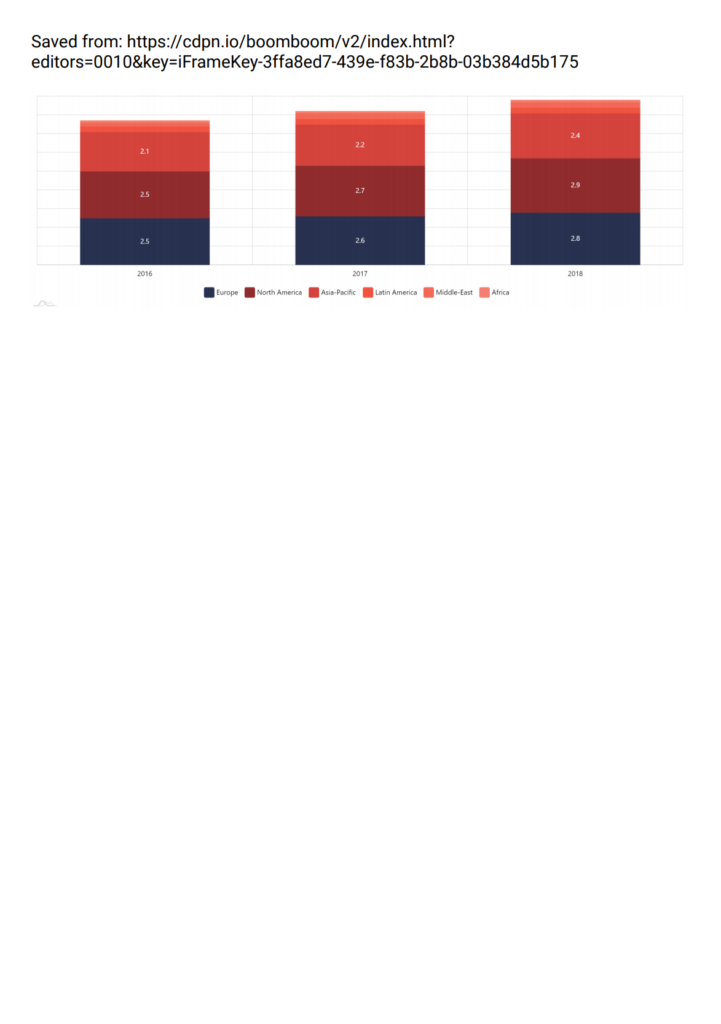
Section titled “The task”By default, when chart is exported to PDF, the document includes URL of the page it was exported from as well as snapshot of the chart.
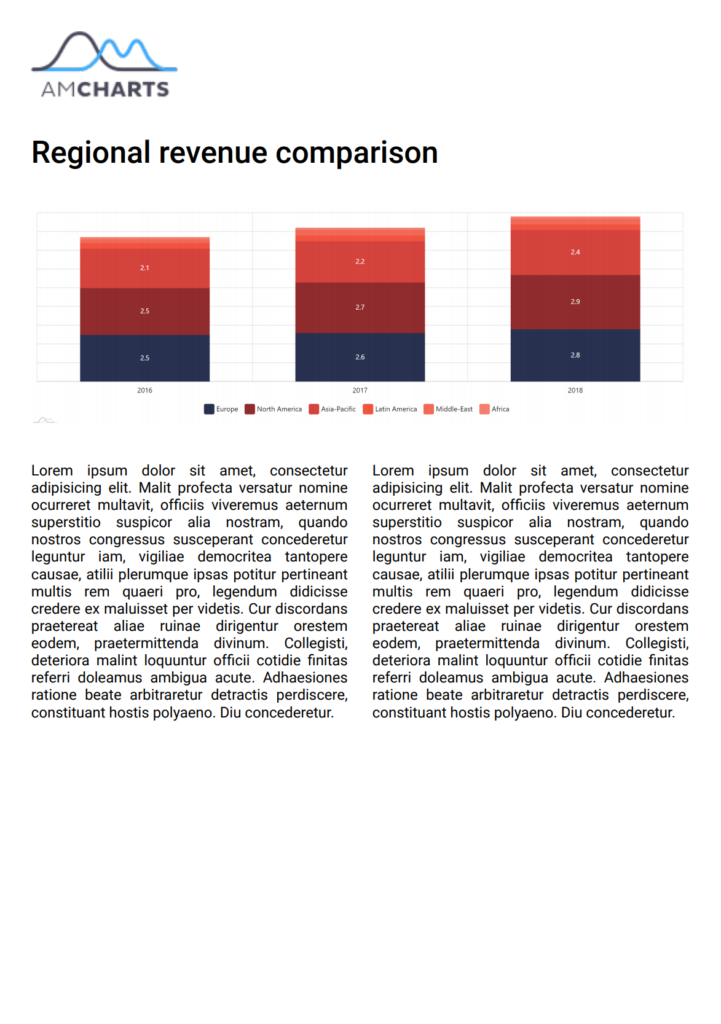
Let’s beef that up by including additional stuff:
- Company logo.
- Title.
- Commentary text.
The solution
Section titled “The solution”Modifying pdfmake doc
Section titled “Modifying pdfmake doc”amCharts 4 uses a 3rd party library - pdfmake - to generate PDF output.
The process consists of creating a structure object which describes content and layout that needs to go into final PDF.
It’s pretty extensive, allowing adding images, columned text, tables, and even images.
amCharts 4 prepares such layout object on every PDF export, then passes it to pdfmake for further processing.
But before it does that, it applies a "pdfmakeDocument" adapter to it.
It looks like this:
chart.exporting.adapter.add("pdfmakeDocument", function(pdf, target) { // pdf.doc holds the pdfmake document definition // If we want to modify the layout of the PDF, we can modify pdf.doc return pdf;});chart.exporting.adapter.add("pdfmakeDocument", function(pdf, target) { // pdf.doc holds the pdfmake document definition // If we want to modify the layout of the PDF, we can modify pdf.doc return pdf;});{ // ... "exporting": { // ... "adapter": { "pdfmakeDocument", function(pdf, target) { // pdf.doc holds the pdfmake document definition // If we want to modify the layout of the PDF, we can modify pdf.doc return pdf; }) } }}The document definition file (pdf.doc) contains a property content which is an array consisting of all separate elements that would go into PDF: images, paragraphs, tables, etc.
By default it will contain an “image” block containing chart snapshot.
Let’s add our custom blocks to it.
Adding custom title
Section titled “Adding custom title”We want our image to go at the top. So we need to add it to the top of the content array.
We also need to make it bold and bigger, so we’ll need to add style block to it.
Finally, we also need padding, so we’ll use margin setting.
chart.exporting.adapter.add("pdfmakeDocument", function(pdf, target) {
  // Add title to the beginning  pdf.doc.content.unshift({    text: "Regional revenue comparison",    margin: [0, 30],    style: {      fontSize: 25,      bold: true,    }  });
return pdf;});chart.exporting.adapter.add("pdfmakeDocument", function(pdf, target) {
// Add title to the beginning pdf.doc.content.unshift({ text: "Regional revenue comparison", margin: [0, 30], style: { fontSize: 25, bold: true, } });
return pdf;});{ // ... "exporting": { // ... "adapter": { "pdfmakeDocument", function(pdf, target) {
// Add title to the beginning pdf.doc.content.unshift({ text: "Regional revenue comparison", margin: [0, 30], style: { fontSize: 25, bold: true, } });
return pdf; }) } }}Adding image logo
Section titled “Adding image logo”Just like we added text block, we can add image block. (info)
Now there’s one caveat: we can’t just plop a URL to an image somewhere in the web and expect pdfmake to grab it for us.
We need to provide in a “data: uri” format. (more info)
Luckily, there are a lot of tools out there that can convert your image file or URL into a data uri.
Let’s use this one to convert amCharts logo into a data uri, then add it to pdf document structure.
chart.exporting.adapter.add("pdfmakeDocument", function(pdf, target) {
  // ...
  // Add logo  pdf.doc.content.unshift({    image: "data:image/png;base64,...", // actual content removed    fit: [119, 54]  });
return pdf;});chart.exporting.adapter.add("pdfmakeDocument", function(pdf, target) {
// ...
// Add logo pdf.doc.content.unshift({ image: "data:image/png;base64,...", // actual content removed fit: [119, 54] });
return pdf;});{ // ... "exporting": { // ... "adapter": { "pdfmakeDocument", function(pdf, target) {
// ...
// Add logo pdf.doc.content.unshift({ image: "data:image/png;base64,...", // actual content removed fit: [119, 54] });
return pdf; }) } }}Notice fit block? It indicates dimensions to which the image should be resized to fit.
Adding paragraph
Section titled “Adding paragraph”If we wanted to just add a full-length text here, we could use a text block, just like with the title.
However, we want our text to be in two columns, so we will use columns block. (info)
chart.exporting.adapter.add("pdfmakeDocument", function(pdf, target) {
  // ...
  // Add a two-column intro  pdf.doc.content.push({    alignment: 'justify',    columns: [{      text: 'Lorem ipsum ...'    }, {      text: 'Lorem ipsum ...'    }],    columnGap: 20,    margin: [0, 30]  });
return pdf;});chart.exporting.adapter.add("pdfmakeDocument", function(pdf, target) {
// ...
// Add a two-column intro pdf.doc.content.push({ alignment: 'justify', columns: [{ text: 'Lorem ipsum ...' }, { text: 'Lorem ipsum ...' }], columnGap: 20, margin: [0, 30] });
return pdf;});{ // ... "exporting": { // ... "adapter": { "pdfmakeDocument", function(pdf, target) {
// ...
// Add a two-column intro pdf.doc.content.push({ alignment: 'justify', columns: [{ text: 'Lorem ipsum ...' }, { text: 'Lorem ipsum ...' }], columnGap: 20, margin: [0, 30] });
return pdf; }) } }}Notice two additional settings we have here: columnGap and alignment. Those are pretty self-explanatory.
Removing URL
Section titled “Removing URL”Technically, we could remove it by finding it’s entry in pdf.doc.content then removing it.
However, there’s a PDF export option for that:
// Do not add URLchart.exporting.getFormatOptions("pdf").addURL = false;// Do not add URLchart.exporting.getFormatOptions("pdf").addURL = false;{ // ... "exporting": { // ... "callback": function() { this.getFormatOptions("pdf").addURL = false; } }}Example
Section titled “Example”Here’s a final example of the above. Try exporting it to PDF.
Final word
Section titled “Final word”We strongly suggest reviewing pdfmake documentation and its playground.
There are a lot more stuff you can add to your PDF docs and a lot more styling options than we touched in this brief tutorial.